Shared Calendars, Blocked Time and Front Desk Booking
Three things on the Appointments page that run your schedule without any outside calendar:
- Shared calendar: event types for the same person or room share one calendar, so a booking on one blocks that time on the others.
- Block time: close a holiday, a day off or a busy morning so nobody can book it.
- Front desk booking: see the free times right in the calendar and book one for a caller in a few clicks.
None of this needs Google Calendar. If you already use Google Calendar, it keeps working next to these exactly as before (see Google Calendar Integration).
Shared Calendar: One Calendar for Several Event Types
Every event type keeps its own calendar unless you tell it otherwise. That is right when each event type is its own thing, but not when two event types are the same person. Say Dr. Lopez offers a 60 minute First visit and a 30 minute Follow-up: without a shared calendar, both could be booked at 10:00.
Who this is for:
- A clinic where one doctor does first visits, follow-ups and check-ups.
- A salon where the same stylist does cuts, colour and blow-dries.
- A consultant who offers a short intro call and a long strategy session.
Setting it up
- Click Appointments in the sidebar and switch to the Event Types tab.
- Open the first event type (click its row, or the pencil at the right-hand end).
- Under Details, find Shared calendar and type a name for the calendar, for example
Dr. Lopez. - Click Save event.
- Open the next event type for the same person, type the same name under Shared calendar, and save. Names you already used are listed under the field (Already used:), so you can click one instead of typing it again.
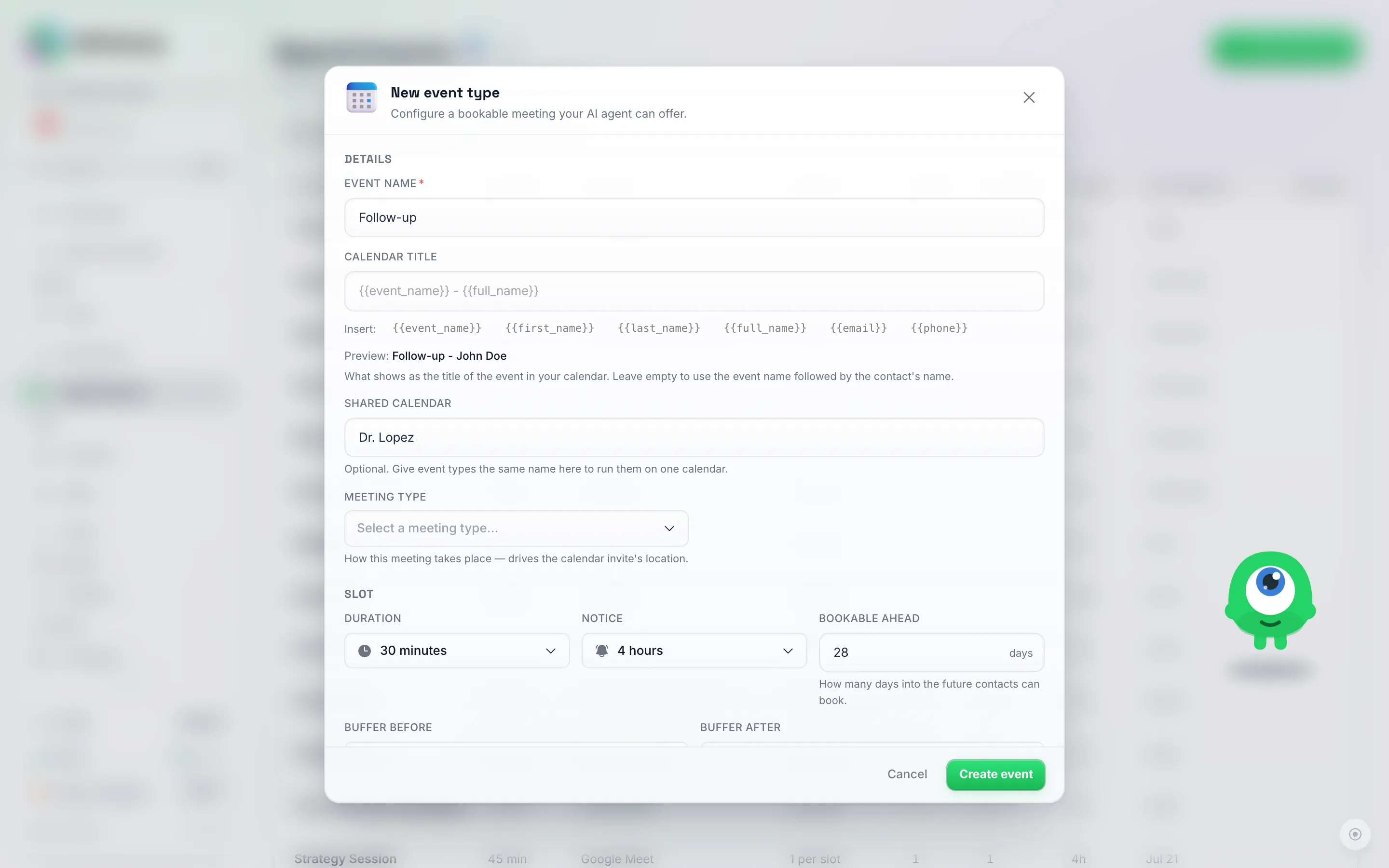
The Shared calendar field sits under Details. Give every event type for the same person the same name, here Dr. Lopez.
That’s it. From now on a booking on First visit blocks that time on Follow-up, and the other way around.
What it does
- A booking on one event type blocks that time on all the others with the same shared calendar name.
- Staff and rooms are matched by name. If your event types have rooms (a staff member, a chair, a treatment room), a room with the same name on two event types counts as the same person or room. Booking “Anna” on Cut blocks Anna on Colour, but leaves “Ben” free. Keep the spelling identical on every event type.
- An event type with a single room shares it with the other single-room event types on the same calendar. For the usual case, one person per event type, there is nothing else to set.
- Buffers: if the event types have a Buffer before or Buffer after, the larger one is kept between bookings.
- Leave the field empty and the event type keeps its own calendar. That is how every existing event type works until you fill it in.
It applies everywhere times are offered or booked: your AI agent in chat and on voice calls, the Book appointment window, the shareable booking page and the API.
Block Time: Holidays, Days Off and Busy Mornings
Use Block time when you are away or simply not taking bookings for a while: a holiday, a closed day, a training afternoon.
- Click Appointments in the sidebar.
- Switch the List / Calendar toggle to Calendar.
- Click Block time.
- Under When, pick the From and To dates. Leave All day on to block whole days, or switch it off and set a Start time and End time.
- Under Applies to, pick the event types that can’t be booked in this time, or choose All event types.
- Optional: under Staff member or room, block only one person or room instead of Everyone.
- Optional: add a Note, for example “Christmas holiday”.
- Click Block time.
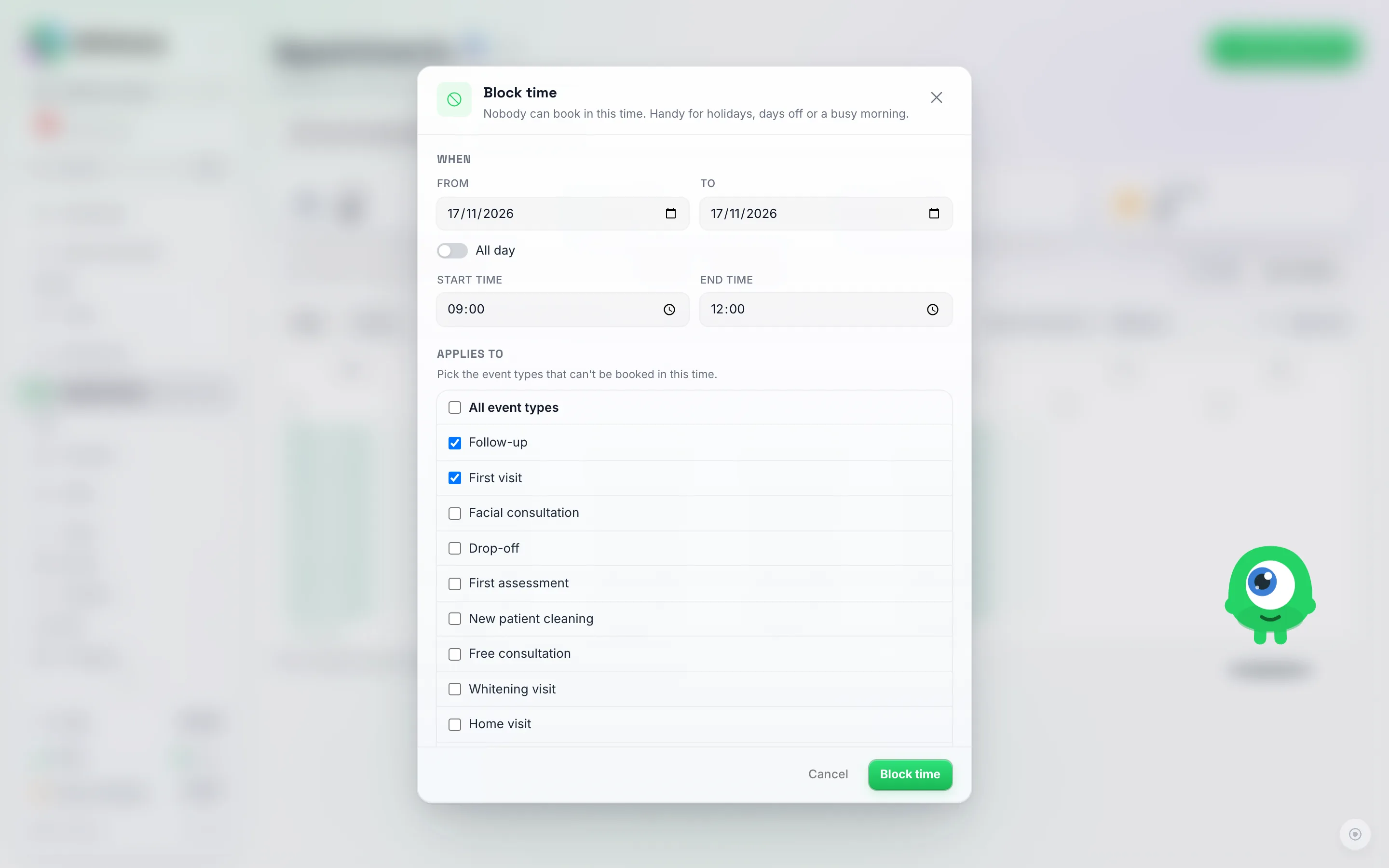
A busy morning blocked: one date, All day off, 09:00 to 12:00. Follow-up and First visit share the Dr. Lopez calendar, so both are ticked under Applies to.
The time now shows in the calendar as a grey striped Blocked entry. To open it up again, click the entry and choose Remove; people can book in that time again straight away.
What blocked time does
- Nothing can be booked inside it: not by the AI, not on the booking page, not in the Book appointment window.
- A fully blocked day counts as closed. When someone asks for that day, the AI says you are closed then and offers the next open day, the same as a day without weekly hours. It does not say you are fully booked.
- Moving an appointment by hand is still allowed. You can reschedule an existing appointment into blocked time yourself, the same way you can move one outside your opening hours. Only new bookings are kept out.
- Shared calendars: blocking time on one event type of a shared calendar blocks it for every event type on that calendar.
- Buffers apply around blocked time just like they do around a busy event in a connected calendar.
One date only: weekly hours repeat every week. For an event on a single date (a tournament on one Saturday, a single weekend of photo sessions), set the weekly hours to that weekday and close the other dates with Block time. One block can cover a whole range of dates, so a block before the date and one after it are enough.
Front Desk Booking From the Calendar
When someone calls or walks in, book them straight from the calendar.
- Click Appointments in the sidebar and switch to Calendar.
- Use Show free times for and pick an event type.
- In Week view, the free times for that event type appear in each day. These are exactly the times the AI would offer. In Month view, each day shows how many free times it has.
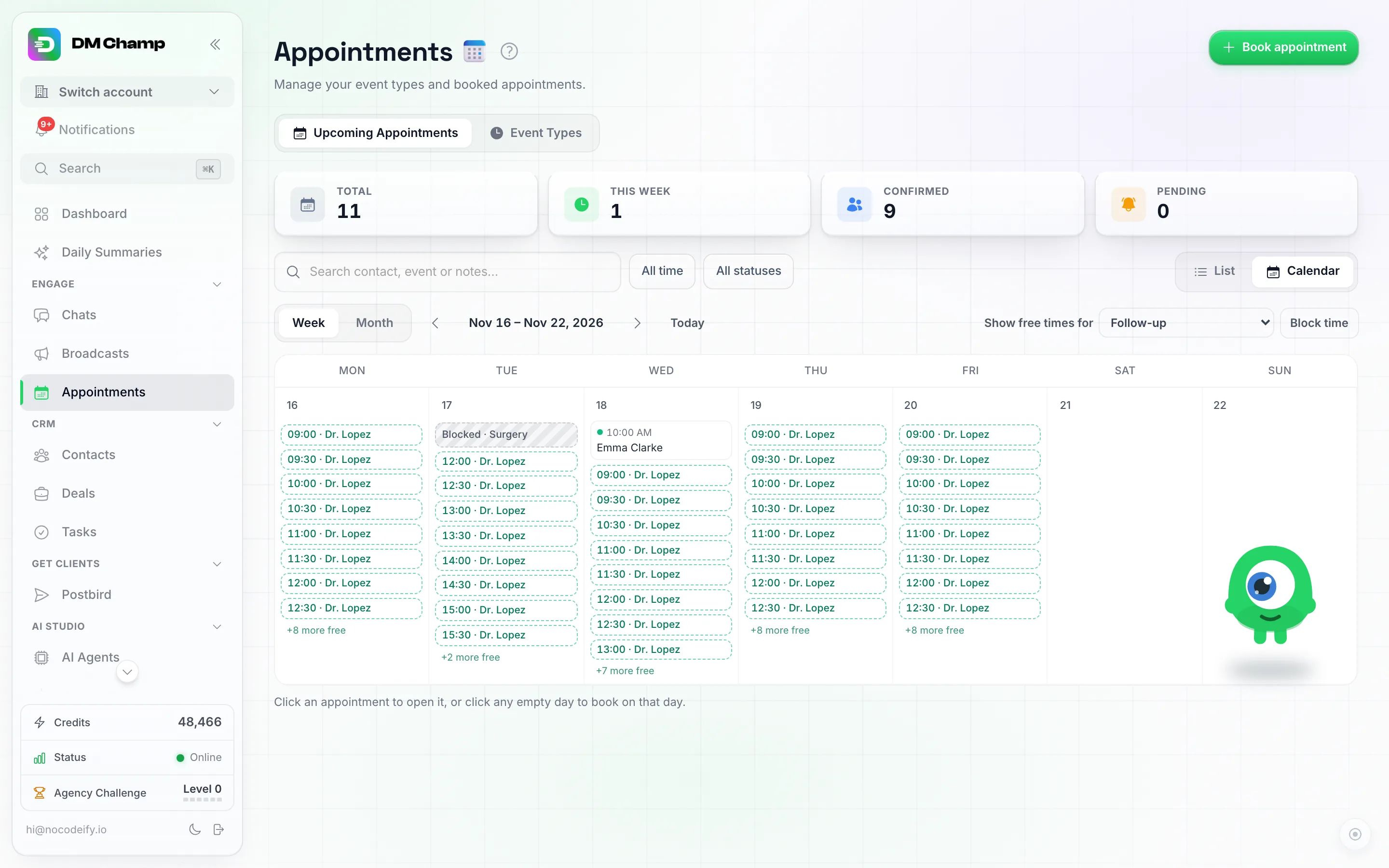
Week view with Show free times for set to Follow-up. Each day lists its free times; Tuesday morning is blocked for surgery, and the 10:00 booking on Wednesday is no longer offered.
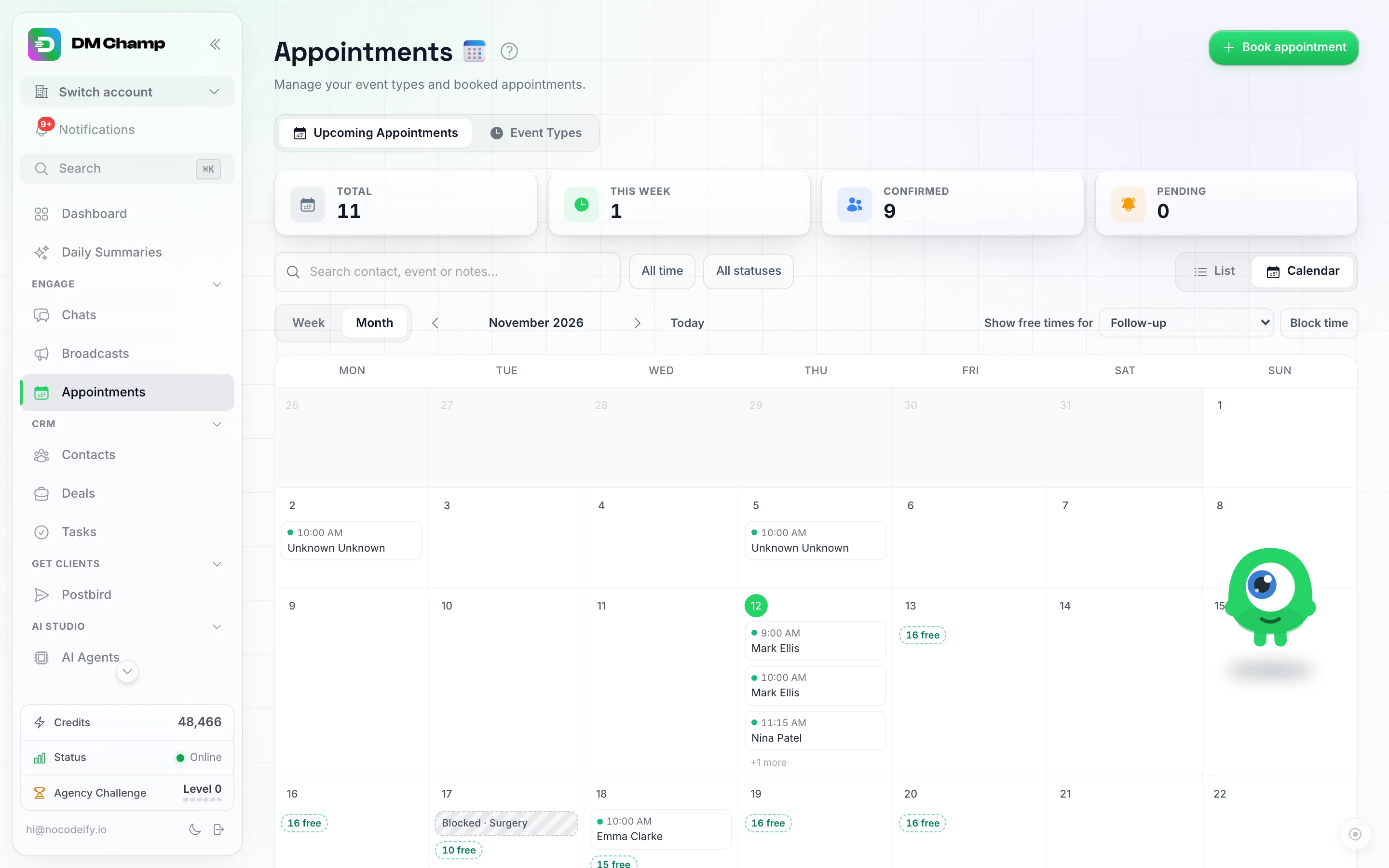
Month view shows how many free times each day has. Click a count to open that week.
- Click a free time. The Book appointment window opens with the event type, date and time already filled in.
- Choose the contact last. Someone new? Click New contact, type their name and phone number, and they are added right there.
- Book the appointment.

Opened from the 10:00 free time: the event type, date and time are filled in. New contact adds the caller with just a name and phone number.
Want to book without the free times? The Book appointment button at the top right still works the same way (see Booking an appointment yourself).
Need Help?
- Booking System: event types, rooms, buffers and how the AI books.
- Shareable Booking Page: let people book themselves.
- Google Calendar Integration: if you also keep your schedule in Google Calendar.