Sub-Account Management
Overview
Sub-accounts are individual client accounts managed under your agency. Each sub-account operates as a fully functional account with its own AI agents, contacts, chats, and settings — while you keep oversight and control from your agency dashboard.
Prefer to see it? Click through the whole flow:
Who can manage sub-accounts? The agency owner always can. Team members can too, as long as they’ve switched into the agency account (using the Switch account control at the top of the sidebar). By default that means members with Team Management access — the Admin role, or a custom override that grants it; other members don’t see the Sub Accounts page. You can also hand a specific member access to some or all of your client accounts without making them an Admin — see Giving Team Members Access to Client Accounts.
Can a Sub-Account Have Its Own Sub-Accounts?
No. There is only one level. Every client account sits directly under your agency, and a sub-account can never create sub-accounts of its own.
If one of your clients resells to businesses of their own, you create those accounts for them from your Sub Accounts page. You can place such a client on their own white label domain (see Up to Three White Labels), and with SaaS Mode they buy their credits at the per-credit price you set (see Agency Accounts).
Where to Find Sub Accounts
Click Sub Accounts in the main sidebar — it sits on its own, just above Settings, near the bottom of the menu. It doesn’t need to be opened from inside Settings, and it’s only visible on accounts with the agency role.
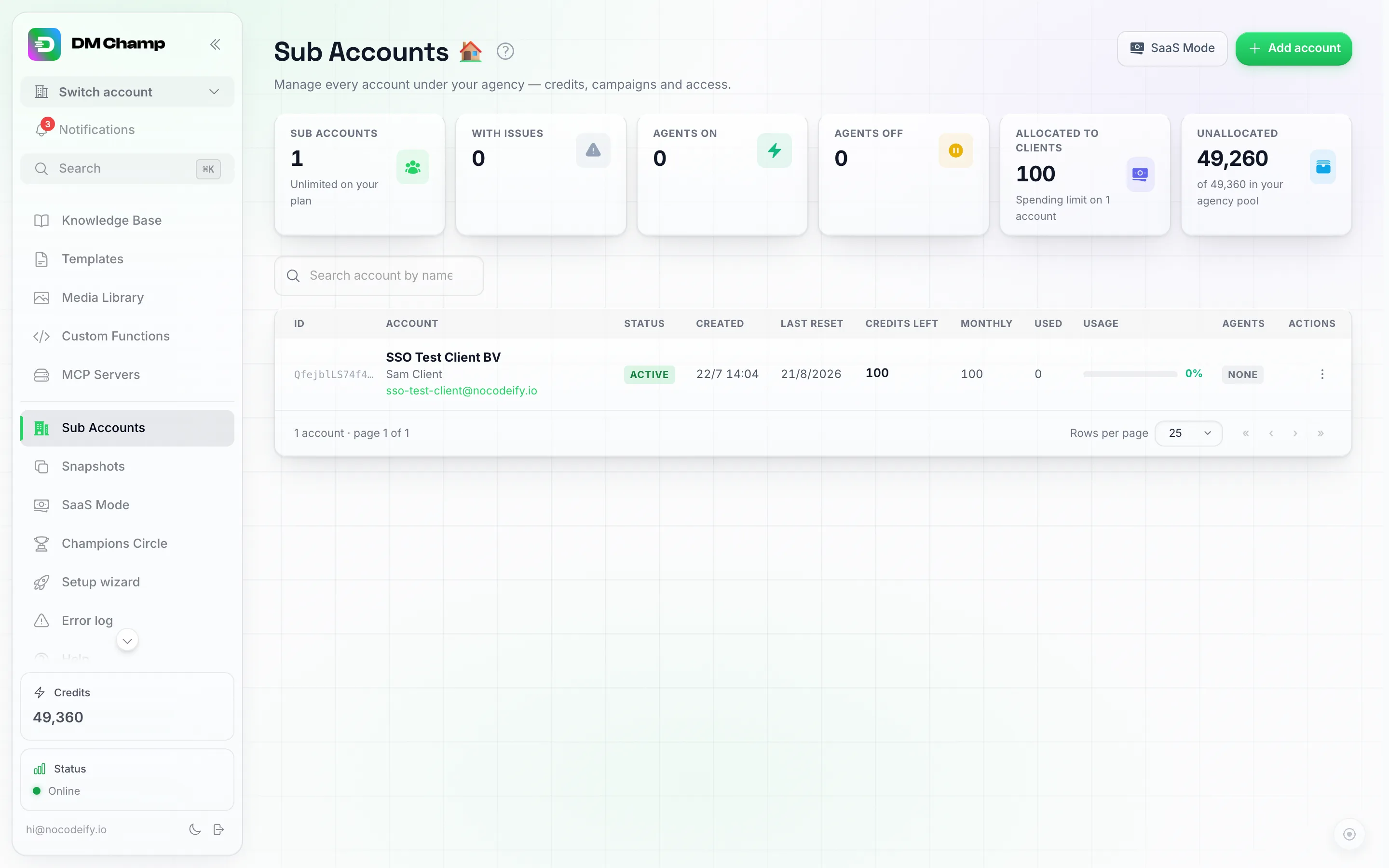
The Sub Accounts page: stat tiles up top (the two on the right split your credit pool into what clients' limits already claim and what is still free), an Add account button, and a shortcut into SaaS Mode.
At the top of the page you’ll find six stat tiles — Sub accounts (with your plan allowance underneath it), With issues, Agents on, Agents off (how many of your clients’ AI Agents are switched on and off right now, across all accounts), Allocated to clients and Unallocated (the last two are your credit pool split into what your clients’ spending limits already claim and what is still free — see How much of my pool is spoken for?) — a search box (Search account by name or email…), and two buttons on the right: a pill that jumps straight to SaaS Mode (see Agency Accounts), and the green Add account button.
Two Ways to Onboard a Sub-Account
Before you create your first sub-account, decide which onboarding model fits the relationship. There are two distinct modes, and they behave very differently downstream:
Managed mode
You create the sub-account directly from the Sub Accounts page, set the monthly credit allowance, and share a temporary password with the customer. Billing happens off-platform — you invoice the customer through your existing invoicing setup (bank transfer, your own accounting tool, whatever you already use). The customer never sees a plan selector or a payment page on the platform.
Good for:
- Agencies in countries Stripe doesn’t serve.
- Agencies with existing invoicing infrastructure they want to keep using.
- Done-for-you setups where the customer should never have to think about plan selection or top-ups.
Reselling mode
Stripe-connected, via SaaS Mode. The customer signs up themselves through a payment link, pays via your connected Stripe account (with your markup applied automatically), and is dropped straight into onboarding once payment clears. You don’t have to touch each new signup, and a client who signs up through your checkout is created in reselling mode automatically, so their Billing page shows your plans and top-ups from day one. Plans can bill monthly or yearly, and if the plan carries a free trial the customer starts without paying at all and is charged automatically when the trial ends — see Running a free trial.
Good for:
- Self-serve at scale.
- Productised packages where every customer gets the same offer.
- White-labelled SaaS plays where the customer experience should feel like a standalone product.
Pick the right mode up front. Only you can switch a sub-account from one mode to the other (the Credit Management setting in its Edit modal, or
creditManagementModethrough the API); the customer cannot. A minute of thought now saves a support ticket later.
Running a free trial
The simplest way to run a trial is to put one on the plan itself. Every plan in SaaS Mode → Pricing Tiers has a Free trial (days) field — anything from 1 to 90, or 0 for no trial — and a Trial credits amount that defaults to the plan’s monthly credits.
Once a plan has a trial, the whole thing is self-serve and you don’t touch it:
- The client signs up through your payment link or embedded checkout and picks the plan. The checkout shows it as “X-day free trial, then $…” with a Start free trial button.
- They are not charged. Their sub-account is created, they get the trial credits on day one, and they can use the plan straight away. By default the checkout still takes their card (nothing is charged yet); switch off Require card to start trial on the plan and it skips the card altogether — the client starts with just an email.
- When the trial ends, Stripe charges the plan price automatically and the client moves onto the full monthly credit allowance from then on. Nothing needs switching over by hand. On a no-card trial this only happens if the client has added a card by then; otherwise the plan ends, the sub-account is marked cancelled and no further credits are granted (they keep what’s left of the trial credits, unless the plan has Hard expiry after trial switched on — see below).
A few things worth knowing before you set the number:
- Trial credits come out of your agency pool, exactly like any other plan credits. A trial you promote widely is a real cost — set the amount deliberately instead of leaving it at the full monthly allowance.
- A trial is for new signups. A signup through your payment link or embedded checkout applies the trial as configured on the plan. A sub-account that already exists — one you created yourself from the Sub Accounts page, one that has already had a subscription with you, or one that already used a trial — is charged immediately when it subscribes from its own Settings → Billing page; there is no second trial.
- Cancelling during the trial costs the client nothing. They are never charged, and they keep whatever trial credits are still on the account — unless the plan has hard expiry switched on, in which case the unused ones go back to your pool when the trial ends (see the next point).
- You choose what happens to unused trial credits. By default a trial that ends without an upgrade leaves the client cancelled but still holding whatever trial credits are left, so their AI keeps answering until those run out. Switch on Hard expiry after trial on the plan (it sits next to Require card to start trial) and the opposite happens: the unused trial credits return to your agency pool the moment the trial ends, and the client’s account is locked — sending and AI replies stop, and they see “Your free trial has ended. Contact your provider to continue.” Only what they didn’t spend comes back. Any phone number the client rented through the platform during the trial is released at the same moment, so its monthly rent stops — the client and you are both emailed about it, and a released number cannot be recovered (see A Client’s Phone Numbers). Buying any plan unlocks the account automatically, and you can lift or change the lock yourself from the sub-account’s Edit modal (see Blocking / Pausing a Sub-Account). Set it per plan in Step 3 — Set up pricing tiers.
- On a trial-priced or cheap plan, cap what carries over. A client who barely uses the product still receives their allowance every month, and with roll-over on it piles up against your pool indefinitely. Set Keep at most or Expire unused credits after on the plan (or on that one client) so the balance can’t run away — see Capping what rolls over.
- Once they’re paying, the plan’s feature list becomes authoritative: any extra features you hand-granted during the trial are reset to the plan’s list at the next renewal.
The hand-run trial (managed → reselling)
If you’d rather run the trial yourself — to give a specific prospect a longer run, or a different credit amount — you can still do it by combining the two modes. Nothing expires by itself here; you decide when the trial is over.
- Create the sub-account yourself from the Sub Accounts page or through the API. No payment is involved; it starts in manual mode, spending from your agency pool within the allowance and spending limit you set. The same flow works for done-for-you clients: create the account, apply a snapshot and build the agent before the client ever logs in.
- When you decide the trial is over, open the sub-account’s Edit modal and switch Credit Management to reselling (through the API:
PUT /v1/subaccounts/{uid}/limitswith{"creditManagementMode": "reselling"}). - Have the client subscribe — they can pick a plan straight from their own Settings → Billing page (see What the client sees on their Billing page), or you can send them your payment link (or embed the checkout) from SaaS Mode → Payments.
Two things have to happen in the right order:
Switch the account to reselling before the client pays. A payment made through your checkout while the sub-account is still in manual mode cannot be delivered: the platform won’t grant the plan or its credits to a manual-mode account, nothing is refunded automatically, and the client’s subscription stays active in your Stripe account, so they keep being charged until you cancel or refund it there. Flip the mode first, then send the link.
- The client must pay with the same email address their trial sub-account uses. Same email = the subscription upgrades that existing account, and they keep their channels, contacts and chat history. A different email creates a brand-new, empty sub-account instead. (An email that belongs to an account outside your agency is refused and automatically refunded.)
- There is no checkout link tied to a sub-account ID and no API call that puts an account on a plan. The email address is what connects the payment to the existing account, so use one of the two routes in step 3.
What the plan changes on an existing sub-account:
- Credits carry over. The plan’s credits are added on top of the balance the account already has; nothing is reset. Every renewal adds the plan’s credits again.
- Your monthly allowance stays. A monthly allowance you set by hand keeps landing every month from your agency pool, on top of the plan. Set it to zero in the Edit modal if the plan should be the only source of credits.
- Features are added, not replaced. The plan’s feature list is switched on, and features you granted by hand stay on.
- Plan limits win. The plan’s team seat, agent and channel limits replace limits you set by hand at purchase.
One thing to plan for: the built-in trial on a plan is only for fresh signups through your payment link or checkout. A sub-account you created yourself never gets the plan’s free trial when it subscribes from its Billing page — it has already had its hand-run trial — so it is charged straight away. If a hand-run trial client stalls on subscribing, you can block the sub-account with a custom lock message until they pick a plan.
Creating a Sub-Account
Click the green Add account button (top right of the Sub Accounts page — or Create sub account from the empty state if you have none yet). A 3-step modal opens:
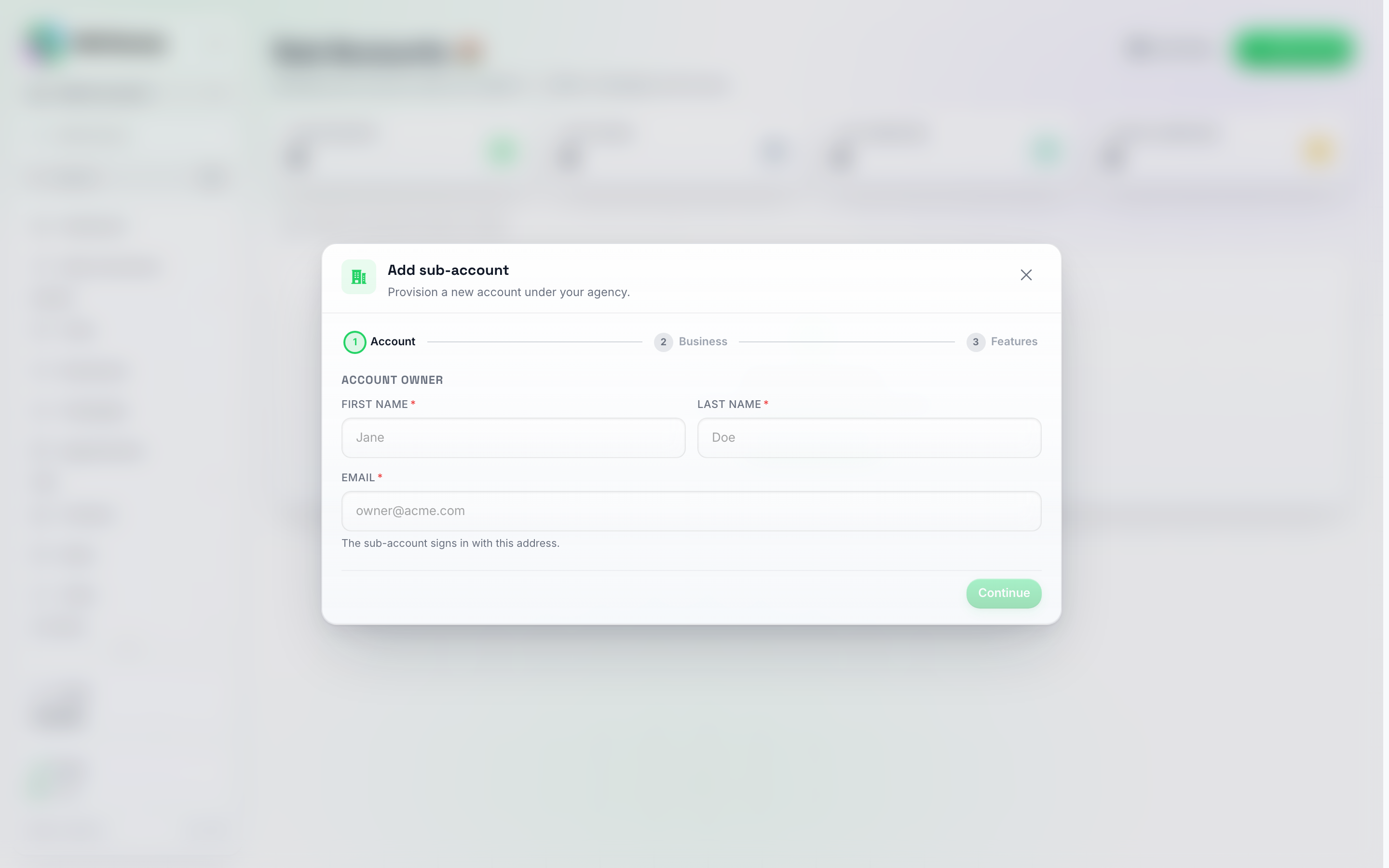
The Add sub-account modal. Three steps: Account → Business → Features. The email you enter becomes the client's login address.
Step 1 — Account
- First name and Last name.
- Email address — this becomes the sub-account’s login email. One email can own only one account, so a client with several locations needs a different address per location. Plus-addresses are the easy way:
[email protected]and[email protected]both land in the same inbox on Gmail and Microsoft 365, yet each counts as its own login. The people who actually run the locations are then invited into each account as team members under Settings → Team with their real address, and they switch between locations from the account switcher in the sidebar (see Team Management).
Click Continue.
Step 2 — Business
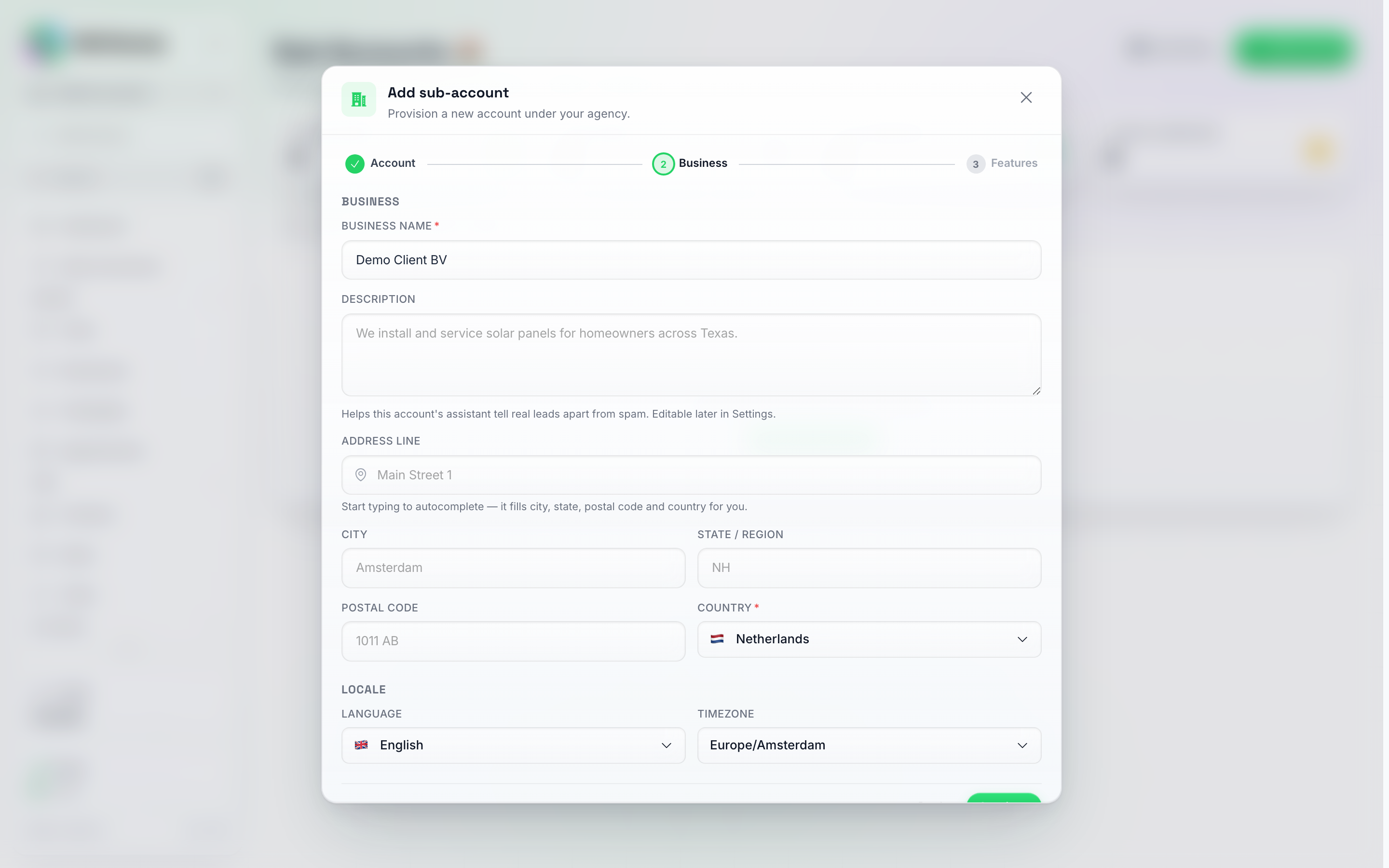
The Business step: address autocomplete fills city, state, postal code and country for you; every field stays editable by hand.
- Business name (required).
- Description (optional).
- Address — start typing and pick from the autocomplete suggestions; city, state, postal code and country fill in automatically. Every field can still be edited by hand.
- Country (required) — searchable list with flags; this drives the account’s currency and defaults.
- Language and Timezone for the account.
Click Continue.
Step 3 — Features
If you saved packages, the step opens with a Package picker that fills in this step for you.
If you have snapshots, a Template section comes next. It picks the snapshot this client starts from: its AI agents, knowledge, tools, automations, pipelines and custom fields are copied in right after the account is created. Your default snapshot is marked (default) and selected for you. Pick another snapshot to give this client a different setup, for example one per niche, or No template to create the account empty.
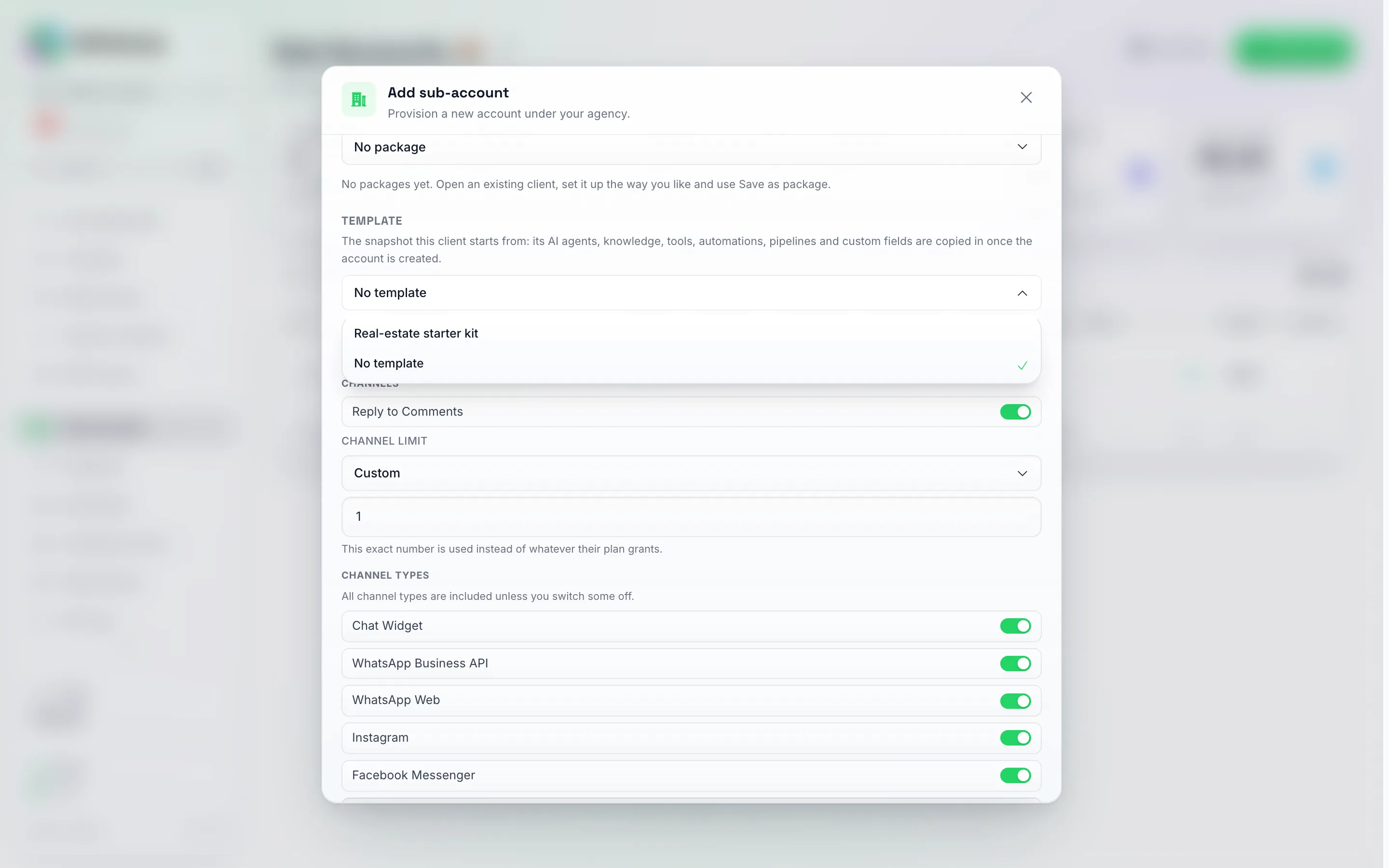
The Features step, top: the Template picker lists your snapshots plus No template, with the Channel limit picker and the Channel Types toggles underneath. Scrolling down reveals AI understanding, AI features and Contacts & AI Agents. Most defaults start on.
- A category-by-category feature editor — the same feature set your own plan tiers use (channels, contacts and AI agents, AI understanding, developer features, AI agent context size, team seats, and so on). Every sub-account starts with a sensible default bundle already turned on; toggle anything off you don’t want this client to have. The Contacts & AI Agents group also carries the account’s AI Agent limit — a number rather than a toggle: leave it at Not set, pick Unlimited, or enter the exact number of AI agents this client can have. A limit you set here counts as a manual override, so it survives plan renewals. The same group has Create & Edit Automations, Send Broadcasts and Create Smart Lists: switch one off and the client keeps using what you built for them but cannot create, edit or delete their own (see Set up pricing tiers).
- The Productivity group carries the two client assistant switches. Client assistant shows your branded assistant inside this client’s account. Client assistant can make changes also lets it change the client’s account for them after they confirm; without it, the assistant answers and shows where to click. Both start off.
- The Channels group carries the account’s Channel limit — a number, like the AI Agent limit: how many messaging channels this client can have connected at the same time. It starts at 1 for a new sub-account; pick Unlimited or enter any exact count (including 0, for clients whose channels you manage entirely yourself). The limit controls how many, not which — a client limited to one channel still sees the full channel menu and picks which one to connect. It counts connections, not channel types: each WhatsApp number is one slot of its own, while Instagram and Messenger share the one slot of their Meta page connection. When they’re at their limit, connecting another channel shows a clear message naming the cap; reconnecting a channel they already have (re-scanning a WhatsApp QR, for instance) is never blocked. A limit you set here counts as a manual override, so it survives plan renewals.
- The Channel Types group in that list decides which messaging channels this client can connect — Chat Widget, WhatsApp Business API, WhatsApp Web, Instagram, Facebook Messenger, Telegram, LINE, Viber, Email, SMS, and iMessage. Channel types are switched on by default unless you turn some off; a switched-off channel shows as locked on the client’s Channels page with a note to upgrade their plan.
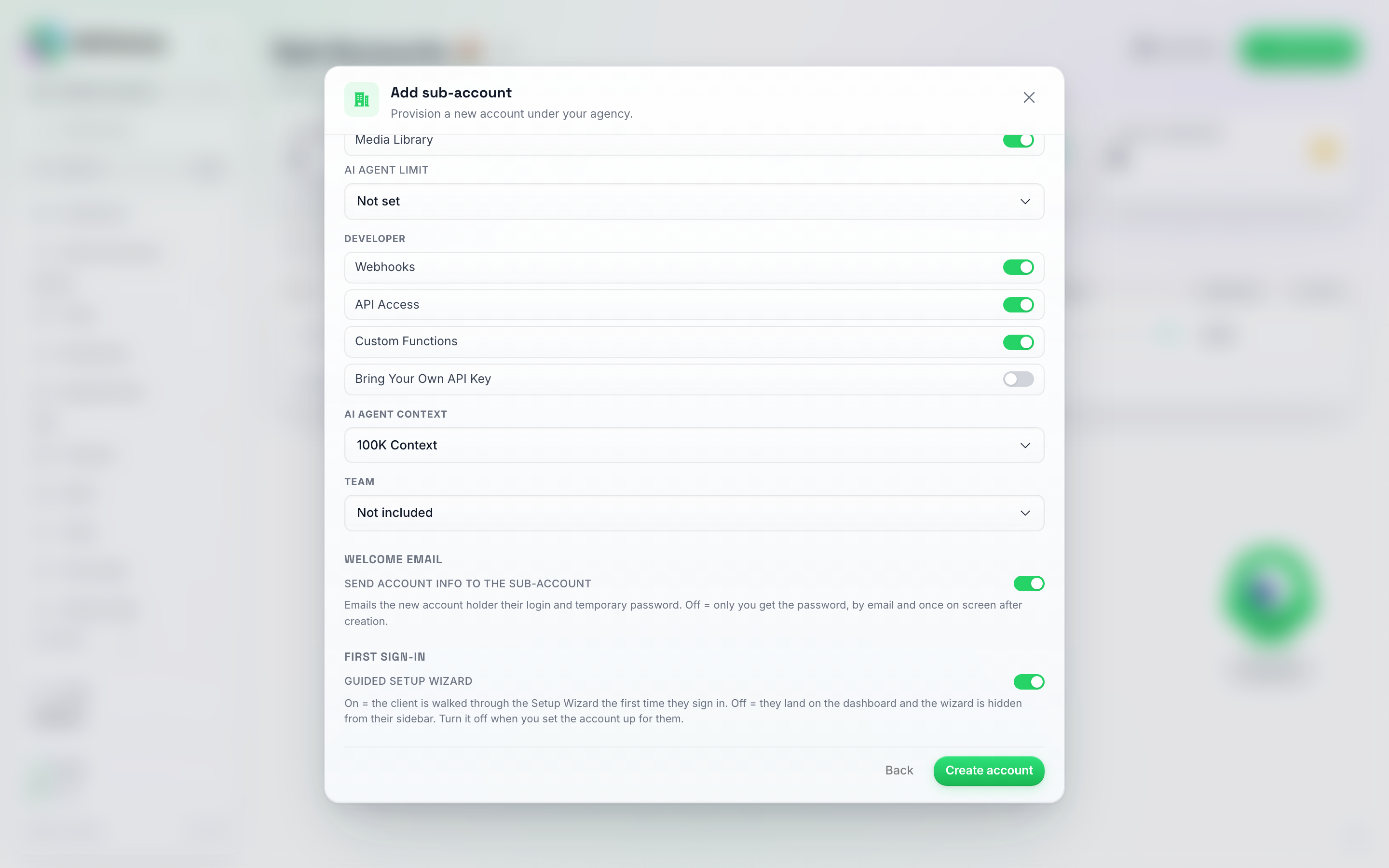
The bottom of the Features step: the tail of Contacts & AI Agents (Daily Summaries, Media Library, the AI Agent limit picker), Developer toggles, AI Agent Context / Team tier pickers, and the welcome-email and setup-wizard toggles right above Create account.
- White label — only shown when you run more than one white label domain. Picks which of your brands this client belongs to: the logo, name and domain they sign in on, the emails they get (sent through that domain’s email setup) and their short links. It starts on the brand of the domain you are working on, so a client you create while signed in on your second brand’s domain belongs to that brand; on any other address it starts on Main, which follows whichever domain is your main one. You can change it later from the sub-account’s Edit screen, where the same choice sits under White label.
- Send account info to the sub-account — on by default. The client gets a welcome email with their own login details, which is usually what you want: the password belongs to the person the account is for. Your own “new sub-account” notification then just confirms the account was created, without repeating the password. Turn it off if you’d rather hand the credentials over yourself — the password is then emailed to you instead, and also shown once on screen.
- Guided setup wizard — on by default. When on, the client is walked through the Setup Wizard the first time they sign in. Turn it off and they land on the normal home screen instead — the dashboard on a computer, their chats on a phone — with the Setup Wizard entry hidden from their sidebar (see Turning the setup wizard off).
Click Create account.
What happens next
- A confirmation screen shows the generated temporary password — click Copy password now, you won’t see it again. Click Done to close.
- The client receives an email with their login credentials and a Log in button that takes them straight to your white-labeled sign-in page (your own domain, fully branded — not the DM Champ app). If you turned Send account info to the sub-account off, this email isn’t sent at all — the password reaches you instead, in your own “new sub-account created” notification and on the confirmation screen above.
- The sub-account appears immediately in the Sub Accounts list, with a 100 credit spending limit so the client can try AI replies and broadcasts right away without waiting for you to top them up. Nothing is taken out of your agency pool to set this up — see The spending limit is a cap, not a wallet. Adjust the spending limit any time from that sub-account’s Edit modal — see Credit Allocation and Management.
When the client signs in for the first time with their emailed credentials, they land in the Setup Wizard, which guides them through building their first AI agent and connecting it to their channels. They can reopen it any time from the Setup Wizard entry near the bottom of their own sidebar.
Turning the setup wizard off
Leave Guided setup wizard on for clients who will configure their own account — it’s the fastest route from a cold login to a working AI agent, and it’s what most sub-accounts should get.
Turn it off for done-for-you clients, where you build the AI agent, connect the channels and load the knowledge base before the client ever logs in. Those clients open the dashboard to a finished account instead of being asked to set up something you’ve already done.
With the wizard off:
- First sign-in goes straight to the dashboard.
- The Setup Wizard entry is hidden from that client’s sidebar.
- Nothing else changes — same features, same credits, same everything.
You can bring the wizard back for a client at any time: open the sub-account’s Edit modal, find the menu-visibility list, and re-show the Setup Wizard item. They’ll be able to run it themselves whenever they want.
Packages: reuse a client setup
If most of your clients get the same setup, save it once as a package and pick it when you add the next client, instead of setting every switch by hand each time. Only agency accounts can save packages, and you can keep up to 20.
Saving a package
- Open a sub-account’s Edit modal and set it up the way you want the package to look.
- Click Save as package, just above Save.
- Type a name and confirm.
The package takes the settings shown in the modal at that moment, including changes you have not saved yet:
- monthly credits and the credit mode (manual or reselling)
- features
- the team seat, AI agent and channel limits
- the AI models this client may use, and the Allow Max AI tier switch
- which menu items are hidden
- which dashboard widgets are hidden, and their order
Next to the name you can also pick a template for the package: Default template (whatever your default snapshot is when you add the client), No template, or one of your snapshots. Picking the package in Add sub-account then selects that template too. If that snapshot has since been deleted, your default template is selected instead and a note says so.
Saving under a name you already used updates that package.
Using a package on a new client
In Add sub-account, the Features step opens with a Package section: No package plus every package you saved. Picking a package fills in the features and limits on that step straight away, and a line under it lists what else is applied once the account is created: credits, credit mode, AI models, the Max tier and hidden menu items.
After you click Create account, those extra settings are applied to the new client. If one of them cannot be applied, the account is still created and the success screen shows a warning for that part; open the client’s Edit modal and set it there.
No package works exactly as before: you set everything yourself.
Reselling mode needs white label. A package set to reselling mode can only switch a new client to reselling when your agency has white labeling set up. Otherwise that part is not applied and the success screen shows a warning for it.
Deleting a package
Select the package in the Package section of the Features step and click Delete package next to it, then confirm. Clients already created with it keep their settings.
With no packages saved, the Package section shows a hint pointing you to Save as package in the Edit modal.
Automate what happens to client accounts
Client accounts can start an Automation on your agency account, so the routine part of onboarding and babysitting happens without you. The shape is always the same: the Sub-account created trigger, then whatever you would otherwise have done by hand on every new client.
- On your agency account, go to AI Studio → Automations → New automation, click the trigger on the canvas and then Change trigger.
- Open Agency and pick Sub-account created.
- Add the steps you want. An Update sub-account action already points at the account that was just created, so you only fill in the values you want changed and leave the rest empty. Save, then flip Enabled.
There is no built-in onboarding email sequence for clients: a new account gets one welcome email with its login details, and the Setup Wizard on first sign-in. If you want a drip, build it here: Sub-account created, then an Email (your mail server) step to the client’s email (insert it from the trigger with the + button), a Delay of a day or two, the next email, and so on.
What you put in step 3 is up to you: welcome the client’s contact person, tell your own team, set the account’s monthly allowance, or set up its board and tags (see Example: set up a new client account’s pipeline and tags).
One example, if it suits how you sell: new client accounts arrive with a 100 credit spending limit, so an Update sub-account step with Spending limit set to 0 holds every new account at nothing until you raise it yourself. That is optional, and plenty of agencies would rather leave the starting limit as it is so a client can try the product the moment they log in.
Two more pairings worth ten minutes each: Sub-account activity on Credits low into a Slack message or an email to you, so you hear about a client running dry before they do (set the trigger’s Low-credit threshold to the balance you want to hear about, and add a Condition on Auto top-up on is false to skip the clients who top themselves up); and the same trigger on Channel disconnected into an Alert human step, so a WhatsApp connection that drops gets picked up the same day instead of the next time the client complains.
The Sub Accounts Table
Once you have accounts, the page shows a table with these columns: ID, Account, Status, Created, Last reset, Credits left, Monthly, Used, Usage, BYOK (only when at least one account brings its own AI key), Agents, and Actions.
Status tells you at a glance which clients are running and which are not, without opening each account:
- Active — the account is in normal use. For a managed account (billed by you outside the platform) this is the normal state; a reselling client shows it while their subscription with you is paid up.
- Trial — a reselling client still inside the free trial on your plan.
- Payment issue — a reselling client whose last payment failed or is overdue and Stripe is retrying the charge.
- Cancelled — a reselling client whose subscription with you has ended. No new monthly credits are granted; block the account if it should stop altogether.
- Paused — you set the account to Soft blocked: sending is off, the AI still answers incoming messages.
- Blocked — you set the account to Hard blocked (or a hard-expired trial did): sending and AI replies are off and the client sees the lock screen.
Hover a pill for the one-line explanation. Paused and Blocked come from the Account status you set in the Edit modal (see Blocking / Pausing a Sub-Account); the other four follow the client’s subscription with you.
Agents shows how many of the client’s AI Agents are switched on and how many are off (drafts that were never finished are not counted; hover to see them). None means the client has no agents yet. The With issues badge in the same cell flags an account that needs a look; hover it to see why. On an account with agents it comes from the switched-on agents’ readiness score: a channel that is set up but offline (waiting for a QR scan, for example), an agent that cannot work (no instructions, bookings promised but not set up, only routed on channels that are not connected, such as Instagram or Messenger after Meta was disconnected), or no switched-on agent connected to an entry point at all. Agents that are off never raise it, because switching one off is your choice. On an account that still runs classic campaigns and has no agents, the cell shows the campaign counts instead, and the badge flags paused or stopped campaigns.
A client who signed up themselves through a payment link with UTM tags shows a Source line under their email, for example Source: facebook / paid / spring_sale (source / medium / campaign; hover it for the content and term tags too). Cards show the same line. See Share your payment links for how to tag a link. The API returns the same tags in the sub-account’s acquisition field.
Rows are sorted alphabetically by business name (the company name from the Business step; the contact person’s name shows underneath it). The pagination bar at the bottom has a Rows per page selector (12, 25, 50 or 100; the page remembers your choice), and if your clients are spread over more than one white-label brand, a Brand dropdown next to the search box narrows the list to one domain.
Each row’s Actions column has a three-dot More menu with:
- View chats — a read-only inbox for that sub-account.
- Credit usage details — a detailed usage breakdown.
- Edit — the full Edit Sub Account modal (credits, notifications, features, menu visibility, access).
- Copy agent here — copy one of your AI Agents into this sub-account. See Copy an AI Agent to a Sub-Account.
- Sign in as user — enter the sub-account’s dashboard directly.
- Delete account — permanently remove the sub-account and everything in it.
Card view
Prefer to scan your clients rather than read a table? Use the two small buttons at the right end of the search bar to switch between Table view and Cards view. The page remembers which one you picked.
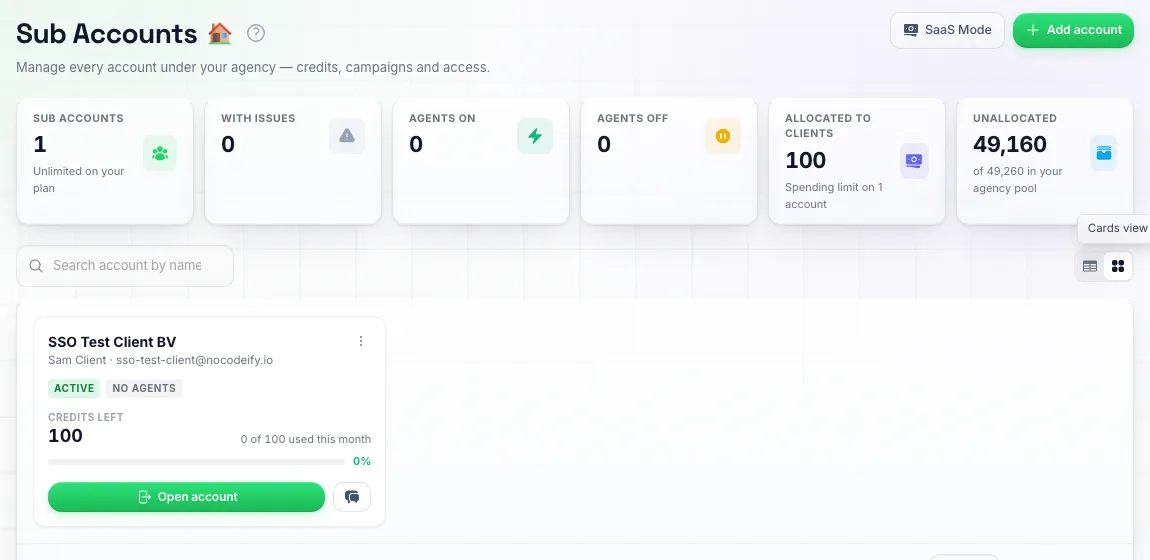
Cards view: every client on one card, with Open account to jump straight into it.
Each card shows the client’s name and contact, the same Status and Agents badges as the table, the credits left with this month’s usage bar, and the BYOK spend when the client brings its own AI key. A client that needs a look gets a red outline and its problems written out on the card, so you can see what is wrong without hovering.
Two buttons sit at the bottom of every card:
- Open account signs you in as that client (the same as Sign in as user).
- The chat button opens the client’s chats, read only.
The three dot menu in the card’s corner has every other action from the table.
If your clients are spread over more than one white-label brand and no brand is picked in the Brand dropdown, the cards are grouped under a heading per brand domain, with the number of clients next to it. Pick a brand in the dropdown to see only that brand’s clients.
Viewing a Sub-Account’s Chats
Click the row’s More menu → View chats to open a read-only inbox for that sub-account — search their conversations by contact, then open one to read the full thread (with a Load older button for long histories). Nothing here can be edited or replied to; it’s for checking in on a client without leaving your agency dashboard. To actually reply as the client, use Sign in as user instead.
Showing that a client account is live, without sharing conversations: there is no log-only export (the chat transcript export and the full data download both include message text). A screenshot of the client’s row in the Sub Accounts table (Status, Credits left, Used, Usage, Agents) or of their dashboard via Sign in as user does the job.
Managing Sub-Account Access
Client login
Each sub-account comes with login credentials. You can:
- Share credentials with the client so they manage their own account.
- Keep credentials to yourself and manage everything on their behalf.
- Use Sign In mode to enter the sub-account from your own dashboard as if you were the client, without needing their credentials — see Sign In mode (acting as a sub-account).
Sign In mode (acting as a sub-account)
Sign In mode lets you access a sub-account directly — as if you were the client — without needing their login credentials. (Some other platforms call this “assist” or “impersonate.”) There are two ways to do it:
From the Sub Accounts page:
- Click Sub Accounts in the sidebar.
- Find the sub-account in the list. On that row, click the More menu (three dots, far right).
- Click Sign in as user.
From anywhere, via the account switcher:
- At the top of the sidebar, click Switch account.
- Search for the sub-account by name or email, or scroll the list.
- Click the sub-account.
Either way, the dashboard reloads under that sub-account’s identity — full access to their AI agents, contacts, chats, and settings. While you’re inside a sub-account, the switcher pill turns amber and shows Assisting:
Sign In mode shows you more than your client sees. So you can fix anything without toggling settings on and off, Sign In deliberately ignores the Menu Visibility switches — every hidden sidebar and settings item comes back for the duration of your session. Items switched off under Features stay off, because those are real entitlements rather than a display setting. If you’re checking what a client actually sees, judge it from their own login, not from Sign In.
Changing a client’s login email
The sub-account’s Edit screen does not change its email. Do it from inside the account instead: use Sign in as user (above), open Settings → Security & General and click Change email (see Account Settings). A confirmation code goes to the account’s current address and a second one to the new address, so if you can’t read the client’s current inbox, ask them for the first code. Only the agency owner can do this; a team member signed in to the client account can’t.
Giving Team Members Access to Client Accounts
Your own staff — an account manager, a support agent, a copywriter — usually needs to work inside several of your clients’ accounts. There are two ways to arrange that, and picking the right one saves a lot of admin:
- Grant them client accounts from your agency team page. One setting on their agency seat, covering as many clients as you like. This is the right choice for your own staff.
- Invite them into a client sub-account directly, as a member of that account. This is the right choice for the client’s own staff — see When to invite someone into a client account instead.
Setting up a grant
How to get there: switch into your agency account, go to Settings → Team, and click the sliders icon on the member’s row. The Permissions editor has a Client accounts section (it only appears on agency accounts).
Choose one of four options:
| Option | What the member gets |
|---|---|
| Default (admins only) | No change from how things have always worked: members with Team Management access reach every client account, everyone else reaches none. |
| All clients | Every one of your client accounts, including ones you create later. |
| Selected clients | Only the accounts you tick in the list. Search it by name or email — handy when you have a lot of clients. |
| No access | No client accounts at all, even if the member is an Admin on your agency. Use it to keep a manager out of client work entirely. |
Then set Acts as inside client accounts — Admin, Editor or Viewer. This is the role the member has once they are inside a granted client account, and it works exactly like the roles on your own team (see Roles). A Viewer grant, for instance, means the person can read every granted client’s chats and AI agents but change nothing anywhere.
Click Save permissions. The member’s row then shows how many clients they’ve been granted.
What the member sees
- The granted client accounts appear in their Switch account control at the top of the sidebar, alongside your agency account.
- Clicking one takes them straight in — no invitation to accept, no separate login, nothing for the client to approve.
- Inside, they work at the role you chose. Areas their role doesn’t cover are hidden or read-only, just as on your own team.
- The Sub Accounts page itself still belongs to Team Management access. A member who only has a grant reaches their clients through the account switcher instead; a member who has both can manage the clients they’ve been granted from the page as well.
A few things worth knowing:
- Grants don’t use up your client’s team seats. The person is on your agency’s team; nothing is added to the client’s own member list.
- Removing a grant takes effect immediately. Untick a client, switch the member to No access, or suspend or remove them from your agency team, and their way into those accounts closes straight away — including a session they already have open.
- Grants are per member. Two account managers can hold completely different client lists, at different roles.
- Creating client accounts still needs Team Management access. A grant lets someone work in the clients you’ve handed them; it doesn’t let them add new ones.
When to invite someone into a client account instead
A grant is about your staff reaching your clients. Invite a person into a sub-account directly (from inside that account, Settings → Team) when:
- They belong to the client, not to you. The client’s own manager or agent should be a member of the client’s account, so their access survives independently of your agency team and stays if you hand the account over.
- You need to fine-tune one person inside one client. A direct membership can carry per-area overrides and its own chat and contact visibility — for example a client’s agent who should only see the conversations assigned to them. A grant sets one role across every account it covers.
- The client should keep their own FAQs up to date without touching the bot. Invite them into their sub-account, open their permissions (the sliders icon on their row in Settings → Team), set FAQs to Edit and AI Agents to View, and save. They can add and edit FAQs on the Knowledge Base page and on the agent’s FAQs & Knowledge step, while the agent’s instructions and settings stay view only for them. See Customizing Permissions.
The two can coexist. If someone is both granted the account and a member of it, their own membership of that account wins while they’re inside it — so a direct invite is also the way to give one person a different level of access in one particular client.
One Client With Several Businesses
Sometimes a single client runs more than one business and wants each kept separate (separate contacts, AI agents, and numbers) without logging in and out all day. You can give them one login that reaches all of them:
- Create a sub-account for each business, each with its own email address (see Creating a Sub-Account above).
- Inside each sub-account, go to Settings > Team Management and invite the client’s personal email as a team member with the Admin role. Repeat for every business.
- The client accepts each invitation from the emails they receive.
From then on the client logs in once with their personal email and gets an account switcher near the top of the left sidebar listing all of their businesses. Picking one takes them straight into it, with no logging out.
Two things to keep in mind:
- Use an email that does not already have its own account. Once an email is a team member somewhere, logging in always takes it into an account it belongs to, so an email that also owns a separate account can end up unable to reach that account.
- Each business stays its own sub-account for billing, credits, and limits. The switcher is a convenience for the person, not a merge of the businesses.
Roles, permissions, and the invitation flow are covered in full in Team Management.
This is the client’s own login, so invitations are the right tool here. For your own staff working across several clients, don’t invite them into each account — grant them the accounts from your agency team page instead (see Giving Team Members Access to Client Accounts).
One WhatsApp number for all brands, or one per brand?
The deciding factor is what the prospect sees, not the tech. On WhatsApp, the display name and business profile are attached to the number: everyone who messages it sees the same name, logo and profile, and every conversation lands in the same chat thread on their phone — so a shared number always presents a single public identity, even if you separate the brands internally.
- One number works when the brands are really one business with multiple offers. Keep it in a single account and separate the offers with one AI Agent per brand, routed by Keyword Entry Points (keyword rules are checked before the channel default) and per-source short links with different prefilled openers. Tags, lists and custom fields keep the contacts segmented.
- A sub-account with its own number per brand is the right structure the moment the brands need distinct public identities — their own display name, profile, and their own approved message templates. Each sub-account then keeps its own contacts, chats, agents, credit allowance and team access, so reporting and spending caps stay clean per brand.
Plan around two constraints: each account or sub-account needs its own WhatsApp Business Account on Meta’s side (a WABA can only be linked to one account at a time — see WhatsApp Business API), and every number carries its own monthly rent, so per-brand numbers cost more infrastructure in exchange for the clean separation.
Blocking / Pausing a Sub-Account
If a client falls behind on payments to you, or you just need to pause their account temporarily, block a sub-account’s access without deleting anything. Nothing is lost. AI agents, contacts, and chat history all stay exactly as they are, and you can unblock at any time.
- Open the sub-account’s Edit modal (row More menu → Edit).
- Scroll to the Access section and pick an Account status:
- Active — normal access.
- Soft blocked — stops the sub-account from sending messages (broadcasts, manual sends, follow-ups). Their AI bot keeps replying to incoming messages as normal, and the client can still log in and use the app.
- Hard blocked — stops sending and stops the AI bot from replying. The client can still log in, but sees a full-screen lock message instead of the app, with a Log out button as their only option.
- Optionally add a block message the client will see (on a hard block) or that explains the situation.
- Click Save. Turning a block ON asks you to confirm first, since it’s access-destructive.
A few things worth knowing:
- Your own subscription ending locks every sub-account and winds it down. If your agency subscription is cancelled, all of your sub-accounts are hard blocked automatically the moment the cancellation takes effect — their sends and AI replies stop and they see the lock screen. Their phone numbers, channels and AI Agents are kept for 30 days: subscribe again within that window and every sub-account unlocks by itself with everything still in place. After 30 days each sub-account is wound down the same way your own account is: any phone number it rented through the platform is released so its rent stops (a released number cannot be recovered, see A Client’s Phone Numbers), its Instagram and Messenger connection is disconnected, and its running AI Agents are stopped. Contacts, chats, agents and settings stay. Subscribing again after that still lifts the lock on every sub-account by itself; channels then have to be connected again and agents switched back on.
- Pausing your own subscription freezes your clients’ refills and number rent. While your agency subscription is paused, your client accounts’ monthly credit allowance doesn’t refill, and numbers they rent from us aren’t charged rent or released. The refill runs by itself shortly after the pause ends, and rent picks up again then too.
- The client is not emailed automatically. If you want them to know they’ve been blocked and why, tell them yourself — this is left to you since many agencies white-label their service.
- It’s fully reversible. Switching the status back to Active restores full access immediately.
- A paused client stops counting towards your plan. A sub-account set to Hard blocked doesn’t take up one of your included client accounts, and you’re not charged the extra-account fee for it. The change is priced by the day: pause an extra account on the 10th and switch it back to Active on the 20th, and you pay for those ten days only. So rotating clients in and out is fine — you only pay for the ones that are running. Soft blocked is different: their AI keeps answering, so the account stays in the count. Nothing else about your own subscription changes when you block a client, and what you charge them is entirely between you and them.
- You are never locked out yourself. The lock screen is for the client’s own login. When you open a hard blocked sub-account from your agency (Sign in as user), you get the full app with the Assisting bar on top, so you can check settings, export contacts or fix their plan, and Back to main account takes you straight back to unblock them or assign credits.
- Billing and login always stay open. Even on a hard block, the client can still reach billing and login/logout screens — they’re never completely locked out of the account itself.
- A hard-expired trial sets this lock for you. If a plan has Hard expiry after trial switched on and a client’s trial ends without them subscribing, their account is hard blocked automatically with the message “Your free trial has ended. Contact your provider to continue.” — and unblocked again the moment they buy a plan. You can still change or clear it here like any other block. A block you placed by hand is never overwritten or cleared by that, so your own reason always wins. A hard expiry also releases any number the client rented through the platform; a block you place yourself does not — release it from the Phone numbers section of the same modal if you want it gone (see A Client’s Phone Numbers). See Running a free trial.
- You can pause and unpause over the API too.
POST /v1/subaccounts/{subAccountUid}/pauseplaces the hard block (with an optional message for the client’s lock screen) andPOST /v1/subaccounts/{subAccountUid}/unpauselifts it — handy when a client suspends their subscription in your own billing system and you want the pause to follow automatically. The same two actions are available aspause_subaccount/unpause_subaccountin the MCP server. See API for Agencies. - Want it on a timer? Build it as an Automation from your agency account. In AI Studio → Automations, create one with a Manual run trigger, a Delay step (for example 30 days), and an HTTP request step: method
POST, addresshttps://api.dmchamp.com/v1/subaccounts/{subAccountUid}/pause, headerX-API-Keywith your agency API key (Settings → API). Click Run for real on the day the client’s access starts and the account hard-blocks itself when the delay is up. Because the automation lives in your account, the client never sees it and can’t remove it — the{subAccountUid}is the ID column on the Sub Accounts page. A second automation calling/unpausedoes the reverse.
A Client’s Phone Numbers
Every number connected on a client’s account is listed in the Phone numbers section of the sub-account’s Edit modal (row More menu → Edit), so you can let go of one without signing in as the client:
- A number the client rented through the platform shows a Release button. Releasing it stops its monthly rent, returns the number to the carrier and cannot be undone; the same number cannot be re-purchased for 7 days.
- A number the client brought themselves (their own WhatsApp Business Account, Meta app or Twilio account) and a WhatsApp Web connection show Remove instead: the line is only removed here and stays with its provider.
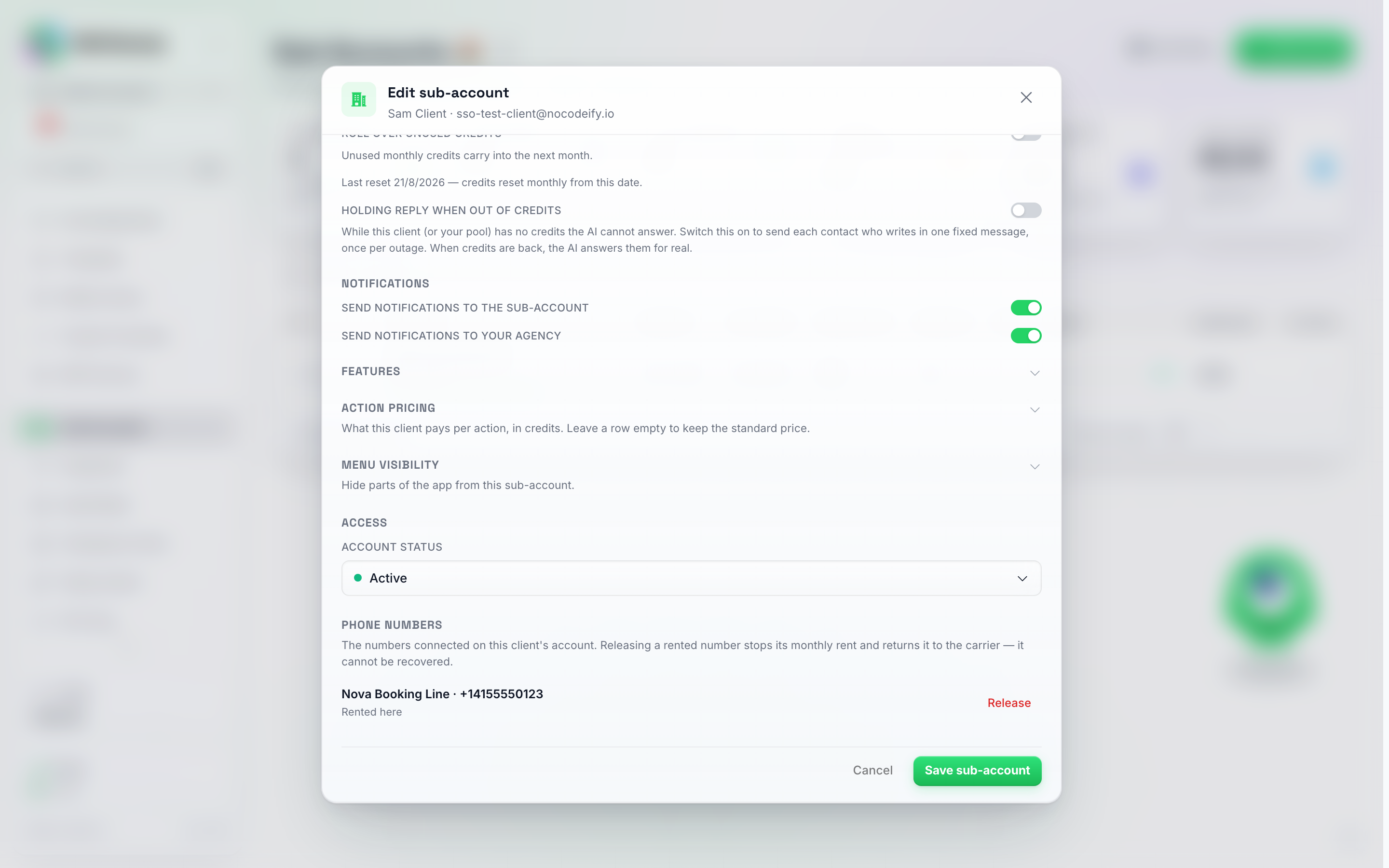
The Phone numbers section sits under Access in the Edit modal — a number rented through the platform gets a Release button, a number the client brought gets Remove.
Two things happen on their own, so a rented number never keeps costing rent on an account that cannot pay for it:
- A hard-expired trial releases its rented numbers. When a plan with Hard expiry after trial ends without an upgrade, every number the client rented is released the moment the account is locked. The client and you both get an email naming the number.
- Rent that cannot be collected two months in a row releases the number. If a client’s balance is too low for a number’s monthly rent, the rent is skipped and both of you get a warning email. If the balance is still too low at the next monthly attempt, about a month later, the number is released and both of you are emailed again. Topping the client up before then keeps the number.
A block you place yourself never releases anything — a paused client keeps their numbers until you or they release them.
The monthly connection fees for WhatsApp Web, Telegram and WhatsApp Business numbers connected through the platform’s Meta app work differently: when the client’s balance is too low on the day the fee is due, that month is skipped for the client and your share is not charged either. The same goes the other way: if your own balance cannot cover your share, the client is not charged for that month. Either way the month is tried again about 30 days later, a skipped month is never charged afterwards, and the connection stays up.
Notification Routing
When something happens on a sub-account that warrants an alert — a contact needs a human, a bot hits its message cap, a WhatsApp template is approved or rejected, a broadcast finishes sending its opening messages — the platform can email both you (the agency) and the sub-account’s own user. You decide who gets these alerts per sub-account.
Open the sub-account’s Edit modal and find two switches under Notifications:
- Send notifications to the sub-account — when on, the sub-account’s own user receives these alert emails. Turn it off if your client shouldn’t be bothered with operational alerts and you’d rather handle everything yourself.
- Send notifications to your agency — when on, you (the agency) receive these alert emails for this sub-account. Turn it off for hands-off clients you don’t want to be alerted about.
Both switches are on by default, so a brand-new sub-account notifies both sides until you change it. The two are independent: route alerts to the sub-account only, to your agency only, to both, or to neither.
The agency copy also follows the sub-account’s own per-category channel settings. If the Email column is switched off for a category on the sub-account’s Notifications page (for example Messages from Paused Contacts or AI Paused Messages), neither the sub-account nor the agency is emailed for it, even with Send notifications to your agency on. The always-on critical alerts (credits, billing, appointments, human alerts, API key errors) still reach the agency regardless.
Turn both off and no one gets that email. If both switches are off, the sub-account’s alert emails are suppressed entirely — neither you nor the client will be notified. Leave at least one on if these alerts matter to you.
These two switches control only the sub-account’s alert emails — a contact needing a human, a bot hitting its message cap, a WhatsApp template approved or rejected, a broadcast finishing its opening messages. They do not change in-app behaviour, billing alerts, or the “new sub-account created” notification you get as an agency (that one always fires).
Hiding Pages From a Sub-Account
Every sub-account can see the full sidebar and Settings menu by default. If a client shouldn’t have access to certain pages — Billing, for instance, or a channel you manage on their behalf — open their Edit modal, expand Menu Visibility, and toggle off any Side Nav or Settings Nav item you want hidden from them. Every switch starts on, meaning the client sees that item; a switch turned off hides it. Hidden items just disappear from that sub-account’s menus; nothing about their data or permissions changes underneath.
A hidden item is purely cosmetic for a feature the sub-account already has access to — it does not grant access to something their feature set doesn’t include. If a feature is off under Features, hiding or showing its menu entry makes no difference; it stays unreachable either way.
Because of that, a Side Nav row whose page needs a feature the client doesn’t have yet — Automations, Tasks or Daily Summaries — is greyed out, with a note telling you which feature to switch on first. Tick that feature under Features and the row unlocks straight away, before you even save.
Features vs menu visibility
The Edit modal gives you two separate controls over what a client finds in their account, and they are not interchangeable:
- Features — what the account is entitled to. Switching one off removes the capability, and any page that exists only to configure it disappears with it. Bring Your Own API Key lives here: leave it off and the client never sees the Settings → Advanced → BYOK API Keys page, in their own login or in Sign In mode.
- Menu Visibility — which sidebar and settings entries are shown, for capabilities the account still has. Use it to tidy a client’s navigation, not to withhold something: it’s a display setting, and it doesn’t apply while you’re in Sign In mode.
So if you want a client never to touch a part of the product, switch off the feature. If you only want their menu shorter, use menu visibility.
Dashboard widgets
You can also choose which panels a client sees on their main Dashboard, and in what order. A common use is hiding Credit usage, so clients don’t see the credits panel.
- Open the sub-account’s Edit modal (row More menu → Edit).
- Find the Dashboard widgets section.
- Switch off any widget the client should not see. Every switch starts on.
- Use the up and down arrows next to a widget to move it higher or lower on their dashboard.
- Click Save.
The widgets you can show, hide and move are KPI cards, Performance over time, Credit usage, Conversion funnel, Inbox snapshot, Conversation outcomes, Channel health, AI cost, AI vs human, Most active times, Top agents, Contacts by country, Recent activity and Tasks & deals.
Good to know:
- Hidden widgets simply disappear and the rest move up, so the dashboard has no gaps.
- Some widgets only appear when they apply, whatever you set here. For example, AI cost only shows on accounts that use their own AI key, Inbox snapshot needs access to contacts, and Conversation outcomes is hidden while a tag filter is on.
- Your settings apply to the client’s own login and their team members. Your own agency dashboard is not affected.
- In Sign In mode every widget shows, just like hidden menu items, so you can check everything. To see what the client sees, use their own login.
- The client sees the change the next time their page loads.
- Saving the sub-account as a package also saves its dashboard widget settings.
Credit Allocation and Management
The spending limit is a cap, not a wallet
The Spending limit you set on a sub-account is a cap on how much of your credit pool that client may spend. It is not a separate pot of credits handed over to them. Every AI action takes one credit off the client’s limit and the same amount off your agency balance, at the moment it is used.
Three things follow from that, and they catch agencies out:
- A client can show a healthy limit and still stop working. If your agency pool is empty, the limit is unspendable and their bot stops with an insufficient credits error, however high the number is. Your agency balance is the one to watch.
- Changing the limit moves no credits. Raising it takes nothing out of your pool; lowering it puts nothing back. There is no transfer in either direction, so nothing is lost when you lower a limit — set it back to whatever you like, at no cost. There is deliberately no “move credits back to the agency” action, because there is nothing to move.
- Deleting a sub-account costs you nothing either. Whatever was left on its limit never left your pool, so it is still in your agency balance after the delete.
Think of it as a company card you have issued to the client: the limit says how much of your money they may spend, and the money stays in your account until they spend it.
How much of my pool is spoken for?
Because the limits never leave your balance, the number on your Billing page does not tell you how much of it is already promised to clients. The two right-hand stat tiles at the top of the Sub Accounts page do:
- Allocated to clients — every client’s current spending limit added together, across all of your sub-accounts. The line underneath says how many accounts are in that sum.
- Unallocated — your agency balance minus that total: the part of your pool no client can touch yet, and the number to look at before you raise a limit or onboard another client.
If your clients’ limits together add up to more than your balance, Unallocated goes negative and turns red. Nothing is broken when that happens — it just means that if every client spent up to their limit, the pool would run dry first. Top up under Settings > Billing, or lower some limits, until it is back in the green.
Credits a client bought through your own checkout (reselling mode) are left out of Allocated to clients: those were paid for when they were bought and never draw on your pool again. Only the part of a reselling client’s balance that comes from their monthly allowance counts.
To make that relationship visible, the Credit Management section of the Edit modal shows Your agency balance right above the mode selector: the live pool this client spends from. If the client needs more room, raise their Spending limit; if the pool itself is running low, that number is your cue to top up under Settings > Billing. There is no “transfer” step in between, because the credits never leave your account until the client uses them.
Keep the agency pool funded. Since every sub-account spends from your pool, the fix for a client that has gone quiet on credits is almost always to top up your agency account, not to raise the client’s limit. Turn on Auto-Recharge under Settings > Billing on your agency account so the pool refills before clients start dropping messages. On a lifetime or AppSumo licence there is no monthly credit allowance, so the pool only refills when you buy credits or auto-recharge fires.
This describes manual mode, the default. In reselling mode the client’s purchased credits come out of your pool at the moment of purchase instead — see Credit management modes.
Credit management modes
Each sub-account uses one of two credit modes, set from its Edit modal, under Credit Management:
Manual mode (default):
- Credits are shared from your agency pool.
- When a sub-account uses credits (AI responses, broadcasts, etc.), the deduction comes from your agency balance.
- Sub-accounts do not see the credit balance — they simply use the platform and you manage the pool.
- Set the Monthly allowance, adjust the Spending limit directly, and choose whether an unused allowance rolls over to next month.
Client credit purchases and the client billing portal only work in reselling mode. While a sub-account is in manual mode (the default), it can’t buy its own credits or open a billing portal — you manage its balance from the Edit modal instead. Switch it to reselling mode first if you want the client to handle their own purchases.
Credit reselling mode:
- Only offered once your agency has white-labeling on its plan (or the sub-account is already in reselling mode).
- Sub-accounts purchase their own credits through your custom checkout page (set up in SaaS Mode).
- Purchased credits are tracked separately per sub-account and deducted from your agency credit pool at the time of purchase.
- All operations (AI responses, broadcasts, WhatsApp fees, etc.) consume purchased credits first before falling back to your agency pool.
- Payments process through Stripe or through a webhook to your own custom payment provider — see Agency Accounts — Custom Payment Provider.
The monthly allowance keeps applying in reselling mode. Switching a sub-account to reselling adds a way for the client to buy their own credits — it does not switch off the monthly allowance the account already had. Every month the allowance still lands as fresh credits, and whatever the client spends from it still comes out of your agency pool, exactly as in manual mode. Only the client’s purchased credits are shielded: those were already deducted from your pool when they were bought, so spending them never touches your pool again. To change or zero the allowance, open the sub-account’s Edit modal — the Monthly allowance field is shown in both modes. If you set it to zero and the client holds no purchased credits, their AI replies stop until they buy credits through your checkout.
Your agency BYOK key does NOT make sub-account AI free. BYOK is set per workspace. A key connected on the agency account is used to run the AI for sub-accounts that have no key of their own, but those sub-accounts still spend credits at the normal rate. A sub-account only gets zero-credit AI once its own Anthropic key is connected on that sub-account. A sub-account’s own key always takes priority over the agency key. To add one, use Sign in as user (row menu or the account switcher) to enter the sub-account, then go to Settings → Advanced → BYOK API Keys. This catches a lot of agencies off guard, so plan credit allocation for any sub-account that doesn’t have its own key. If you’d rather not manage a key per client, the Max AI tier (on by default for every sub-account when your own plan includes Max, and switchable per sub-account in the Edit modal → Features; on a plan without Max the toggle is not offered and your clients stay on Pro) keeps the cost as low as possible: 0.25 credits per action, and it brings the Mini tier with it at 0.15 for Agents that don’t need Max’s full accuracy (with a Champions Circle membership your pool pays 0.20 and 0.12, see Setting a client’s rate for Max and Mini AI actions). For how BYOK itself works, see AI Model & BYOK.
When the monthly allowance refills
The Renewal day field in the sub-account’s Edit modal → Credit Management sets the day of the month the client’s Monthly allowance lands, from 1 to 31. A day a shorter month does not have refills on that month’s last day, so 31 refills on 28 February. Leave it empty to keep the day the account already renews on.
- The refill runs at midnight UTC on that day. In a time zone behind UTC that is the evening before by your clock: an account renewing on the 1st refills at 21:00 on the last day of the previous month in São Paulo, for example. The Last reset column in the Sub Accounts table shows the date in your own time zone.
- With Roll over unused credits off, the balance is set to the allowance: a client with 10 credits left and an allowance of 100 starts the new month on 100. Credits the client bought through your checkout are kept on top.
- With Roll over unused credits on, the allowance is added: the same client starts on 110, subject to the caps below.
- The amount used this month goes back to zero either way.
Capping what rolls over
Roll-over on its own has no ceiling. A client who barely uses the product keeps stacking allowance on allowance, and every one of those credits is still yours to cover whenever they finally get spent — which is what makes a cheap or trial-priced plan expensive later. Two fields put a limit on it, and they sit right under the Roll over unused credits switch in the sub-account’s Edit modal → Credit Management (both are shown in manual and in reselling mode):
- Keep at most — how many months of allowance this client may carry. At each renewal their unused balance is trimmed to at most that many times the allowance that renewal grants, and then the new period’s credits land on top. 1 keeps one month’s worth, 0.5 half a month, 0 means nothing carries over at all. Leave it empty for no cap.
- Expire unused credits after — a number of days. Credits that have sat unused for that long are dropped at the first renewal after they reach that age. Spending always comes off the oldest credits first, so a client who uses their allowance every month never loses anything: only credits that genuinely went unused for the whole window go. Leave it empty and nothing ever expires.
The same two fields exist on a plan, in the Unused credits group of the plan editor (see Step 3 — Set up pricing tiers), where they apply to every client on that plan. A value on the client wins over the plan’s — fill a field in on the sub-account and that is what applies to them; leave it empty and they follow whatever the plan says.
A few things worth knowing before you set either one:
- A renewal is what triggers it. That means the monthly allowance reset when roll-over is on, or a plan renewal — including a trial converting to a paid plan, and the monthly credit grant on a yearly plan. Nothing happens in between, and a client with no allowance and no plan is never touched. Moving a client onto a different plan mid-period doesn’t trigger it either; their next renewal does.
- Top-ups are never touched. Only recurring credits — the monthly allowance and a plan’s credits — are subject to the cap and the expiry. Credits the client bought as a top-up, an auto-recharge, or credits you added by hand or over the API stay on the balance for as long as it takes to use them, and they are spent last, so the recurring credits always go first.
- Every trim is on the record. It shows in the usage list on the client’s Settings → Billing page as Rollover Cap Credit Adjustment or Expired Credits Credit Adjustment, and it never counts as usage.
- Credits already on the balance when you switch a cap on are treated as if they were granted at the client’s last renewal, so that is the date the expiry window is counted from.
Setting a client’s rate for Max and Mini AI actions
Max and Mini AI actions on a sub-account carry two prices: what the client’s own credit balance burns per action, and what your agency pool actually pays for it. The difference is your margin, built into the platform.
- What you pay: 0.25 credits per Max action and 0.15 per Mini action — or 0.2 and 0.12 automatically on every sub-account if your agency holds a Champions Circle membership (the Insider Rate now applies to your pool for all your clients, nothing to switch on).
- What the client burns: the platform rate by default (0.25 on Max, 0.15 on Mini), or the price you set for that client in the Action pricing section of the sub-account’s Edit modal (see One price per action, whichever model answers below). Set it above your cost to build in a markup, for example 0.5 credits per AI reply while your pool pays 0.2, or exactly at your cost to pass your rate straight through. You can also set it below your own cost: the app asks you to confirm first, and you pay the difference on every action. Clear the price to go back to the standard platform rate.
Older accounts may still carry a single client rate for Max. Before the Action pricing table, a sub-account had one field, Client rate per Max AI action, which also applied to Mini because Mini bills on the same branch. That field is gone from the Edit modal. A client who still has an old rate shows a Legacy rate badge in the table: it keeps applying to every Max and Mini action whose row you leave empty, and any price you type into a row replaces it for that action.
One price per action, whichever model answers
A price you type into an action row in Action pricing is one flat price per action. The client is charged exactly that amount every time the action happens, whichever AI model answered it: Mini, Pro or Max. If you enter 0.6 for an AI reply, the client pays 0.6 credits per reply on Mini and 0.6 on Max.
- The Your cost column is only your side. It shows a range because what your own agency pool pays does differ per model (Mini is cheaper for you than Max). That range never changes what the client pays; the Margin column shows what you keep in the worst case, priced against the model that costs you the most.
- An empty row means the standard price of the model that ran. Leave a row blank and the client pays the platform price of whichever model answered, so a Max reply costs them more than a Mini reply.
- A price on a row wins over the old Max rate. Where a client still has a Legacy rate, the row price applies to that action on every model, and the legacy rate only covers the rows you left empty.
Questions to your client assistant are charged to your pool at the same Max rate (0.25, or 0.2 with Champions Circle) and have no client rate: the client is never charged for them. Your billing page’s usage history shows both sides per action: what the client burned and what your pool paid.
What the client sees follows the price you set: the AI Quality cards in their agent editor quote your per-action price for each tier (never the platform rate or your discount), and the What each action costs card on their Billing page lists your prices without your markup — a WhatsApp fee markup shows there as a per-message fee that varies by country, not as a multiple of the carrier fee.
Locking a client to one AI model
By default every client picks their own AI model in the AI Quality cards of their agent editor, and a client who switches to a pricier model spends your credit pool faster. If you’d rather make that decision for them, open the sub-account’s Edit modal → Features → AI models this client may use and switch on the models they may pick. A model switched on is available to them, a model switched off is not; the hint under the switches confirms the client is limited to the ones switched on.
- Leave every switch off and there is no lock — the client picks any model their plan includes. This is how every sub-account starts.
- Switch on exactly one (say Max) and the client is pinned to it. The other models disappear from their AI Quality cards. The one exception is a model the client was already using when you set the lock: that card stays visible so they can still see what their agent is on.
- Switch on more than one to give them a shortlist instead of a single model.
The lock is enforced on our side, not just hidden in the interface. A client cannot get around it by editing an agent from a different screen, from the mobile app, or through the API — the save is refused with “This AI model is not available on your plan. Contact your account provider.”
Switching Max or Mini on here also switches on Allow Max AI tier above, because a client can’t be pinned to a model their account isn’t allowed to see. Turning Allow Max AI tier back off removes Max and Mini from the lock again. Both switches only appear when your own plan includes Max and Mini; on a plan without them a client cannot be given either tier.
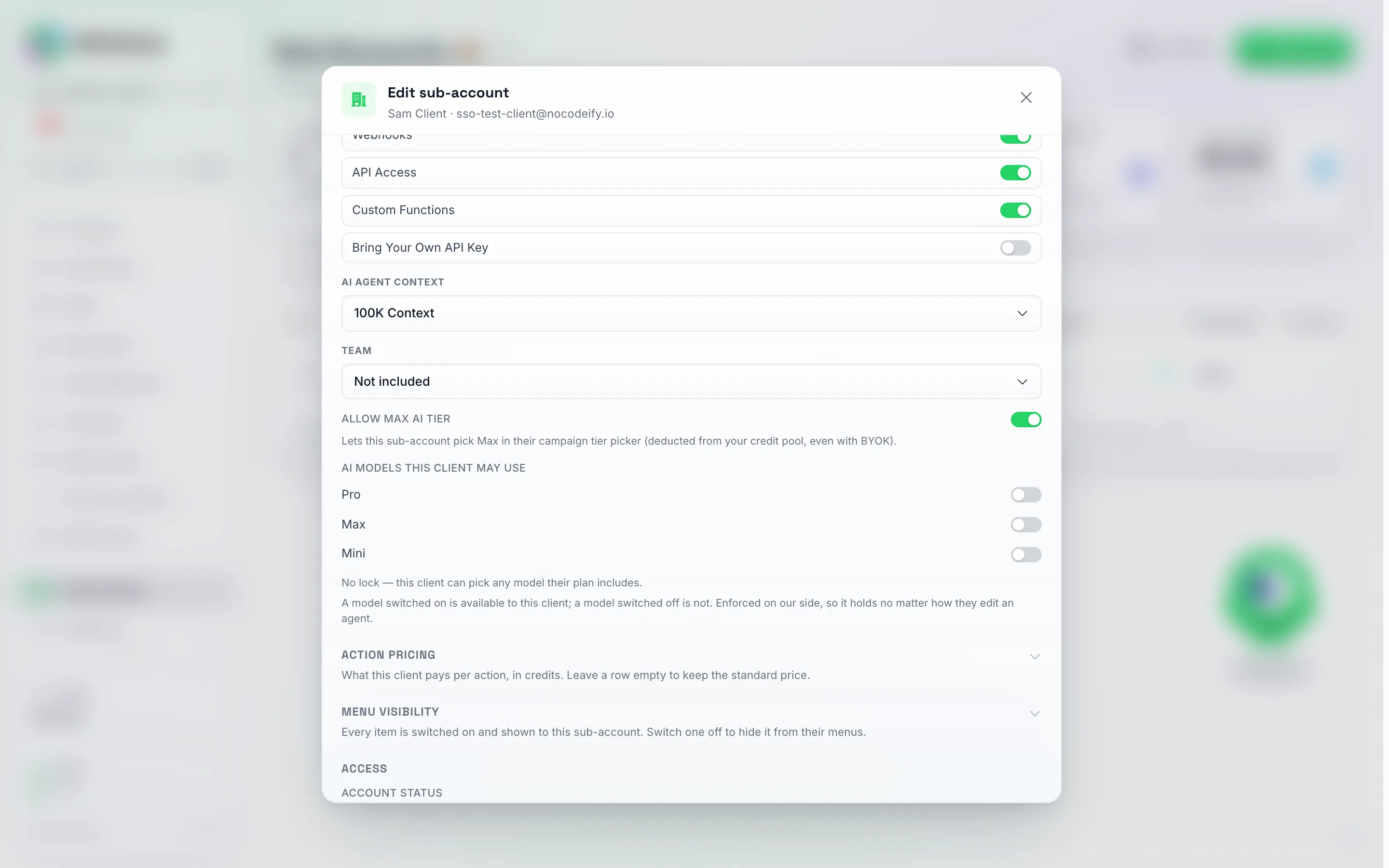
The AI models this client may use row, directly under Allow Max AI tier. Every switch off, as here, means no limit: the line underneath tells you which state you are in.
Set it once on the plan instead of per client. If you sell plans through SaaS Mode, the same three switches sit in each plan’s feature list as the AI models row of the Contacts & AI Agents group (Step 3 — Set up pricing tiers). Whatever you switch on there is applied to every client the moment they subscribe and refreshed at every renewal, so a new signup never needs a manual lock. The Edit modal shows Set by the client’s plan under the row for such a client; flip a switch there and your hand-set lock takes over for that one client and is never overwritten by the plan again.
Locking a client who already picked something else doesn’t break their agents. An agent sitting on a model you’ve since locked out keeps replying — it just runs on one of the models you allowed instead. Its old card stays visible in the editor, with a note telling the client it isn’t available any more and to pick one of the models you did allow. They can keep editing and publishing that agent in the meantime; nothing stops working, and no conversation is dropped.
Marking up a client’s WhatsApp costs
The same modal has an Action pricing section (collapsed by default, just under AI models this client may use) with a WhatsApp fee markup row. It is a multiplier on what WhatsApp actually costs us for that client — the monthly number rent (50 credits for a standard number) and, from 1 October 2026, the per-message carrier fees on a managed number, including templates and the fee on each incoming message. Enter 1.5 and the client burns 1.5x our cost on every one of those charges while your pool still pays only the cost; the difference is credited back to your pool as each charge lands, exactly like the Max client rate. It can’t go below 1 (you can never bill a client less than the fee costs you), and clearing it passes WhatsApp costs through at cost. It applies whether the client spends purchased credits or your allowance, and a refund (a template that never sent, say) hands the client back their full charge while your pool only gets back what it paid.
The same section also has a WhatsApp Web connection, credits per 30 days row: a fixed price for each WhatsApp Web number the client connects, instead of the markup. Enter 0 to include the connection in what you already charge, 50 to pass it on at cost, or any amount up to 2,500. Your pool always pays 50 per number per 30 days whatever you set, so anything above 50 is your margin. When this row is filled in it replaces the markup for WhatsApp Web numbers (the two never stack); leave it empty and the connection fee follows the markup as before. The client pays your price when the number is first billed and at every 30 day renewal, and the price is what the pairing screen and the number’s card show them.
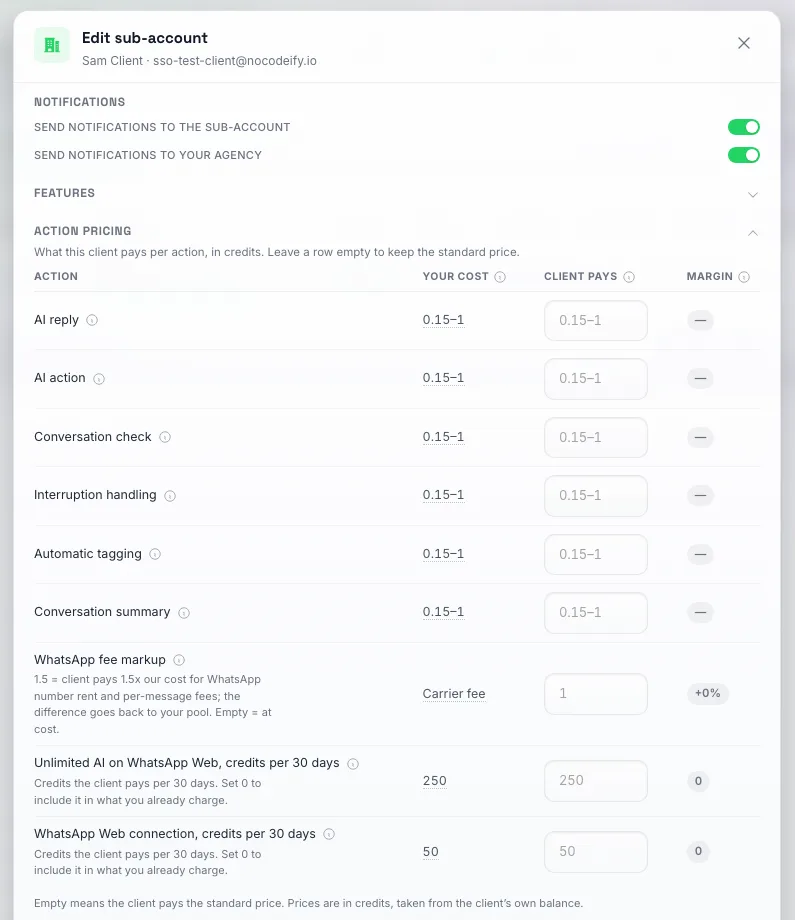
The Action pricing section, expanded. Each row is what this client is charged for that action; leave a row empty and it bills at the standard price, and anything above what your pool pays is your margin.
You don’t have to fill this in per client. SaaS Mode → Default action pricing for new clients is the same table at agency level: whatever you enter there is copied onto every new sub-account at the moment it is created, whether you add it from the Sub Accounts page, create it over the API, or the client signs up through your payment link or embedded checkout. Existing clients are not re-priced when you change the defaults; they keep the prices already on their account until you edit them here. A default you fill in works the same way as a price on the client: one flat price per action whichever model answers, and an empty row leaves new clients on the standard price of the model that ran.
The rate changes how fast the client’s credit allocation depletes, not where credits ultimately come from — sub-account spend is always backed by your agency pool. For clients buying credits through your checkout (reselling mode), the markup is credited back to your pool as each pre-paid credit is spent, on top of the margin you already set on your credit price.
Selling Unlimited AI on WhatsApp Web
A WhatsApp Web number can be billed as a flat 250 credits per 30 days instead of the 50-credit monthly fee, with every AI reply on that number costing nothing. You can pass that on to a client and set your own price for it.
It takes two settings in the sub-account’s Edit modal, and both are only offered when your own agency account is a Champions Circle member:
- Features → Unlimited AI on WhatsApp Web. Switch it on and the client sees the choice when pairing a WhatsApp Web number, and the switch on each number’s card. Leave it off and they see nothing about it.
- Action pricing → Unlimited AI on WhatsApp Web. The number of credits the client is charged per 30 days, per number they put on it. It defaults to 250, can go up to 2,500, and 0 means you include it at no charge. Your pool always pays 250 whatever you set, so anything above that is your margin and anything below it comes out of your pool.
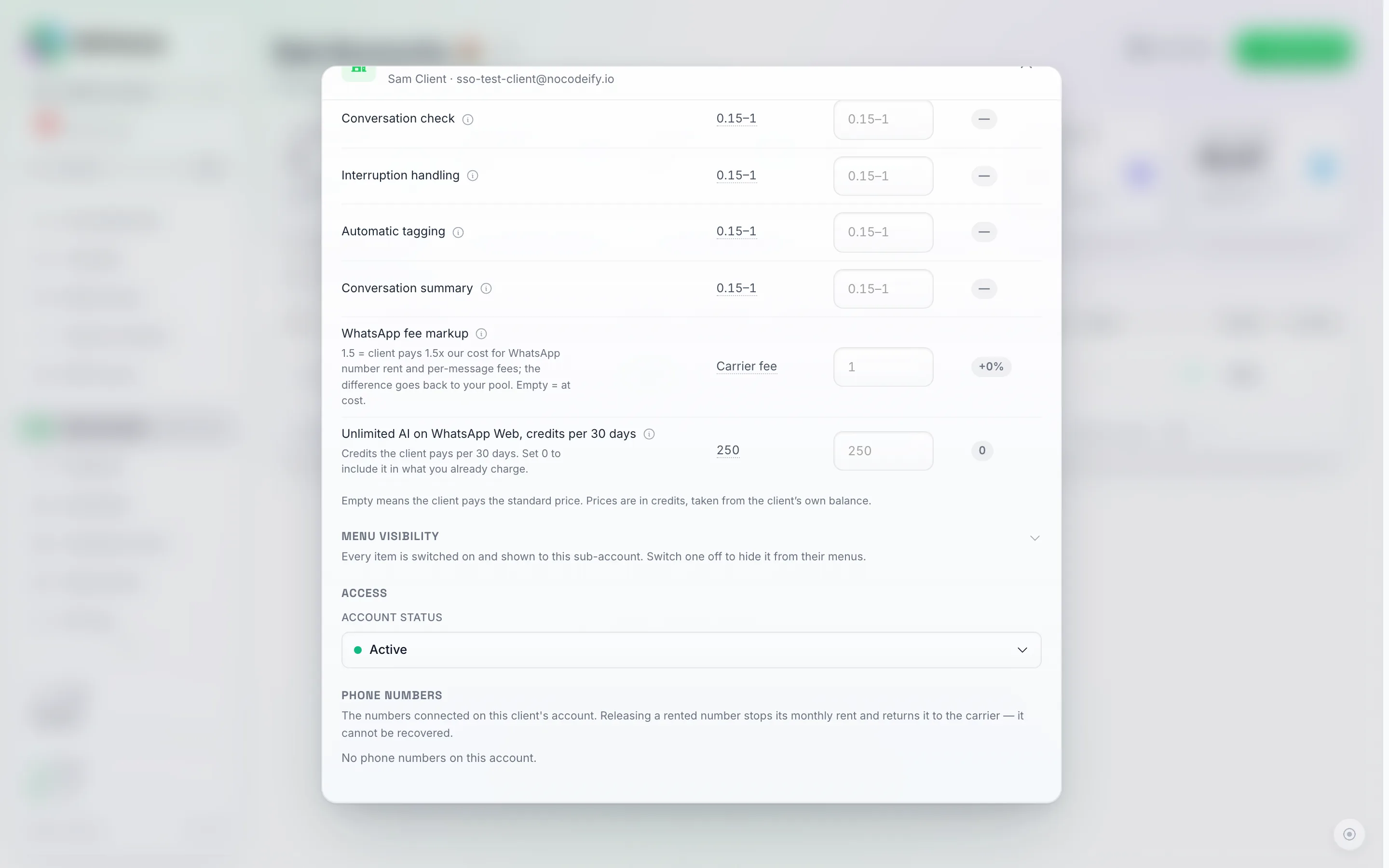
The "Unlimited AI on WhatsApp Web, credits per 30 days" row under Action pricing. Its hint reads "Credits the client pays per 30 days. Set 0 to include it in what you already charge." Leave the field empty to charge the standard 250.
The same split applies to the renewal every 30 days and to the refund when a client switches a number back: the client gets back what the client paid, pro-rata, and your pool gets back what your pool paid. If a renewal cannot be funded the number drops back to the 50-credit metered fee and both you and the client are emailed; nothing disconnects.
See Unlimited AI on a WhatsApp Web number for what the mode covers and what a switch costs.
When a client runs out of credits
The first time a client’s AI skips a message for lack of credits (their spending limit is used up, or your pool is empty), you get one email naming the client account: “Your AI stopped replying: no credits left”. It goes out once per outage, not once per message, and arms again once the AI is replying again. The client gets the same alert in your branding only when Send notifications to the sub-account is on in the sub-account’s Edit modal → Notifications.
A holding reply while a client is out of credits
When a client’s spending limit is used up (or your own pool is empty), the AI cannot answer and the contact hears nothing: the chat in the inbox shows a credit limit marker and no message goes out. If you’d rather the contact got a word back, open the sub-account’s Edit modal → Credits and switch on Holding reply when out of credits, then type the message in the Holding message box that appears (up to 500 characters, sent exactly as written on every channel).
- Each contact who writes in during the outage gets the holding message once. A second or third message from the same contact while the balance is still empty gets nothing extra, so nobody is spammed.
- The message shows up in the chat like any other outgoing bubble, marked as sent by the AI, and it costs no credits.
- Once credits are back (a top-up, the monthly allowance landing, or a higher spending limit), the AI picks those conversations up and answers them for real, the same way it already does for chats dropped during a credit outage. A contact a teammate answered by hand in the meantime is left alone.
- Switching the reply off keeps the text you typed, so you can turn it back on later without retyping it.
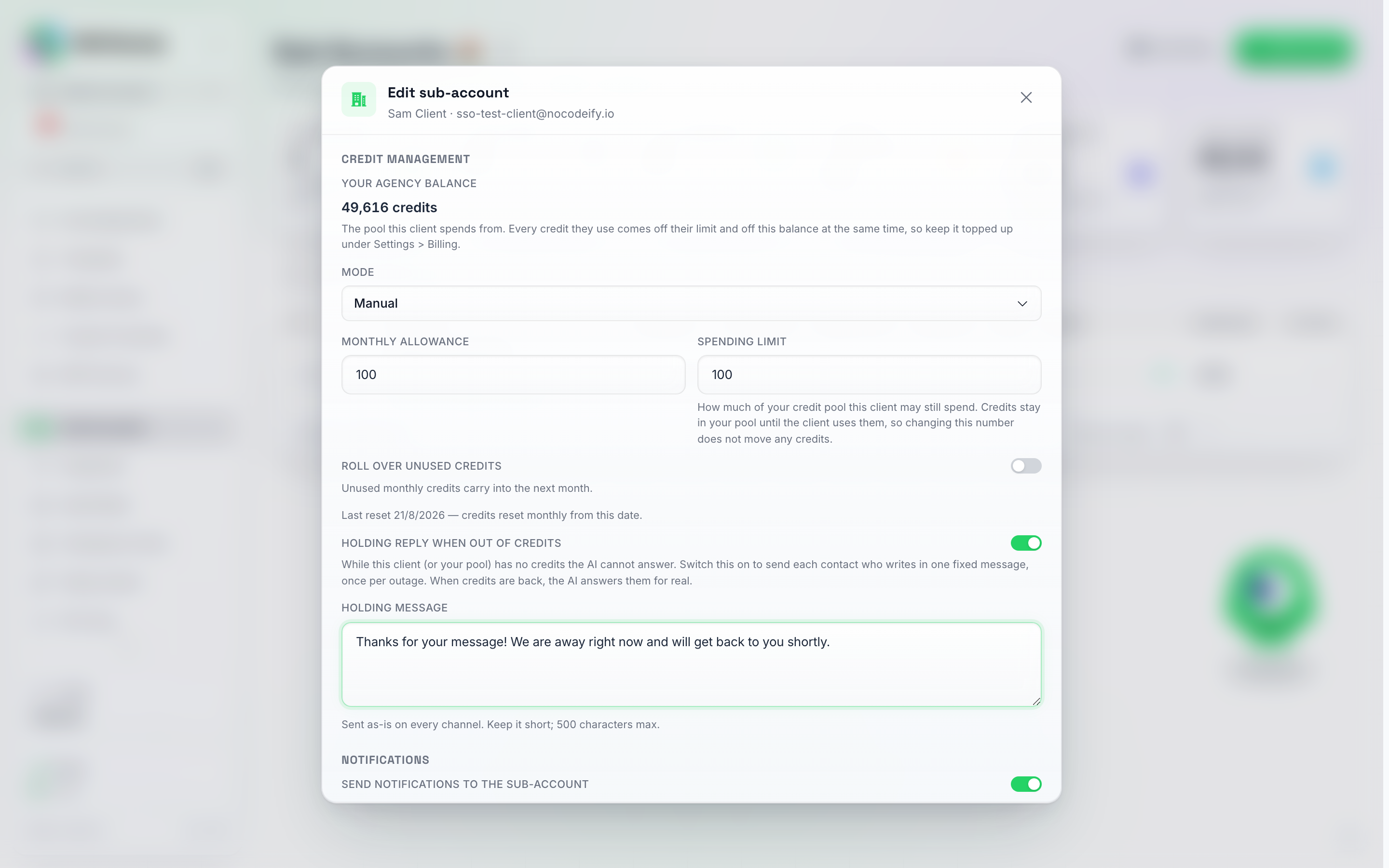
The Holding reply when out of credits switch sits under Roll over unused credits; switching it on reveals the Holding message box. Nothing goes out until you hit Save.
The same switch is available over the API for agencies: PUT /v1/subaccounts/{subAccountUid}/zero-credit-reply with { "enabled": true, "message": "…" }.
Tracking usage
- Credit usage details (row More menu) — a per-sub-account breakdown: total credits used, cost in USD (hidden when the sub-account runs on your BYOK key), a usage-by-reason chart, the Top agents spend list, and a filterable date-range table of every individual charge and refund. Each charge row shows the model it was billed at (Pro, Economy, Max, or Mini), and on rows where you’ve re-priced the action for that client, a Client billed line shows what the client’s balance was charged next to what your agency pool actually paid.
- Stat tiles at the top of the Sub Accounts page — how many client agents are on and off, and how many sub-accounts currently have issues.
BYOK spending figure per sub-account
If you resell BYOK (your own AI provider key) to sub-accounts, set a monthly spending figure — in US dollars — per sub-account, so you can track how much each client is running up on your key. Set or clear it from that sub-account’s Edit modal (only shown once the sub-account has a BYOK key, or already has a limit set); leave it blank for no figure. The figure resets at the start of each billing month.
This is a budgeting indicator, not a hard cut-off. It helps you keep an eye on what each client is spending — it does not automatically stop a sub-account once it passes the figure.
Sub-Account Billing
Agency custom checkout
If you have set up credit reselling in SaaS Mode, there are two ways to handle payments:
Stripe (default): connect your Stripe account in the SaaS Mode setup wizard, configure pricing tiers, and sub-accounts are directed to your branded checkout when they need credits. Payments go to your Stripe account, and credits are delivered automatically.
Webhook (custom payment provider): enter a webhook URL in SaaS Mode instead of connecting Stripe. When a sub-account’s credits drop below their auto-recharge threshold, the platform sends the details to your webhook URL; your server processes the payment and calls the API to grant credits. See Sub-Account Auto-Recharge for the technical details.
What the client sees on their Billing page
Once a sub-account is in reselling mode, the client’s own Settings → Billing page (on your white-label domain) shows everything they need to pay you directly — no checkout link required. Your plans sit further down the page, under their balance and usage, so when you sell plans on that domain a Choose your plan button at the top of the page takes the client straight to them (it reads Change your plan once they are subscribed):
- Your plans — the plans you configured in SaaS Mode, at your prices, with a Subscribe button that opens your branded Stripe checkout. Plan credits renew monthly. A plan you set to yearly billing is labelled “per year · N credits per month”, so the client can see they pay once a year and still get their allowance each month. A plan with a free trial shows as “X-day free trial, then $…” with a Start free trial button instead of a price button — the same wording your payment link and embedded checkout use. A trial is only for new signups, so a sub-account that already exists (created by you, previously subscribed, or already trialled) is charged straight away — see Running a free trial. Once the client is on one of your plans, that plan is marked Current plan and the others show Switch plan, which opens the billing portal — a client can never open a second subscription next to the one they already have. At the top of the page, the first tile turns into Plan credits and shows the credits their plan adds each billing period (they carry over, unlike a monthly allowance), and Card on file reads Yes once a card was saved at checkout.
- Buy additional credits — a one-time top-up at your per-credit price, with the note you set under it (if any — for example a reference price in another currency). This works on its own: a client does not need a plan before buying credits, and purchased credits roll over.
- Auto-recharge — the client can save a payment method and have credits topped up automatically whenever their balance drops below a threshold they set.
- Manage billing — after their first purchase, a portal button where they view invoices, update their card and manage their subscription.
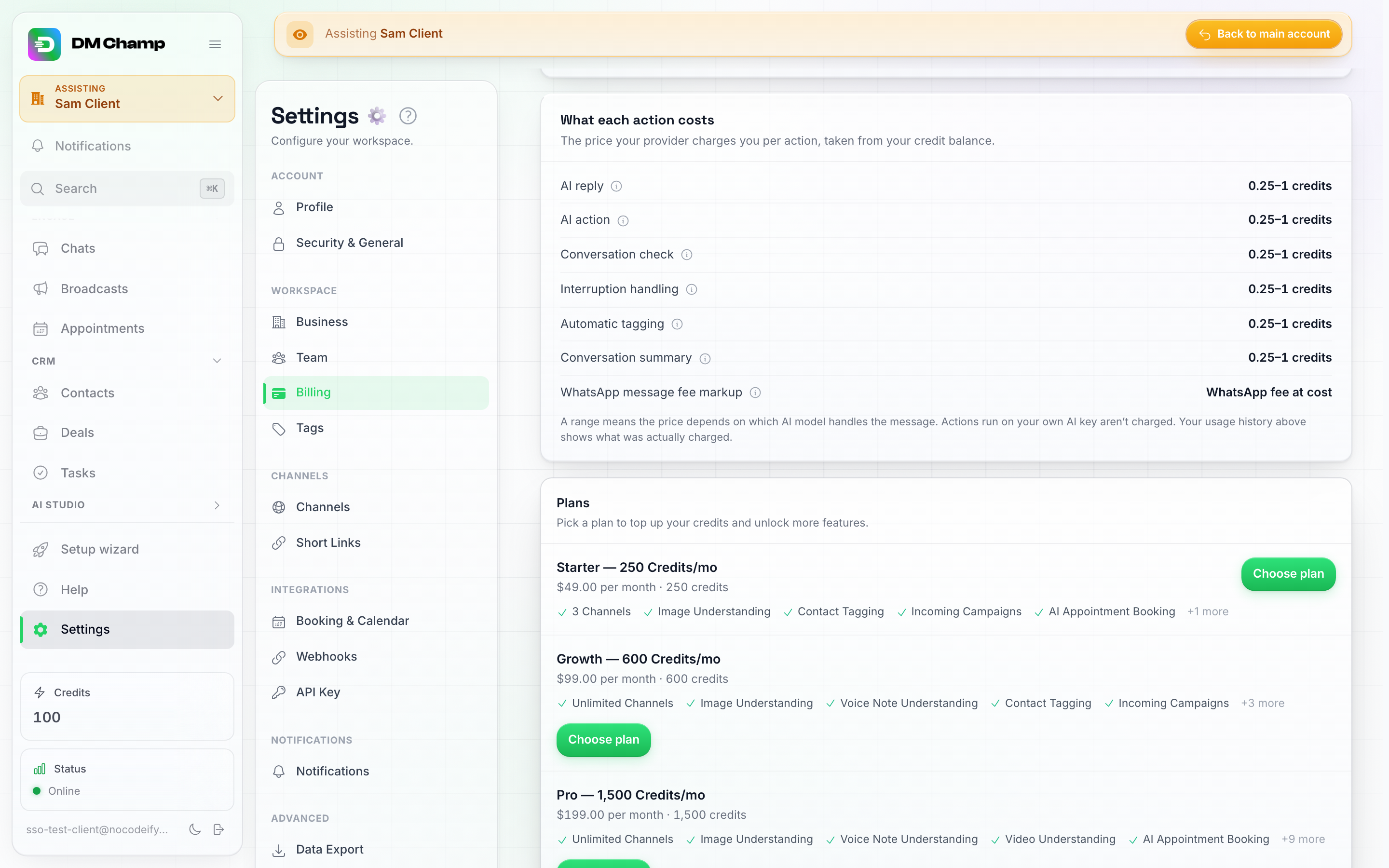
The client's Billing page in reselling mode: your plans, at your prices, each with a Choose plan button that opens your checkout.
Buy additional credits works without any plan — one-time purchases at your per-credit price. Auto-recharge switches on once the client adds a payment method.
Before the first purchase, Manage billing explains that buying anything sets up billing; afterwards it becomes a portal button for invoices and card changes.
This applies equally to accounts you created by hand: switch an existing manual sub-account to reselling mode from its Edit modal and its Billing page gains all of the above. Nothing else about the account changes — its setup, channels and conversation history stay exactly as they were, and the client’s first purchase connects their billing behind the scenes. Team members of the sub-account with billing permission can make purchases for the workspace too — the purchase always attaches to the workspace, not to the person paying.
Client billing portal
The client billing portal is only available for sub-accounts in reselling mode. A sub-account still in manual mode can’t open a portal — you manage its balance from the Edit modal instead.
Sub-accounts that have made a purchase through your agency can open the billing portal from their own Settings → Billing page to view billing history, update payment methods, and manage their subscription. You can also generate a link to this portal from SaaS Mode and share it with the client.
How a client cancels their plan
There is no cancel button inside the app itself — cancelling happens in your Stripe customer portal, the same place the client updates their card:
- The client opens Settings → Billing on your domain and scrolls to the Manage billing card at the bottom.
- Open billing portal opens your Stripe customer portal in a new tab.
- There they choose Cancel plan (Stripe’s wording). The plan runs until the end of the period they already paid for, then stops; the sub-account is marked cancelled on your Sub Accounts page and no further credits are granted.
The portal has to be switched on in your Stripe account first. Stripe only serves a customer portal once you have saved its settings: in your Stripe dashboard open Settings → Billing → Customer portal, make sure Cancel subscriptions is enabled under Subscriptions, and click Save. Until that is done the Open billing portal button fails with “Couldn’t open the billing portal”, and a portal saved without the cancel option shows the client their invoices and card but no way to cancel. The other portal settings that matter are in Clients switching plans.
You can also cancel a client’s plan yourself from your Stripe dashboard (Customers → the client → their subscription → Cancel subscription). Because your webhook carries customer.subscription.deleted, the sub-account is marked cancelled here the moment Stripe processes it. Refunds are yours to give as well, from the same Stripe screen. The platform only refunds a client on your behalf in one case, described next.
A client who already has a plan buys another one
Your in-app plan cards send a client who is already on a plan to the billing portal to switch. Your public checkout link and the checkout API cannot check that first, because they only learn who the buyer is once Stripe has taken the email. When a client who already has an active plan completes a second one there, the new subscription is cancelled straight away in your Stripe and its payment is refunded automatically. The client keeps the plan they had, no credits are added, and nothing is taken from your agency pool. The client gets an email saying so, and you get one with both subscription IDs. If the automatic refund fails, your email says so and the refund is left for you to do in Stripe.
Deleting a sub-account cancels its plan
When you delete a sub-account that pays you through a plan, its subscription in your Stripe account is cancelled at the same time, with no proration invoice, so the client is not billed again. Whether to refund part of the current period is up to you, from your Stripe dashboard. Credits the client bought are not returned to your pool. If your Stripe key has changed since the client subscribed (for example from a test key to a live key, or to a different Stripe account), the old subscription cannot be reached with the new key: cancel it yourself in the Stripe account it was created in.
Copy an AI Agent to a Sub-Account
Spent a week getting an AI Agent to answer exactly the way you want? Copy it into one or more of your sub-accounts instead of rebuilding it in each client’s account by hand.
How to copy
There are two entry points, and they open the same window with different fields pre-filled:
- From the AI Agents page, on the agent’s row, click the two-arrows icon next to Duplicate — its tooltip reads Copy this agent into a sub-account. The agent is already picked; you choose the destination(s).
- From the Sub Accounts page, open a row’s More menu and choose Copy agent here. The destination is already picked; you choose which agent to copy.
The window then asks for:
- Agent (if not already picked) — a dropdown of your agents.
- FAQs and knowledge toggle (on by default) — copies the agent’s FAQs, uploaded files and knowledge sources into the target account.
- Custom functions and connected tools toggle (off by default) — copies the agent’s custom functions and MCP server tools. Off by default because these usually hold account-specific details (API keys, endpoints) that belong to your account rather than the client’s.
- New agent name (optional) — leave it blank to keep the original name.
- Sub-accounts — a list you can tick as many entries in as you like, so one copy can land in several client accounts at once.
Click the copy button and a results screen confirms each account as copied, or names the error if one didn’t take.
What gets copied
Everything the agent needs to work in the client’s account:
- Its AI Instructions — persona, goal, business context, rules, escalation, response pacing, message limits and primary language.
- Its FAQs and knowledge base (when the toggle is on), including uploaded files and linked web sources.
- Its custom functions and connected tools (when the toggle is on).
- Its media — the images, video, GIFs, voice notes and documents it can send.
- Its active hours, tag rules and follow-up settings, including the wording of follow-up messages.
What you’ll need to do on the sub-account
- Connect the client’s channels. Channel connections are never copied — the copy has no phone number, inbox or page of its own until you point one at it.
- Re-create WhatsApp message templates. Templates belong to each account’s own WhatsApp setup, so follow-up templates need generating and submitting for approval again in the client’s account.
- Contacts are never copied.
The copy arrives switched off. It lands in the client’s account as a paused agent, so nothing replies to anyone until you’ve reviewed it, connected the channels and turned it on yourself.
A copy that runs into trouble leaves nothing behind. If something fails part-way through — a knowledge file that won’t transfer, for example — the whole copy for that account is undone rather than leaving a half-built agent for you to find later. Copying into several accounts at once is judged per account: one failing doesn’t undo the ones that worked.
Sub-Account Limits
Your plan determines how many sub-accounts you can create. Sub-accounts come with the Agency and Agency Unlimited plans, and unlock progressively on AppSumo plans.
Where to check what you’ve used: the Sub accounts tile at the top of the Sub Accounts page shows how many you currently have, with your allowance underneath it — either of {limit} on your plan, or Unlimited on your plan if there’s no ceiling. If it says Unlimited, there’s no total to count down from and you won’t hit a cap however many you add. Your full entitlement list also appears under Settings → Billing in What’s included in your plan.
Current plans:
| Plan | Sub-Account Limit |
|---|---|
| Business | 0 |
| Agency | 10 included, then $27 a month for each extra one |
| Agency Unlimited | Unlimited, with no per-account fee |
Note: the Starter, Growth, Pro and Agency plans some accounts are still on were retired in August 2026 and no longer represent current pricing. Existing subscribers keep the plan they are on, sub-account allowance included.
Paused clients don’t count. A sub-account set to Hard blocked is left out of the total, so it neither uses up one of your included accounts nor costs you the extra-account fee while it’s paused. The billing follows by the day, so a client paused for ten days is only left out for those ten days. A Soft blocked account still counts, because its AI is still answering. See Blocking / Pausing a Sub-Account.
AppSumo lifetime plans:
| AppSumo Plan | Sub-Account Limit |
|---|---|
| Plan 1 | 0 |
| Plan 2 | 3 |
| Plan 3 | 10 |
| Plan 4 | 20 |
| Plan 5 | 100 |
| Plan 6 | Unlimited |
If you reach your limit and need more sub-accounts, move up to the Agency or Agency Unlimited plan at dmchamp.com/pricing, or contact support about a custom agreement. The AppSumo lifetime deal ended on August 14, 2026, so tier changes through AppSumo are no longer available.
One sub-account is a separate workspace, not a single AI agent. Inside any account or sub-account you can create multiple AI Agents, and each one works on its own. So a Plan 4 with 20 sub-accounts can run dozens of distinct agents in total.
Common Questions
I don’t see the Sub Accounts page in my sidebar. Sub-account management is an Agency-plan feature. If your account doesn’t have the agency role, there’s nothing to show — check your plan under Settings → Workspace → Billing, or ask the account owner.
Can I give one team member access to only some of my clients? Yes — open their Permissions editor on your agency team page, set Client accounts to Selected clients and tick the ones they should have, then choose the role they act as inside them. See Giving Team Members Access to Client Accounts.
Can I switch between sub-accounts without going back to the list every time? Yes — the Switch account control at the top of the sidebar works from anywhere in the app, not just the Sub Accounts page, and it’s searchable.
I deleted the wrong sub-account. Deletion is permanent and removes all of that account’s chats, contacts and AI agents — there’s a confirmation step precisely because it can’t be undone. If this happens, contact support immediately; don’t wait.
A sub-account’s credits ran out and the bot stopped answering. Check your own agency balance first — in manual mode the client spends from your pool, so an empty pool stops every sub-account no matter how high their Spending limit is (why). Top your agency account up under Settings > Billing, and raise the client’s limit under Edit → Credit Management if that is what is capping them. In reselling mode the client needs to purchase more through your checkout, or you can set up auto-recharge so it happens automatically.
Best Practices
- Set up auto-recharge on your agency account (via SaaS Mode) so sub-accounts never lose AI functionality due to credit depletion.
- Use agent copying to onboard new clients quickly with setups that already work.
- Monitor credit usage regularly via each sub-account’s Credit usage details to catch unexpected spikes before they drain your pool.
- Keep Sign In mode for support — rather than sharing agency credentials, use Sign in as user to help clients directly from your dashboard.
- Configure credit reselling in SaaS Mode if you want sub-accounts to pay for their own usage, creating a revenue stream for your agency.
- Choose the right credit mode per client — manual for clients you manage end-to-end, reselling for clients who should handle their own credit purchases.
Need Help?
If you have questions about sub-account management, reach out via our email support.