Email Language & Templates
Every email the platform sends on your behalf — welcome emails, password resets, appointment confirmations, credit warnings, team invites — now goes out in the reader’s own language. And if our wording isn’t the wording you want, you can rewrite any of those emails yourself.
Two separate things, on two separate pages:
| What you want | Where to go |
|---|---|
| Change the language your own emails arrive in | Settings → Profile → Language |
| Set the language for a client’s very first emails | Settings → White Labeling → Email branding |
| Rewrite the wording of an email | Settings → Email Templates |
Emails Arrive in Each Person’s Own Language
You don’t switch this on. It already works.
Whoever receives an email gets it in the language set on their account, not yours. If a client set their app to Nederlands, their password reset arrives in Nederlands. If a teammate uses Español, their team invite arrives in Español. Everyone reading the same kind of email can be reading it in a different language, and nobody has to do anything.
If someone hasn’t picked a language yet, their emails arrive in English.
Emails are sent in every language the app is available in (see Account Settings for the list). Arabic and Hebrew emails are laid out right-to-left, the way those readers expect.
Changing the language you get emails in
- Click Settings at the bottom of the left sidebar.
- Open Profile (it’s the first item, under Account).
- In the Preferences card on the right, choose your Language.
- Click Save.
That one setting covers both things: the language the app is shown in, and the language your emails arrive in.
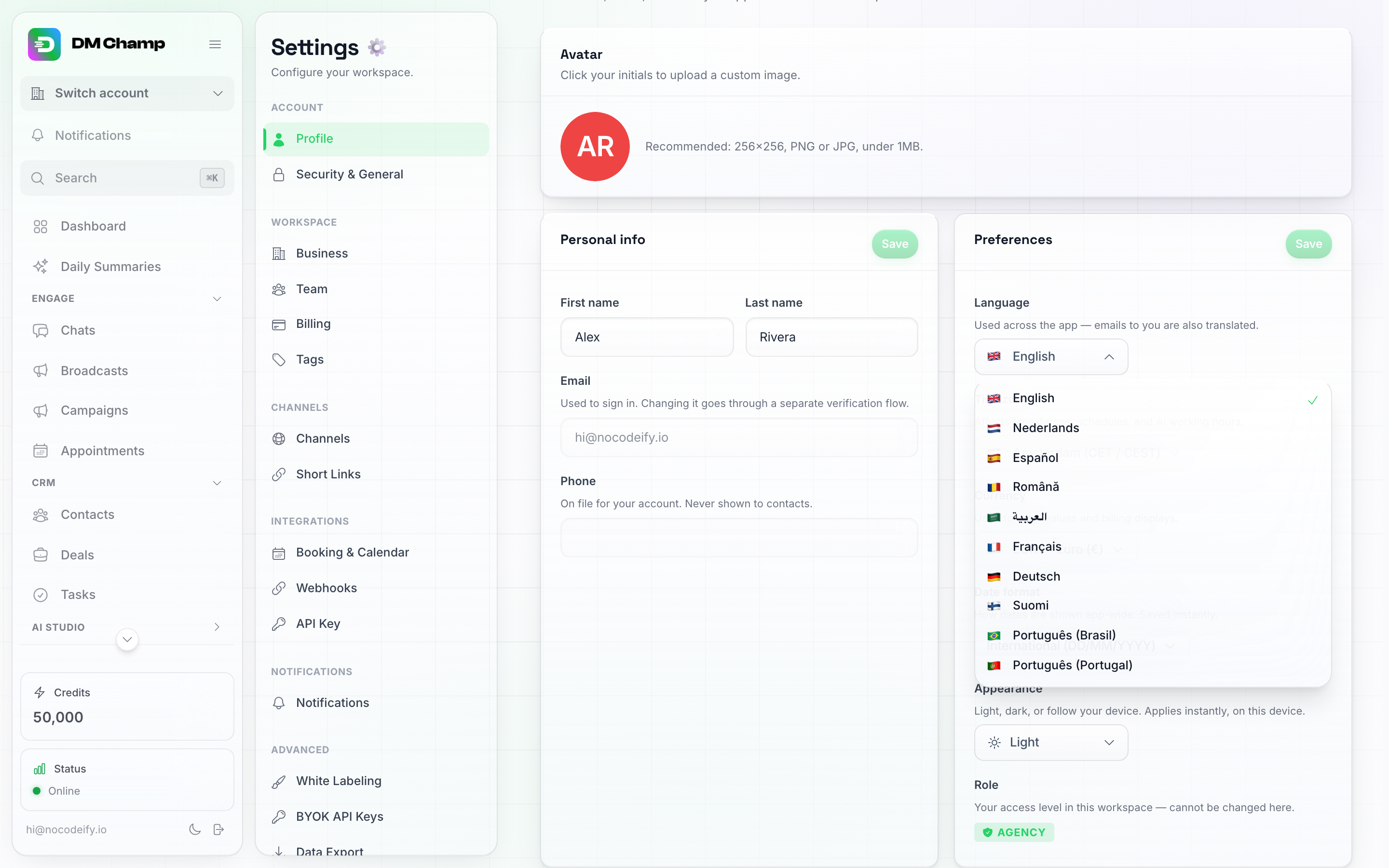
Settings → Profile → Preferences. The Language you pick here is the language your emails arrive in too.
Each of your client sub-accounts has the same setting on their own Profile, so a client can pick their language themselves without asking you.
Your AI’s replies are a different setting. The bot answers each contact in whatever language that contact writes in, and an agent’s own primary language is set on the agent — see Setting Up Your AI Bot. Changing your email language doesn’t change how the bot talks to anyone.
The First Emails, Before a Client Has Picked a Language
There’s a gap at the very start: the signup and checkout emails go out before a new client has ever opened the app, so there’s no language on their account to follow yet. Those fall back to English unless you say otherwise.
How to get there: Settings → Advanced group → White Labeling, then scroll to the Email branding card.
Set Default language to whatever your clients mostly speak, and those first emails go out in that language instead. Leave it on None (English) to keep them in English. The same setting also decides the language of your domain’s sign-in, password and signup pages for visitors who have not picked a language yet — see White Labeling.
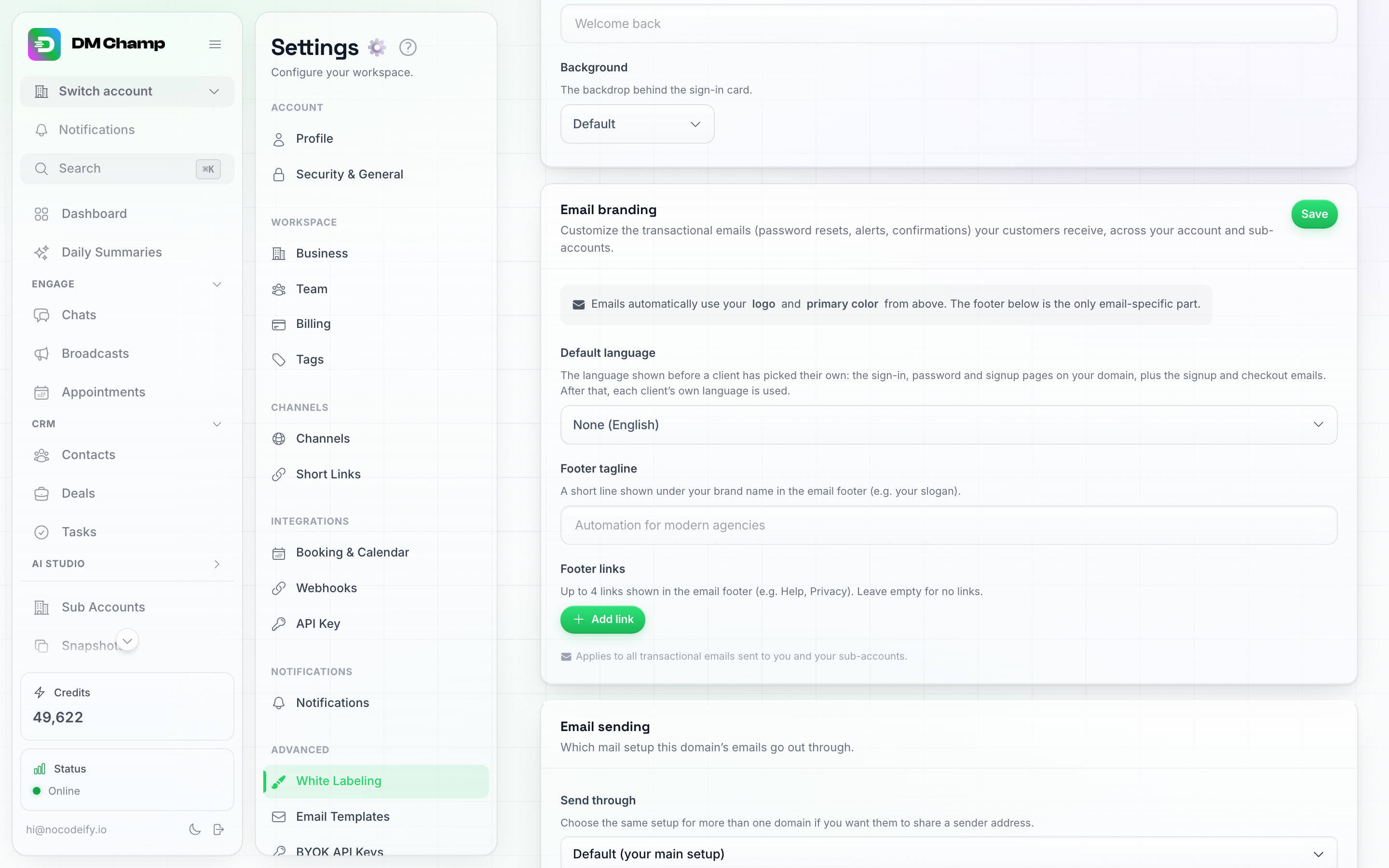
Default language sits at the top of the Email branding card. It covers the sign-in pages and the emails sent before a client has a language of their own — after that, each client's own setting takes over.
Click Save on the card when you’re done. From the second email onwards, each client’s own language is used, so this setting quietly stops mattering once they’re in the app.
If you run more than one branded domain, each one gets its own default — handy when one storefront sells to a different country than the others.
Rewriting an Email in Your Own Words
Our wording is fine, but it isn’t your wording. Email Templates lets you replace it — for one language, or for all of them at once.
How to get there: Settings → Advanced group → Email Templates. This section is part of white labeling, so it appears on the Agency and Agency Unlimited plans (and on the AppSumo tiers that include white labeling).
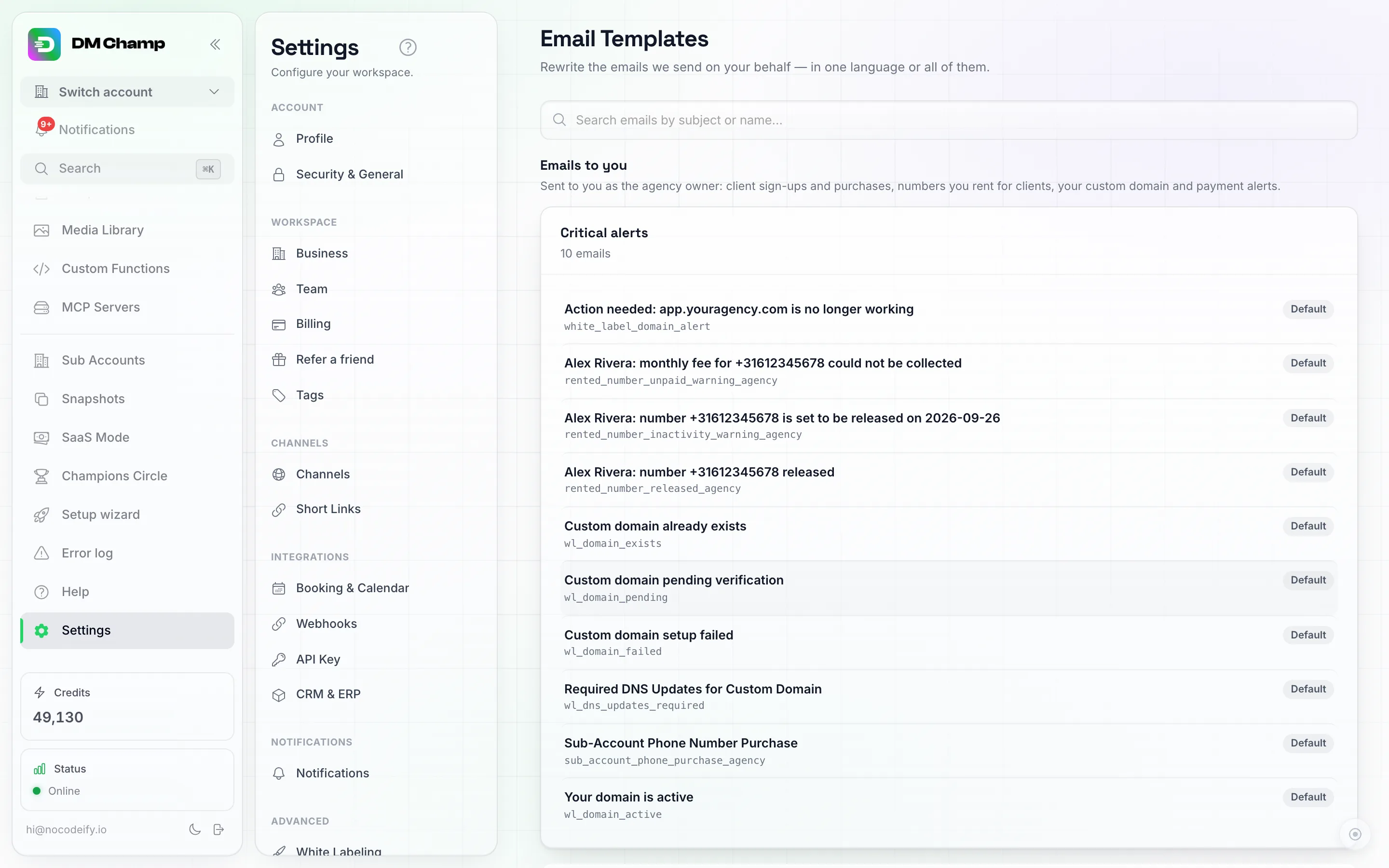
Every email you can rewrite, split into Emails to you and Emails to your clients, then grouped by what it's about. A Default badge means that email still uses our wording.
The list is split by who receives the email:
- Emails to you — the ones that come to you as the agency owner: a client signing up or buying through your checkout, numbers you rent for a client, your custom domain, and payment alerts from your Stripe connection.
- Emails to your clients — everything your clients’ accounts receive, plus the few that go to their own customers, such as a booking confirmation.
Inside each, emails are grouped into categories like Critical alerts, Appointments, Credit alerts and Subscription updates, with a count on each group. Use the search box at the top to find one by its subject line or by the short name underneath it.
The badge on the right of each row tells you where it stands:
- Default — still using our wording.
- Customized — you’ve written your own version, used for every language.
- Customized (Nederlands) — you’ve written a version for that one language only.
Anything you don’t touch keeps using our wording, translated into each reader’s language as usual. You never have to do all of them.
Writing your version
Click any row to open it.
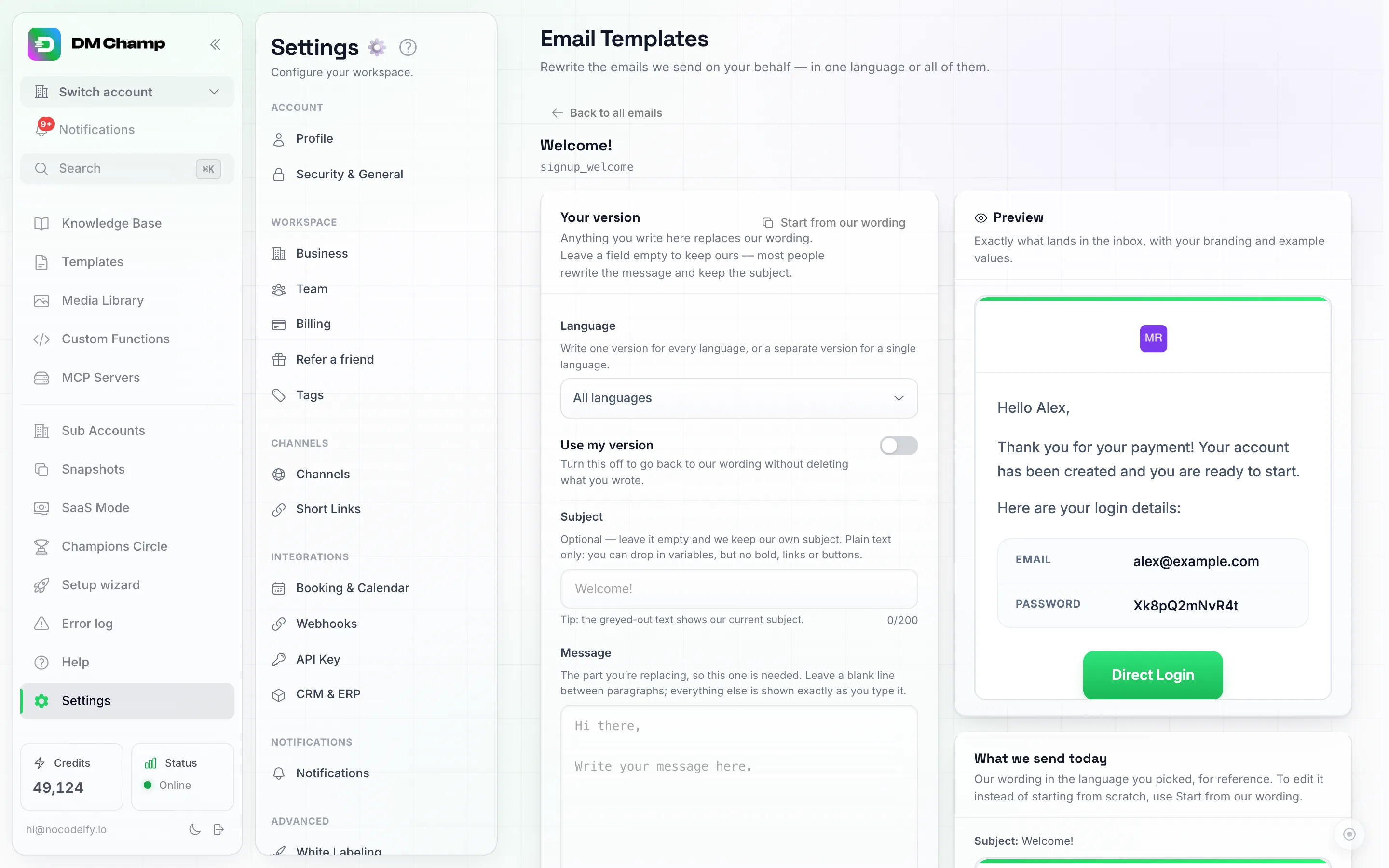
Your version on the left, a live Preview on the right, and our current wording underneath it for reference.
The left-hand Your version card is where you write.
Only want to change a few words? Click Start from our wording at the top of the card. It copies our current subject and message for the language you picked into your version, so you can change one word (say, “sub-account” to the name you use for your clients) and keep everything else. Buttons and links come along as they are. Highlighted boxes and detail tables become plain paragraphs that start with their label in bold, because your version can’t draw boxes. If you’ve already written something, it asks before replacing it, and nothing is used until you click Save.
The fields in the card:
- Language — leave it on All languages to write one version everybody gets, or pick a single language to write a version just for those readers. A version for a specific language always wins over the all-languages one.
- Use my version — shows whether your saved version is in use for this language. It’s off until you’ve saved one, and switches on by itself as soon as you start writing a message. Turn it off to go back to our wording without deleting what you wrote. Handy for trying something and putting it back.
- Subject — optional, and plain text only. The greyed-out text you see is our current subject: leave the box empty and that’s exactly what we’ll send, in whichever language the reader gets. Most people rewrite the message and keep the subject.
- Message — the body, and the one part you do need to write. Leave a blank line between paragraphs; everything else appears exactly as you type it.
Three buttons sit under the message box:
- Add variable — drops in a personal detail like the reader’s first name or their account balance. Each one shows an example of what it’ll look like, and only the variables that email actually knows about are offered.
- Add link — a link inside a sentence.
- Add button — a big clickable button. Put the label first, then the link after the
|sign.
You can also wrap words in ** for bold.
The Preview on the right updates as you type — including when you’ve only written the message and left the subject alone, in which case it shows your message under our subject, exactly as it would send. It uses your own logo and colours with some example values filled in. Underneath it, What we send today shows our current wording for the language you picked, so you can compare. To edit that wording instead of starting from scratch, use Start from our wording.
Writing a version for one language
Pick the language from the Language dropdown before you start writing. Each language keeps its own separate version, so you can rewrite the Dutch welcome email without touching the English one.
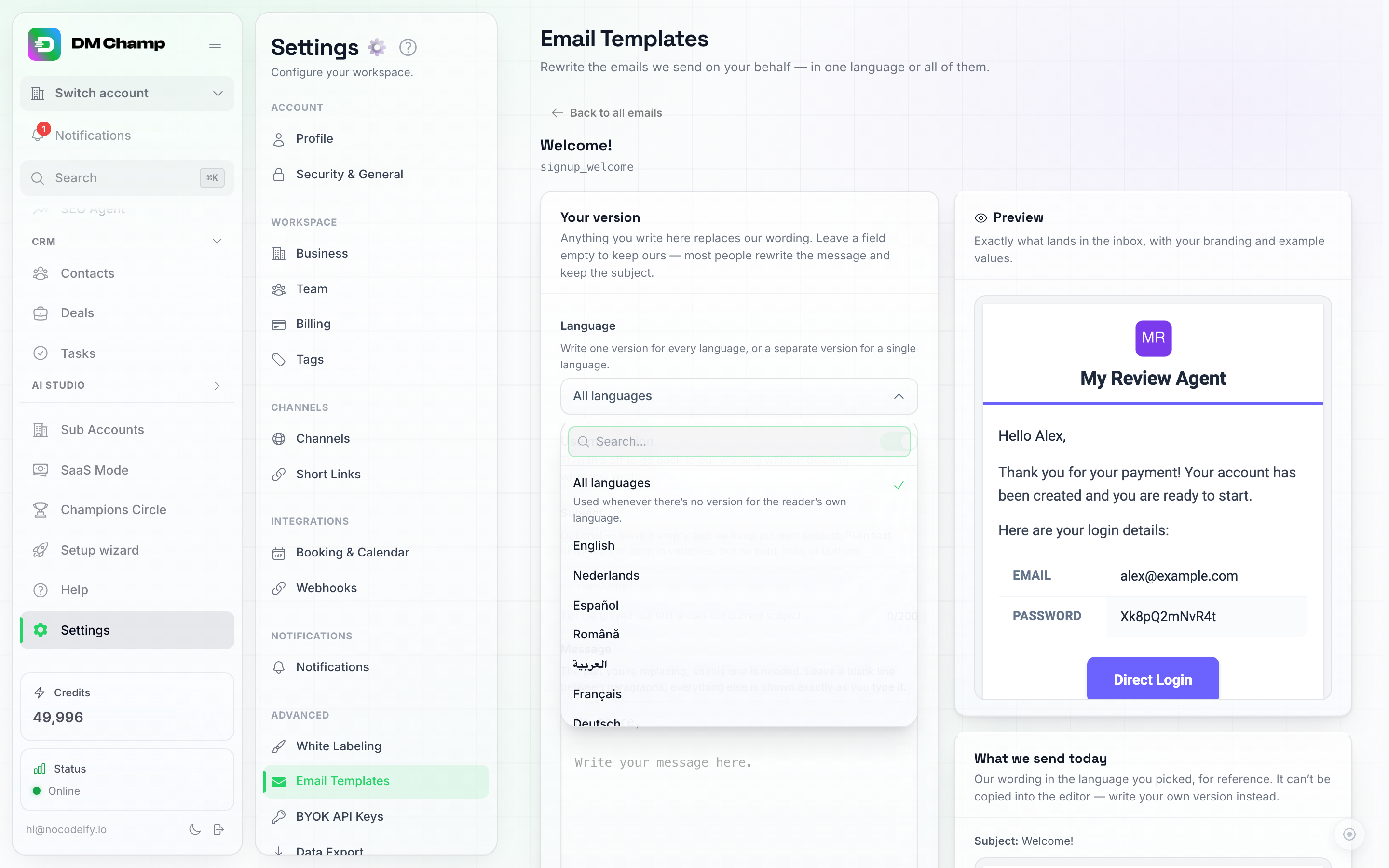
All languages at the top writes one version for everybody. Pick a single language underneath it to write a version just for those readers.
Checking it before it goes out
Nothing you change here, the Use my version switch included, takes effect until you click Save; the line under the buttons tells you when you have unsaved changes. Save stays greyed out until you’ve written a message.
Click Save, then Send test email. It sends the email to your own address so you can see it in a real inbox rather than a preview pane. You can send 5 of these an hour.
Changes apply to new emails from the moment you save. Emails already sent aren’t affected.
Going back to our wording
Two ways, depending on what you want:
- Use my version, switched off — keeps everything you wrote, but sends our wording in the meantime.
- Reset to default — deletes your version for that language for good. It asks you to confirm first.
What You Can’t Change
A few emails aren’t in the list, and that’s deliberate: verification codes, email-change confirmations and other security messages. Their wording is what makes them trustworthy and hard to imitate, so it stays as it is. They’re still translated into the reader’s language like everything else.
Need Help?
If an email isn’t arriving in the language you expect, or you want a hand with the wording, contact support and we’ll take a look.