Error Log
The Error log is one time-ordered list of everything on your account that did not work: a message that could not be delivered, an AI reply that never went out, a channel that lost its connection, an import that failed halfway.
Every entry carries a short code, an explanation in plain words, and what to do about it — so when something looks wrong you can see the reason yourself and fix it, instead of writing to support and waiting for an answer. It’s also the quickest way to tell a real problem apart from something that behaved exactly as it should (a contact who opted out, a reply window that closed).
Where to Find It
In the main menu down the left side of the screen, at the very bottom, click Error log — it sits just above Help. (On a phone, tap the menu icon ☰ first, then Error log.)
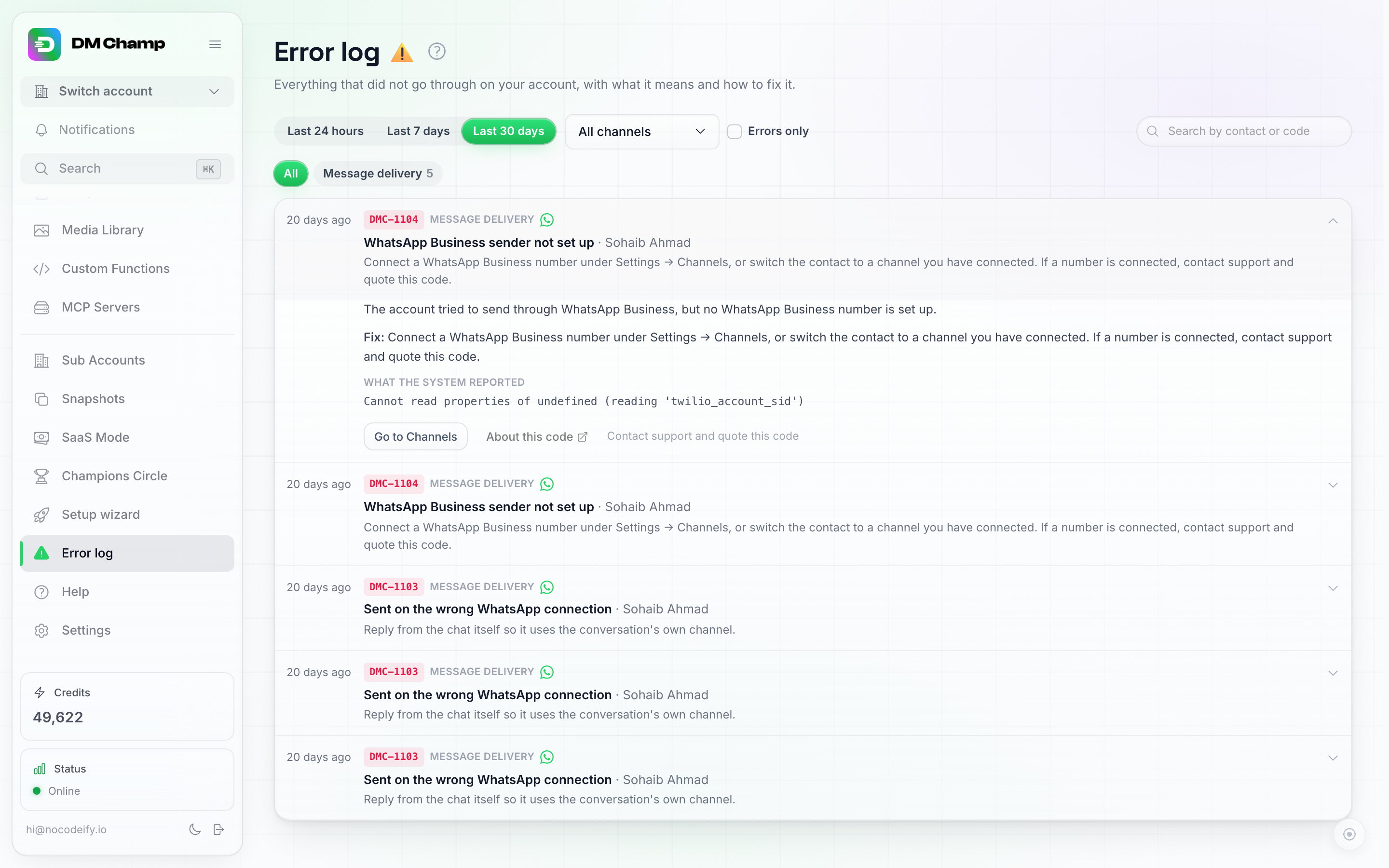
Each row carries a code, what happened and the fix; expanding one adds the provider’s own message and shortcut buttons to the place you fix it.
Reading a Row
Each row is one thing that failed, newest first.
| Part of the row | What it tells you |
|---|---|
| Time | How long ago it happened. Hover it for the exact date and time. |
| Code | The short code for this kind of failure, for example TW-63016. Click it to copy. Every code is explained below. |
| Category and channel | What area it belongs to (delivery, AI, channel, billing, and so on) and which channel it happened on. |
| What happened | The failure in one line, with a link to the contact when there is one. |
| What to do | The fix, in one line. |
Click a row to expand it. The expanded row adds the full explanation, the provider’s own message when there was one, the provider’s own numeric code, and buttons that take you straight to the place you’d fix it — Open chat, Go to Channels, and similar. About this code opens this page at that code’s entry.
Filters
Above the list you can narrow things down:
- Time range — 24 hours, 7 days, or 30 days. It opens on 7 days and remembers the range you pick.
- Category chips — one chip per category, each with the number of entries in the range. Click to show only that category.
- Channel — limit the list to one channel, for example WhatsApp or Instagram.
- Errors only — hides warnings and information-only entries, leaving the things that actually failed.
- Search — type a contact’s name or number, or a code, to find a specific entry.
What the Log Covers
- Messages that could not be delivered, on every channel — WhatsApp Business, WhatsApp Web, SMS, Instagram, Messenger, Telegram and email. The email alert for a failed send names the contact and their number, names the account it happened in when you manage several, and has an Open conversation button that lands you in that chat.
- Times the AI did not reply, and why — no agent was set to answer, credits ran out, a limit was reached, the schedule was closed, or the AI could not produce a reply even after retrying.
- Channel problems — a WhatsApp Web session that disconnected, an expired login, a sending limit reached.
- Billing and limits — a past-due payment, sending paused, an empty credit balance, a contact limit reached.
- Knowledge base imports that failed.
- Broadcasts (Classic campaign entries included) that were paused automatically.
- Automation runs that stopped with an error.
- Webhooks that are failing or were switched off after repeated failures.
- Room calendars that could not be read.
What It Does Not Cover
- Anything that worked. The log only lists failures, so an empty page is good news.
- Platform-wide outages. If several unrelated things are failing at once, check System Status first.
- Per-recipient results of a broadcast. For how a send performed overall, open the broadcast itself — see Broadcasts.
Reading the Log Through the API
The same entries are available over the API at GET /v1/error-log, and to AI assistants connected through the MCP server as the list_error_log_entries tool.
Agency accounts can pass sub_account_id to read a client account’s Error log with the agency’s own API key (see API for Agencies).
When to Contact Support
Most entries tell you exactly what to change, and you can do it yourself. When an entry says to get in touch, or the same code keeps coming back after you’ve followed the fix, contact support and include the code and the time it happened (copy them straight from the row). That’s usually enough for us to find it without any back and forth.
All Error Codes
The first part of a code says where the failure came from:
- TW — Twilio, the provider behind WhatsApp Business and SMS. The number after it is Twilio’s own error code.
- META — WhatsApp Business through Meta. The number is Meta’s own error code.
- WAW — WhatsApp Web.
- APP — DM Champ's own codes, used for everything a provider didn’t give a number for.
Each code below has its own link, so About this code in the app lands on the exact entry.
WhatsApp Business (Twilio)
| Code | What it means | What to do |
|---|---|---|
TW-63005 |
WhatsApp rejected the message content. WhatsApp rejected the content of this message. | Check the message text, any media, and the template’s header and variables, then send again. |
TW-63007 |
Sender number is not connected. This message was sent from a number that is not connected as a WhatsApp sender. | Reconnect the number under Settings → Channels, then try again. |
TW-63012 |
Temporary WhatsApp problem. WhatsApp had a temporary problem on their side. | Try sending again in a few minutes. |
TW-63016 |
24-hour reply window closed. The 24-hour reply window with this contact has closed, so a free-form message cannot be delivered. | Send an approved template to reopen the conversation. |
TW-63021 |
Content not accepted by WhatsApp. The content did not pass WhatsApp’s checks: an unsupported message type, media that is too large or not publicly reachable, or a header or button text over the length limit. | Check that media links open in a private browser window, shorten button labels, and keep template bodies under 1,024 characters. |
TW-63024 |
Number cannot receive WhatsApp messages. This number cannot receive WhatsApp messages. It may not be on WhatsApp, or the person has not accepted WhatsApp’s latest terms. | Confirm the number with the contact, or reach them by SMS or email. |
TW-63027 |
Template not available in this language. The template does not exist in the language it was sent in. | Pick a template approved in the contact’s language, or create one in that language under Templates. |
TW-63032 |
Blocked by a Meta experiment. WhatsApp will not deliver to this number because Meta has included it in a platform experiment. | There is nothing to fix on your side. Reach the contact on another channel if it is urgent. |
TW-63049 |
Marketing template blocked by Meta. Meta blocked this marketing template. Marketing templates can no longer be delivered to US numbers. Elsewhere this is usually a temporary cap on how many marketing messages that person can receive. | For US contacts use SMS or email. For other countries, try again later. |
TW-63050 |
Contact opted out of marketing. This person opted out of marketing messages from your business on WhatsApp. | They will not receive marketing templates again until they opt back in. Utility and service messages still work. |
TW-63051 |
WhatsApp sender locked by Meta. Meta has locked this WhatsApp sender, so it cannot send. The number’s card under Settings → Channels shows it as offline. | Open Business Support Home in Meta Business Suite (the business portfolio that owns the WhatsApp Business Account) to see why and request a review, and finish business verification if Meta asks for it. The number comes back on its own once Meta lifts the lock. |
TW-63058 |
Country not allowed for business messaging. WhatsApp does not allow business messaging to recipients in this country. | Reach the contact by SMS or email. |
TW-21211 |
Invalid phone number. The contact’s phone number is not a valid number: a missing country code, a typo, or extra digits. | Open the contact and correct the number in international format, for example +14155551234. |
TW-21212 |
No approved sender on this account. The number this message was sent from is not an approved WhatsApp sender, so the provider refused it. | Open Settings → Channels and check your WhatsApp Business number is connected and approved. If it shows as connected, contact support and quote this code. |
TW-21408 |
Destination country not enabled. Sending to the contact’s country is switched off on the sending account. | For SMS with your own Twilio account, enable the country under Messaging → Settings → Geo Permissions in the Twilio Console. For WhatsApp, contact support. |
TW-21602 |
Empty message. The message had no text, so it could not be sent. | Add text to the message and send again. |
TW-21610 |
Contact replied STOP. This person texted STOP to your number, so carriers block further texts to them. | Remove them from your lists. They can text START to your number to opt back in. |
TW-21656 |
Template variables do not match. The values filled into the template did not match its placeholders: a missing or empty value, or a value with line breaks. | Check every variable has a value and no line breaks, then resend. |
TW-21703 |
No sender available for this destination. The account has no sender that can reach this contact’s country with this type of message. | Check the number under Settings → Channels. If it is connected and approved, contact support and quote this code. |
SMS (Twilio)
WhatsApp Business (Meta)
| Code | What it means | What to do |
|---|---|---|
META-131026 |
Message undeliverable. WhatsApp could not deliver this message. The number may not be on WhatsApp, the person may not have accepted the latest terms, or their app is very out of date. | Confirm the number with the contact, or reach them another way. |
META-131047 |
24-hour reply window closed. More than 24 hours have passed since the contact last messaged you, so a free-form message cannot be delivered. | Send an approved template to reopen the conversation. |
META-131049 |
Marketing message held back by Meta. Meta did not deliver this marketing message to keep engagement healthy. The contact has hit their limit of marketing messages for now. | Wait at least 24 hours before sending marketing templates to this contact again. |
META-131053 |
Media could not be uploaded. The media attached to this message could not be uploaded to WhatsApp. | Check the file type is supported and the link opens publicly, then resend. |
META-131056 |
Too many messages to this contact. Too many messages were sent to this contact in a short period. | Wait a little before messaging this contact again. |
META-132000 |
Template variables do not match. The number of values filled into the template did not match the template’s placeholders. | Check every placeholder has a value, then resend. |
META-132001 |
Template not found or not approved. The template does not exist in this language or has not been approved yet. | Pick an approved template in the contact’s language under Templates. |
META-132015 |
Template paused for low quality. Meta paused this template because of low quality ratings. | Edit the template to improve it and resubmit; use another approved template in the meantime. |
META-130472 |
Blocked by a Meta experiment. Meta did not send this message as part of a platform experiment. | There is nothing to fix on your side. |
META-133010 |
Number not registered with WhatsApp Business. The sending number is not registered on the WhatsApp Business Platform. | Reconnect the number under Settings → Channels. If it stays like this, contact support. |
Messenger and Instagram
| Code | What it means | What to do |
|---|---|---|
APP-1901 |
Facebook page automation conflict. Facebook would not let this reply through because another app or Facebook’s own automated responses currently control this conversation. | In your Facebook Page settings, turn off Facebook’s automated responses, then open Page setup → Advanced messaging → Handover protocol and click Configure next to Messenger receiver (or Instagram receiver) to make the connected app the primary receiver. Then reply again. |
APP-1902 |
Meta 24-hour window closed. Instagram and Messenger only allow replies within 24 hours of the contact’s last message. This contact went quiet more than a day ago, so Meta blocked the message. | Wait for the contact to message again. Templates do not exist on these channels; reach them by WhatsApp, SMS or email if it cannot wait. |
APP-1903 |
Comment already has a private reply. Meta allows one private reply per comment, and this comment already got one. | Nothing to fix. Continue in the contact’s DM thread instead. |
APP-1904 |
Comment no longer available. The comment was deleted or is too old for a private reply (Instagram allows private replies for 7 days). | Nothing to fix. |
APP-1905 |
Missing Facebook or Instagram permission. Meta refused the message because the connection is missing a permission. | Reconnect the account under Settings → Channels and accept every permission. For Instagram, also check the account is a professional account linked to your Facebook Page and that “Allow access to messages” is on in the Instagram app. |
APP-1906 |
Facebook or Instagram login expired. The login token for this Page or Instagram account has expired or was revoked, so nothing can be sent. | Reconnect the account under Settings → Channels. |
APP-1907 |
Contact no longer reachable. Meta no longer finds this conversation or person. They may have blocked you, deleted their account, or removed the conversation. | Nothing to fix. |
APP-1908 |
Temporary Meta error. Meta had a temporary problem. | Try again in a few minutes. |
APP-1909 |
Meta rejected this message. Meta refused this message for the reason shown in the expanded row. | Read the detail; if it is not clear, contact support and quote this code. |
WhatsApp Web
| Code | What it means | What to do |
|---|---|---|
WAW-463 |
WhatsApp is limiting messages to this contact. They may have blocked this number, or it is a new conversation WhatsApp will not allow from this account yet. | Wait and try later, or reach the contact another way. New numbers should warm up gradually. |
WAW-479 |
Temporary WhatsApp connection issue. | Try sending again. |
APP-1101 |
WhatsApp Web is not connected. The message could not go out because the WhatsApp Web connection was down at the time. | Open Settings → Channels and click Reconnect, then scan the QR code with the phone. Resend the message afterwards. |
APP-1102 |
No WhatsApp number connected. This account has no connected WhatsApp number, so the message had nowhere to go. | Connect a number under Settings → Channels. |
APP-1103 |
Sent on the wrong WhatsApp connection. This conversation lives on your WhatsApp Web number, but the message was sent through WhatsApp Business. | Reply from the chat itself so it uses the conversation’s own channel. |
APP-1104 |
WhatsApp Business sender not set up. The account tried to send through WhatsApp Business, but no WhatsApp Business number is set up. | Connect a WhatsApp Business number under Settings → Channels, or switch the contact to a channel you have connected. If a number is connected, contact support and quote this code. |
APP-1105 |
WhatsApp did not confirm the message. The message was handed to WhatsApp Web, but WhatsApp never confirmed receiving it, so it most likely did not reach the contact. This usually means the WhatsApp Web connection dropped for a moment while sending. | Check that the WhatsApp Web number shows as connected under Settings → Channels, then send the message again. |
APP-1201 |
Invalid phone number. The contact’s phone number could not be validated. | Open the contact and correct the number in international format. |
APP-1301 |
Daily new-contact limit reached. (warning) This WhatsApp Web number has reached today’s limit for messaging people who have never messaged it. The limit exists to protect the number from being banned. | Wait until tomorrow. The limit grows as the number warms up. See Scaling WhatsApp outreach safely. |
APP-1401 |
No approved template attached. A template message was sent without an approved template. | Pick an approved template under Templates and resend. |
Other Channels
| Code | What it means | What to do |
|---|---|---|
APP-1501 |
Email address rejected. The recipient’s mail server rejected the address. | Check the contact’s email address for typos. |
APP-1502 |
No email inbox connected. This account has no connected email inbox to send from. | Connect one under Settings → Channels → Email. |
APP-1503 |
Email could not be sent. The email could not be sent for the reason shown in the expanded row. | Check your email provider settings under Settings → Custom Email Provider. |
APP-1601 |
Telegram session expired. The Telegram login for this account was ended, usually from the Telegram app’s active sessions. | Reconnect Telegram under Settings → Channels. |
APP-1602 |
Blocked on Telegram. One side has blocked the other on Telegram, so the message cannot be delivered. | Nothing to fix from here. |
APP-1603 |
Telegram message failed. Telegram did not accept this message. | Try again; if it repeats, reconnect Telegram under Settings → Channels. |
APP-1701 |
SMS not set up. This account has no SMS sender connected. | Connect your Twilio account or Android phone under Settings → SMS Provider. |
APP-1001 |
Skool account needs reconnecting. The Skool account this chat runs on was signed out, so the message was not sent. | Reconnect the Skool account under Settings → Channels, then send the message again. |
APP-1002 |
New Skool chat limit reached. Starting this new Skool chat would go over the limit for new chats per hour, per day, or Skool’s own weekly limit. | Wait a while and send it again. Replies in chats that already exist are not affected. |
APP-1003 |
Member has chat turned off. This member turned off direct messages on Skool. | Reply to them in the community instead, or wait until they message you. |
APP-1004 |
Skool did not open the chat. Skool would not start a new direct message chat with this member. | Reply to them in the community, or wait until they message you first. |
APP-1005 |
Comment no longer available. The comment or post this reply was for was deleted, or the community is no longer selected on your Skool connection. | Check the post on Skool and reply there if it is still up; make sure the community is selected in the Skool channel settings. |
APP-1006 |
Skool did not accept the message. Skool refused this message. | Check the message for anything Skool may block, such as links, and send it again. If it repeats, contact support. |
APP-2001 |
Sending paused: billing. Outbound messages are paused because of an unpaid invoice or a blocked subscription. | Settle the payment under Settings → Billing; sending resumes automatically. |
APP-9001 |
Delivery failed. The message could not be delivered. The provider’s reason, when there was one, is shown in the expanded row. | Try again; if it keeps happening, contact support and quote this code and the time. |
AI
| Code | What it means | What to do |
|---|---|---|
APP-3001 |
No AI agent answered a new message. A message came in but no active AI agent was set to answer on that channel, so nobody replied. The message is in your inbox. | Open AI Agents and switch an agent on, or assign one to that channel’s entry point. |
APP-3002 |
AI paused: no credits left. The AI did not reply because the account ran out of credits. | Top up or enable auto-recharge under Settings → Billing. |
APP-3003 |
AI paused: billing. The AI did not reply because the subscription is blocked for billing. | Settle the payment under Settings → Billing. |
APP-3004 |
Your AI key failed and fallback is off. Your own AI provider key returned an error and fallback to the platform’s AI is switched off, so no reply was generated. | Fix the key under Settings → AI Model, or switch fallback on. |
APP-3101 |
Your AI provider key has a problem. Your own AI provider key was rejected. Your bots keep working on the platform’s AI in the meantime. | Check the key and the provider’s billing under Settings → AI Model. |
APP-3103 |
A long-running function never sent its result. The AI started a job through a custom function set to “Result comes later”, but the service never posted the result to the callback link before it expired. The AI was told the result never came. | Check the service’s logs for the call, make sure it posts to the exact callback link from the request, and raise “Wait up to” on the function if the job can take longer. |
APP-3201 |
Bot stopped: message cap reached for this contact. (warning) The AI reached the maximum number of messages allowed for this contact and stopped. | Take over the chat, or raise the per-contact message limit in the agent’s settings. |
APP-3301 |
AI skipped: outside active hours. (information only) The message arrived outside the bot’s availability schedule. | Adjust the schedule under the agent’s Availability if it should have answered. |
APP-3302 |
AI skipped: keyword trigger. (information only) The contact’s message matched a keyword that pauses the AI. | Review the pause keywords in the agent’s settings. |
APP-3303 |
AI skipped: contact opted out. (information only) This contact is excluded from the AI. | Remove the exclusion on the contact if that was not intended. |
APP-3304 |
AI skipped: Instagram story reply. (information only) Replies to Instagram stories are switched off for this agent. | Turn on story replies in the agent’s Instagram settings if you want them answered. |
APP-3305 |
AI skipped: shared post or Reel. (information only) Someone sent a post or Reel on its own, with nothing written next to it, and replies to those are switched off for this agent. | Turn on Instagram post and Reel shares in the agent’s settings if you want these answered. |
APP-3306 |
AI could not reply. The AI agent could not produce a reply to this message, even after retrying automatically, so the message was left unanswered. | Reply to the customer yourself, or wait for their next message. |
APP-3307 |
Follow-up skipped: no approved template. The follow-up after 24 hours was not sent because this agent has no approved follow-up template for that cycle. After 24 hours, WhatsApp only allows approved templates. This applies to the WhatsApp Business API; other channels send an AI-written follow-up instead. | Generate templates in the agent’s Follow-ups tab and wait until they are approved. |
APP-3308 |
AI paused for the whole account. (information only) The AI did not reply because AI replies are paused for your whole account. | Click Resume AI in the banner at the top of the app when you want the AI to answer again. |
APP-3309 |
Daily WhatsApp Web limit reached. The AI did not reply because this WhatsApp Web number reached its daily message limit. | Nothing to do: the AI answers this message automatically after the limit resets at 00:00 UTC. You can still reply from WhatsApp on your phone. |
APP-3310 |
Not answered: agent in test mode. (information only) The AI did not reply because this agent is in test mode and only answers the contacts on its test mode list. | Add this contact to the agent’s test mode list, or turn test mode off to let the AI answer everyone. |
APP-3311 |
AI reply limit reached in this chat. This chat reached the most AI replies your plan allows in one chat, so the AI was switched off for this chat. | Reply yourself, or upgrade your plan to allow more AI replies per chat. |
APP-3312 |
AI chose not to reply. (information only) The AI read this message and decided it did not need a reply, so nothing was sent to the contact. | Nothing to do if no reply was needed. If one was, reply yourself, or tell the agent in its instructions when it should always answer. |
APP-3313 |
Monthly budget for the AI key reached. The AI did not reply because the AI key this account uses reached the monthly spending budget set for it, so nothing was sent to the contact. This note appears at most once a day per chat. | Raise or remove the BYOK monthly budget. For a client account the agency sets it under Sub-accounts, by editing the client. Otherwise the AI replies again once the monthly usage resets. |
APP-3314 |
Group message not addressed to the AI. (information only) A member wrote in a WhatsApp group where the AI is on, but did not mention your number or reply to one of its messages, so the AI stayed out of it. | Nothing to do if the message was not for you. To have the AI answer, the member mentions your number or replies to one of the AI’s messages. Reply yourself if needed. See WhatsApp Groups. |
APP-3315 |
Automatic DM not sent again. (information only) An automatic DM, like comment to DM or a keyword reply, was not sent because this person already got the same message recently. This keeps people who comment again and again from getting the same DM each time. | Nothing to do for real customers. If this is your own account and you are testing, open the chat and turn on Test contact in the side panel: automatic DMs then go out every time for that contact. See Testing Comment to DM. |
APP-3316 |
Follow-up skipped: a template variable had no value. A scheduled follow-up (a warm cycle, a cold-lead follow-up, a follow-up a broadcast scheduled, or a quick follow-up set to fixed text) uses a variable, like {{business_name}}, that this contact has no value for, and the template gives no default; or the template contains a conditional block like {{if:company}}, which follow-up templates do not support. That one follow-up was skipped and the next one in the sequence was scheduled as normal. |
Give the variable a default in the follow-up template, written `{{business_name |
APP-3317 |
AI skipped: Instagram story mention. (information only) Someone tagged your business in their Story, and replies to story mentions are switched off for this agent. | Turn on Instagram story mentions in the agent’s settings if you want them answered. |
When the AI returns no reply, it retries automatically a couple of times. If it still cannot reply, the conversation shows a note and the Error log gets an APP-3306 entry. A chat the agent handed to a person (it alerted a teammate, or concluded the chat) does not count: the AI is quiet there on purpose, so no note and no APP-3306 entry.
Channels
Billing and Limits
Knowledge Base
Broadcasts and Campaigns
| Code | What it means | What to do |
|---|---|---|
APP-5101 |
Agent paused automatically. The agent stopped messaging new people because too few of them replied, which puts the number at risk. | Review who the agent is reaching out to and its opening message, then turn the agent back on from its page. |
APP-5102 |
Send guard stopped a broadcast. The broadcast was stopped because it looked like it was going to people who never messaged you, which risks the number. | Review the audience, then resume from the broadcast page. |
APP-5103 |
Send guard warning. (warning) A broadcast is messaging many people who never messaged you. | Keep the audience warm and the volume gradual. See Scaling WhatsApp outreach safely. |
APP-5104 |
Broadcast paused automatically. The broadcast was paused after repeated failures. | Fix the cause shown in the delivery failures, then resume. |
Automations
| Code | What it means | What to do |
|---|---|---|
APP-5001 |
Automation needs your attention. An automation raised an alert that needs a human. | Open the linked chat or automation. |
APP-5201 |
Automation run failed. A run of this automation stopped with an error; the step’s message is shown in the expanded row. | Open the run to see which step failed, fix its settings, and replay the run. Turn on Automation Failed under Notifications to be alerted when this happens. |
Integrations
| Code | What it means | What to do |
|---|---|---|
APP-6001 |
Webhook delivery failing. Your webhook endpoint is rejecting or timing out on deliveries; the last response is shown in the expanded row. | Check the endpoint is up and returns a 2xx status quickly. |
APP-6002 |
Webhook disabled after repeated failures. The webhook was switched off because it kept failing. Events are not being delivered to it. | Fix the endpoint, then bring the webhook back: edit it and save it with a changed URL, or call the re-enable endpoint over the API. Re-saving with the same URL is not enough. See Webhooks. |
Appointments
Next Steps
- System Status — check whether an issue is on our side.
- Notifications — choose which failures also reach you by email, push, or the bell.
- Webhooks — send events to your own systems.