Getting started with Postbird
Postbird publishes your social media posts for you. Let Claude, ChatGPT or your own AI agent plan and post them through the MCP address and API, or write a post once yourself, pick where it goes, and it goes out to every channel at the time you set, each in the format that channel needs.
Open it at app.postbird.ai and sign in with the same email and password you use for DM Champ. Your credits are the same balance too: see it, what used it and buy more under Settings, Credits.
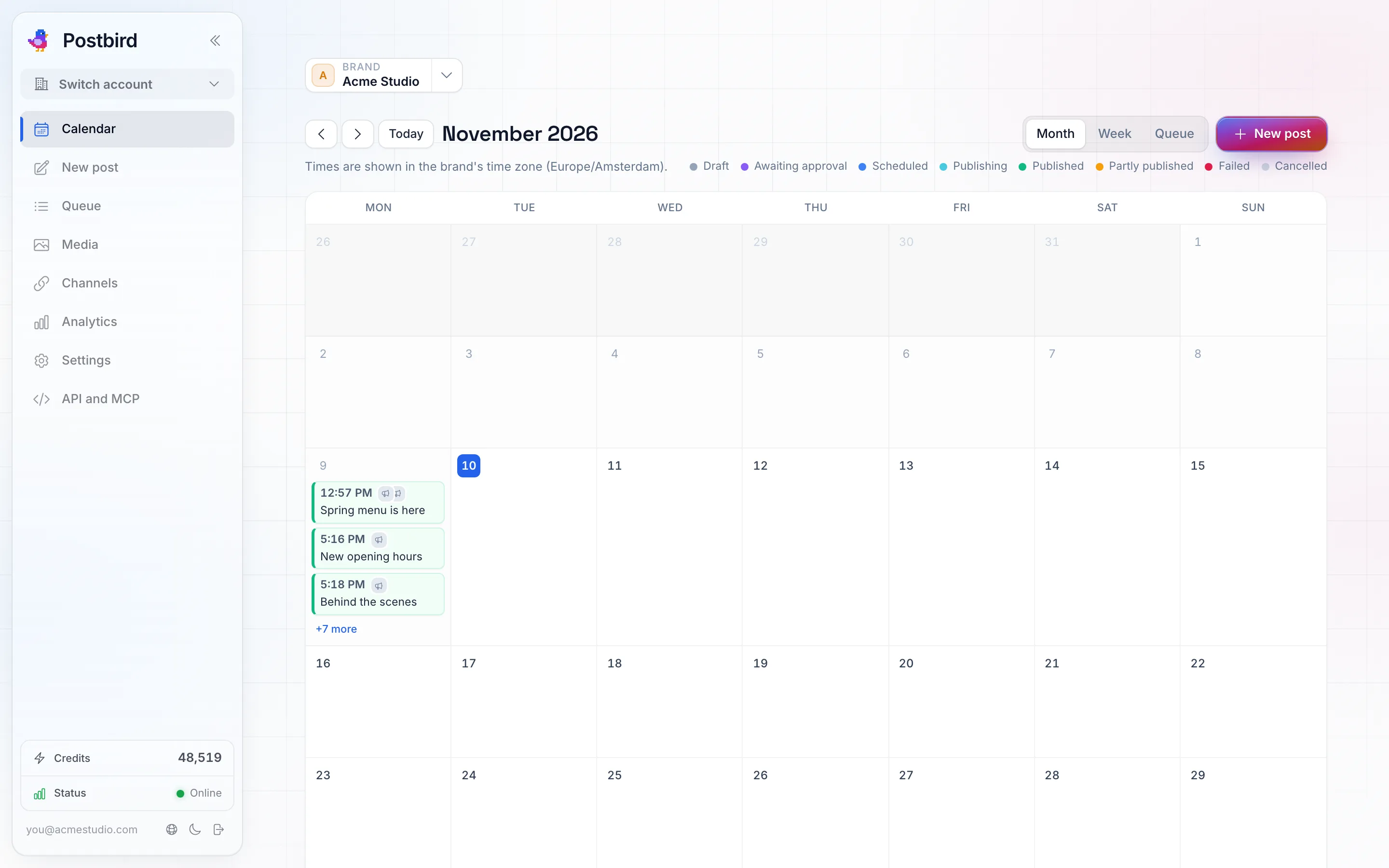
Postbird opens on the calendar of the brand picked at the top.
Brands
A brand is the business or page you post for, for example your own company or one of your clients. Each brand has its own channels, calendar, media library and settings. Pick the brand you are working on in the Brand picker at the top of the page; every page then shows that brand.
Your plan includes a set number of brands (1, 5 or 25). Champions Circle members get one brand with every channel. You see how many you use under Settings, in the Brands section, where you also add, edit or archive a brand.
When you add a brand, pick its time zone. Every post of that brand is scheduled in that time zone, wherever you are.
To give a brand its name, logo or time zone, click Edit on its row in Brands, or the pencil next to it in the Brand picker. Upload a PNG, JPG, SVG or WebP image (up to 5 MB) and pick Fit to show the whole picture or Fill to crop it to a square. The logo replaces the first letter of the name in the Brand picker, on approval links and on reports; Remove brings the letter back. Only the account owner and Admins can edit a brand.
Archiving a brand stops its scheduled posts and disconnects its channels.
Where things are
The menu on the left (on a phone, the tabs under the top bar):
- Calendar: every post of the brand by month or week, coloured by status. See composer, calendar and queue.
- New post: write a post and send it to one or more channels.
- Queue: the brand’s posts in the order they go out, plus drafts, sent and failed posts, with actions for several posts at once.
- Inbox: the comments on the brand’s posts from every channel, to read and answer in one place. See Inbox.
- Media: the brand’s images, videos and PDFs. Upload here or straight from the composer.
- Channels: where the brand’s posts go. Connect each channel once, then any post can be sent to it.
- Analytics: how the brand’s posts did. See RSS feeds, plugs and analytics.
- Settings: everything in one place, each in its own section. Under Posting: brands (and deleting your account), approvals, saved sets and signatures, RSS feeds, plugs and webhooks. Under Account: your profile, security (password and sign in), notifications, credits and your team.
- API and MCP: let an AI assistant or your own tools post for you. See API keys and AI assistants.
Ask Pip
Pip, the little bird in the corner of the app, answers your questions about Postbird. Click him and ask how to do something, for example how to connect Instagram or schedule a post for next week. He answers from the Postbird help, takes you to the right page when that helps, and can pass your question on to our team when he cannot answer it. Drag him anywhere on the screen, or hide him from his menu. Pip is there on a computer; on a phone, use this help.
Your first post in four steps
- Add a brand (the first screen asks for one).
- Open Channels and connect at least one channel. Which ones you can connect and how is explained in connecting channels.
- Click New post, pick the channels, write the text and add media if you like.
- Pick a time and click Schedule, or click Publish now.
After a post goes out, open it from the calendar to see what happened on each channel.
Post statuses
| Status | What it means |
|---|---|
| Draft | Saved, not scheduled. Nothing goes out until you schedule or publish it. |
| Awaiting approval | Waiting for someone to approve it through an approval link. |
| Scheduled | Will be published at the time shown. |
| Publishing | Being sent to the channels right now. |
| Published | Every channel took the post. |
| Partly published | Some channels took the post and some did not. The log on the post says why, and you can retry the failed ones. |
| Failed | No channel took the post. The log says why. |
| Cancelled | Taken off the schedule. It will not be published. |
Who on your team can use Postbird
Postbird uses the team on your account; it has no separate list. Everyone on your account team can open Postbird and see, write, schedule and delete posts and connect channels for every brand, whatever their role elsewhere in the account. Settings, Team is where you invite, remove or pause people. Someone signed in on your team sees who manages the team instead.
Deleting your account
Under Settings, Brands, Delete your account, the Delete account button removes every brand, connected channel and its stored access, every post, media file and draft, then deletes your login. Because Postbird uses your DM Champ login, this deletes your DM Champ account as well. Posts that were already published stay on the platforms. It cannot be undone.