Webhooks and approval links
Webhooks
A webhook lets your other tools react when a post goes out. Add an address and Postbird calls it each time a post of the brand is published, partly published or fails, for example to send an alert to your team chat or update a spreadsheet.
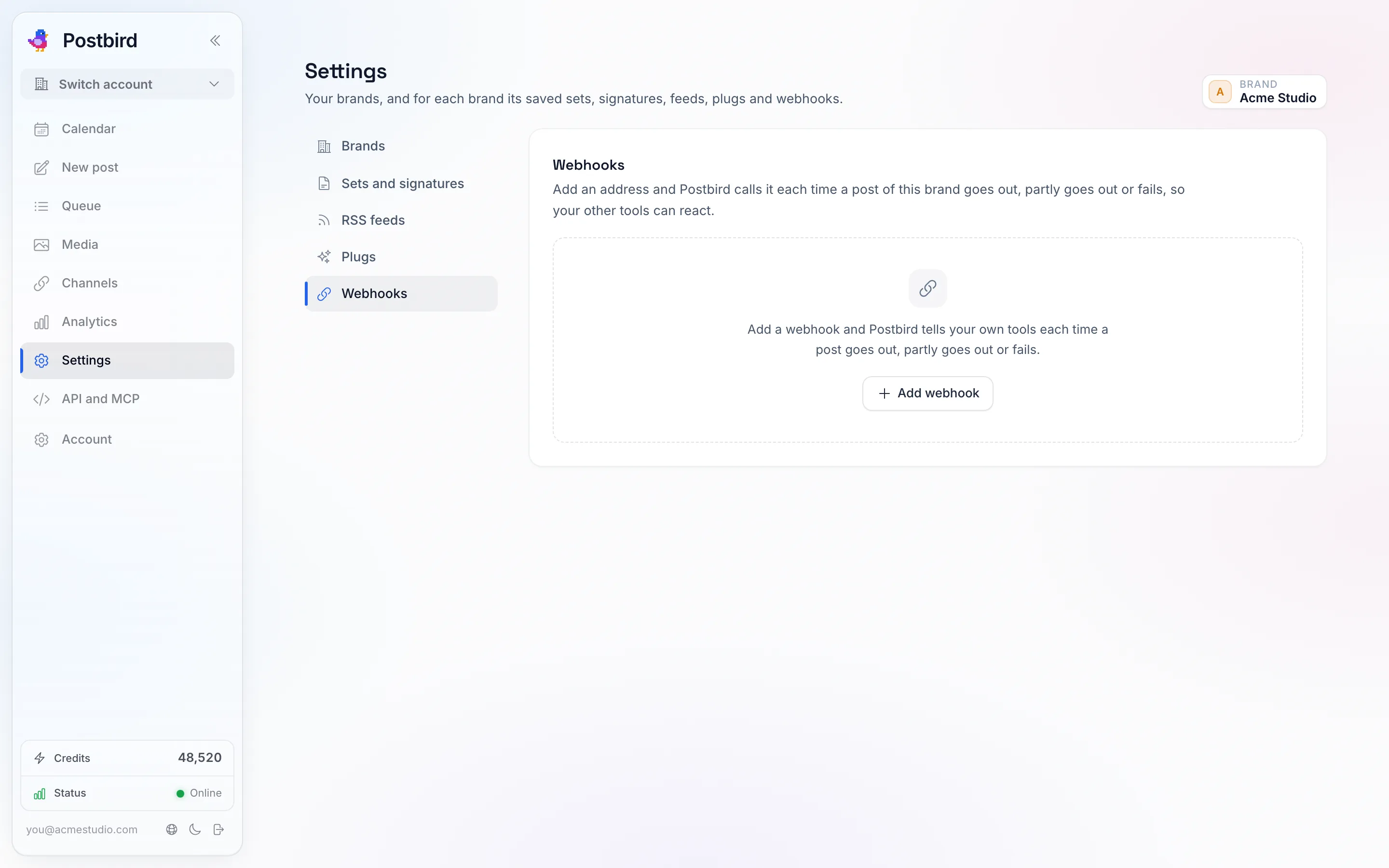
Settings, Webhooks: one address per tool, with the events you want it called for.
- Open Settings, pick Webhooks in the list of sections and check the brand at the top.
- Click Add webhook, give it a name and paste the address. It must start with
https://. - Under Call it when, keep the events you want: Post published, Post partly published, Post failed.
- Click Add webhook under the form.
- Copy the secret it shows. It is shown only once. Your tool uses it to check that a call really came from Postbird: every call is signed with it.
Use Send test to send a test call, and Recent calls to see each call, its answer and how many tries it took. If your address does not answer, Postbird tries again a few times. You can switch a webhook off, get a New secret or delete it at any time.
Approval links
An approval link lets a client or teammate approve a post without an account.
- Save the post (a draft is fine) and, in the composer’s Approval box, click Get approval link.
- Copy the link and send it to your client.
- They open it, see the post exactly as it will go out on each channel, and click Approve, or Ask for changes with a note.
While it waits, the post shows Awaiting approval and does not go out. After approval it goes out at its scheduled time, or right away if that time has already passed. A post without a time goes back to your drafts marked approved, for you to schedule. If they ask for changes, the post goes back to your drafts with their note in the composer; edit it and click Get a new link. Getting a new link turns the old one off, and Withdraw link turns a link off and returns the post to your drafts. Getting a link for a scheduled post takes it off the schedule until it is approved.
To see every approval link of a brand in one place, open Settings and pick Approvals (check the brand at the top). It lists the posts waiting for an answer, approved or with changes asked, with Get a new link and Withdraw link on each, and Share a post to send a draft or scheduled post for approval from there. A link is shown once, right after you get it, so copy it then; for an older link, get a new one.