Odoo
Who is this for? Businesses that run Odoo — the product catalog, the CRM pipeline, sales orders — and want their AI Agent to use it directly in chat. If you don’t use Odoo, you can skip this page.
Use a different CRM or ERP? Anything with an API can still be connected: see Connecting a Tool We Do Not List.
Odoo is a suite of business apps: Sales, CRM, Inventory, Invoicing and many more, all working on one database. Connecting Odoo to DM Champ lets your AI Agent do three things inside a normal conversation, without anyone building a webhook or a custom function:
- Answer product questions from your catalog. Names, prices with the right currency and tax, stock, descriptions, all read live from Odoo.
- Hand a lead to your sales team. When a customer shows buying interest, the AI creates a lead (or opportunity) in your Odoo CRM with a summary of what they want.
- Tell a customer where their order is. Status, items, invoicing and delivery progress for the customer’s own orders.
What You Need
- Odoo 14 or newer: Odoo Online, Odoo.sh or your own server.
- An Odoo user the AI will act as. What that user can see and do in Odoo is the limit of what the AI can see and do. A dedicated user with access to Sales, CRM and Inventory works best; you don’t need an administrator.
- That user’s API key. In Odoo, click the user’s name (top right) → Preferences → Account Security → New API Key. Give it a name like “AI agent” and copy the key: Odoo shows it once.
Connecting Odoo
- In the left sidebar, click Settings (gear icon).
- In the Settings sidebar, under the Integrations group, click CRM & ERP.
- On the Odoo card, click Connect.
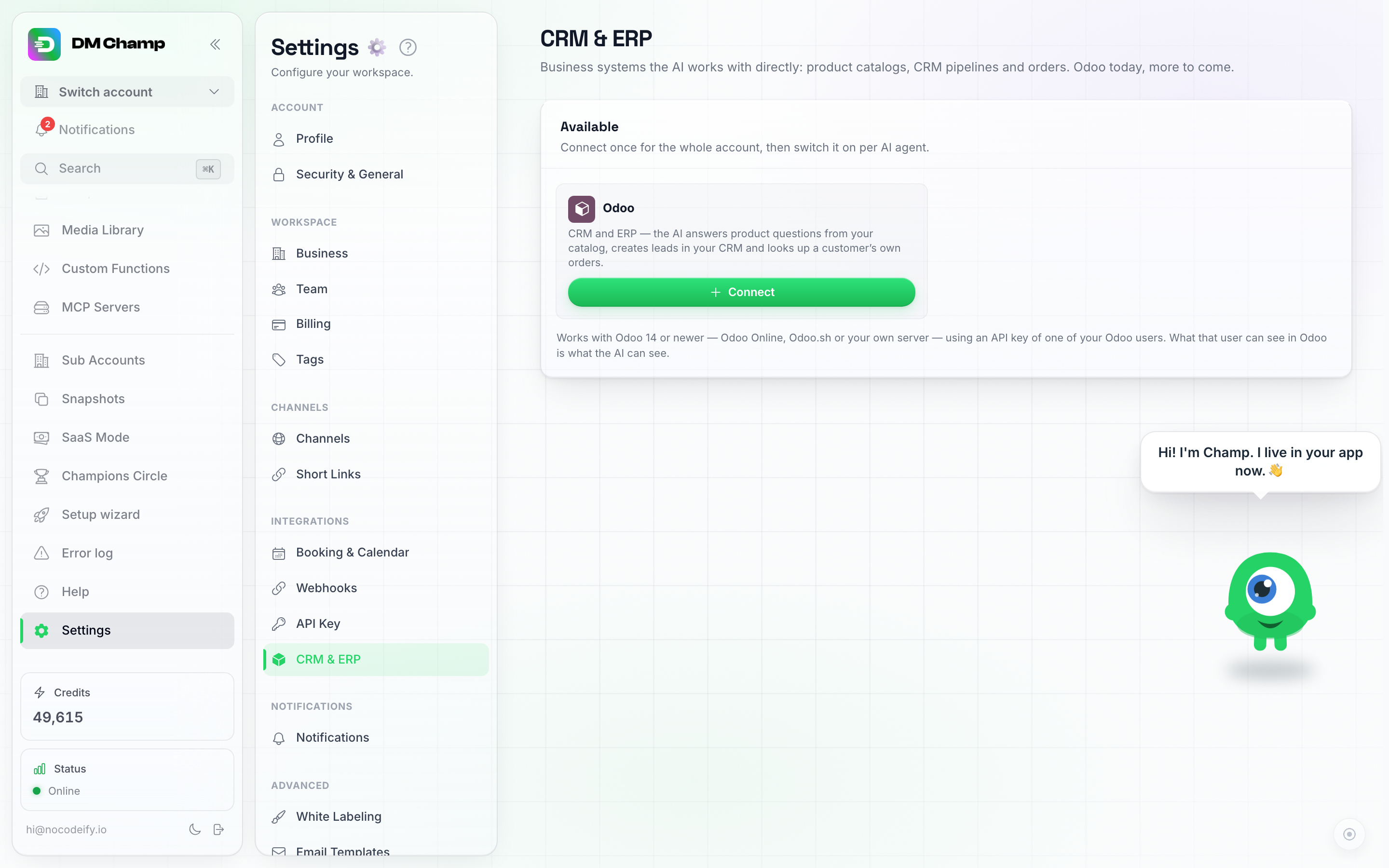
Settings → CRM & ERP before connecting: one Connect button, and the reminder that what the connected Odoo user can see is what the AI can see.
- Fill in the Odoo address: the address you sign in at, for example
https://acme.odoo.com. Pasting the whole address from your browser is fine. - Database is optional. Leave it empty and we detect it when your server has a single database. If your server has several, or hides the list, type the name: on Odoo Online it is usually the first part of your address (
acmeforacme.odoo.com). - Fill in the Odoo user login (the email that user signs in with) and the API key from the step above.
- Click Connect.
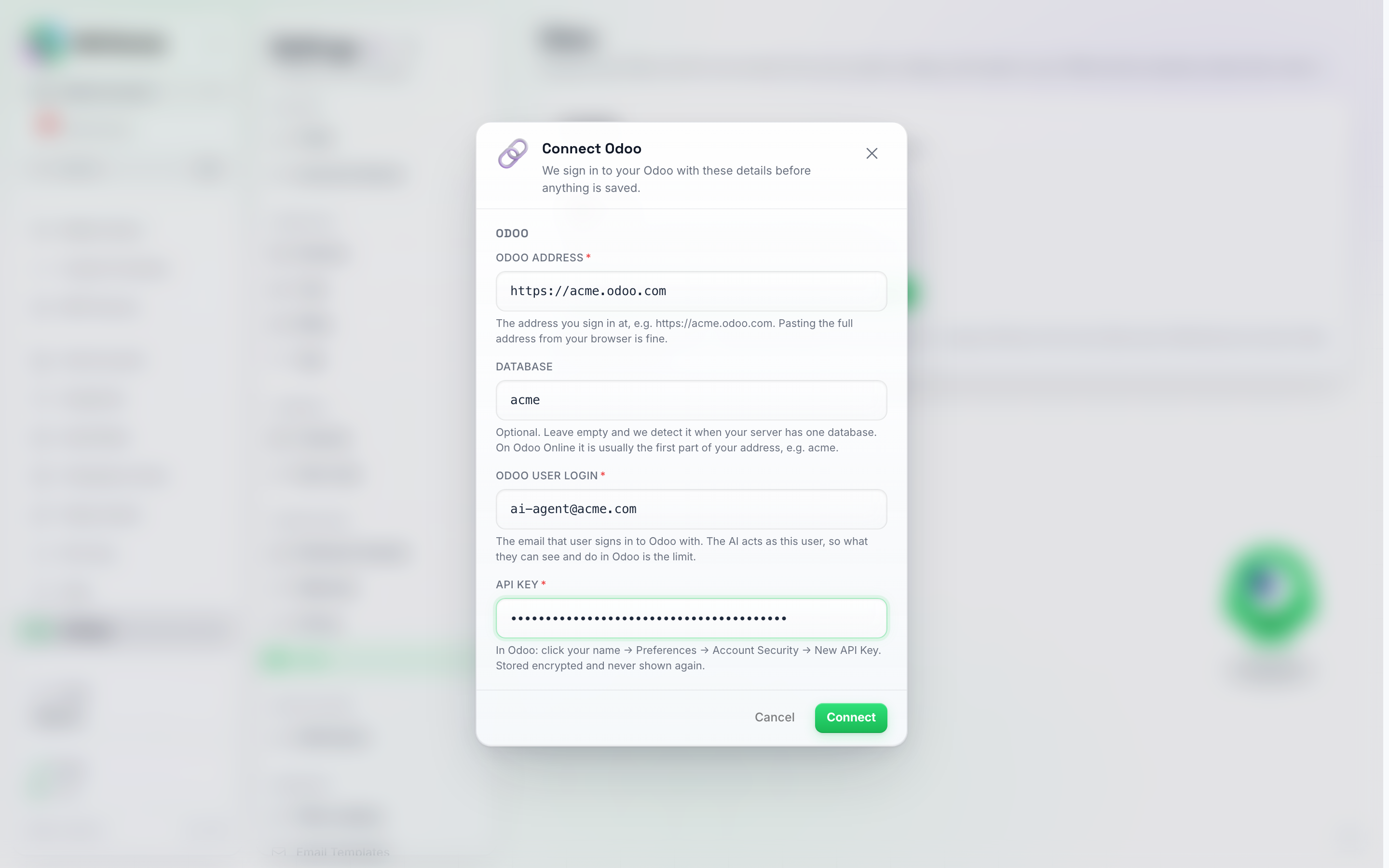
Everything the connection needs, on one screen: the address you sign in at, the database (optional), the Odoo user the AI will act as, and that user's API key.
Credential Check
Nothing is saved until Odoo confirms it. When you click Connect, we check that the address really is an Odoo server, sign in with the login and API key on that database, and read back what the user can reach in the Products, CRM, Sales and Inventory apps. A wrong address, a wrong database, a wrong login or key, or a user without access is refused right there, with the reason on screen.
When it works, the connected card shows the company and Odoo version, which database the AI is connected to, and which user it acts as.
Your API key is stored encrypted and never shown again — not to you, not to your team. Lost it? Create a new key in Odoo and connect again.
What the AI May Do
The connected card has three switches. All three are on after connecting; turn off what you don’t want the AI touching:
- Answer from the product catalog — product names, prices, tax, stock and descriptions.
- Create leads in the CRM — new leads or opportunities from conversations.
- Look up a customer’s own orders — order and delivery status.
These apply to every agent that has Odoo switched on. If the connected user couldn’t reach one of the apps when you connected (for example Inventory isn’t installed), the card says so under that switch.
Pausing or Disconnecting
- Pause stops every agent from using Odoo while leaving the connection set up. Activate switches it back on.
- Disconnect removes the connection completely. Leads the AI already created stay in Odoo. You can connect again later with the same details.
Switching Odoo On for an AI Agent
Connecting Odoo doesn’t change what your AI does yet. Switch it on per agent:
- Click AI Agents in the sidebar and open the Agent.
- Go to the AI Abilities step and scroll to the Odoo card. The card only appears once Odoo is connected.
- Turn on Use Odoo in this agent’s conversations. It saves immediately.
The card lists what this agent can now do, based on the switches under Settings → CRM & ERP. A support agent and a sales agent on the same account can differ: switch it on for the one that should use Odoo.
What the AI Can Do
Product Questions
When a customer asks about a product, a price, whether something is in stock, or “do you sell X”, the AI searches your Odoo catalog before answering. It looks at products marked Can be Sold in Odoo, matching on the product name, the internal reference and the barcode, and answers with the price and currency, whether tax is included, the stock level for stockable products, and the sales description. If nothing matches, it asks the customer for another name or a product code instead of guessing.
Leads
When a customer shows real buying interest — asks for a quote, wants to be called, wants to order something the AI can’t complete in chat, asks for a demo — the AI collects what your sales team needs (what exactly, how many, when, budget if offered, their name and email) and creates a record in your Odoo CRM:
- A lead if your CRM uses the Leads stage (CRM → Configuration → Settings → Leads), otherwise an opportunity in your pipeline.
- The customer’s phone number, email and name are taken from the contact in DM Champ, and the record is linked to the matching customer in Odoo when one exists.
- If that customer already has an open lead or opportunity, the AI adds the new request as a note on it instead of creating a duplicate.
The record carries a title such as “Quote for 20 office chairs” and a summary written for your team, plus a note with the channel the conversation came from.
Testing an agent in the playground never creates anything in Odoo: the AI tells you what it would have created.
Order Status
When a customer asks where their order is, what they ordered, or whether it has shipped, the AI looks up their orders in Odoo and answers with the order reference, status (quotation, confirmed, completed or cancelled), date, total, the items, invoicing, and delivery progress with a tracking number when your carrier provides one.
The AI only ever shows the customer their own orders:
- On WhatsApp, SMS and other phone channels, orders are matched to the number the customer is writing from (and the email on their contact, if there is one).
- On your website chat, where nobody’s identity is verified, the AI asks for both the order reference and the email address the order was placed with, and shows the order only when both match.
There is no way for the AI to list other people’s orders or to look up an order by reference alone.
Good to Know
- One Odoo per account. If you run several companies in separate Odoo databases, connect the one your Agent should use.
- The Odoo user is the limit. The AI sees exactly what that user can see. Give the user access to the Sales, CRM and Inventory apps in Odoo, and nothing the AI shouldn’t touch.
- Odoo stays the source of truth. Nothing from Odoo is copied into DM Champ; every answer reads Odoo live at that moment.
- Phone numbers are matched loosely. A customer whose number is saved in Odoo as
06 12 34 56 78is still found when they write from+31 6 12345678. - Odoo unreachable? The AI apologises, answers what it can from your knowledge base, and alerts your team if the customer needs an answer right away.
Next Steps
- AI Agents — set up the Agent that will use Odoo.
- Knowledge Base — add your policies, delivery times and return rules so the AI can answer around the catalog too.
- Connecting a Tool We Do Not List — for anything Odoo-related the three abilities above don’t cover (custom functions, webhooks, the API).