Exporting Your Contacts
You can download your contacts as a file at any time — for your records, to use in another tool, or as a backup.
Prefer to see it? Click through the whole flow:
How to Export Contacts
- Click Contacts in the left sidebar.
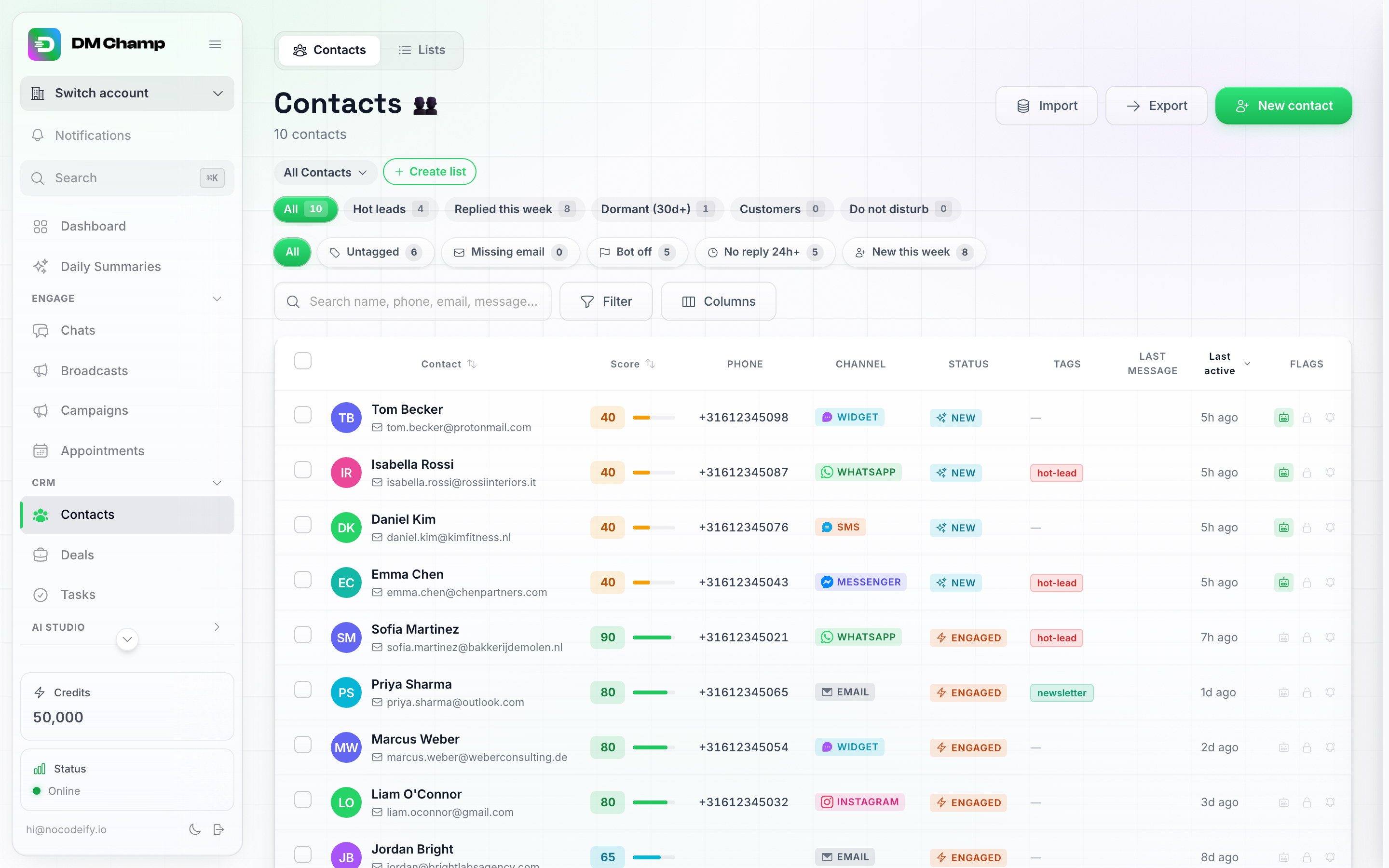
The Export button lives in the toolbar at the top of the Contacts page, next to Import.
There are two ways to export from here, and both respect whatever you currently have on screen:
Option A: Export the current view
- Click the Export button at the top of the page. This opens a dialog confirming what’s about to download — every contact matching whatever is currently active: the selected list, saved view, smart filter chips, and search box. To export your whole account, first clear any list/filter/search so “All Contacts” is showing, then click Export.
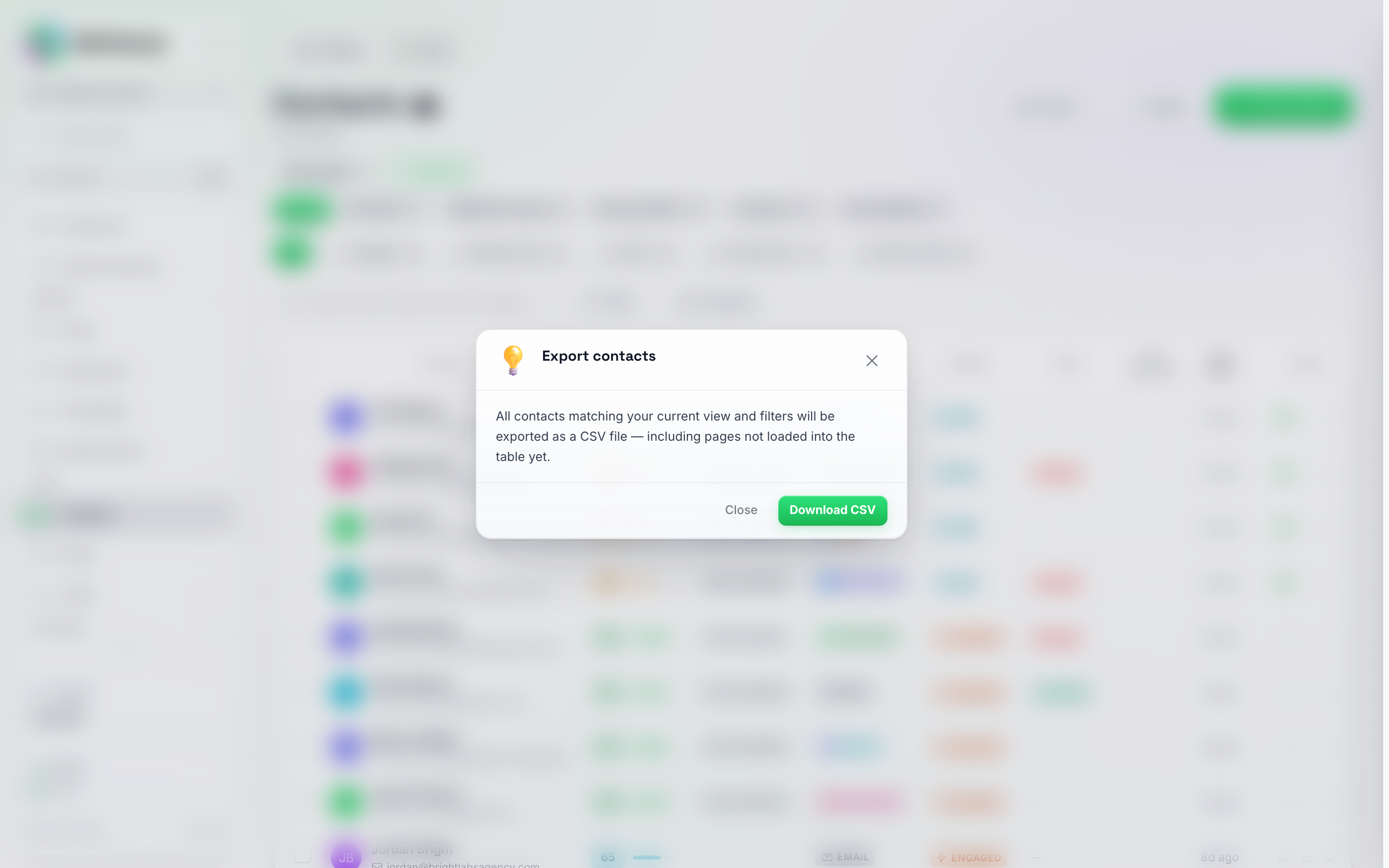
Clicking Export opens this confirmation — click Download CSV to get the file.
- Click Download CSV to confirm. The file downloads immediately and a confirmation briefly appears at the bottom of the screen.
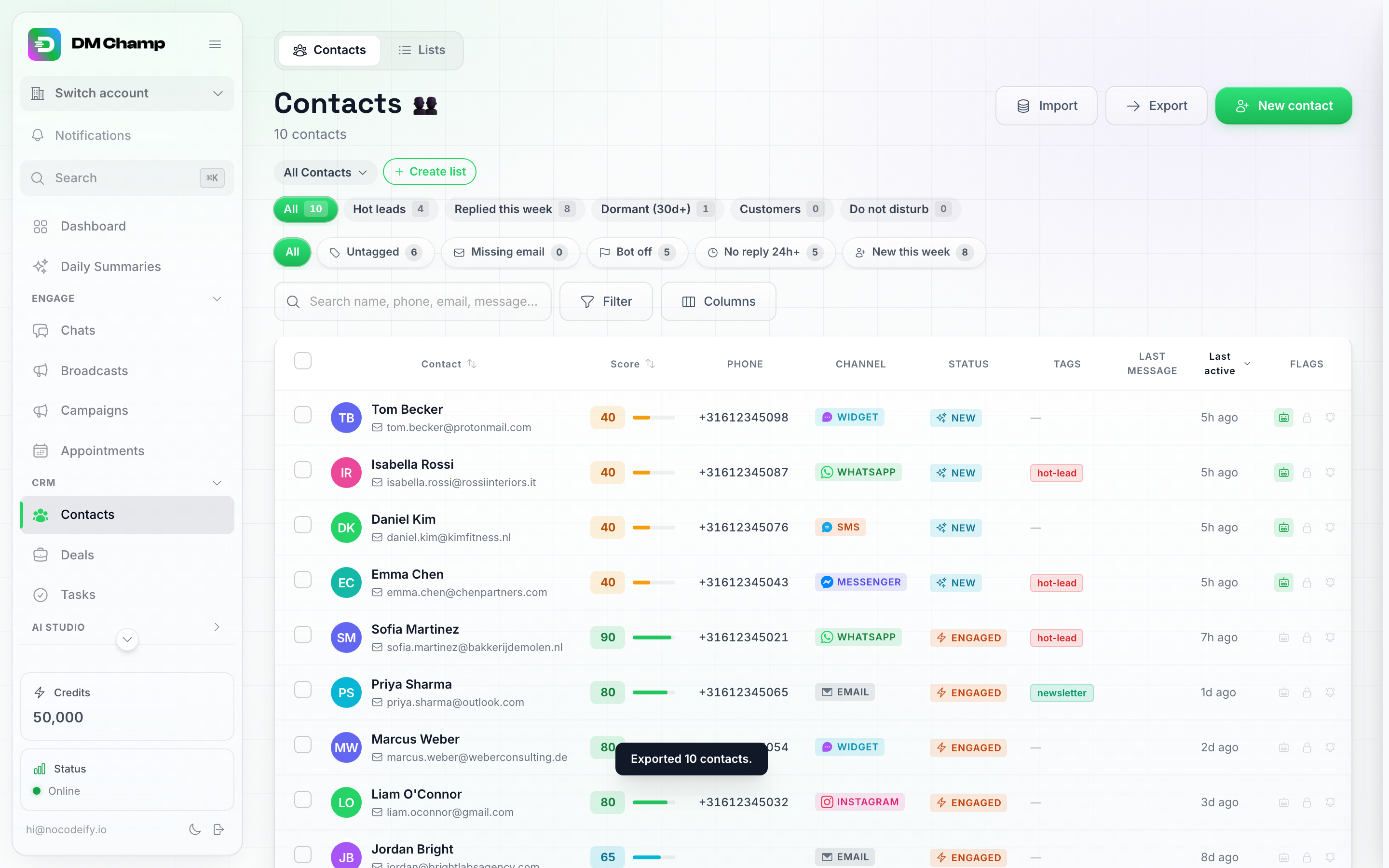
A brief confirmation shows how many contacts were exported.
Option B: Export a selection
- Tick the checkboxes next to the contacts you want. A floating action bar appears at the bottom of the screen with bulk actions, including Export.
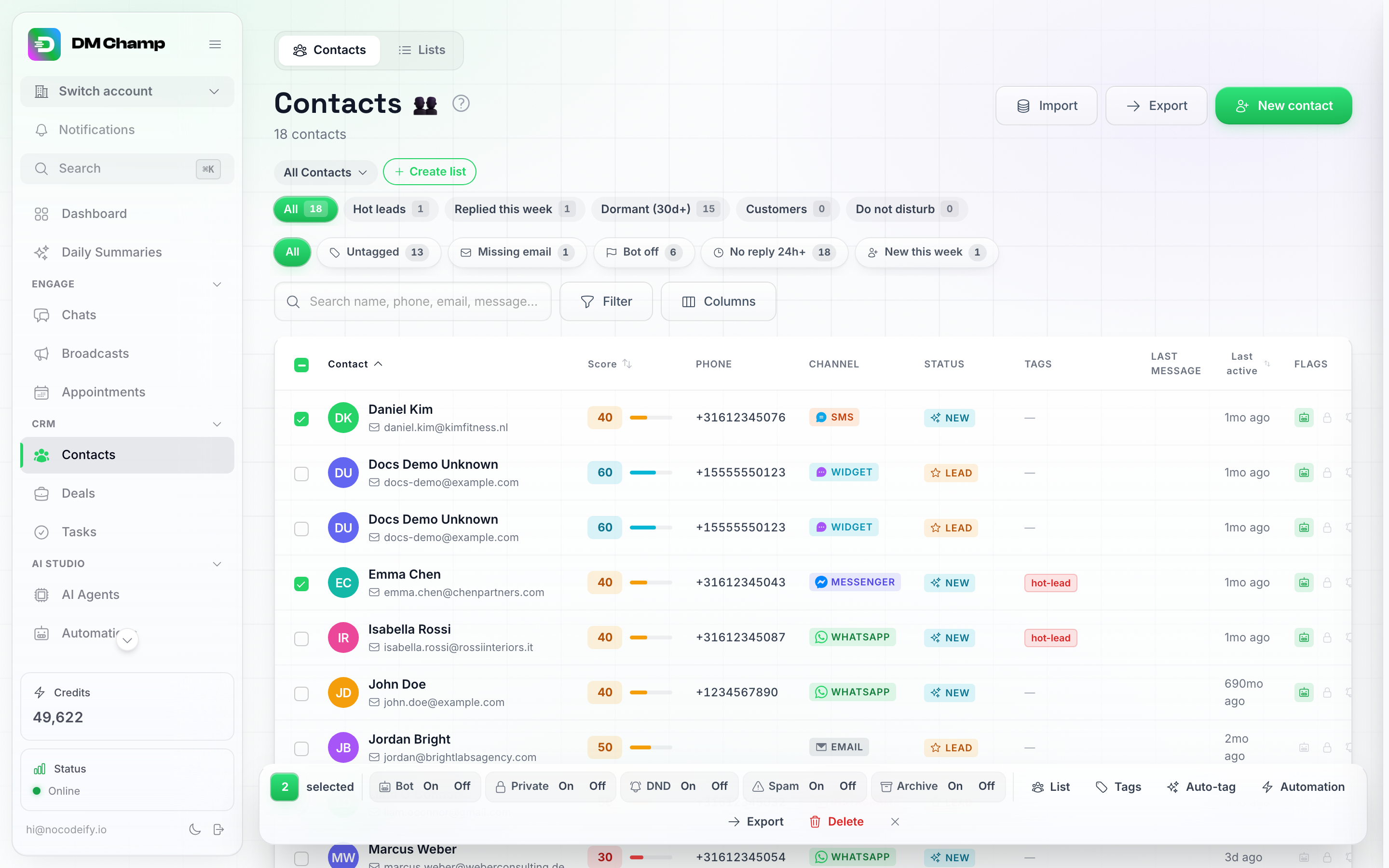
Selecting contacts opens the floating action bar — Export is one of the bulk actions.
- Click Export in that bar. The same confirmation dialog opens, scoped to just your selection.
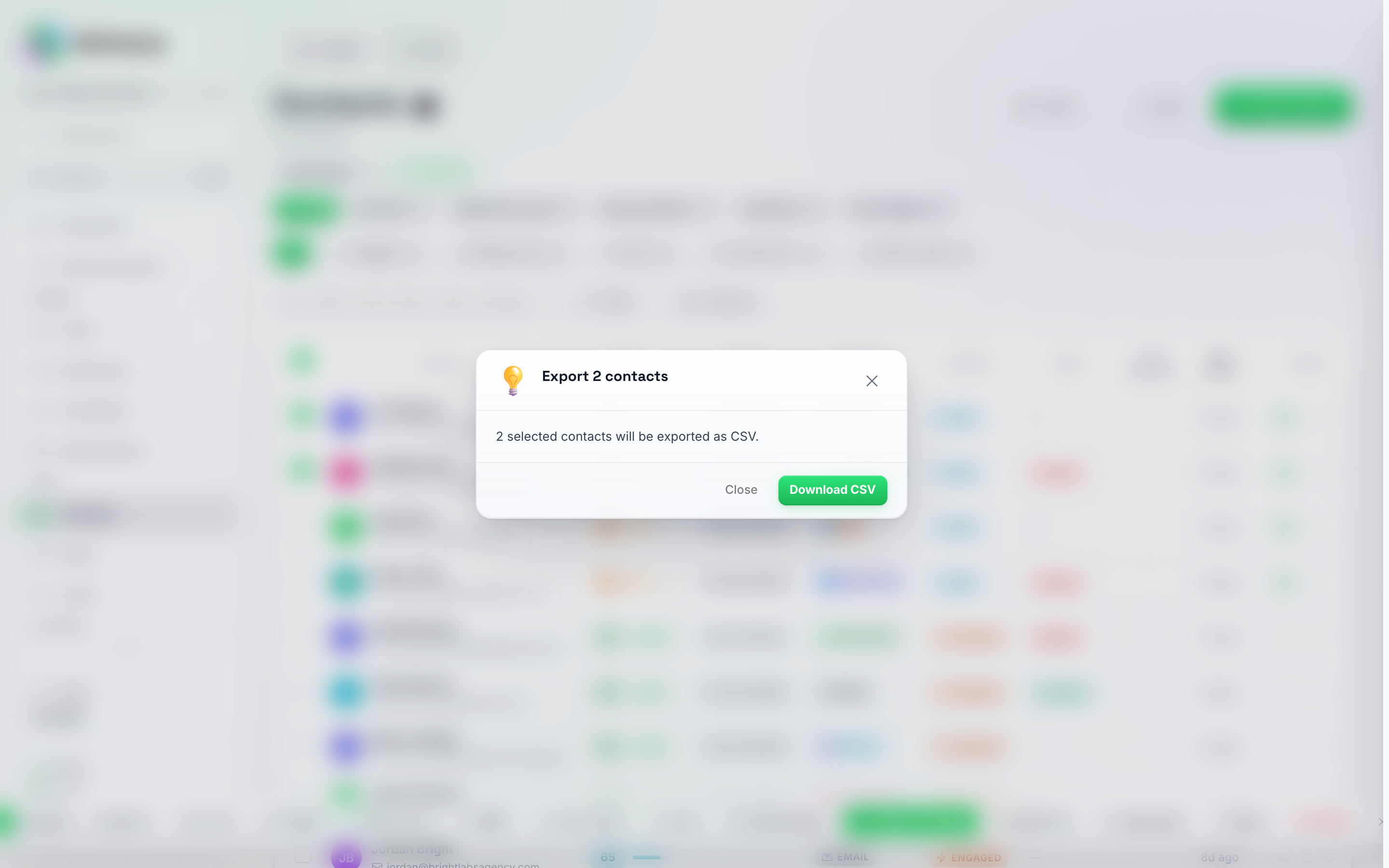
Exporting a selection shows the exact count in the dialog title and body.
- Click Download CSV to confirm.
What the Exported File Contains
The export includes, per contact:
- Contact ID (the same ID the API uses, so a later export or an API update can be matched row by row)
- First name and last name
- Phone
- Channel
- Status
- Tags
- Lead score
- Bot active
- Do not disturb
- Private
- Lead profile (the same field the app labels “Notes” on the contact record — see Custom Fields, Lead Profile & Notes)
- Last activity
- Created
- One column per custom field, headed with the field’s key (
location,service_dateand so on). Fields set up on your account come first, in the same order as your account’s custom-field list, so a daily export always has the same columns, even on a day no exported contact has a value in one of them. A key that only exists on some contacts follows, alphabetically. Yes/no fields showyesorno, dates stayYYYY-MM-DD, a value stored as a list or a group of values (usually written by an API integration) appears as JSON text, and a contact without a value gets an empty cell. - AI summary: the contact’s most recent conversation summary, when one has been generated. Contacts without a summary get an empty cell. Nothing new is generated and no credits are used by exporting. A team member whose role can’t view conversations gets the file without this column, and a note says why.
Summaries that could not be loaded: if some summaries fail to load while the file is being built, the file still downloads and a warning says how many cells were left empty, so an empty cell is never mistaken for “no summary” without you knowing.
Cells that start with
=,+,-or@get a leading apostrophe, so a name or summary can’t run as a formula when the file is opened in Excel or Google Sheets. Phone numbers and plain numbers are left as they are.
No message text in the file. There is no column containing the words of individual messages: “Last activity” is a timestamp, and the AI summary is a short recap of the conversation, not a transcript.
The file is a CSV, which opens in Excel, Google Sheets, or any spreadsheet app.
Next Steps
- Importing Contacts from a File — upload contacts from a spreadsheet.
- Organizing Lists & Contacts — manage your contact lists.