Trafft
Who is this for? This integration is for appointment businesses that already run their schedule in Trafft — salons, barbers, clinics, studios, consultants, repair shops. If you don’t use Trafft, you can skip this page.
Use a different scheduling system? Anything with an API can still be connected: see Connecting a Tool We Do Not List, which covers custom functions, the API and webhooks.
Trafft is a scheduling platform for businesses that sell time: you set up your services, your staff and your locations, and customers book a slot. Connecting Trafft to DM Champ lets your AI Agent handle the whole booking inside the chat — checking what is really free, booking it, and confirming the time — instead of sending someone off to a booking link and hoping they finish.
What Trafft Does
Trafft gives an appointment business:
- Services with their own duration and price
- Staff (employees) with their own working hours
- One or more locations
- A booking website and calendar for your team
By connecting Trafft to DM Champ, that same schedule becomes something your AI can work with on WhatsApp, SMS, Instagram or your website chat. The AI reads your services and staff, checks Trafft for real openings, and writes the booking straight into Trafft — so what your team sees in Trafft is always the truth.
Connecting Trafft
Before you start: you need API access in Trafft, which is part of Trafft’s Business plan. Open your Trafft admin panel and look for Features & Integrations → API & Connectors. If that page isn’t there, your Trafft plan doesn’t include it yet and the connection can’t be made.
- In the left sidebar, click Settings (gear icon).
- In the Settings sidebar, under the Integrations group, click Booking & Calendar.
- Find the Trafft card and click Connect.
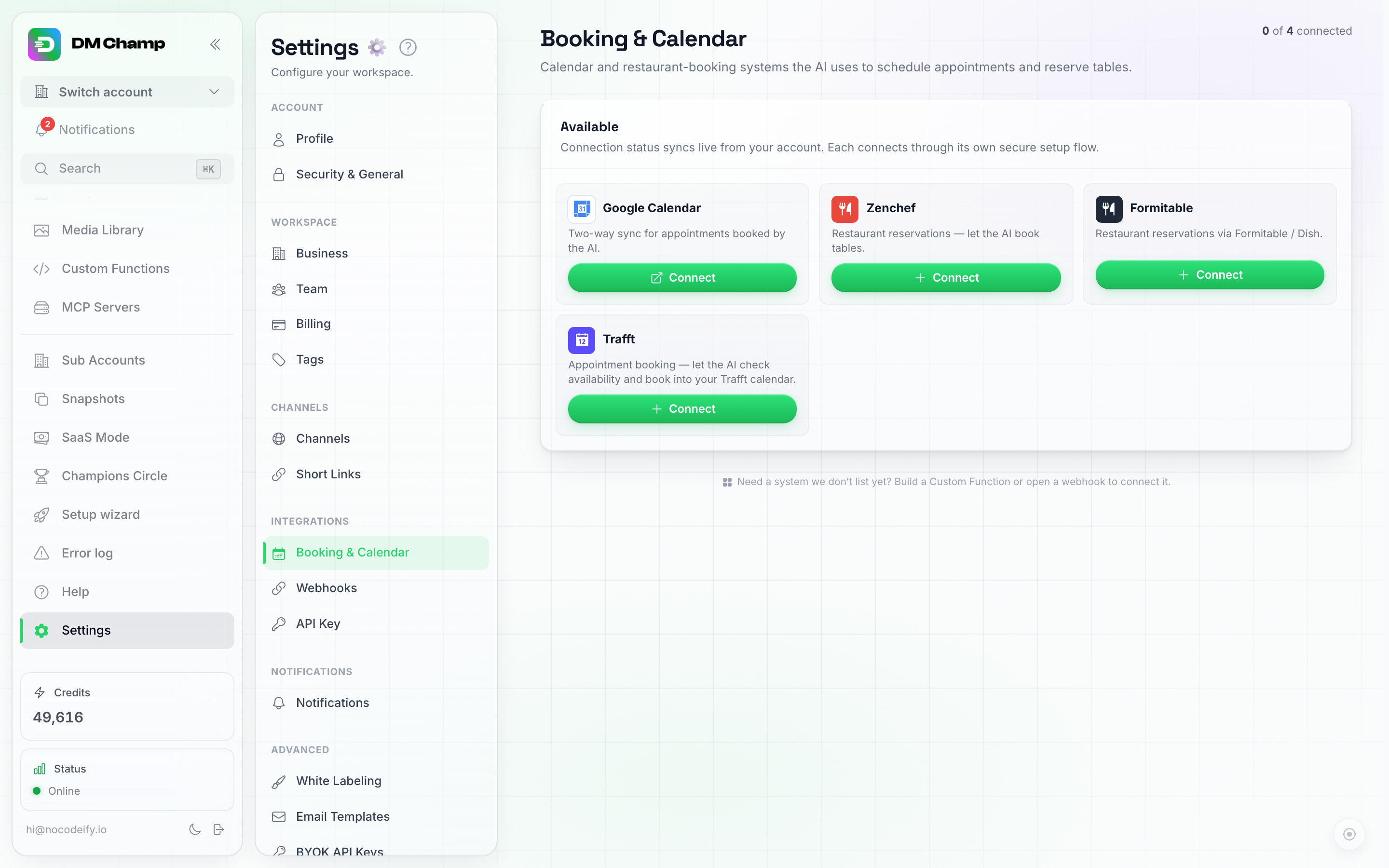
Booking & Calendar shows Trafft's live connection status alongside Google Calendar, Zenchef and Formitable, and connects each one.
- Fill in the Company address. This is the part in front of
.admin.trafft.comin the address you sign in at — if you sign in atacme.admin.trafft.com, typeacme. Pasting the whole address works too; we take the right part out of it. White-label Trafft account? If your Trafft address ends in.admin.wlbookings.cominstead (the address Trafft gives accounts created under an agency’s white-label plan), paste the full address, e.g.acme.admin.wlbookings.com— that tells us where your Trafft lives. Typing onlyacmewould look for you on the standard Trafft address, which is a different account. - Fill in your Client ID and Client Secret. Both are in your Trafft admin panel under Features & Integrations → API & Connectors.
- Optionally add a Label — a name for your own list, handy if you manage several businesses.
- Click Connect.
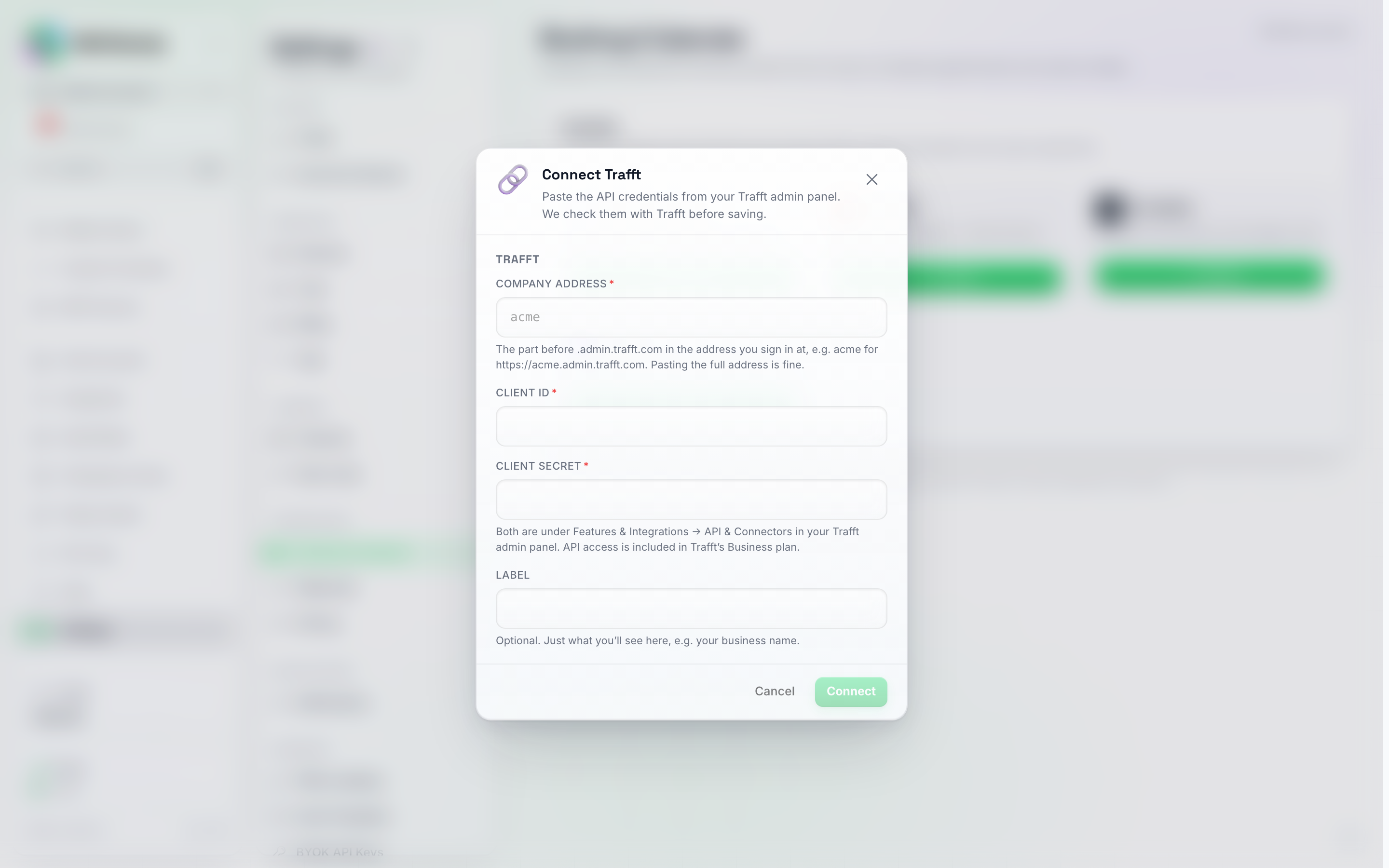
Everything the connection needs, on one screen: your company address (the bit before .admin.trafft.com), the Client ID and Client Secret from Trafft's API & Connectors page, and a label of your own choosing.
Credential Check
Nothing is saved until Trafft confirms it. When you click Connect, we sign in to Trafft with what you typed and read your setup back. A wrong company address, a wrong Client ID or Secret, or a Trafft plan without API access is refused right there, with the reason on screen — you never end up with a connection that looks fine and fails the first time a customer asks for an appointment.
When it works, the connected row shows your company address together with how many services and how many staff we found in Trafft. That count is your proof the right account is connected: if it says two services and you offer twenty, you connected the wrong one.
Your Client Secret is stored encrypted and never shown again — not to you, not to your team. Lost it? Generate a new one in Trafft and connect again.
Pausing or Disconnecting
The connected Trafft row has its own buttons on the Booking & Calendar page:
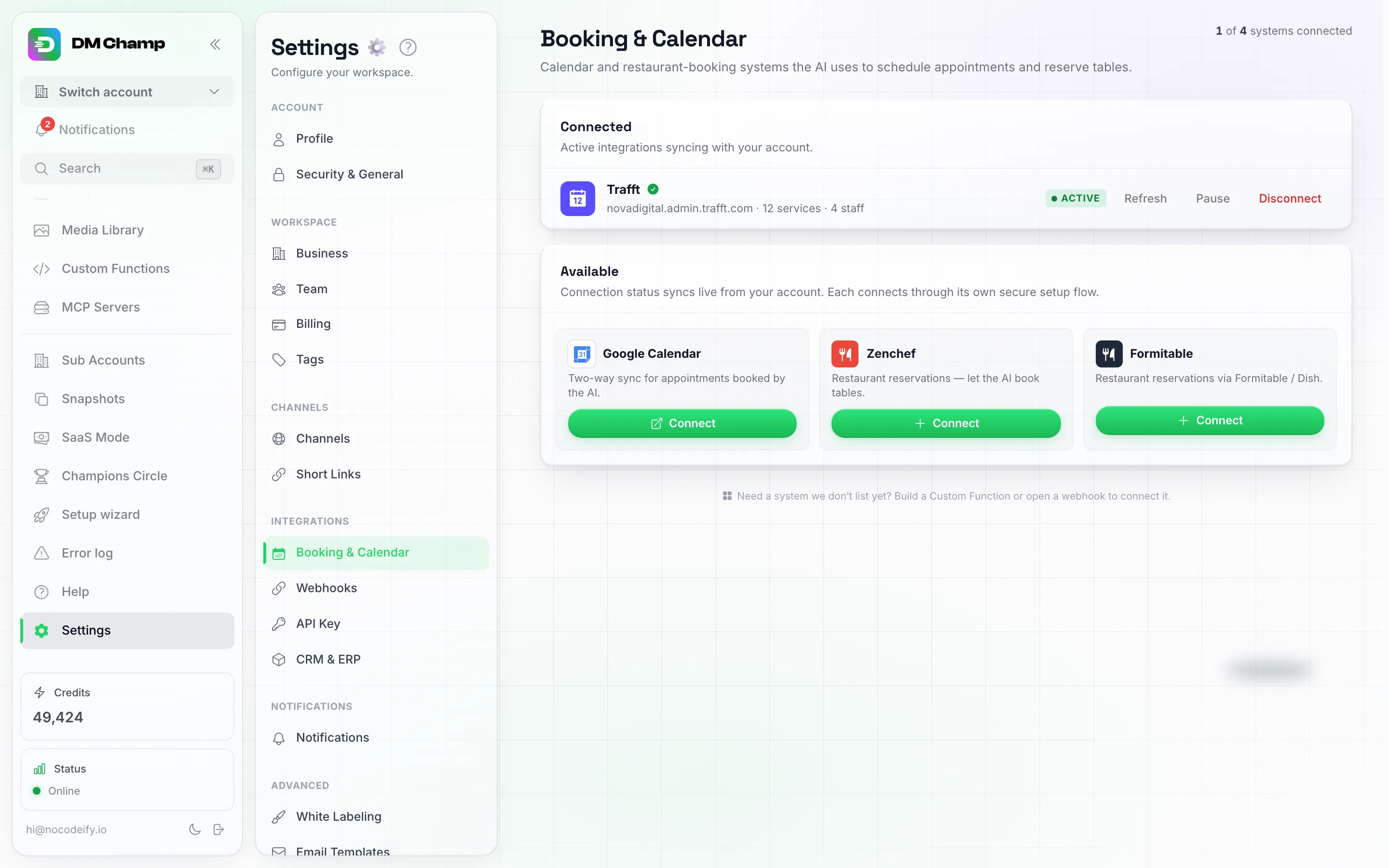
The connected Trafft row: which Trafft account it points at, the services and staff it found, and the Refresh, Pause and Disconnect buttons.
- Refresh reads your services and staff counts from Trafft again (see Adding or Changing Services Later).
- Pause stops your AI booking into Trafft while leaving the connection set up. Activate switches it back on. Use it while you are reorganising your services, or over a closed period.
- Disconnect removes the connection completely. Appointments that are already in Trafft are left exactly as they are — disconnecting never cancels or deletes anything in your Trafft calendar. You can connect again later with the same details.
Telling your AI Agent to book with Trafft
Connecting Trafft doesn’t change what your AI does yet. Point an Agent at it:
- Click AI Agents in the sidebar and open the Agent.
- Go to the AI Abilities step and find the Bookings card.
- Turn on Let this agent book appointments.
- Click the provider picker and choose Trafft (the provider choices appear right under the switch).
- Click Save changes.
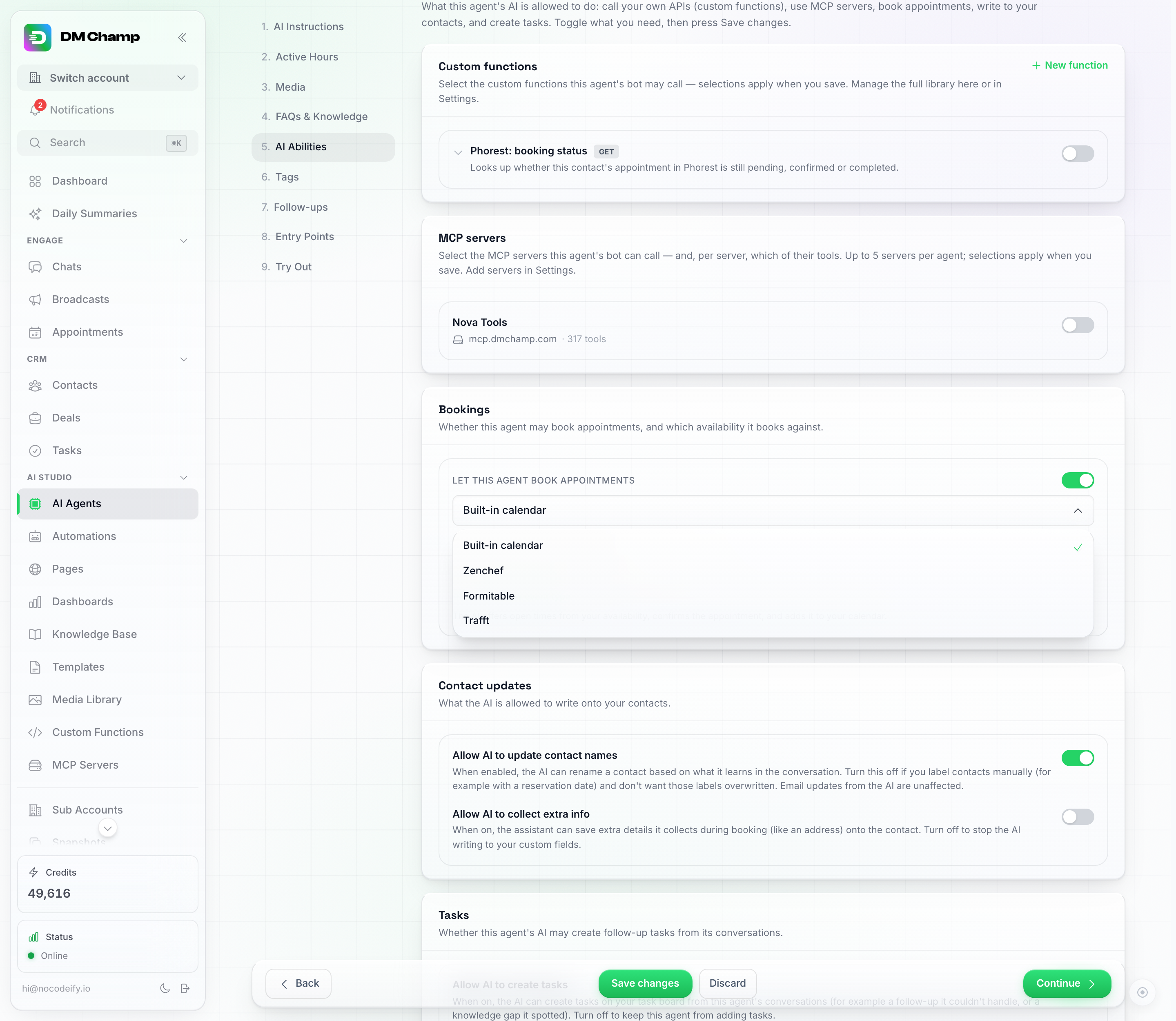
The booking provider picker on the agent's Bookings card — pick Trafft to have this agent book against your Trafft services, staff and opening times.
What the AI Can Do
With Trafft picked as the provider, your Agent can do all of this inside a normal conversation:
- Tell people what you offer. It lists your Trafft services with how long each one takes and what it costs, and it can name your staff.
- Check what is really free. It asks Trafft for the open times for the service someone wants, and can narrow that down to a particular staff member or a particular location if the customer asks for one. It looks at up to a week at a time, so it will ask which day or which week you mean rather than reading out your whole calendar.
- Book it. The appointment is created in Trafft there and then, as an approved booking, and the AI tells the customer the confirmed time. The customer is added to your Trafft customer list, or matched to the record they already have there by their email address.
- Look up what they booked. The AI can tell a customer their own upcoming Trafft appointments.
- Cancel. One message (“something came up, can you cancel Thursday?”) and it is gone from your Trafft calendar.
- Move an appointment. The AI books the new time first and only then removes the old one, so if the new time turns out to be taken, the customer still has their original slot.
Every booking made this way also appears on your Appointments page with Trafft shown as the provider, so it counts like any other booking: your Appointment Booked webhook fires, and automations that start from a new appointment run as usual. Any reminders or confirmation emails Trafft itself sends still come from Trafft, exactly as they do for a booking made on your Trafft website.
Adding or Changing Services Later
Add a service in Trafft, change a price, retire one, or take on a new member of staff, and there is nothing to switch on here. Your AI reads your Trafft catalogue live, in every booking conversation, so it works from what Trafft says at that moment rather than from a copy taken when you connected. A service you added this morning can be booked this afternoon.
Two things are worth knowing:
- The counts on the connected row are from when you connected. The services and staff numbers shown on the Trafft row on the Booking & Calendar page are what we found while checking your credentials, so they don’t move on their own as your Trafft menu grows. Click Refresh on that row to read them again. It only updates those numbers — the AI was reading your live catalogue either way.
- If your assistant ever says a service doesn’t exist, ask it to list your services. That makes it fetch the catalogue again and answer from the fresh list. If the service still isn’t there, it really isn’t in the Trafft account you connected — check you connected the right one (the counts on the row are the quickest tell).
Good to Know
- A cancellation removes the appointment in Trafft. Trafft’s API deletes it rather than marking it cancelled, so a booking cancelled from a chat leaves no “cancelled” row behind in your Trafft calendar. If you like keeping a record of cancellations, note them somewhere else.
- The AI stays in its own lane. It only ever sees and changes appointments that were booked in that conversation, or that belong to the contact it is talking to. It cannot read or move anyone else’s bookings.
- A booking needs an email address and a name. Trafft identifies customers by email, so the AI asks for whatever it is still missing before it books.
- Group bookings aren’t supported yet. One person per appointment — extra guests or party sizes can’t be sent to Trafft at the moment.
- Payments stay in Trafft. The AI quotes the price but never takes a payment, and it cannot send a payment link: Trafft’s API does not expose invoices or payment links, so there is nothing for it to fetch. If a service must be paid up front or needs a deposit, switch on an online payment method in Trafft and add Trafft’s payment link placeholder (Email/SMS notification settings → the Appointment dropdown) to the Appointment Approved notification. The confirmation Trafft sends after each booking the AI makes then carries the link to pay the full amount or the deposit. The booking itself is created without a payment step, so it is approved whether or not it has been paid. Want the link in the chat itself? Add your own payment link (Stripe, PayPal, any checkout page) to the Agent’s knowledge base or instructions with a note on when to send it, and the AI shares it when a customer needs to pay.
- One Trafft account per DM Champ account. If you run several businesses in separate Trafft accounts, connect the one your Agent should book into.
- Reselling Trafft under your own name? An agency can give Trafft its own product name for its clients: Settings → White Labeling → Integrations → Booking provider name. On the agency’s white-label domain that name replaces “Trafft” on this page’s cards and dialogs, in the agent’s provider picker, on the Appointments page, on the tool chips in Chats and in what the AI says in chat. On that domain the Connect dialog asks for the
.admin.wlbookings.comaddress (the one Trafft’s white-label plan gives your clients) instead of.admin.trafft.com, and typing just the company part there, e.g.acme, connectsacme.admin.wlbookings.com. See White-Labeling → Integration Names.
- White-label Trafft accounts work the same way. An account whose address ends in
.admin.wlbookings.com(Trafft’s white-label plan) connects exactly like a standard one — paste the full address as the company address. The Client ID and Client Secret still come from that account’s own Features & Integrations → API & Connectors page, so it still needs API access on its Trafft plan.
Next Steps
- AI Agents — set up the Agent that will take the bookings.
- Booking System — how appointments work across the app, and where they show up.
- Knowledge Base — add your prices, policies, parking and cancellation rules so the AI can answer around the booking too.