Billing System
Overview
The platform uses a subscription + credits billing model. Your subscription gives you access to the platform and determines your feature limits. Credits are the currency that powers AI responses, outgoing messages, and channel connections.
Prefer to see it? Click through the whole flow:
How to get to Billing: In the main left sidebar, click Settings (the gear icon near the bottom). In the Settings menu, under the Workspace group, click Billing. Everything in this guide lives on that one screen.
Faster shortcut: the Credits card at the bottom of the main left sidebar is clickable — clicking it jumps you straight to Billing without opening Settings first.
On a phone? The left sidebar is hidden behind the menu icon (☰) in the top corner — tap that first, then tap Settings.
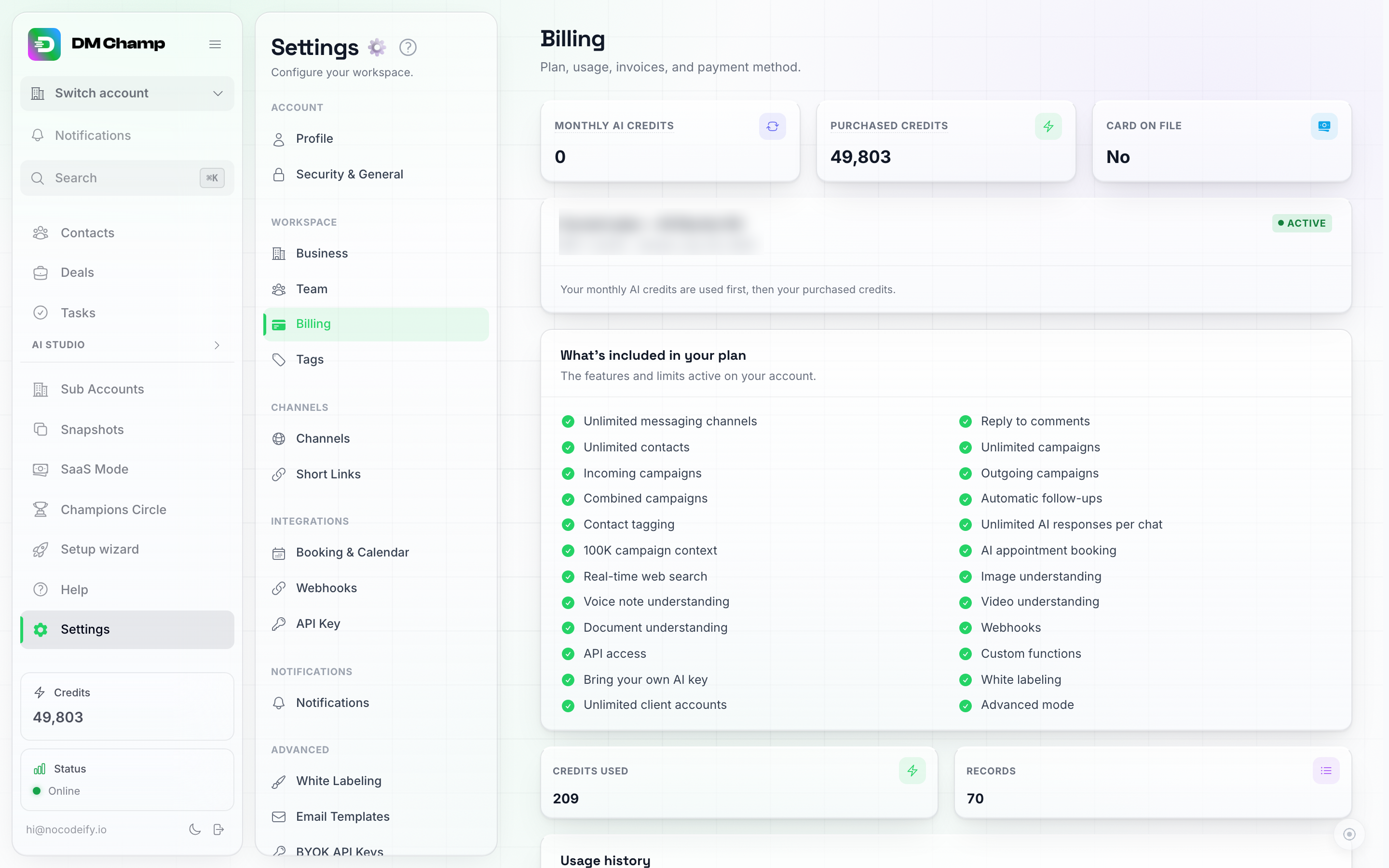
Billing opens on this overview: your credit balance and current plan at the top, then a running usage history ledger below.
Subscription Plans
Your subscription plan determines:
- How many AI credits land on your balance each month.
- How many team seats you have, and how many client accounts you can run.
- Which features are available to you (white-labeling, bringing your own AI key, and more).
You can view and manage your subscription from Settings → Billing (see above). For a full breakdown of what each plan includes, see Subscription Tiers.
What’s included in your plan
Right below your current plan card, the What’s included in your plan list shows every feature and limit that is actually active on your account — unlimited channels, your contact allowance, your AI agent context size, AI response limits, white-labeling, API access, how many sub-accounts you can create, and so on.
This list is the source of truth for what your account can do. If we’ve added a custom entitlement to your account (for example an unlimited sub-accounts allowance from an earlier plan), it appears here too — even if it doesn’t have its own separate menu elsewhere in the app. So if you’re ever unsure whether you still have a feature, this is the place to check.
Credit System Explained
Credits are the core unit of usage in the app. Think of credits like prepaid minutes on a phone plan — each action your account performs uses a set number of credits.
AI Credits
Credits are deducted when the AI “thinks” — meaning when it processes messages and generates a response. They are not charged for every individual message sent or received.
Example: A contact sends you 5 messages in a row. When the AI processes all of those messages and generates a single response, that costs 1 credit on the Pro tier. It doesn’t matter how many messages the contact sent or how many messages the AI sends back in its response — it’s one credit charge per AI response cycle.
What one AI action costs, by AI Quality tier
Your per-AI-action cost depends on the AI Quality tier you pick for the agent:
| AI Quality tier | Credits per AI action | With your own Anthropic key (BYOK) connected |
|---|---|---|
| Pro | 1 credit | 0 credits — runs on your key |
| Economy (deprecated) | 0.5 credits | 0 credits — runs on your key |
| Max | 0.25 credits | still 0.25 credits, billed even with your own key connected |
| Mini | 0.15 credits | still 0.15 credits, billed even with your own key connected |
On the Champions Circle Insider Rate, Max costs 0.20 credits per action and Mini 0.12, with or without your own key. Pro and Economy are not discounted.
Max is our newest model, cheaper and faster, and is the best way to lower your credit usage without giving up accuracy. Mini is the cheapest tier we offer: the same model family as Max on a lighter setup, so it trades a little accuracy and conversation memory for the lowest price per reply. Economy is deprecated and no longer recommended; switch any Economy agent to Max. For why Max beats both premium and budget alternatives on value, see Why Max Is the Best Value.
If you use your own API key (BYOK): the Max tier never uses your own API key, so selecting Max means your key is not used for that agent — you’re charged 0.25 credits per action (0.20 on the Champions Circle Insider Rate) from your credit balance instead. To keep your agent on your own key (0 credits), leave it on the Pro tier rather than Max.
How credits are actually consumed (frequently asked)
- One AI response = one credit charge. If the bot splits its reply into 3 message bubbles in rapid succession to feel more natural, that’s still 1 credit, not 3.
- Rapid-fire incoming messages are batched into one reply. If a contact sends 4 short messages back-to-back, the bot waits for them to finish typing, then replies once — that’s 1 credit, not 4. This batching is automatic.
- Most conversations cost about 1 to 2 credits. Across the platform, half of all contacts the AI talked to last month used 1 credit or less on Max, and 9 in 10 stayed under 5. A short FAQ-style chat sits at the low end; a long high-ticket consultation with lookups, a booking and lots of back-and-forth costs more.
- One incoming message can still produce more than one charge. Writing the reply is one AI action; using a tool, applying a tag, deciding to conclude the chat and deciding whether a follow-up is needed are each their own action, at the same tier rate. Every one appears as its own line in your usage history. What Uses Credits walks through all of them, with a worked example.
Outgoing Broadcasts
Launching a broadcast does not deduct credits per contact. The broadcast itself is free to send.
Credits only enter the picture in two places:
- AI responses to anyone who replies, charged once per response cycle at your AI Quality tier’s rate — see What one AI action costs, by AI Quality tier.
- Per-message delivery fees on outbound API channels — see Template Send Costs below. Only a managed WhatsApp Business API number (rented here, or your own number connected Managed by us) carries per-message fees in credits: messages you receive, replies and templates (see the Managed WhatsApp Business API line below). SMS runs on your own Twilio account and is billed by Twilio. WhatsApp Web, Instagram and Messenger carry no per-message fee.
Example: A broadcast to 100 contacts through WhatsApp Web costs 0 credits to send. If 20 of those contacts reply and the AI handles each conversation in 4 cycles on the Max tier, that’s roughly 20 credits total (0.25 credits × 4 × 20), or 16 credits on the Champions Circle Insider Rate (0.20 × 4 × 20). The broadcast send itself is free.
Channel Connections
Different channels carry different infrastructure costs:
- Phone numbers rented here — at least 50 credits a month per number; premium numbers cost more, in line with what the carrier charges. The number’s card on Settings → Channels shows its exact monthly price. That rent is the only monthly fee on the number — it includes the WhatsApp connection. Numbers you already rent move to this rate at their next billing cycle. See Phone Numbers.
- WhatsApp Web — 50 credits per month ($5.00), with no number rented from us. Covers the dedicated private server and proxy. No per-message fee. The “month” is a rolling 30 days, not a calendar month; see When the WhatsApp Web fee is charged.
- Managed WhatsApp Business API (our Twilio account, no Twilio signup for you) — Since 1 October 2026 every managed WhatsApp number, rented here or your own number Managed by us, is charged per message, inbound and outbound, whether or not you use your own key: each message you receive is 0.06 credits, and each reply is 0.06 credits inside the number’s first 1,000 service messages of the month, then the country’s service rate plus fees. See WhatsApp Pricing. Template messages also carry a Meta delivery fee per template. See Template Send Costs for what that fee is and what is added to it on 1 October 2026.
- SMS — runs on your own Twilio account (BYO). You pay Twilio directly for the number and per-segment carrier fees, so there’s no credit charge from the platform for SMS messaging itself. See SMS Provider (Bring Your Own Twilio) for setup.
- Instagram and Facebook Messenger — free. No monthly fee, no per-message fee.
Template Send Costs
WhatsApp Business API template messages carry a Meta delivery fee per template, on top of any managed-WhatsApp per-message credit charge that applies to your account. Since 1 October 2026 that fee is Meta’s published rate for the destination country, plus the small per-message fee Twilio charges on every WhatsApp message, plus a handling fee of around 10% that covers transaction costs, card fees and payment processing. This credit charge applies only when the template goes out through our managed account: on your own Twilio account, Twilio bills you for the template directly, and on your own WhatsApp Business Account Meta does, so neither costs credits.
How much a template costs in credits depends on two things, both set by Meta’s public rate card:
- The destination country. Every country has its own rate, so the same template costs more to some markets than others.
- The template category. Utility templates (transactional messages like order confirmations, appointment reminders, and invoice notifications) are Meta’s cheapest category. Marketing templates cost more everywhere. Meta assigns the category when it reviews your template, so keeping a transactional template free of promotional content is what keeps it on the cheaper utility rate.
A few examples at Meta’s current rates, with those fees included: a utility template to India or the United States costs 0.1 credits (the minimum any template send can cost), to France 0.39 credits. A marketing template to India costs 0.19 credits, to the United States 0.33 credits. These track Meta’s published rates, so they change when Meta updates its rate card.
Free-form messages you send inside the 24-hour window after a customer’s last message (including document attachments like an invoice PDF) are charged too since 1 October 2026, at around the utility-template level, once a number is past its first 1,000 free service messages of the month. See WhatsApp Costs & the October 2026 Change.
Every template send appears as its own line in the usage history on your Billing page, so you can see exactly what each message cost. And if you send templates through an automation, the flat 0.25 credits per run applies on top of the delivery fee.
WhatsApp Web sends do not carry any per-message fee. Messages sent through a WhatsApp Web connection use the regular AI credit model only.
Messages you receive on a WhatsApp Business API number carry a flat delivery fee of 0.06 credits each, on the same numbers that pay the per-message fees above.
Which numbers pay these per-message fees: every WhatsApp Business API number that runs on our messaging account, which means a number you rent here and your own number connected Managed by us, even though that number sits in your own WhatsApp Business Account. Only a number connected through our Meta app (or your own Meta app) is different: Meta bills its message fees directly to the payment method on that WhatsApp Business Account, we add nothing per message, and the connection costs 50 credits a month instead (see What Uses Credits). Note also that from 1 October 2026 Meta starts charging for replies sent inside the 24-hour window, which have been free since November 2024 — see WhatsApp Costs & the October 2026 Change.
AI Tool Usage
When the AI uses tools during a conversation (booking an appointment, checking availability, alerting a human, scheduling a follow-up, performing a web search, sending a file from your Media Library, or executing a custom function), a tool call costs the same as any other AI action on that tier — see What one AI action costs, by AI Quality tier.
Tool calls are charged on top of the reply, once per tool call. A conversation where the AI checks your calendar and then books the appointment is two tool charges plus the reply itself. This is the single most common reason a conversation costs more than the per-reply rate suggests, and it is normal, not a fault. What Uses Credits lists every action that can be charged on one conversation and how to read them in your usage history.
Media Understanding Costs
Understanding incoming media is free. Voice note transcription, image understanding, video understanding, and document understanding are all included in the AI reply that handles them — there is no separate charge for them, on any tier. A conversation full of voice notes and photos costs the same as the same conversation in plain text.
The one exception: if the AI has to transcribe the audio track of a video mid-conversation, that costs 1 credit, and 0 credits with your own Anthropic key (BYOK), which pays for it.
Credit Balance & Usage History
Your current credit balance is shown as a card at the top of the Billing page, alongside your monthly grant (how many credits your plan renews each cycle) and whether you have a card on file. You can also see your balance at a glance on the Credits card at the bottom of the main left sidebar, wherever you are in the app — hover it to see how the total splits between your monthly plan credits and any top-up credits you’ve bought. Clicking it takes you straight to Billing.
Below the plan card, a usage history table shows a running ledger of your own credit consumption over the last 30 days — what each charge was for and how many credits it cost. Each row shows when it happened, the reason (AI message, Optimize with AI, tool call, etc.), the agent and contact if relevant, the model the charge was billed at (Pro, Economy, Max, or Mini — “Own keys” if your own API key handled it, and a dash for non-AI charges like connection fees or entries from before this column existed), and the credits charged. The model column matches the AI quality you picked on the agent, so if a row bills at a rate you don’t expect, check that agent’s model setting first. If you’ve connected your own Anthropic key under BYOK, this table also shows the actual dollar cost of each entry, not just credits.
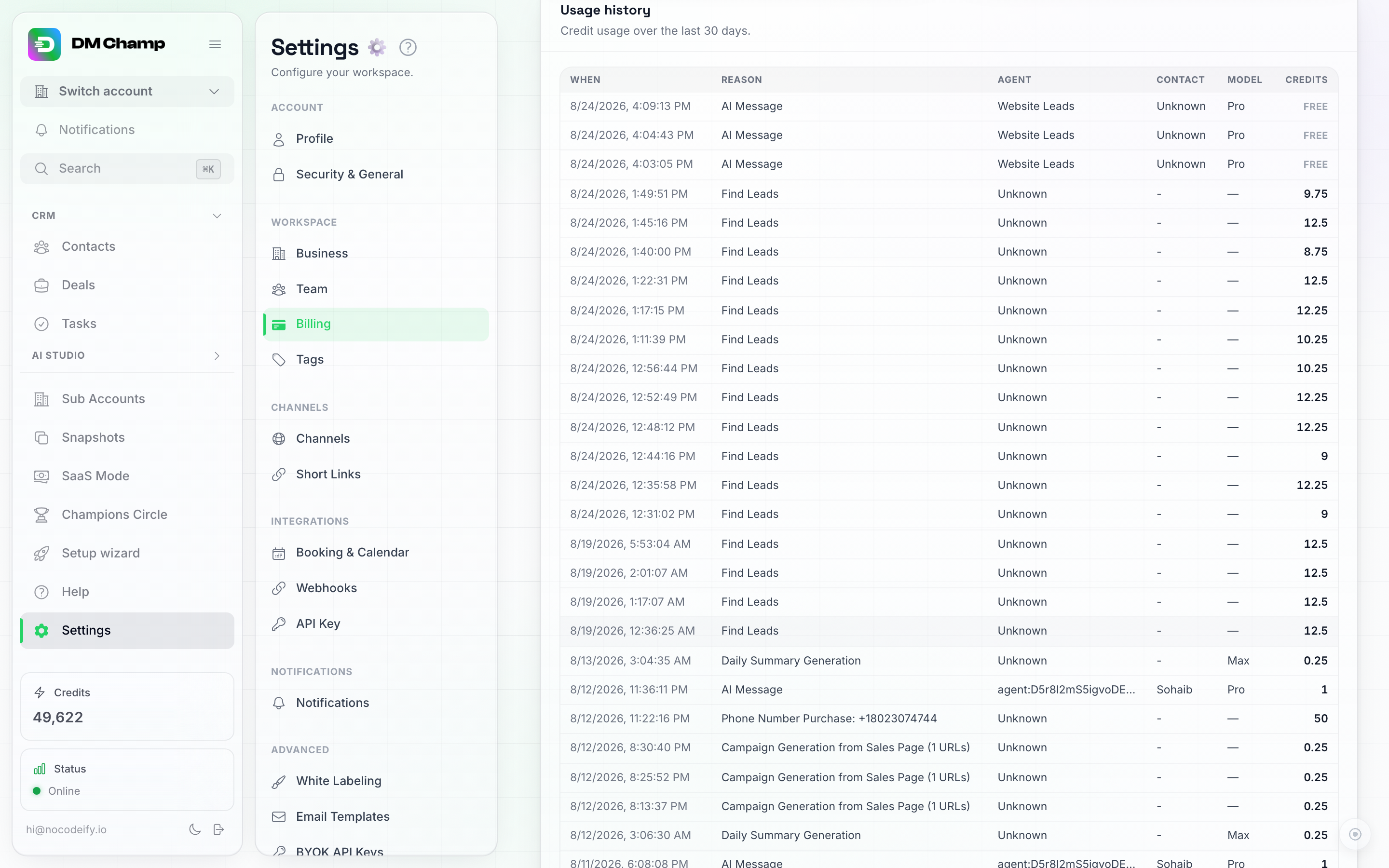
Usage history — a running ledger of every credit-consuming action over the last 30 days, with the Model column showing which AI tier each charge was billed at.
On the Credits row at the bottom of the sidebar, the balance number turns amber when you’re running low and red when you’ve run out, so you get some warning before sending stops (BYOK accounts stay neutral-colored even at zero, since BYOK replies don’t spend credits). The stat tile on the Billing page itself always shows the plain number.
If your account is a sub-account under an agency, the card shows the credits your agency has allocated to you rather than a plan/top-up split, and the self-serve plan and top-up cards below are hidden — see the note on your Billing page for what to do instead. If your agency accepts PayPal, your Billing page has a Pay with PayPal button for buying credits, and you can connect your PayPal account there so automatic top-ups are charged to it (see Agency Accounts — Connect PayPal).
If you’re on a lifetime AppSumo tier, the Available plans card is hidden too, since those are monthly subscriptions and your tier is already paid for. The AppSumo lifetime deal ended on August 14, 2026, so tier changes through AppSumo are no longer available; if you need more, you can move to the Agency or Agency Unlimited monthly plans at dmchamp.com/pricing. Add credits, auto-recharge and usage history all work normally.
If you’ve connected your own Anthropic key under Settings → Advanced → BYOK API Keys, your AI replies don’t spend credits at all, so a low balance won’t stop them.
Adding Credits
- Go to Settings → Billing (or click the Credits row at the bottom of the sidebar).
- Find the Add Credits card and enter the amount you want (between 100 and 10,000 credits). The amount doesn’t save as you type — nothing is charged until you click the button in step 3.
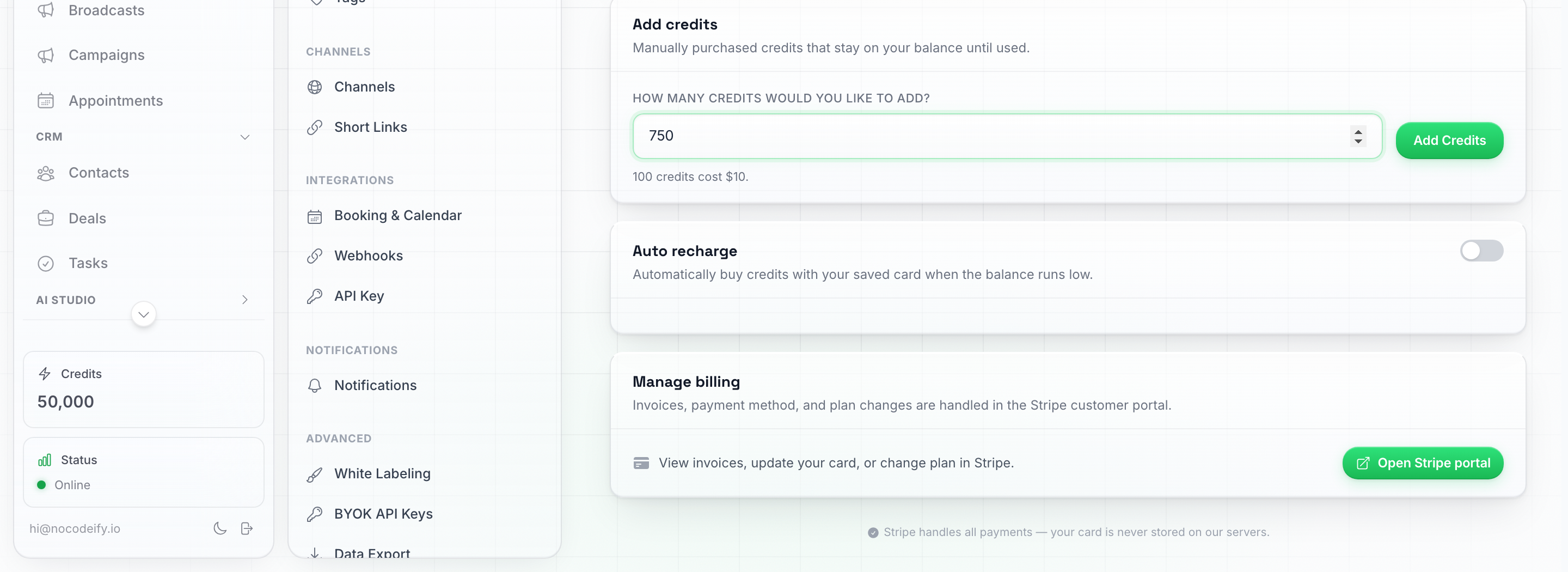
Typing an amount doesn't charge anything by itself — it only takes effect once you click Add Credits.
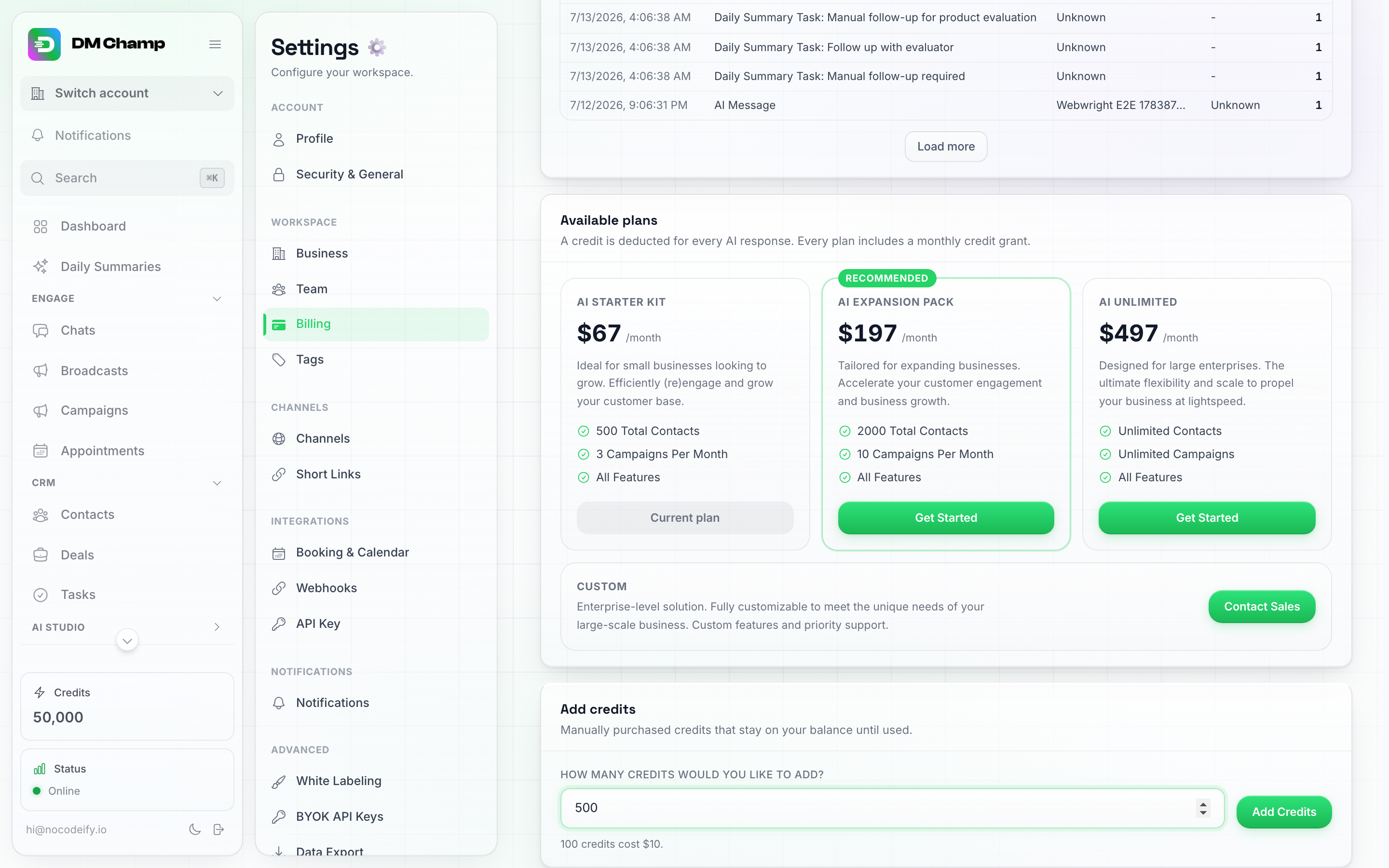
Type an amount between 100 and 10,000, then click Add Credits — this hands off to Stripe Checkout to complete the payment.
- Click Add Credits to start checkout and complete payment.
Credit pricing: At the standard rate, each credit costs 10 cents ($0.10 USD). If your account is a sub-account under an agency, your credits are managed by your agency, so this standard price may not apply to you — check with your agency for your pricing. The amount you’ll pay is always shown before you confirm.
Which currency you’re charged in: checkout runs in GBP for businesses in the United Kingdom, EUR for businesses in the European Union, and USD everywhere else, at the same 0.10 per credit in every case. The currency follows the Country in your business address (Settings → business details). If no country is saved yet, checkout defaults to USD. Auto-recharge uses the same rule, so if you’re seeing the wrong currency, check the country in your business address.
If you have been billed before, your account stays on the currency of your first payment. Stripe fixes a customer’s billing currency at the first invoice, so changing your business address later changes nothing on an existing subscription. It only applies if you start a new one.
Auto-Recharge
Auto-recharge ensures you never run out of credits unexpectedly:
- Go to Settings → Billing.
- Turn on Auto-Recharge in its own card.
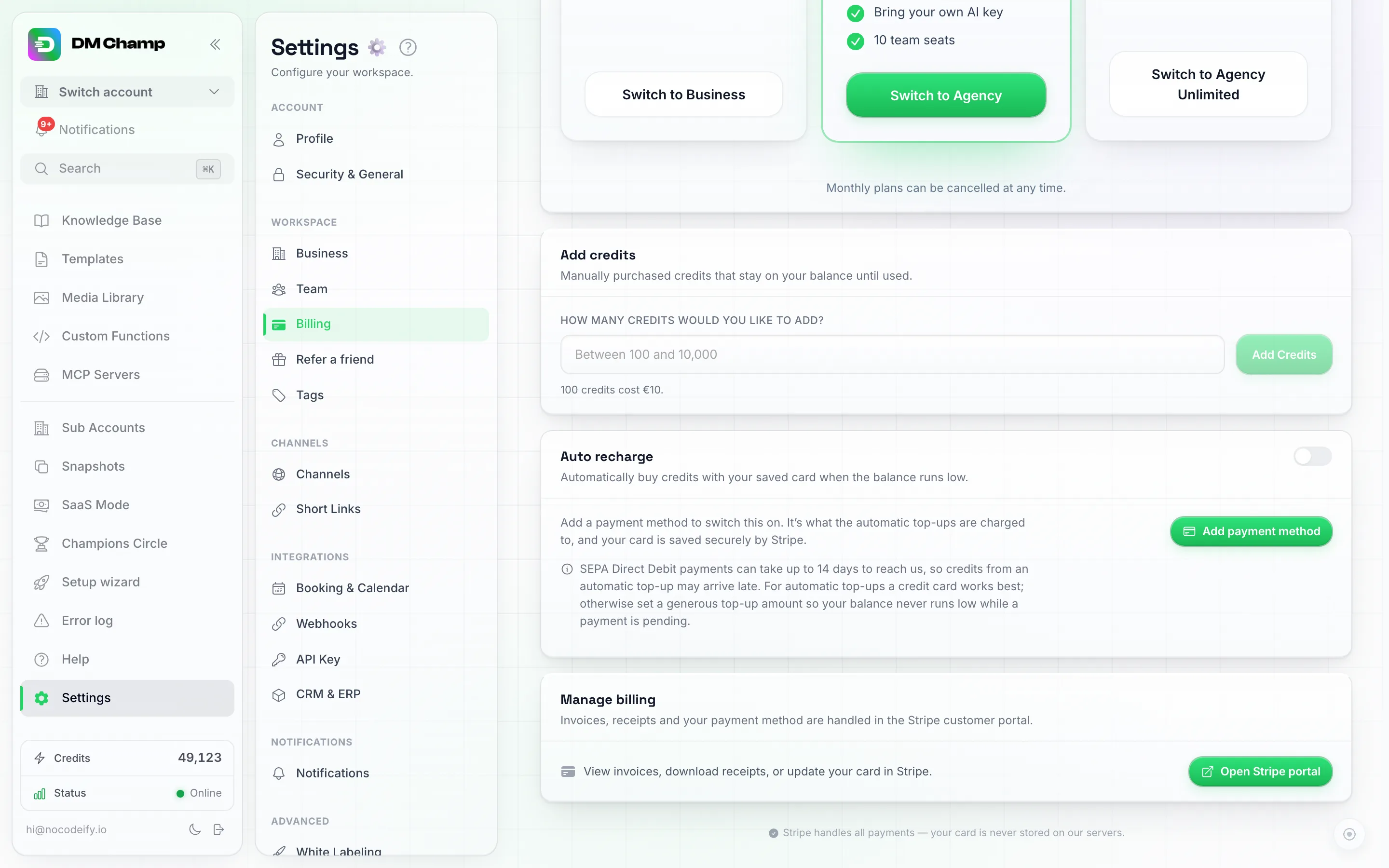
The Auto recharge card, off by default. Without a saved card it asks you to add a payment method first; once one is saved, flip the switch to reveal the threshold and top-up amount fields. The note under it explains that a SEPA Direct Debit top-up can take up to 14 days to arrive.
- Configure:
- When balance goes below — the threshold that triggers a recharge.
- Add the following amount — how many credits to purchase automatically.
- Click Save.
No payment method yet? The card says so and the switch stays off until you add one. Click Add payment method, save your card on the Stripe page that opens, and you land back on this page with the switch ready to use. Nothing is charged when you save the card. If you already have one, the card says Payment method saved and a Change button swaps it for another.
When your balance drops below the threshold, the platform automatically purchases the specified number of credits using your saved payment method. Auto-recharge only fires while a valid card is on file.
When a top-up fails: a declined payment is retried automatically, and no new top-up starts while that one is still being retried. If the payment fails 3 times in a row, auto-recharge switches itself off and the account owner gets an email. Add a working card in Settings → Billing and turn auto-recharge back on. Credits you add by hand keep working the whole time.
SEPA Direct Debit payments can take up to 14 days to reach us, so credits from an automatic top-up paid that way may arrive late. For auto-recharge a credit card works best; otherwise set a generous top-up amount so your balance never runs low while a payment is pending.
Auto-recharge for agency sub-accounts
If you run an agency with credit reselling enabled, auto-recharge also works for your sub-accounts, in two modes:
- Stripe mode — sub-accounts are charged automatically through your connected Stripe account. No extra setup needed beyond connecting Stripe.
- Webhook mode — the platform notifies your server when a sub-account needs credits, and your server processes the payment using any provider you choose.
For details on webhook-based auto-recharge, see Agency Accounts — Custom Payment Provider.
Where Your Credits Come From (Monthly Grant and Free Credits)
Every plan includes a pot of AI credits that renews each month: 250 on Business, 1,000 on Agency and 2,500 on Agency Unlimited. On top of that you can buy credits any time at $0.10 each, and new accounts get a one-time 100-credit welcome bonus. Lifetime AppSumo tiers work differently: their credits are a one-time allocation that does not refill. The Monthly Grant tile on Settings → Billing is the only authoritative figure for your own account. For what each plan includes, see Subscription Tiers.
Free credits every new account gets. Every new account gets a one-time 100-credit welcome bonus, added automatically when the account is created.
What Happens When a Subscription Payment Fails
If your monthly or annual subscription payment fails to renew, the platform follows a graduated reminder process before restricting your account, so you have time to update your card without anything breaking unexpectedly.
| Time since failed payment | What happens |
|---|---|
| Day 0 (immediately) | You receive a reminder email and a banner appears in the app. The payment processor automatically retries the charge in the background. Everything in the app continues to work normally. |
| Day 7 | If the payment is still unresolved, outgoing sends pause: broadcasts, manual chat sends, and automated follow-ups stop going out. Incoming messages still arrive, and the AI keeps replying to your contacts so customer conversations aren’t dropped. |
| Day 14 | If still unresolved, the AI also pauses and the app switches to read-only. You can still open Settings → Billing to update your payment method or log out, but other actions are locked until the payment goes through. |
Recovery is automatic. The moment a renewal succeeds, the block clears within minutes, and broadcasts, sends, and AI replies all resume on their own. No manual restart needed.
If your subscription is fully cancelled (typically after roughly three weeks of unresolved failures), connected phone numbers are released and your account is moved to the cancelled state. To avoid this, update your payment method in Settings → Billing before the cancellation point.
Sub-accounts inherit the master account’s billing status. If the master account becomes delinquent, all sub-accounts are restricted the same way until the master payment is resolved. The same applies when the master subscription is cancelled: every sub-account is locked (no sends, no AI replies, read-only) from the moment the cancellation takes effect, and the lock lifts automatically as soon as the master account subscribes again.
What Happens When Credits Run Out
When your credit balance reaches zero:
- The AI stops responding to messages. Contacts can still send messages, and they’ll be stored, but the bot won’t generate replies.
- Broadcasts cannot be launched.
- Channel connections remain active (they’re billed monthly, not per-message).
- You get one alert the first time the AI skips a message for lack of credits: an email (“Your AI stopped replying: no credits left”) plus a push and bell notification if you have those on for Credit Alerts. It is sent once per outage, not once per message, and arms again after the AI is back to replying.
To restore AI functionality, either add credits manually or enable auto-recharge to prevent future interruptions.
Payment Methods
The platform accepts credit and debit cards via Stripe (our secure payment processor). Manage your card from Settings → Billing, in the Manage billing card — it opens the Stripe customer portal in a new tab, where you add or update your card. Your card details are handled entirely by Stripe and are never stored on the platform’s own servers.
Invoices and Payment History
Also from Settings → Billing, the Manage billing card’s Open Stripe portal button takes you to the Stripe customer portal, which shows:
- All past invoices and payment receipts.
- Your subscription details and renewal dates.
- Options to update your payment method.
Cancelling isn’t done in the Stripe portal. Use the Cancel subscription button in the same Manage billing card instead. See Downgrading or Cancelling, which also covers pausing for 1, 2 or 3 months.
On a lifetime tier you first see a You’re on a lifetime plan notice. Invoices and card updates are safe; choosing Update plan inside Stripe replaces the lifetime tier with a monthly subscription. See The AppSumo lifetime plans.
Bring Your Own Key (BYOK)
If your plan includes BYOK (the Agency and Agency Unlimited plans, plus AppSumo Tier 2 and above), you can connect your own Anthropic API key instead of using the platform’s built-in AI credits from Settings → Advanced → BYOK API Keys. Think of it like bringing your own phone plan instead of paying per minute.
When BYOK is active:
- What your own key covers, and what still costs credits — Most AI operations are free of credit charges when your own Anthropic key (BYOK) is connected: AI responses, tool use, agent optimisation (Optimize with AI), knowledge-base generation and web search all run on your key. Four things still cost credits even with a key connected: the Max tier at 0.25 credits per action and the Mini tier at 0.15 (this includes a knowledge-base import linked to an Agent set to Max, at 0.25 per chunk); Lead Finder at 0.25 per lead that comes back with at least one contact detail (an email, a phone number or a social profile); and Automations at 0.25 per run plus 0.25 per AI step. On the Champions Circle Insider Rate each of those 0.25 charges is 0.20, and Mini is 0.12. To keep an Agent fully on your own key at 0 credits, leave it on the Pro tier.
- Channel fees still apply — a phone number rented here costs at least 50 credits a month (premium numbers cost more, in line with what the carrier charges; the number’s card shows its exact price). WhatsApp Web connections are billed at a flat 50 credits per month. Since 1 October 2026 every managed WhatsApp number, rented here or your own number Managed by us, is charged per message, inbound and outbound, whether or not you use your own key: each message you receive is 0.06 credits, and each reply is 0.06 credits inside the number’s first 1,000 service messages of the month, then the country’s service rate plus fees. See WhatsApp Pricing.
- What happens if your key fails — if your Anthropic key fails for any reason (expired, rate-limited, billing issue), you get an email notification, and what happens next depends on the Fallback to credits toggle on Settings → Advanced → BYOK API Keys. With that toggle on, the platform temporarily falls back to platform credits so your bot keeps replying and switches back to your key as soon as it works again. With it off (the default), AI replies are blocked until you fix the key.
Once your bot starts using your own key, the usage history table on the Billing page (see above) gains a Cost column showing the actual dollar amount Anthropic charged for each entry, plus a Cost (USD) summary tile — so you can track your own-key spend without leaving the app.
BYOK is not the cheaper option: you pay Anthropic’s metered pricing directly, and measured across the accounts running their own key, one AI reply costs roughly 3 times what it costs on Max and more than 5 times what it costs on Mini. It’s a billing model that gives you control, not a cost reduction. See AI Model & BYOK.
The AppSumo lifetime plans
The AppSumo lifetime deal ended on August 14, 2026 at 12:00 noon US Central time and can no longer be bought. A tier bought while the deal was running is a one-time purchase: its features and its one-time credits stay with the account permanently, and there is no monthly platform fee for it. New accounts choose from the Business, Agency and Agency Unlimited plans at dmchamp.com/pricing.
AppSumo License Activation
AppSumo customers — if your lifetime deal didn’t activate automatically after signup, type /appsumo into your browser address bar (after the app domain), paste the license key from your AppSumo account, and submit. This links your plan and adds your plan’s one-time credit bonus.
Already have an account, or bought the deal a second time? Don’t sign up again, or you’ll end up with a second empty account. Sign in to your existing account, then click Redeem on AppSumo: you land on the /appsumo page with the code already filled in, and one click on Link license applies it. If you were signed out and the signup page says your email already has an account, click Sign in instead and the code comes with you. A previous code that was refunded no longer blocks the new one.
If you see one of these instead:
- “This license key was not found” — check the key on your AppSumo account, it’s easy to copy one character short.
- “This license is not active” — AppSumo shows the code as refunded or deactivated on their side.
- “This license is already linked to another account” — the code was applied to a different email. Sign in with that email, or contact support.
- “Your account already has a different AppSumo license linked” — your current code is still live, so we won’t swap it automatically. Contact support and we’ll do it by hand.
- “Your account has an active paid subscription” — cancel the paid plan first, or contact support.
- “Too many attempts” — the page allows 10 tries a day. Wait and try again tomorrow.
Free Credits for New Accounts, and the 90-Day Guarantee
New accounts start with a one-time 100-credit welcome bonus. Those are ordinary credits, and there is no separate period where AI runs free of charge.
Plans bought from the pricing page have no free trial. A 7-day free trial is only offered on some of our ad offers, see Free Trial. Monthly plans need a card and can be cancelled any time from Settings → Billing with the Cancel subscription button (see Downgrading or Cancelling), and every yearly plan carries a 90-day money-back guarantee with no conditions attached. See Yearly Billing and the 90-Day Guarantee.
Need Help?
If you have billing questions or need help with credits, reach out via our email support.