Spam Filter
The platform automatically screens the very first message from every brand-new contact and stops your AI bot from replying to obvious spam, scams and sales pitches. This protects your business from phishing attempts, fraud, and bulk marketing junk - without any setup on your side. Nothing is thrown away: a caught message is saved in the chat with a Marked as spam label and the chat moves to the Spam tab in Chats, so you can always check what was caught.
Prefer to see it? Click through the whole flow:
The spam filter is always on. There is no switch to flip, no settings to configure, and nothing for you to maintain.
What Gets Filtered
The filter looks for messages that clearly match one of these well-known spam patterns:
- Phishing attempts - “Your account has been blocked, click here to verify”, fake security alerts, impersonation of platforms like WhatsApp, Instagram, Meta, Google, or your bank.
- Advance-fee fraud - Messages asking your business to send or transfer money to the sender (the classic “I have an inheritance to share” scam).
- Lottery and prize scams - Unsolicited claims that you have won a prize, a lottery, or a giveaway you never entered.
- Sales pitches aimed at your business - Someone selling their own products or services to you, such as agencies, lead sellers or software vendors pitching in a promotional, hype-filled way.
- Mass marketing blasts - Bulk promotional sends that lean on urgency and hype (“act now!”, “limited time!”, “free trial!”), “make money fast” schemes, crypto and forex pitches, automated marketing sends.
- Bot-generated gibberish - Random characters and nonsense text from automated systems.
- Malicious links - Messages whose only purpose is to push a suspicious link from an unknown domain, combined with urgency or impersonation language.
Everything else gets through. Genuine customer inquiries, even very short ones like “hi” or “hello”, short messages in any language, questions about your products, requests for quotes or appointments, complaints and feedback, plain B2B introductions or supplier messages with portfolio links (without the hype of a sales blast), and shared files from services like Google Drive or WeTransfer are all treated as legitimate.
How It Works
When a contact who has never messaged you before sends their first message:
- The platform sends that one message to an AI system trained to spot spam.
- The AI reads the message and checks it against the known spam patterns below, deciding whether it matches one.
- If your business has a name and description filled in under Settings → Workspace → Business, that context is included so the AI understands what is normal for your business (this dramatically reduces false positives).
- The result is logged for auditing.
The filter is fail-safe. If the AI is unsure, if the request times out, or if anything else goes wrong, the message is allowed through. The system is built to never block a real customer because of a technical issue - it is far worse to lose a real lead than to let one spam message slip past.
Shared posts and reels are judged by what the contact typed, not by the post. On Instagram and Messenger, when a first message shares a post or reel, only the words the contact typed alongside it are checked; the caption belongs to whoever posted it, often your own account. A share with no typed text is never blocked.
Only first messages are scanned. Once a contact is in your system, every message they send afterwards skips the filter entirely. Conversations you are already having are never re-evaluated. The one exception is a contact already marked as spam (by the filter or by you): their later messages are saved and labelled Marked as spam too, and the AI does not answer them.
Keyword entry points skip the check. A first message that matches one of your agent’s keyword entry points is never treated as spam.
What Happens When a Message Is Flagged
When the filter classifies a first message as spam:
- The message is saved and shown in the chat, with a red Marked as spam · AI did not reply label under it. Hover over the label to see why it was caught, including the filter’s short reason.
- The contact gets the status spam and is set to Do Not Disturb, and the AI is switched off for that contact.
- The chat moves out of your normal inbox tabs into the Spam tab in Chats (archived spam chats show there too).
- The AI never replies to it, it does not count as unread, and nothing else fires for it: no notification, push or New Contacts alert, no follow-up, no automation with an incoming message trigger and no New Message webhook.
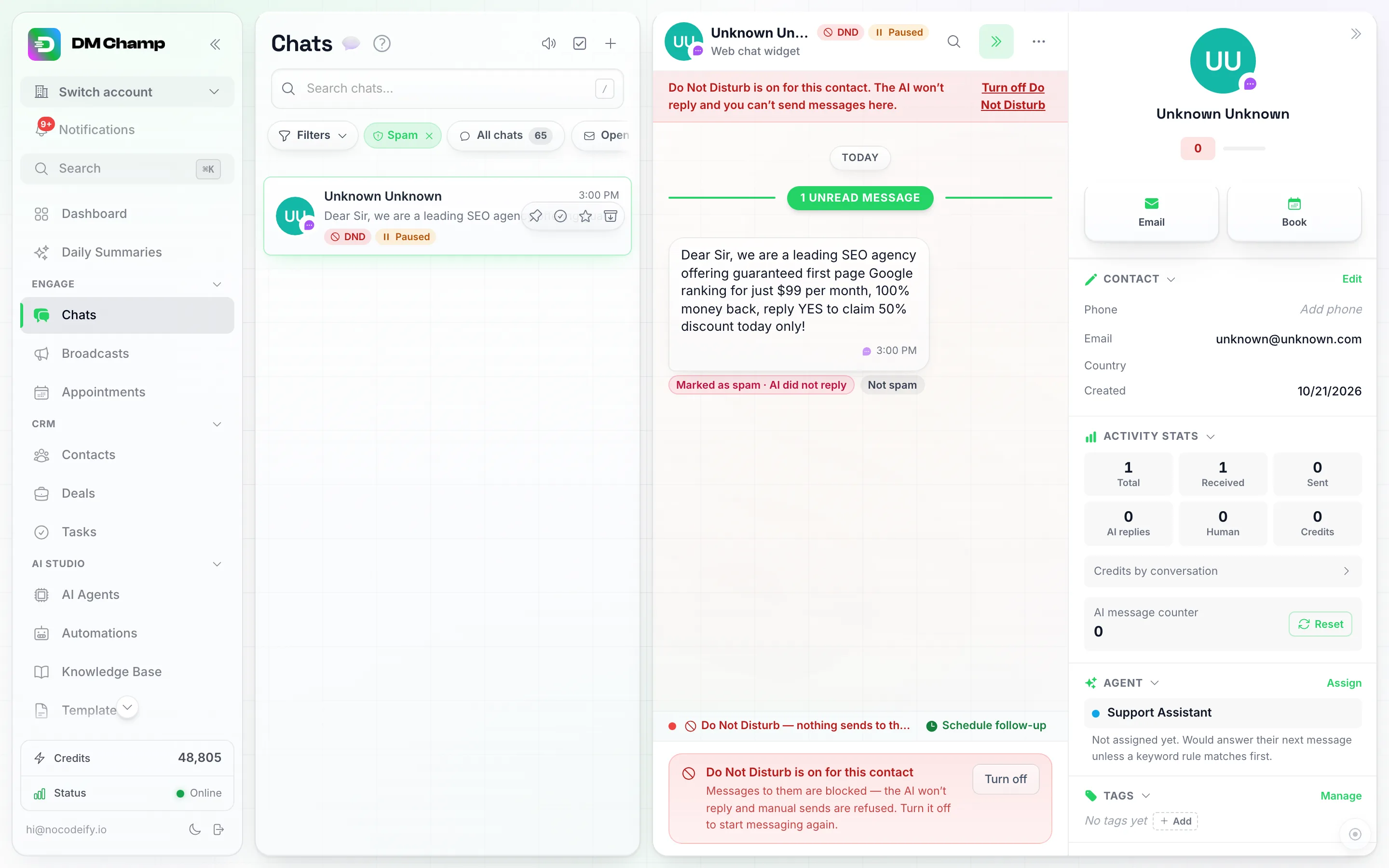
The caught message stays in the chat with a Marked as spam label under it. Hover the label to see why it was caught; Not spam sits right next to it.
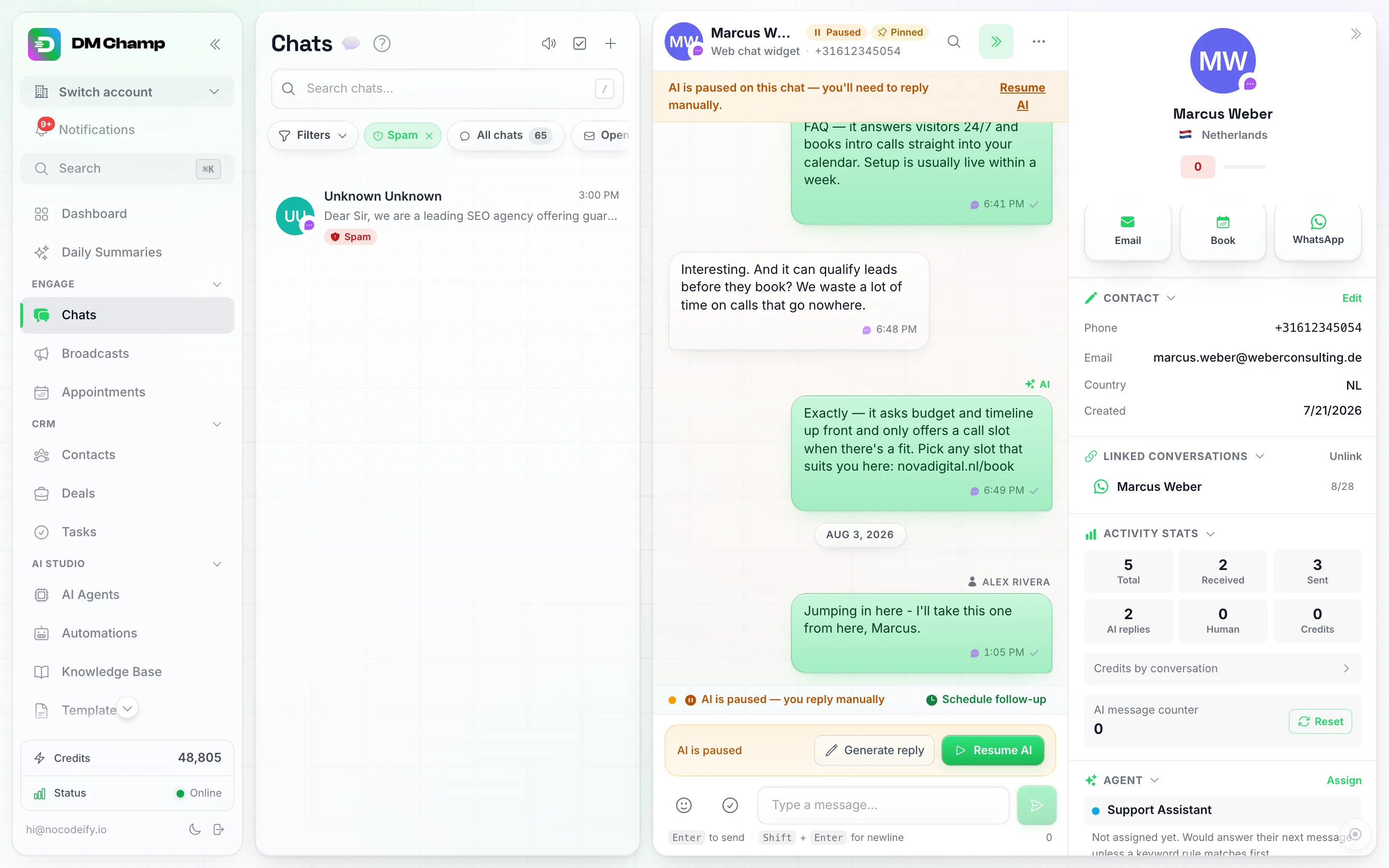
Pick Spam under Filters, then Status, to see every chat the filter caught (archived ones included). These chats do not show in your other tabs.
The same happens to every later message from a contact marked as spam, whether the filter marked them or you did.
Every spam contact is marked in Chats, not only its caught messages. A red Spam pill sits on the chat in the list and next to the name at the top of the chat (it takes the place of the DND and Paused pills, since the spam mark is what switched the AI off). Open the chat and a red banner says the contact is marked as spam, with the filter’s reason when it has one and a Not spam button. The box at the bottom says nothing can be sent while the contact is marked as spam and offers Not spam too. This also covers contacts marked as spam before caught messages were kept, whose chats have no labelled message.
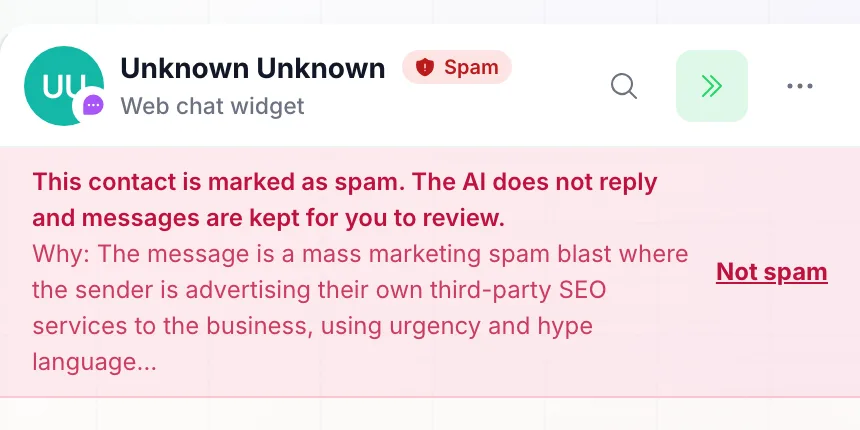
A spam contact's chat opens with this banner. The reason comes from the filter; contacts you marked yourself show no reason.
Not spam restores the contact. Click Not spam on the label in the chat (or in the conversation’s three-dot menu). The spam status is removed, Do Not Disturb goes off, the AI is switched back on and the labels disappear. The AI does not go back and answer the messages that were caught: it answers the contact’s next message, and from then on it reads the earlier messages as normal chat history.
Manually Marking or Unmarking Spam
The automatic filter only screens a contact’s very first message, so it won’t catch someone who starts sending junk further into a conversation. For that case, both Contacts and Chats have a manual Spam action you can trigger yourself - the same tagging the automatic filter applies, just started by you.
- Open Contacts or Chats in the left sidebar.
- Tick the checkbox on the contact’s row (Contacts) or on the chat’s avatar (Chats). A floating action bar appears at the bottom of the screen once at least one row is selected.
- Click Spam in that bar (in Contacts, On next to Spam), then confirm Mark as spam in the dialog that opens.

Selecting one or more rows in Contacts opens this bulk action bar. Spam has an On and an Off button, next to DND and the bot.
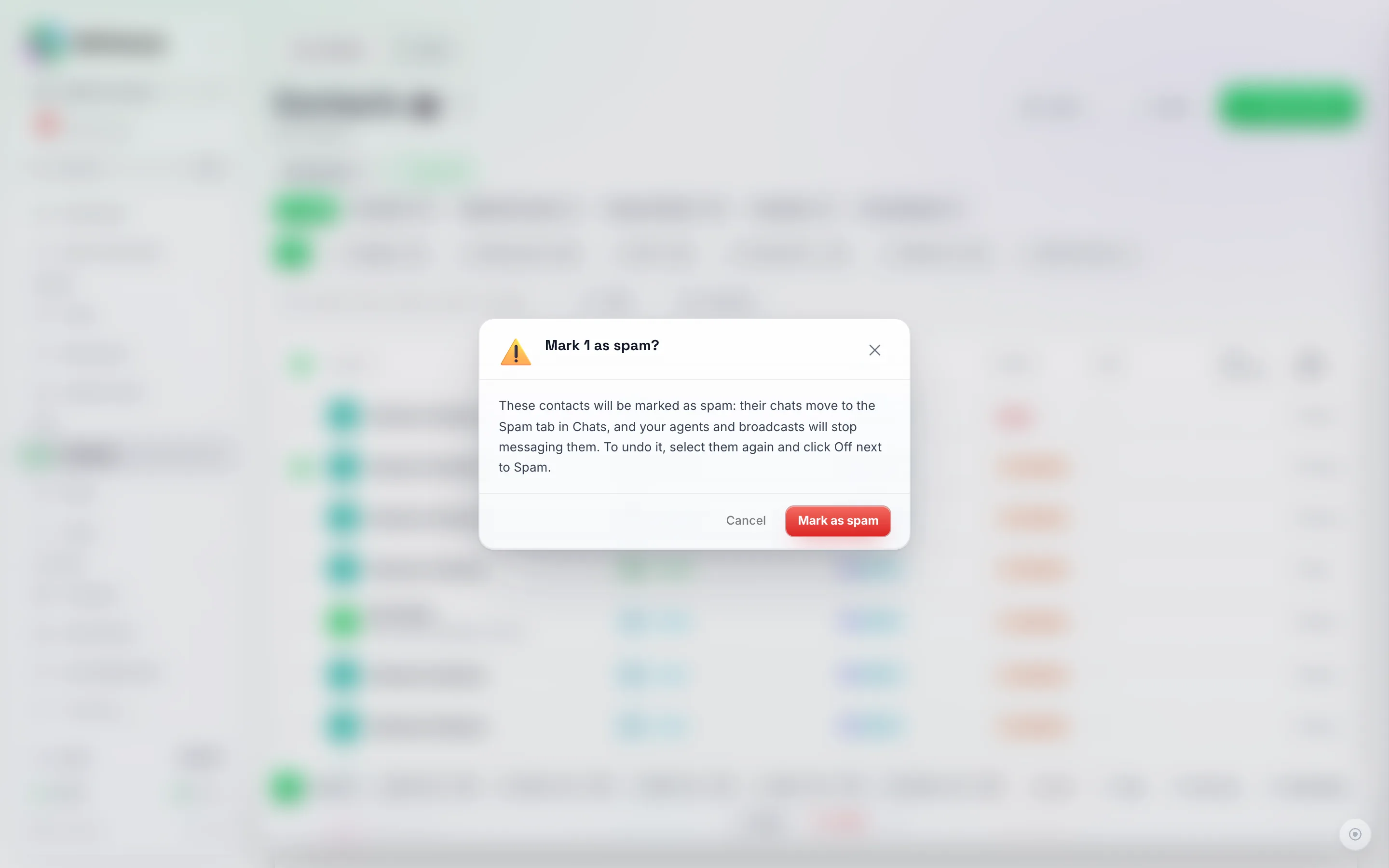
The confirmation spells out both effects: the chat moves to the Spam tab in Chats, and your agents and broadcasts stop messaging the contact.
The same action exists on the Chats list - tick a conversation’s checkbox and use Spam in its bulk bar.
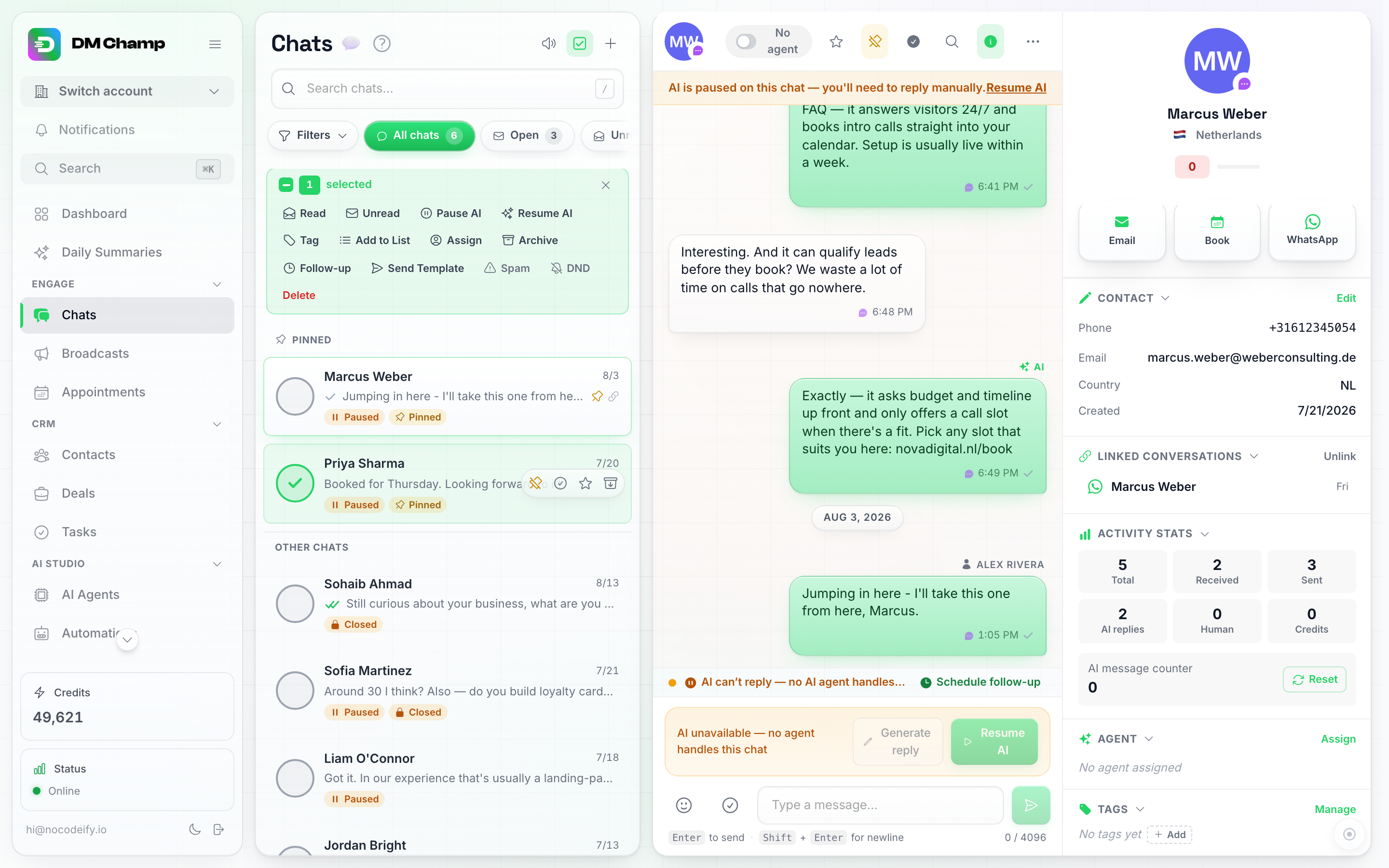
The Chats bulk bar has the same Spam action, alongside Pause AI, Archive, and Delete.
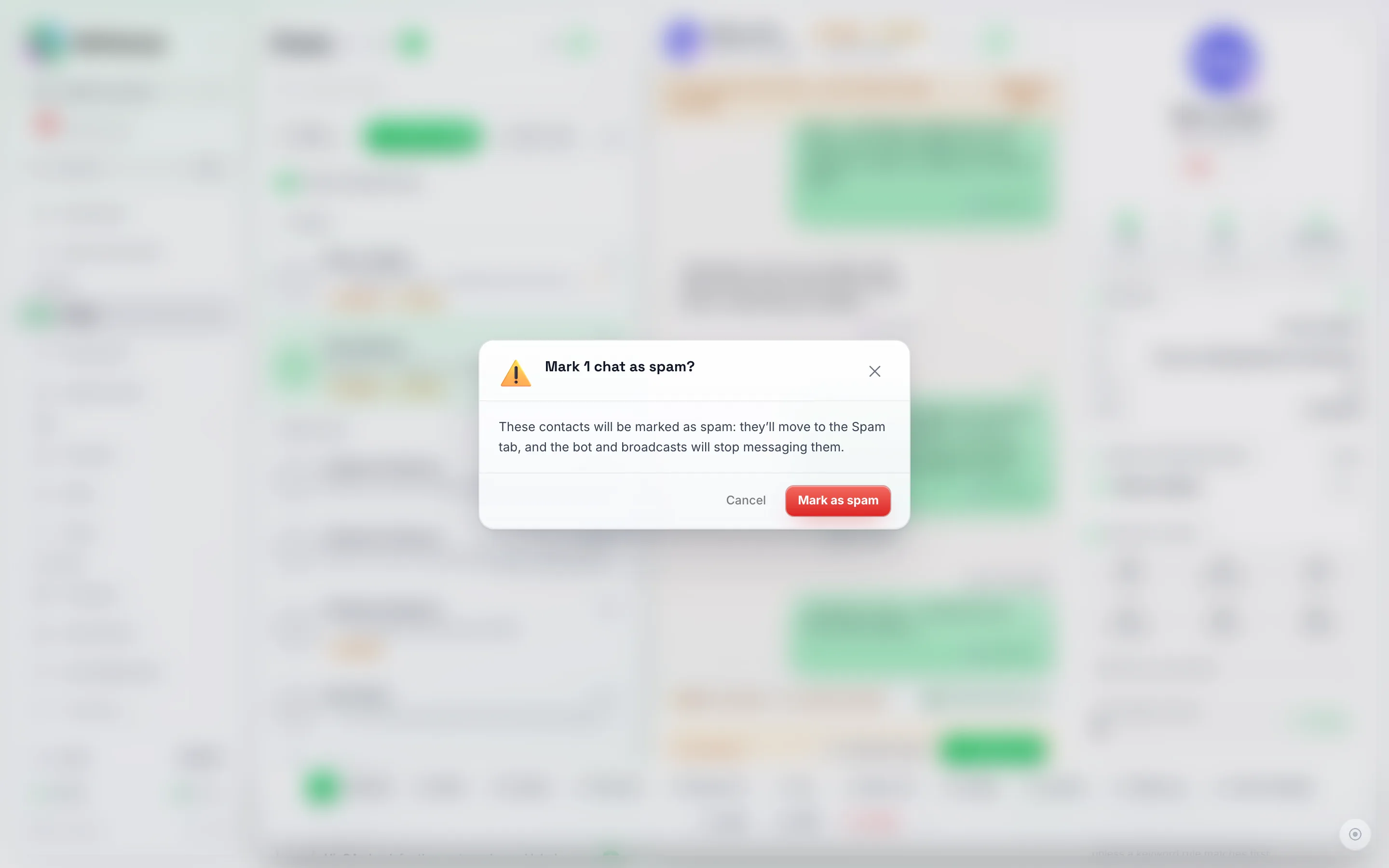
Marking spam from Chats shows the same confirmation - whichever page you start from, the conversation moves to the Spam tab and the bot and broadcasts stop messaging the contact.
From inside a conversation. When you’re already reading the chat, you don’t need to go back to the list: click the More actions menu (the three dots) in the conversation’s header and choose Mark as spam, then confirm. The chat leaves your inbox and closes, exactly as it does from the bulk bar, and you find it again under the Spam tab. If you open a contact that is already marked as spam (from the Spam tab or its link), the same menu shows Not spam instead, which reverses it in one step. The Not spam button on a message’s spam label does the same.
Both actions are undo-able. Select the same contact again in Contacts and click Off next to Spam, or use Not spam in the chat - it returns the contact to normal so broadcasts and the bot can reach it again. The AI answers the contact’s next message, not the ones that were caught.
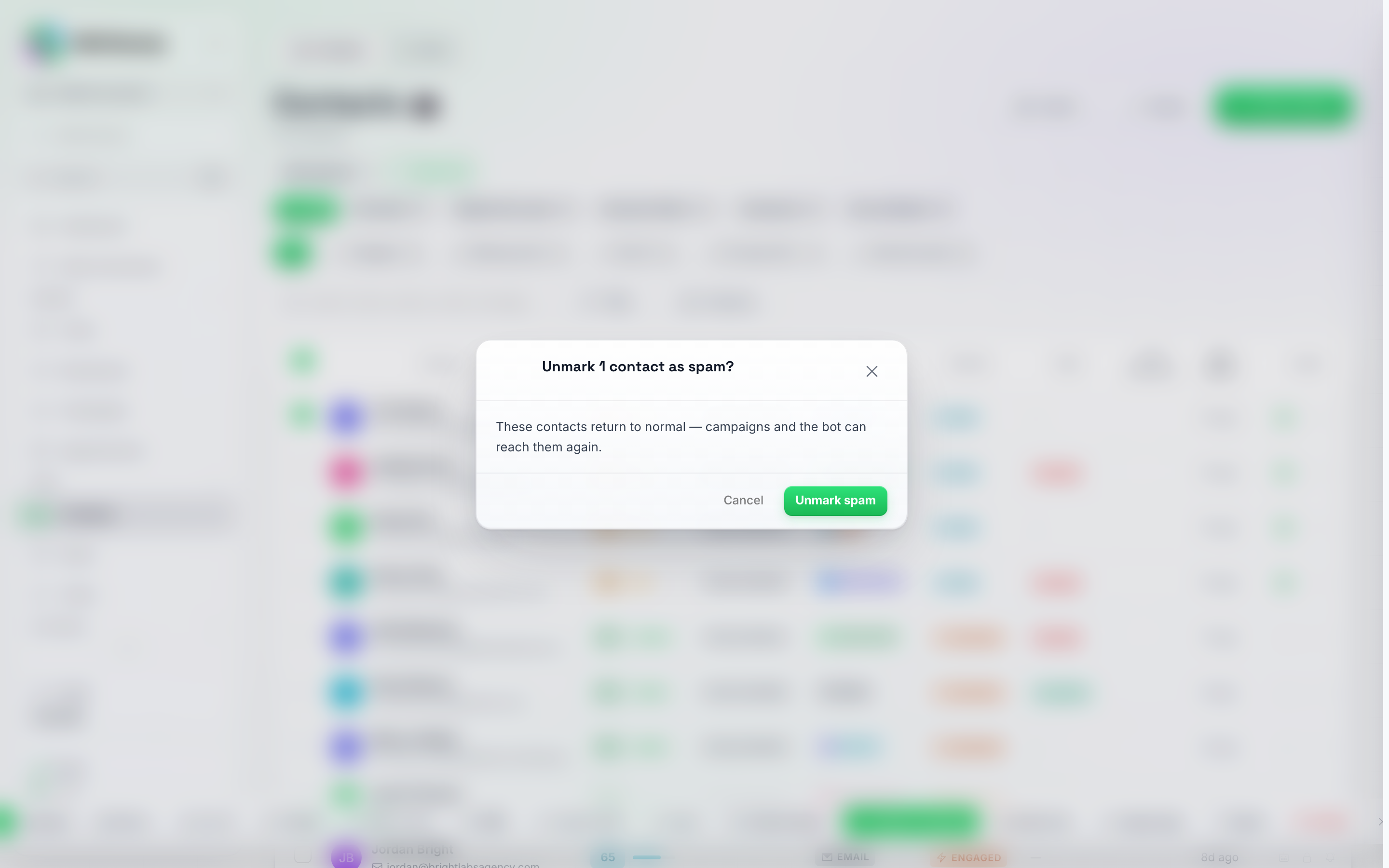
Spam Off reverses the status, Do Not Disturb, and bot changes in one click.
False Positives - What to Do If a Real Customer Gets Caught
The filter is tuned to be conservative, but no automatic system is perfect. If a legitimate contact ever gets flagged as spam:
- Open Chats and click the Spam tab. The caught message is there in the chat, with the Marked as spam label under it; hover the label to see why it was caught.
- Click Not spam on the label (or in the conversation’s three-dot menu). This clears the “spam” status, turns Do Not Disturb off, and switches the AI back on in one step. From Contacts, Off next to Spam in the bulk action bar does the same.
- Reply to the contact yourself if the caught message needs an answer. The AI does not answer the messages that were caught; it picks up from the contact’s next message, with the earlier ones as history.
Reduce false positives going forward: Fill in your business name and description. Click Settings (the gear icon near the bottom of the main sidebar). Then, under the Workspace group, click Business. The clearer your business context, the better the AI understands which messages are normal for you. A jeweller getting messages about loans, a clinic getting messages about prescriptions, or a marketing agency getting messages about ad budgets are all examples where good business context tells the filter “this is a real customer asking about my services”.
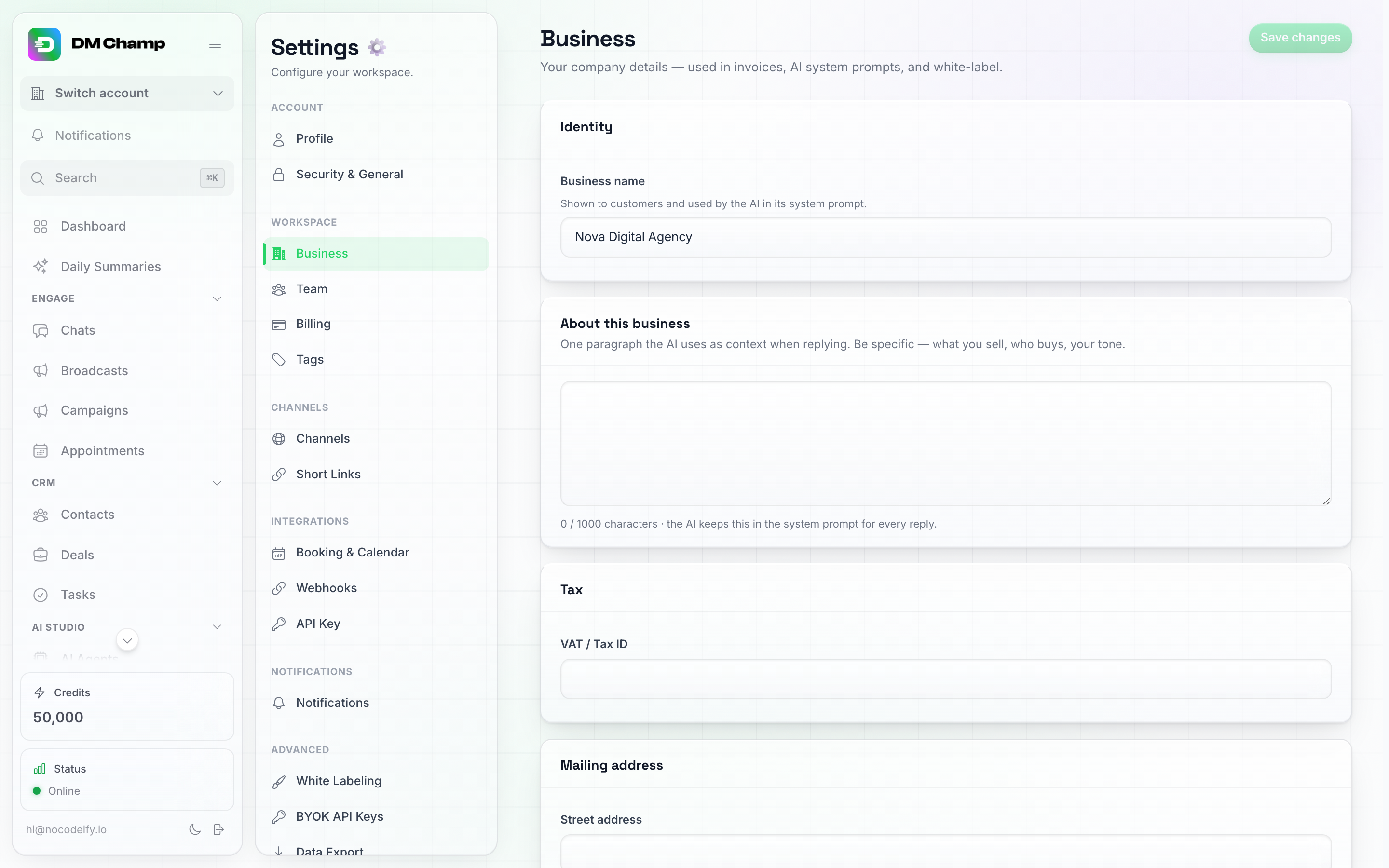
Settings → Workspace → Business. The Business name and About this business fields feed both the spam filter and the bot's own system prompt.
Why There Is No Off-Switch
The spam filter only ever acts on the first message from a brand-new contact. It does not touch ongoing conversations, follow-ups, your existing customer base, or anything you send out. Legitimate customers are barely affected - even very short greetings, foreign-language messages, typos, and casual openers are explicitly treated as legitimate.
Because the impact on real customers is so small and the upside (no phishing, no scam noise, no AI credits burned replying to junk) is so large, the filter runs platform-wide for everyone. It is part of the platform’s built-in protection layer, just like message status callbacks and rate limits.
If Your Number Sends Spam-Like Messages From Outside the Platform
The spam filter on this platform only protects you from incoming junk - but the channels themselves (WhatsApp, Instagram, Messenger, SMS) all run their own spam detection on outbound traffic. If your phone number or social account gets flagged by the channel itself (e.g. WhatsApp marks your number as a likely spam sender), the platform cannot override that.
To stay in good standing:
- Only message contacts who opted in. Cold blasts to purchased lists are the fastest way to get flagged.
- Personalise your outbound messages. Identical copy-paste sends to dozens of numbers in a row look like spam to every channel.
- Space out your sends. Hundreds of messages in a few minutes from a new number will trigger rate limits (the channel automatically slowing or blocking your sends) and spam flags.
- Keep your reply rate healthy. If contacts repeatedly ignore or report your messages, the channel will downgrade your account.
- Use templates correctly on WhatsApp. Outside the 24-hour customer service window, only approved templates can be sent. Sending free-form text outside that window risks a block.
- Avoid spam trigger phrases. Words like “FREE!!!”, “winner”, “claim now”, and excessive emojis in promotional sends increase the chances of being flagged.
If your number does get flagged by a channel, the recovery path is on that channel’s side (WhatsApp Business Manager, Meta Business Suite, your SMS carrier). Reach out to support if you need help working through it.
Need Help?
If you think the spam filter has caught something it should not have, or you have a contact that you cannot get unblocked using the steps above, contact support and include the contact’s name, channel, and the message that was flagged so we can take a look.
Next Steps
- Chat Interface — the Spam tab, where caught chats show up.
- Contacts — where a flagged contact shows up, and how to clear a false positive.
- Account Settings — where your Business name and description live.