iMessage (Beta)
Bring iMessage into your unified inbox. Install the Mac app on a Mac that is signed in to Messages, type a pairing code, and your iMessages flow into the platform alongside WhatsApp, SMS, Instagram, and Messenger, with the same AI Agent, Broadcasts, and contact history you already use everywhere else.
Beta channel. iMessage is in closed access. Ask support to enable it on your account, then follow the steps below. Functionality, limits, and behaviour may change as the channel matures.
Overview
Apple doesn’t offer an official iMessage API, a set of rules that would let other apps connect to iMessage directly. Instead, a small Mac app runs on a Mac that is signed in to your Apple ID and connects that Mac to your account. Once connected, the platform:
- Receives incoming iMessages as new conversations in Chats.
- Sends outbound replies through your Mac, so they appear to recipients as a normal blue bubble iMessage from your Apple ID.
- Lets your AI Agent, tags, and contact records work exactly as they do on every other channel.
There is no server to set up, no web address to copy and no password to paste. The Mac connects by itself once you enter the pairing code.
What You Need
- A Mac (laptop or desktop) signed in to Messages with the Apple ID you want to use.
- The Mac must stay on and online. If it sleeps, shuts down or loses internet, iMessages wait until it is back.
- The Mac app, installed on that Mac. The download button is in the iMessage connect window.
Connecting iMessage
- In the left sidebar, click Settings near the bottom.
- In the Settings left rail, under Channels, click Channels.
- Find the iMessage card and click Connect. (The Connect button only becomes clickable once iMessage has been enabled for your account. Until then it’s grayed out and the card says iMessage isn’t enabled on your account yet.)
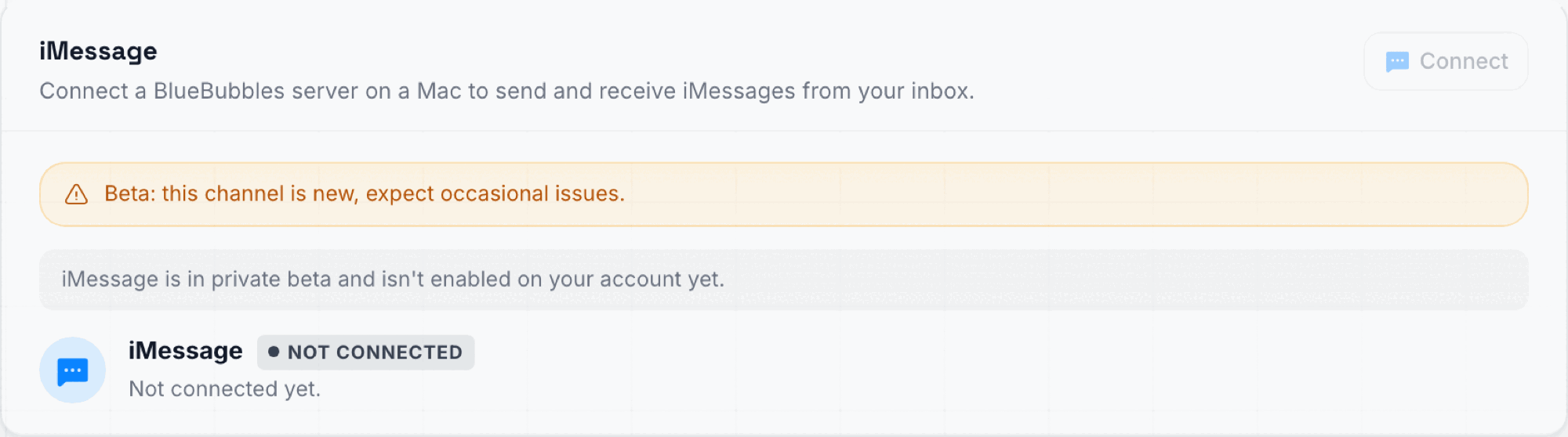
The iMessage card as it appears while the beta isn't enabled on your account: a beta banner, the note "iMessage is in private beta and isn't enabled on your account yet," and a disabled Connect button. The steps below describe the connect flow once it is turned on for your account.
- In the connect window, click the download button and install the Mac app on your Mac.
- Open the Mac app and give it the two permissions it asks for:
- Full Disk Access, so it can read incoming messages.
- Permission to control Messages, so it can send your replies.
- Back in the connect window, copy the pairing code and type it into the Mac app.
The Mac connects by itself and the status flips to Connected. Incoming iMessages now arrive in your inbox in real time.
The pairing code is 8 characters long, works for 15 minutes and can be used only once. If it expires, open the connect window again for a new one.
More than one line
You can connect several lines to one account: one per Mac and Apple ID. Repeat the steps above on each Mac with a new pairing code. Each line has its own status and its own sending limits.
Save new contacts to the Mac
With name and photo sharing set to Contacts Only (see Show your name and photo), iMessage only shows your name and photo to people who are in your Mac’s Contacts. A new person who writes to you is not in your Contacts yet, so they see a plain number or email instead of your name and photo.
With Save new contacts to this Mac on (the switch on the line under Settings → Channels → Channels), the Mac app adds each new person who messages the line to the Mac’s Contacts as soon as they write:
- The contact gets the name it has in the platform, or their phone number or email when there is no name yet.
- A person who is already in your Contacts is left exactly as they are. Nothing is edited or added twice.
- Only one-to-one chats count. Group chats are skipped.
- When you turn it on, the people who already wrote to this line are saved once as well.
Contacts are saved by a small helper app called DM Champ Contacts. The first time, your Mac asks whether it may use your Contacts. Click Allow. If you missed it or clicked no, open System Settings → Privacy & Security → Contacts on the Mac and switch DM Champ Contacts on. Until then the line shows a note that the Mac has not allowed access to Contacts yet. People who wrote in while access was missing are saved as soon as you allow it.
New contacts go into the Mac’s default Contacts account, which you can pick in the Contacts app under Contacts → Settings → General → Default Account.
This setting is on by default for lines connected from now on. A line you connected before keeps the setting it had, so if it is off there, turn it on in the line card under Settings → Channels → Channels.
Show Your Name and Photo
Set this up once per line and every new person who messages you sees your name and photo with your next reply. There is nothing to do per lead.
- Set your name and photo on the Mac that runs the Mac app. That Mac sends your messages, so the setting has to be made there. Setting it on your iPhone does not carry over to the Mac. On the Mac, open Messages → Settings → General, click Set up Name and Photo Sharing…, and pick the name and photo you want leads to see.
- Choose Not Now if macOS asks “Use This Photo Everywhere?” That option also changes the photo on the Mac’s Apple Account and on your own card in Contacts. Choose Not Now if the Mac is signed in to a personal Apple Account you do not want changed.
- Set Share Automatically to Contacts Only. In the same window, set Share Automatically to Contacts Only.
- Check that Save new contacts to this Mac is on for the line under Settings → Channels → Channels (see Save new contacts to the Mac). It is on by default for newly connected lines; on a line connected earlier you may need to turn it on. Every new person who messages the line is then added to the Mac’s Contacts, so iMessage shares your name and photo with them.
What the lead sees:
- Your name and photo go out with the messages you send after setup. The lead sees them on your next reply, not on messages that were already sent.
- A lead who has not saved your number sees your name and photo straight away.
- A lead who already saved your number in their phone keeps their own picture for you. iOS shows them a banner at the top of the chat offering to update the contact with your shared name and photo.
How Messages Flow
Incoming
- Someone sends an iMessage to your Apple ID.
- The Messages app on your Mac receives it, just like normal.
- The Mac app passes the new message to the platform.
- The platform creates a contact (if new), drops the message into Chats, and if your AI Agent for this channel is active, it replies.
Outgoing
- You or the AI send a reply from the platform.
- The Mac app tells the Messages app on your Mac to send it.
- The recipient sees a normal blue bubble iMessage from your Apple ID.
Supported Message Types
- Text, images, files and voice notes in both directions.
- Delivered and read status on your messages, when the recipient shares it.
- Reactions (tapbacks) show on the message they were added to.
- Group chats are not supported.
When the Mac Is Off or Offline
Messages sent to you while the Mac is off wait and arrive in the inbox once it is back online. A message you send while the Mac is offline fails with a clear reason instead of showing as sent, so you always know it did not go out.
Optional Advanced Mode
A typing indicator and a few extras are available only in an optional advanced mode, which needs a macOS protection turned off. It is not required: everything above works without it.
Sending Limits, Warm-up & Follow-up Controls
iMessage has the same kind of protective send limits, automatic warm-up, and follow-up kill switch that WhatsApp Web and Telegram have, with one difference worth knowing: on iMessage, automated follow-ups are turned on by default on a newly connected account, so switch them off yourself if you want the account to stay quiet while it warms up. Apple aggressively flags accounts that behave like bulk senders, so these guardrails exist to keep your Apple ID safe. You’ll find a Send Limits & Warm-up card and an Automated Follow-ups toggle on the iMessage settings page once you’re connected.
Automatic warm-up (ramp)
A newly connected iMessage account is intentionally throttled and unlocks more capacity over time. It earns a “qualifying day” only on days it actually sends at least 75% of its current cap. Idle days don’t count.
- Daily message cap =
50 + 8 × (day − 1), capped at 500/day (reached at day 58). - Daily new-contact cap =
floor((day − 1) × 5 / 6), capped at 50/day (reached at day 61).
The settings page shows the current ramp day, today’s usage against the cap, and how far it has to go. If your Apple ID already has long genuine iMessage history, you can move the ramp-day slider forward, but only do that honestly, for an account that really has that history.
Beyond-ramp manual override
After the full 58-day ramp, an optional override lets you push the daily message cap above 500 (750 up to 1,500, in 250-message steps). Keep it conservative. Apple doesn’t publish a safe number, and over-sending risks your Apple ID. The override is only available once the account is fully ramped.
Send limits on/off & follow-up kill switch
A master toggle enables or disables the send limits, and a daily new-contact ceiling lets you cap first-touches lower than the ramp would allow. The Automated Follow-ups toggle stops all automated follow-ups for the account regardless of Broadcast or Agent settings. On iMessage this toggle starts switched on, so a freshly connected account will send automated follow-ups until you turn it off, and turning it off is recommended while the account is fresh (under ~30 ramp days). When the daily cap is hit, scheduled follow-ups are pushed to the next day instead of failing.
Limitations of the iMessage Beta
Because iMessage doesn’t have an official API, this channel comes with constraints you won’t see on WhatsApp, SMS, or Instagram. Please review these carefully before relying on iMessage for business critical messaging.
- Your Mac must stay on and online. No Mac, no new sends. We recommend turning off sleep on that Mac, or using a dedicated Mac mini.
- One to one conversations only. Group chats are not supported.
- No template or pre-approved messages. All messages are free form.
- No bulk or broadcast blast sending. During Beta, iMessage is best used for inbound conversations and one to one replies, not high volume outbound broadcasts. Apple aggressively rate limits and flags automated iMessage traffic.
- Account risk. Apple does not officially sanction third party iMessage automation. Excessive or spammy use can result in your Apple ID being flagged or restricted by Apple. Use the channel responsibly.
Troubleshooting
The Pairing Code Doesn’t Work
- Codes expire after 15 minutes and work only once. Open the connect window again for a fresh code.
- Make sure you typed all 8 characters into the Mac app.
Incoming Messages Not Appearing in the Inbox
- Confirm the Mac is on, awake and online, and that the Mac app is running.
- Check that the Mac app still has Full Disk Access in your Mac’s privacy settings.
- Group chats are not supported, so they won’t appear.
New Contacts Are Not Saved to the Mac
- Check that Save new contacts to this Mac is on for the line.
- On the Mac, open System Settings → Privacy & Security → Contacts and make sure DM Champ Contacts is switched on. People who wrote in before you allowed it are saved once access is on.
- Only new one-to-one senders are saved. Someone already in your Contacts keeps their existing entry.
Leads Don’t See Your Name and Photo
- Set the name and photo on the Mac that runs the Mac app, under Messages → Settings → General → Set up Name and Photo Sharing…. A name and photo set on your iPhone does not reach the Mac.
- Check that Share Automatically is set to Contacts Only and that Save new contacts to this Mac is on for the line.
- The lead sees your name and photo on your next reply. Messages sent before setup stay as they were.
- If the lead already saved your number, iOS keeps their own picture and shows them a banner at the top of the chat to update the contact instead.
New Contacts Land in a Different Contacts Account
The Mac saves new contacts into its default Contacts account. If the Mac is signed in to iCloud with a different Apple Account than Messages, new contacts land in that account. Sharing still works. To pick the account, open Contacts → Settings → General → Default Account on the Mac.
Your Messages Show an Email Instead of Your Phone Number
On the Mac, open Messages → Settings → iMessage and set Start new conversations from to your phone number. The number must be registered to iMessage on an iPhone that stays on and online.
“The Mac did not confirm the send in time” on an Old Chat
This happened on chats from before the Mac switched to a different Apple Account. The Mac app now moves such a chat over to the account that is signed in. Update the Mac app, or quit it and open it again, then send once more.
The Mac Shows a Notification for Every Message
Turn off Messages notifications on the Mac under System Settings → Notifications → Messages. Do not use a Focus mode for this if Focus is shared with your iPhone, because it would silence your iPhone too.
Outbound Messages Failing to Send
- Read the reason shown on the failed message. If the Mac is offline, bring it back online and send again.
- Check that the Mac app still has permission to control Messages.
- Test the same recipient directly from the Messages app on your Mac. If Messages can’t send it either (for example, the recipient isn’t on iMessage), the platform can’t either.
- Confirm you have sufficient credits on your account.
Need Help?
iMessage is currently in Beta. If you run into issues we haven’t covered above, reach out to [email protected] with:
- A description of the issue and any error message you saw.
- The time the issue happened.
We’ll take a look as soon as we can.