Team roles
Everyone on your account team can open Postbird. You decide what each of them may do there, and which brands they may work on. The people themselves are added, removed and paused on your account’s Team page; Postbird only adds their role.
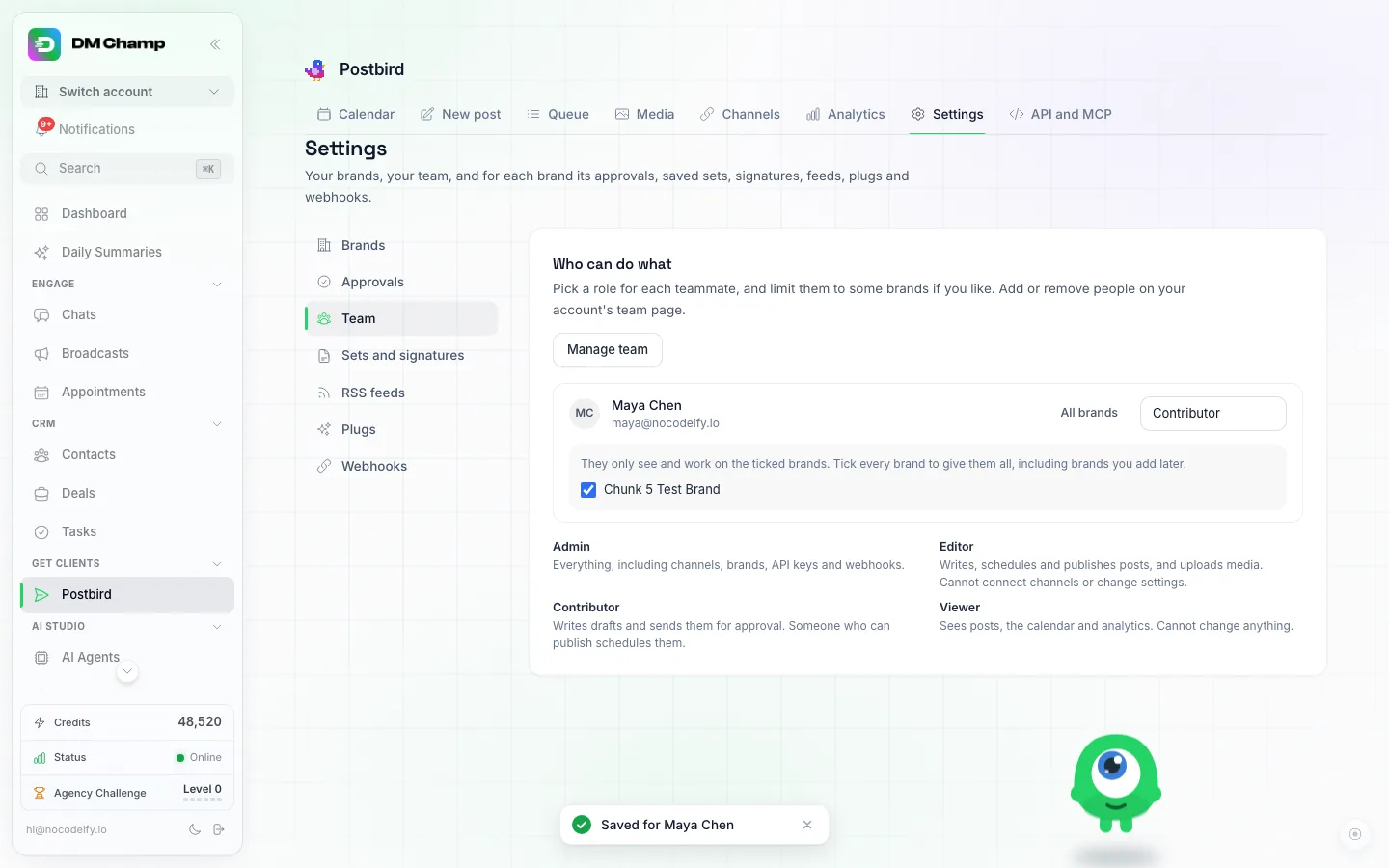
Settings, Team: a role and a brand list for each teammate.
The four roles
| Role | What they can do |
|---|---|
| Admin | Everything: posts, media, channels, brands, API keys and webhooks. |
| Editor | Write, schedule and publish posts, upload media, use Write with AI, sets, signatures, RSS feeds and plugs. They cannot connect or change channels, add brands, or see API keys and webhooks. |
| Contributor | Write drafts and send them for approval. They cannot schedule or publish, and they can only change or delete their own drafts. |
| Viewer | See posts, the calendar, the queue and analytics. They cannot change anything. |
Only you, the account owner, can change roles or delete the Postbird account.
Until you pick a role, a teammate gets the one that matches their role on your account team: an account Admin is an Admin here, an Editor an Editor, a Viewer a Viewer.
Set a teammate’s role
- Open Settings and pick Team in the list of sections.
- Next to the teammate, pick a role in the menu. It is saved straight away.
- To limit them to some brands, click All brands next to their name and untick the brands they should not see. Keep every brand ticked to give them all brands, including brands you add later.
A teammate who is limited to some brands only sees those brands in the brand switcher, and cannot add new brands.
How approval works for a Contributor
A Contributor writes the post in the composer and clicks Send for approval instead of Schedule. The post shows Awaiting approval and does not go out.
Anyone who can publish (you, an Admin or an Editor) then opens the post and schedules or publishes it, which approves it. They can also click Get approval link in the post’s Approval box to let a client approve it, as described in Approval links. The Contributor never gets the link itself.
API keys and AI assistants
An API key a teammate creates on the API and MCP page works with that teammate’s role and brands, and keeps following them: if you lower their role or remove them from the team, the key changes with them or stops working. Keys you create yourself can do everything. Only Admins and you can create keys. See API keys and AI assistants.