The composer, calendar and queue
Write a post
Click New post in the menu or on the calendar (or the + on a day of the calendar) to open the composer. It has three columns: the brand’s channels on the left, the text in the middle, and a Live preview on the right.
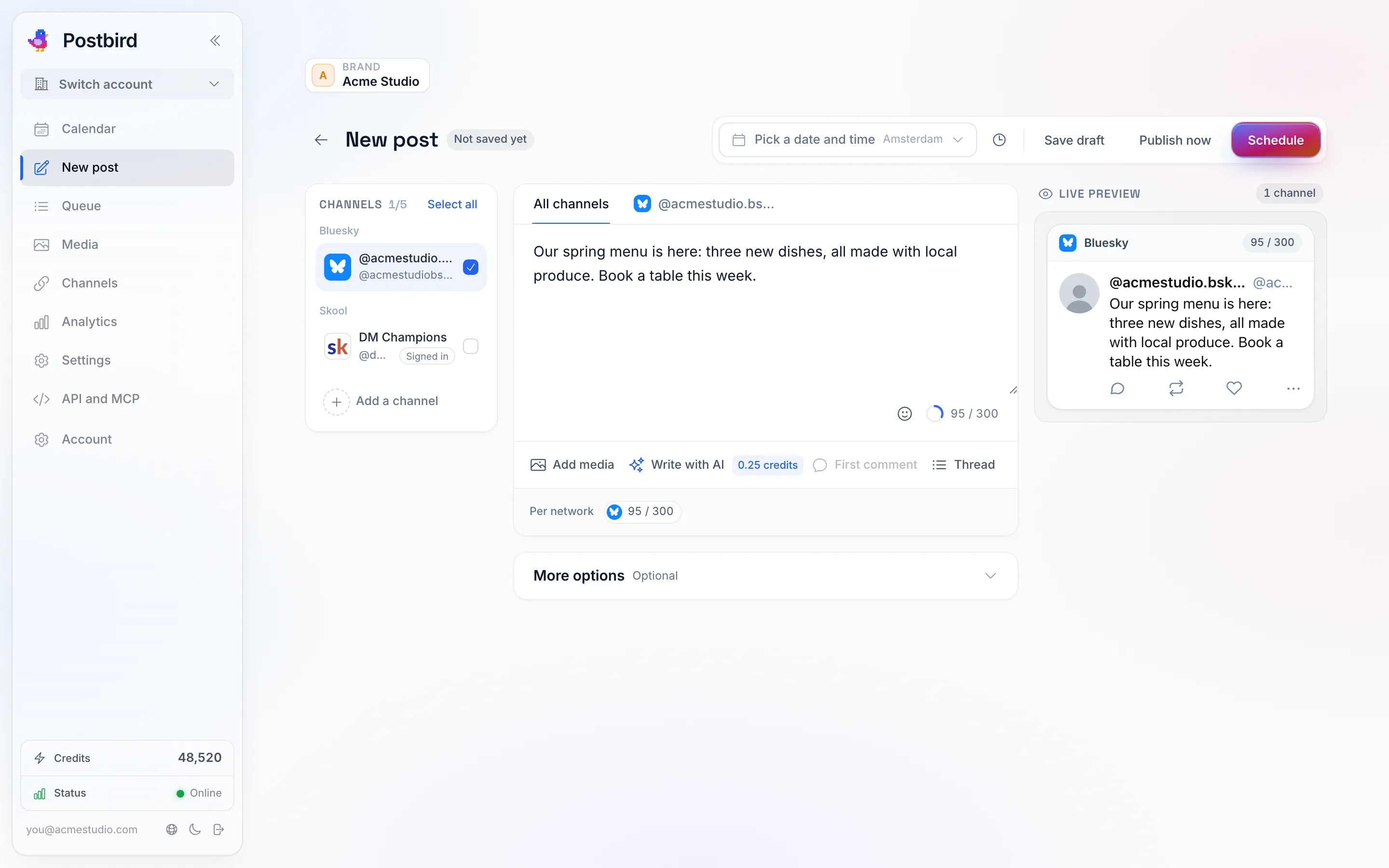
Pick the channels on the left, write once in All channels, and see each post the way its network shows it on the right.
- Channels: tick the channels this post goes to in the list on the left, grouped by network (Select all ticks every one). Each picked channel gets its own tab and its own preview.
- All channels: the text every channel gets. Under the text, Per network shows the character count against each network’s limit and turns red when a network is over it; click a count to open that channel’s tab.
- Live preview: each picked channel shows the post the way its network does (an X post, a LinkedIn update, an Instagram post and so on), with the channel’s name and photo and its own character count at the top. Where a network would cut the text, a red mark shows the cut.
- A channel’s own text: open a channel’s tab and switch on Write a different text for that channel to tailor the post for that channel only. Switch it off to use the shared text again. Channels that show a title above the post (blogs, YouTube, Pinterest, Reddit and others) ask for one on their tab.
- Media: click Add media to pick images, videos or a PDF from the brand’s library, or upload new ones. Postbird makes the right size for each channel for you. A short description of an image (alt text) is added on the Media tab.
- First comment: posted as the first comment under the post on channels that have comments. Handy for a link.
- Thread: click Add a post to add follow-up posts that go under the first one, on channels that do threads (Bluesky, Mastodon, Threads and others).
- When: next to Save draft at the top, the date and time, in the brand’s time zone. Next slot fills in the next free posting slot you set on the brand’s channels.
Then click one of:
- Save draft: keeps it without scheduling. Nothing is sent.
- Schedule: publishes at the time you picked.
- Publish now: sends it to every picked channel right away.
Extras in the composer
- Start from a set: a set is a saved group of channels plus starting text (make them under Settings). Pick one and those channels are ticked and the text is filled in.
- Signatures: text added to the end of a post, like your website link or a sign off. The default signature is added to every new post; Add signature adds another.
- Tags: your own labels for a post so you can find and group posts later. Nobody else sees them.
- Repeat: post it again at the same time every day, week or month, until the day you pick (or until you stop it).
- Wait before this channel: per channel, wait a number of minutes after the first channel before posting here, so your posts do not all land at the same second.
- Write with AI: drafts the post for you. See Write with AI.
- Hashtags: hashtag ideas for each network from your post, plus your saved hashtag groups. See Hashtags.
- Approval: once the post is saved, Get approval link gives you a link a client can approve the post from. See approval links.
Some channels add their own options on their tab, for example the board on Pinterest, the post type on Google Business Profile, who can see the video on YouTube and TikTok.
The calendar
The calendar shows every post of the brand, in the brand’s time zone. Switch between Month, Week and Queue at the top right.
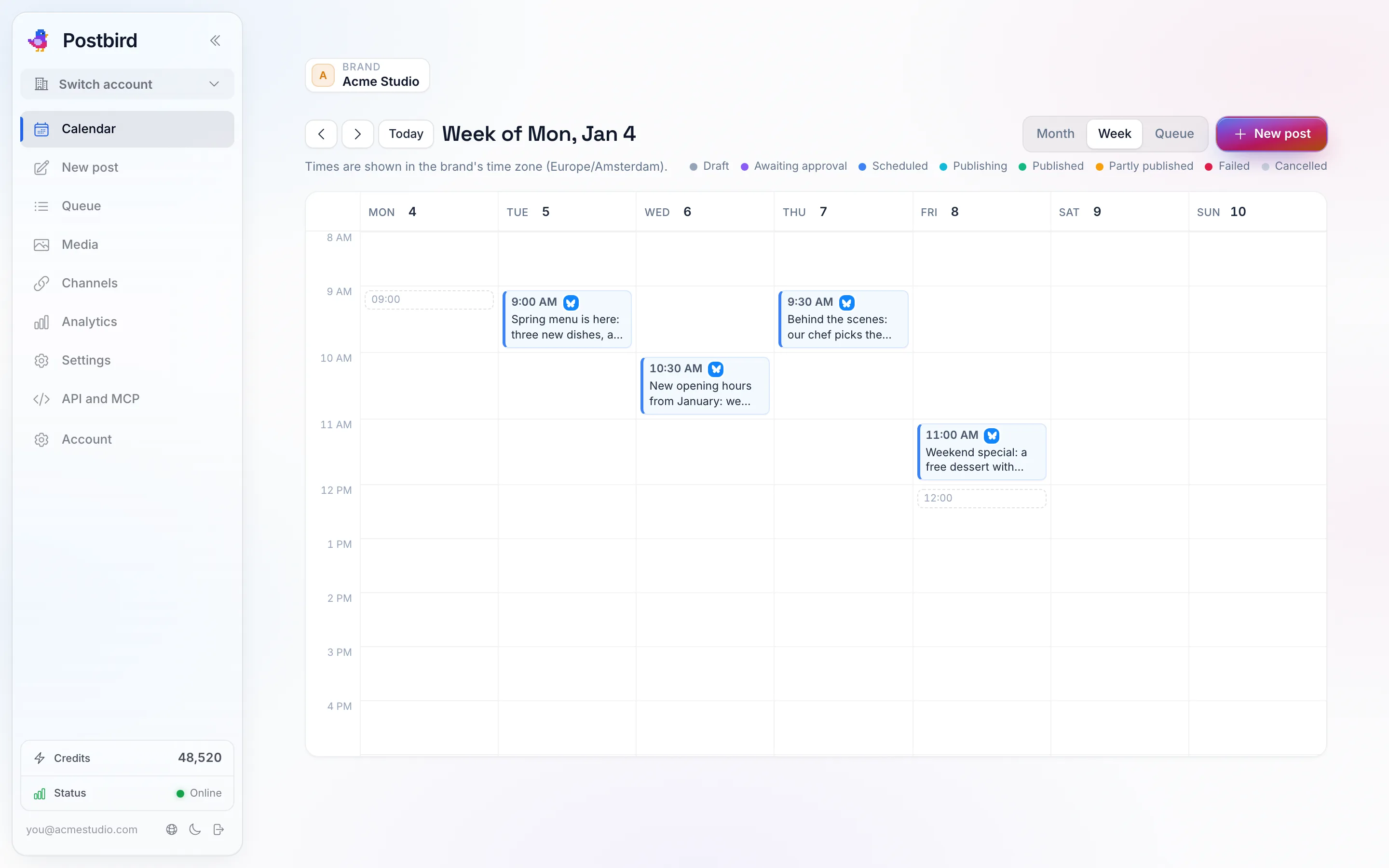
Week view: each post sits at its day and hour, coloured by its status.
- Month shows posts on their day; Week also shows the hour. Each post shows its time, its channels and its title.
- Colours show the status: grey for a draft, purple awaiting approval, blue scheduled, teal publishing, green published, amber partly published, red failed. The key above the calendar names them.
- Drag a post to another day to move it, or in Week to another day or hour. It keeps its time of day when you move it in Month. Posts that went out or were stopped stay where they are.
- Click a post to open it: edit it, Duplicate it, Take off schedule, Delete it, or read its log.
The queue
Queue in the menu on the left (or on the calendar) lists the brand’s posts in order, day by day. The tabs at the top pick which ones: Upcoming (scheduled and awaiting approval), Drafts, Sent (the last 60 days) and Failed. Your posting slots show above the list.
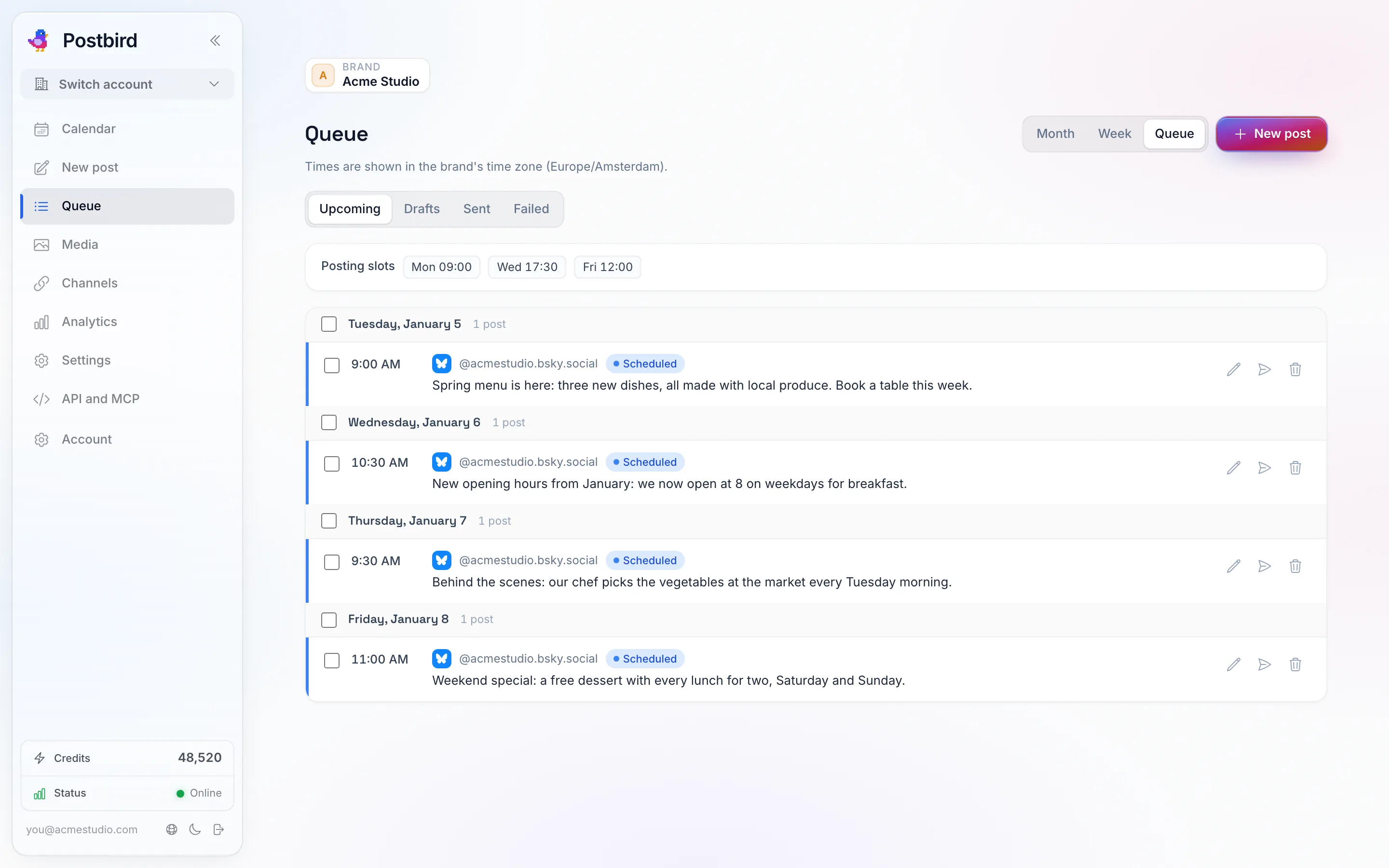
The queue: every post in the order it goes out, with your posting slots on top.
- Each post has its own buttons: open and edit it, publish it right away, retry the channels that failed, or delete it.
- Tick posts (or a whole day) to act on them together: Move to date moves them to another day and each keeps its time of day, Retry failed tries every failed channel again, and Delete removes them (scheduled ones are taken off the schedule first). Postbird tells you which posts it could not change and why.
Import posts from a spreadsheet
Plan a week or a month in a spreadsheet and bring it in at once. Click Import next to New post on the calendar or the queue.
- Click Download template to get a CSV file with the columns Postbird reads. Fill in one post per row and save it as CSV (from Excel, Google Sheets or Numbers: File, Download or Export, CSV). You can also paste the rows instead of uploading a file.
- Choose what happens to Rows without a date: save them as drafts, or schedule them in the next free time slots of the brand’s channels, one after another.
- Click Check rows. Postbird shows every row as it will be created: draft or scheduled, the time it goes out, the channels, and any problem in red. Nothing is saved yet.
- Click Import N posts. Rows with a problem are skipped and the others are created, exactly as if you had written them in the composer. They show up on the calendar and in the queue.
The columns (only text and channels are needed):
| Column | What to put in it |
|---|---|
| text | The post text. |
| channels | Where it goes: a network name (linkedin, x, instagram, facebook_page, bluesky and so on), the channel’s name as it shows on the Channels page, or its @handle. Separate several with a | or a comma. |
| date | The day as YYYY-MM-DD (for example 2026-12-01), in the brand’s time zone, or next for the next free time slot. Leave it empty for a draft. |
| time | The time, for example 09:30 or 9:30 pm. |
| status | draft or scheduled. When empty, a row with a date is scheduled and a row without one is a draft. |
| media_urls | Web addresses (https) of images or videos. Postbird adds them to the brand’s media library. |
| first_comment | Posted as the first comment on channels that have comments. Channels without comments post without it. |
| tags | Labels, separated by a | or a comma. |
| title | The title for channels that need one (YouTube, Pinterest, Reddit, blogs). |
Good to know:
- One import takes up to 200 posts. Split a bigger file into several.
- A row is skipped when a channel is not one of the brand’s, the text is too long for one of its networks, the date is in the past, or a media address does not load. The preview says which, row by row.
- Some networks need choices a spreadsheet cannot hold (who can see a TikTok post, whether a YouTube video is made for kids, the Pinterest board). Import those rows as drafts and finish them in the composer.
- A scheduled row whose image or video is still being prepared is saved as a draft with its time kept. Open it and schedule it once the media is ready.
- Undo this import on the last step removes everything the import added: scheduled posts are taken off the schedule and every post that has not gone out is deleted. Posts that already went out stay. The same button sits next to each import under Recent imports in the Import window.
A post that went out
A post that went out opens as a view of what was posted instead of the editor: How it looks shows it per network, and Where it went lists each channel, whether it took the post, and a View on link to the live post on that network. A post that went out can no longer be edited; click Duplicate to copy it into a new draft you can change and schedule.
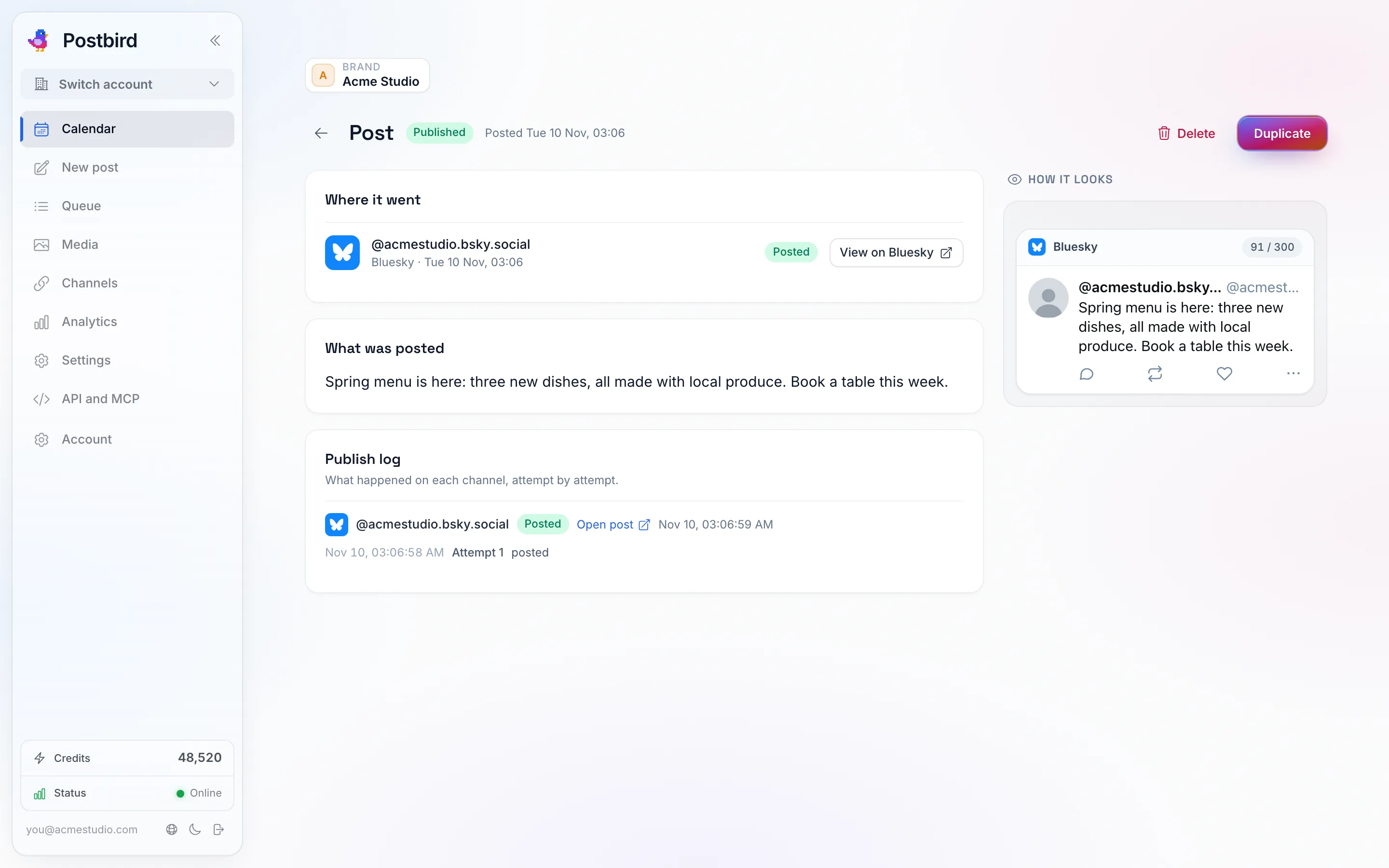
A post that went out: where it went, what was posted, and a link to it on each network.
- Delete also works on a post that already went out: it leaves the calendar, the queue and your lists (it still counts in Analytics), and with Also delete it from ticked it is taken down on every network that lets apps delete posts; the dialog names the networks where it stays up, so you can delete it there yourself.
The publish log
Every post keeps a Publish log of what happened on each channel, attempt by attempt. When a channel failed, the log says why, and Retry tries that channel again; channels that already posted are left alone. If a platform asks Postbird to slow down, the post waits and is tried again by itself.