Connect channels with your own key or token
Many channels, blogs and newsletter tools do not use a sign-in page. You create a key, token or app password in that tool and paste it into Postbird once. Postbird stores it encrypted and uses it only to publish your posts. They post through the tool’s own official connection. A brand holds one account per network; see one account per network.
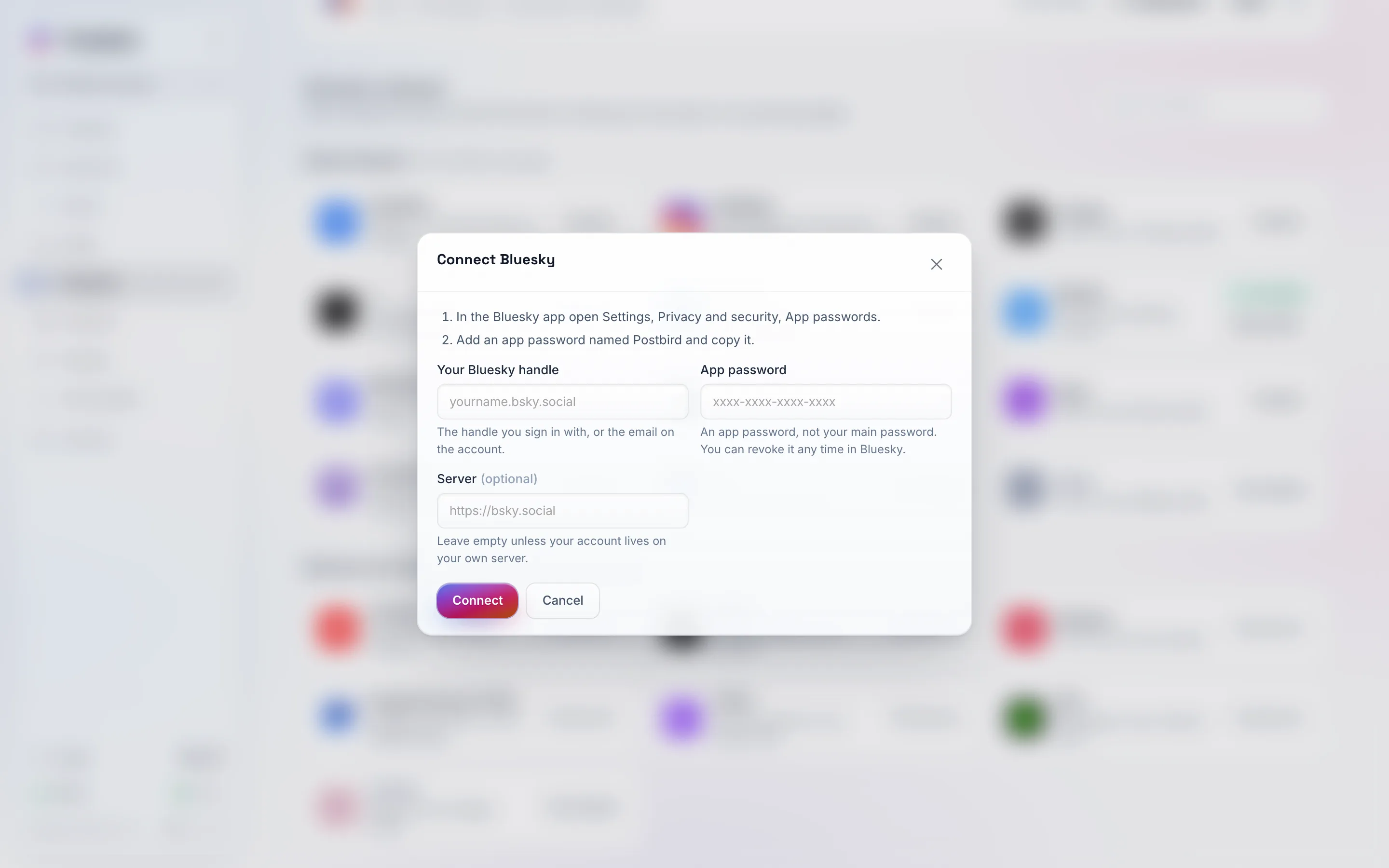
Each form starts with the steps to get the key in that tool, then asks only for what Postbird needs.
How to connect
- Open Channels and click Connect on the tool (type its name in Search networks to find it fast). For Telegram, pick Channel, with a bot in the window that opens.
- Follow the numbered steps at the top of the form to create the key in that tool.
- Paste it in and click Connect. Postbird checks it right away and tells you if something is wrong.
- For some tools you then pick where posts go (a channel, publication, list or forum).
What each one needs
| Channel | What you paste |
|---|---|
| Bluesky | Your handle and an app password (Settings, Privacy and security, App passwords). Not your main password. |
| Mastodon | The address of your Mastodon server. You then sign in on that server and allow Postbird to post. |
| Telegram channel | A bot token from @BotFather, and your channel. Add the bot to the channel as an administrator that may post messages. |
| Discord | A webhook URL from the channel’s settings, Integrations, Webhooks. It posts into that one channel. |
| Slack | A bot token (starts with xoxb) from your Slack app, and the channel. The bot must be a member of the channel. |
| WordPress | Your site address, username and an application password (Users, Profile, Application Passwords). An image you add becomes the featured image. |
| Dev.to | An API key from Settings, Extensions on dev.to. |
| Ghost | The Admin API key and API URL of a custom integration you add under Settings, Integrations. |
| Hashnode | A personal access token from the Developer tab of your account settings, then the publication. Posting through Hashnode’s API needs Hashnode Pro on that publication. |
| Listmonk | Your Listmonk address and an API user with its token, then the list to send to. The post’s title becomes the email subject. |
| Lemmy | Your server, username, password and the community. Lemmy has no app passwords, so Postbird signs in with your password, stored encrypted. |
| Nostr | Your private key (starts with nsec) and, if you like, your own relays. It is stored encrypted and only used to sign your posts. Images and videos go in as links. |
| Farcaster | Your own Neynar API key and the approved signer id of your Farcaster account. |
| Whop | A company API key (Developer page of your Whop dashboard), then the forum. |
| Moltbook | The API key your AI agent got when it registered, and the submolt to post in. |
When a key stops working
If you revoke the key in the tool, or the tool rejects it, the channel shows Access removed or Reconnect needed under Connected. Create a new key and click Reconnect.