API keys and AI assistants (MCP)
Postbird is built so an AI assistant or your own tools can do the posting. Claude, ChatGPT, Claude Code, Cursor, n8n, Make or your own scripts can plan and publish posts for your brands. Everything is on the API and MCP tab.
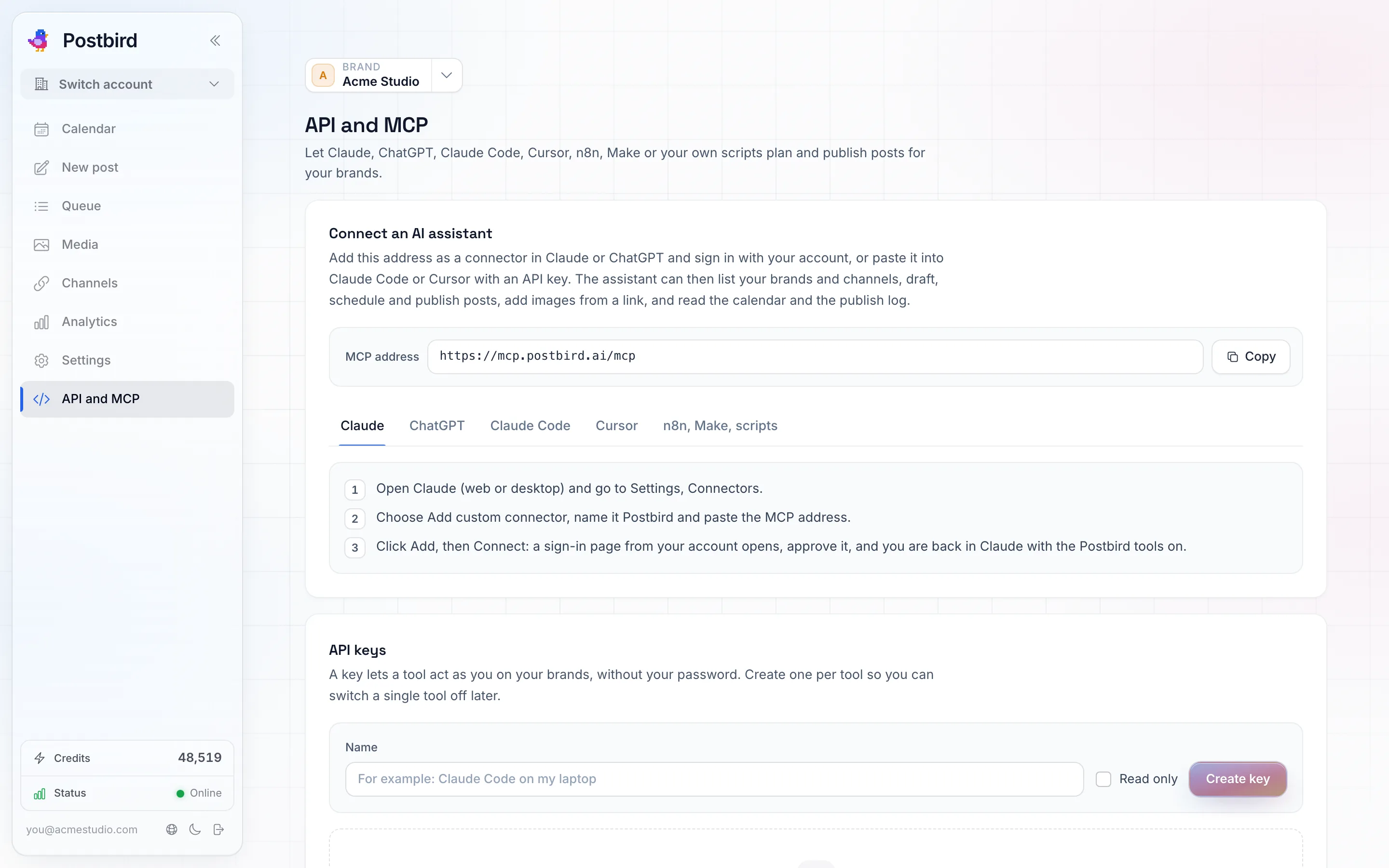
API and MCP: the address for AI assistants, step by step setup per assistant, and your API keys.
Connect an AI assistant
MCP is the way AI assistants plug into tools. The address is:
https://mcp.postbird.ai/mcp
- Claude (web or desktop): Settings, Connectors, Add custom connector, name it Postbird and paste the address. Click Add, then Connect, and approve the sign-in.
- ChatGPT: Settings, Connectors (or Apps), Create, name it Postbird, paste the address and pick OAuth as the sign-in. Save, connect and approve.
- Claude Code and Cursor: paste the address with an API key (below). The tab for each shows the exact steps.
Once connected, the assistant can list your brands and channels, draft, schedule and publish posts, add images from a link, read the calendar and the publish log, and bring in many posts at once (check them first, import them, and undo the import if needed). Just ask it, for example “schedule a post about our spring menu on every channel of Sunrise Dental for Friday 10:00”. It can also suggest hashtags per network, keep your saved hashtag groups, make images with AI into the brand’s media, and read and answer the comments on your posts in the Inbox: reply, like, hide or delete where the network allows it, mark conversations done and suggest a reply. AI drafts, hashtag suggestions, AI images and suggested replies asked for through an assistant cost the same as in the app (Write with AI and Hashtags).
API keys
A key lets a tool act as you on your brands, without your password.
- Under API keys, give the key a name (for example “Claude Code on my laptop”).
- Tick Read only if the tool should only look at brands, channels, posts and the calendar, without creating, changing or publishing anything.
- Click Create key and copy it right away. Keys start with
pb_live_. For safety it is shown only once; if you lose it, revoke it and create a new one.
Create one key per tool, so you can switch a single tool off later with Revoke. Anyone holding a key can post for your brands, so treat it like a password.
A key made by a teammate works with that teammate’s role and brands, and follows them if their role changes or they leave the team. Only you and Admins can make keys. See Team roles.
Plain web requests (n8n, Make, scripts)
Every assistant action is also a plain web request. Send your key in the X-API-Key header. The API description link on the n8n, Make, scripts tab is a standard description of every request, which n8n and Make can import directly.