Connect channels that sign in with the platform
Most big platforms let you connect by signing in with them. You click Connect, the platform opens and asks you to allow Postbird to post for you, and you land back in Postbird with the channel connected. You never give Postbird your password: posts go out through the platform’s own official connection.
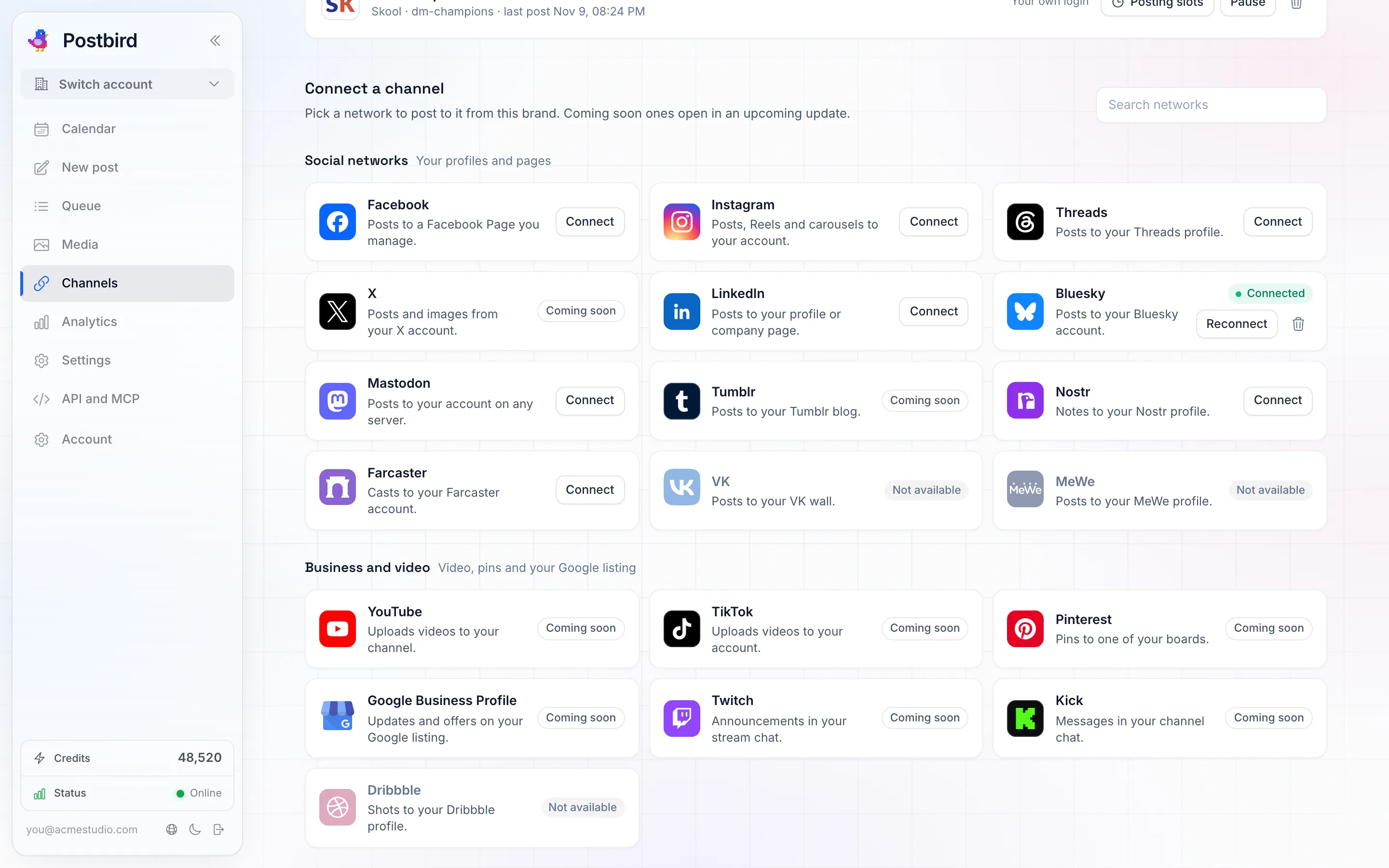
Channels, Connect a channel: every network once, in four groups, with a search field. A network the brand already has shows Connected.
Find the network
Under Connect a channel, every network shows once, sorted into four groups: Social networks, Business and video, Communities and chat, and Blogs and newsletters. Type in Search networks to find one by name. Each card says in one line what the connection posts to; hover the line to see that network’s own limits. A network this brand already has shows Connected, with Reconnect to sign in again and a bin to remove it.
One account per network
Each brand holds one account per network: one Instagram, one Threads, one X, and so on. One account can still post to several places: one Reddit login to several subreddits, one Telegram bot or personal account to several channels, one WhatsApp number to several groups, one Skool login to several communities, one Slack workspace to several channels, and any number of Discord webhooks. To post to a second account on the same network, add another brand and connect it there. To switch the brand to a different account, remove the current one first, then connect the new one. Reconnect only works with the same account; signing in with another one is refused with a message that this brand already has an account on that network.
The ways to connect that are different products count on their own, so one brand can hold both: an Instagram business or creator account and a personal Instagram account, a LinkedIn profile and a LinkedIn company page, a Telegram channel with a bot and a Telegram channel from your personal account. In the connect window, a way the brand already has shows Connected instead of Connect.
How to connect
- Pick the brand at the top and open Channels.
- Under Connect a channel, click Connect on the network. The connection opens in a window over the page.
- Some networks connect in more than one way. The window then asks you to choose first, for example Business or creator account or Personal account for Instagram, Your profile or Company page for LinkedIn, Channel, with a bot or Your personal account for Telegram, and Sign in with TikTok or Use your own login for TikTok. Click Connect next to the way you want.
- Sign in on the platform’s page and allow access.
- If you manage more than one Page, account, channel, blog or location there, pick the one this brand posts to. The brand keeps that one; another one goes on another brand.
To stop halfway, close the window with the cross or the Esc key. The channel then shows under Connected with its status.
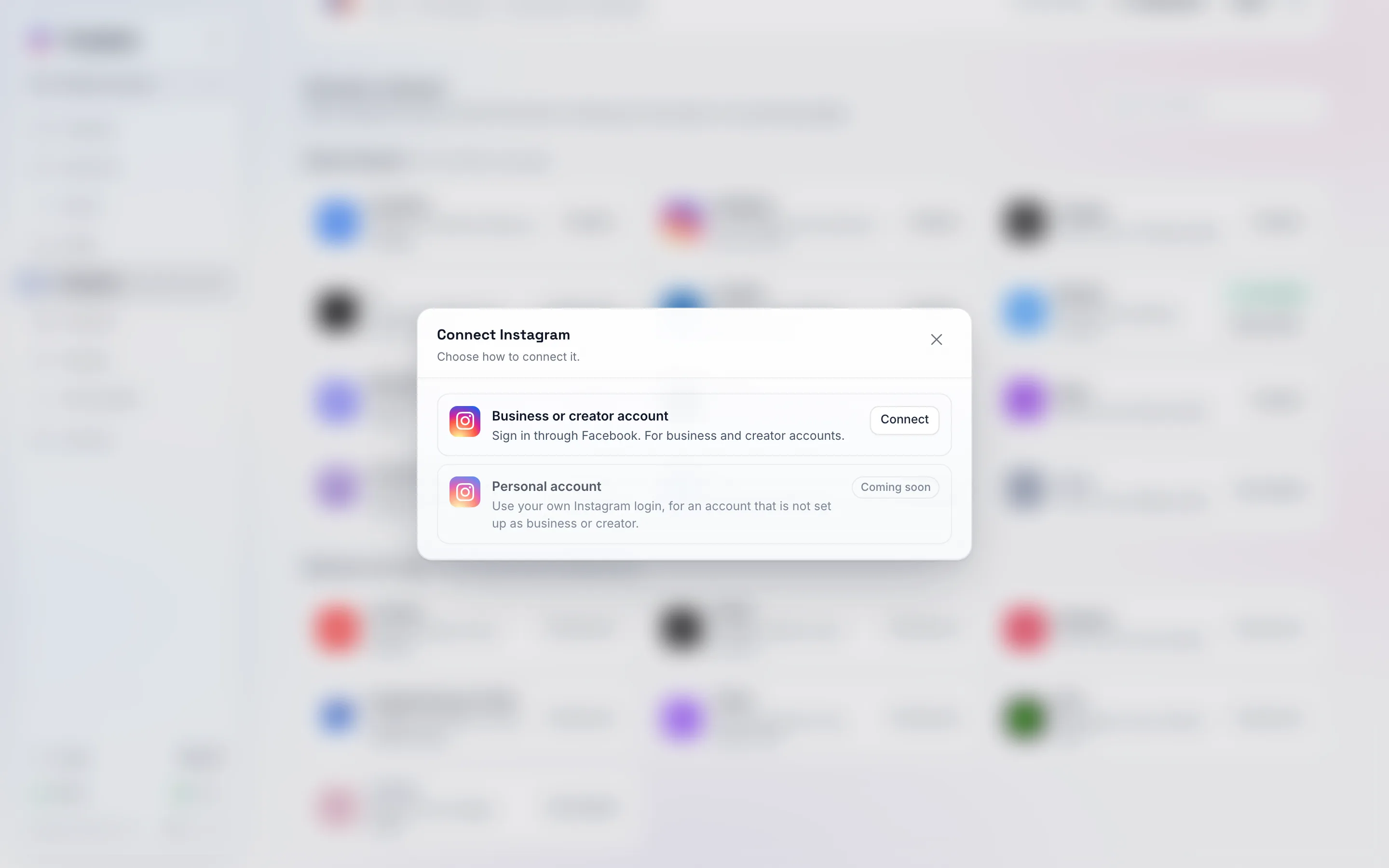
A network with two ways to connect asks which one inside the window.
The channels
Each platform has to approve Postbird before it can post there for everyone, so a channel below may not connect yet. It works as soon as the platform approves it; see when a channel says it is not switched on yet.
| Channel | What to know |
|---|---|
| Facebook Page | You need to be an admin or editor of the Page. If you manage several Pages you pick one. |
| Pick Business or creator account, with or without a Facebook Page: sign in with Facebook and tick your Instagram account. Postbird resizes your images and videos to the shapes Instagram accepts. Personal account connects differently, see channels that post from your own login. | |
| Threads | Sign in with Threads. |
| YouTube | Pick the channel. A YouTube post needs a video; an image you add becomes its thumbnail. |
| TikTok | Pick Sign in with TikTok. See TikTok posts stay private for now. |
| You pick the board for each Pin when you write the post. | |
| Google Business Profile | Sign in with the Google account that manages the profile and pick the location. |
| Tumblr | Pick the blog if you have several. |
| Twitch | Text only. Posts appear in your own stream chat as a highlighted announcement. |
| Kick | Text only. Posts appear in your own channel chat as a message from you. |
LinkedIn has its own page: Connect LinkedIn.
When a channel says it is not switched on yet
Until a platform approves Postbird, its card (or its choice in the connect window) shows Coming soon instead of Connect; hover it to read why. If clicking Connect ever shows Connecting this channel is not switched on yet. Try again soon., nothing is wrong with your account: the channel connects as soon as the platform approves Postbird.
TikTok posts stay private for now
Until TikTok approves Postbird, TikTok posts are visible only to you (Only me), and the TikTok account must be private. The composer says so on the TikTok tab and asks you to pick who can see each post, as TikTok requires. Once TikTok approves Postbird, the other options appear.
Channel status
| Status | What it means |
|---|---|
| Connected | Ready to post. |
| Paused | Posts skip this channel until you click Resume. |
| Reconnect needed | The connection ran out, or the platform asks you to sign in again. Click Reconnect to keep posting. |
| Access removed | The platform removed Postbird’s access. Click Reconnect to keep posting. |
| Disconnected | No longer connected. |
A channel connected from your own login says Your own login on its row. Each connected channel also has Posting slots: the weekdays and times that channel usually posts. The composer’s Next slot button uses them.
Not supported
- VK and MeWe show Not available: these platforms do not let an app like Postbird post for you. Medium and Dribbble connect from your own login instead, see Channels that post from your own login.
- Facebook Groups, WhatsApp Channels, Snapchat, Substack and Quora are not supported.