Skool (Beta)
Connect your own Skool account and answer your Skool direct messages, and the comments on your community posts, straight from your inbox. Your AI Agent can answer members who message you, and once you switch it on, real questions under the posts you watch. You can also start a private chat with someone who commented on your post, and welcome new members of communities you own or moderate. You connect with your Skool email and password.
Beta. Skool is a new channel and is available on paid plans. During the Beta the number of Skool connections is limited; if all slots are taken, the connect window says so and you can try again later.
Important, read before connecting. Skool has no official way to connect other apps. Skool may restrict or suspend a Skool account that is connected this way, under its own rules. You confirm this with a required checkbox before you connect, and you connect at your own risk.
What You Get
- Direct messages: every member who messages you on Skool becomes a normal chat in your inbox. You and your AI Agent reply there, and the reply lands in their Skool DMs.
- Post comments: each post you watch becomes one chat. Every comment and reply under that post lands in that one chat, from any member, with their name and photo on each comment. You can answer a specific comment from the inbox.
- AI on comments, when you want it: the AI stays out of your posts until you add a Skool comments entry point. Then it answers only real questions, on the posts you chose.
- Move to DM: start a private chat with anyone who commented on a post you watch, right from the post chat.
- Welcome new members (communities you own or moderate): send a welcome message to people who join, off until you switch it on.
What It Costs
- Each connected Skool account costs 50 credits per 30 days. The fee comes out of your credit balance when you connect, and again every 30 days until you disconnect. Reconnecting inside a period you already paid for charges nothing.
- If the fee cannot be charged because your balance is too low, Skool pauses: the card says so, and it resumes within a few hours after you add credits.
- AI replies use credits the same way as on every other channel.
- When the AI decides a comment needs no answer (praise, small talk), nothing is posted and nothing is charged.
Connecting Skool
Before You Start
- Use the email and password you sign in to Skool with. Signed up with Google? Set a Skool password first in your Skool account settings, then come back.
- One Skool account can be connected per account.
Step 1: Open the Skool Card
- In the left sidebar, click Settings.
- In the Settings left rail, under Channels, click Channels.
- Find the Skool card (it carries a Beta badge) and click Connect.
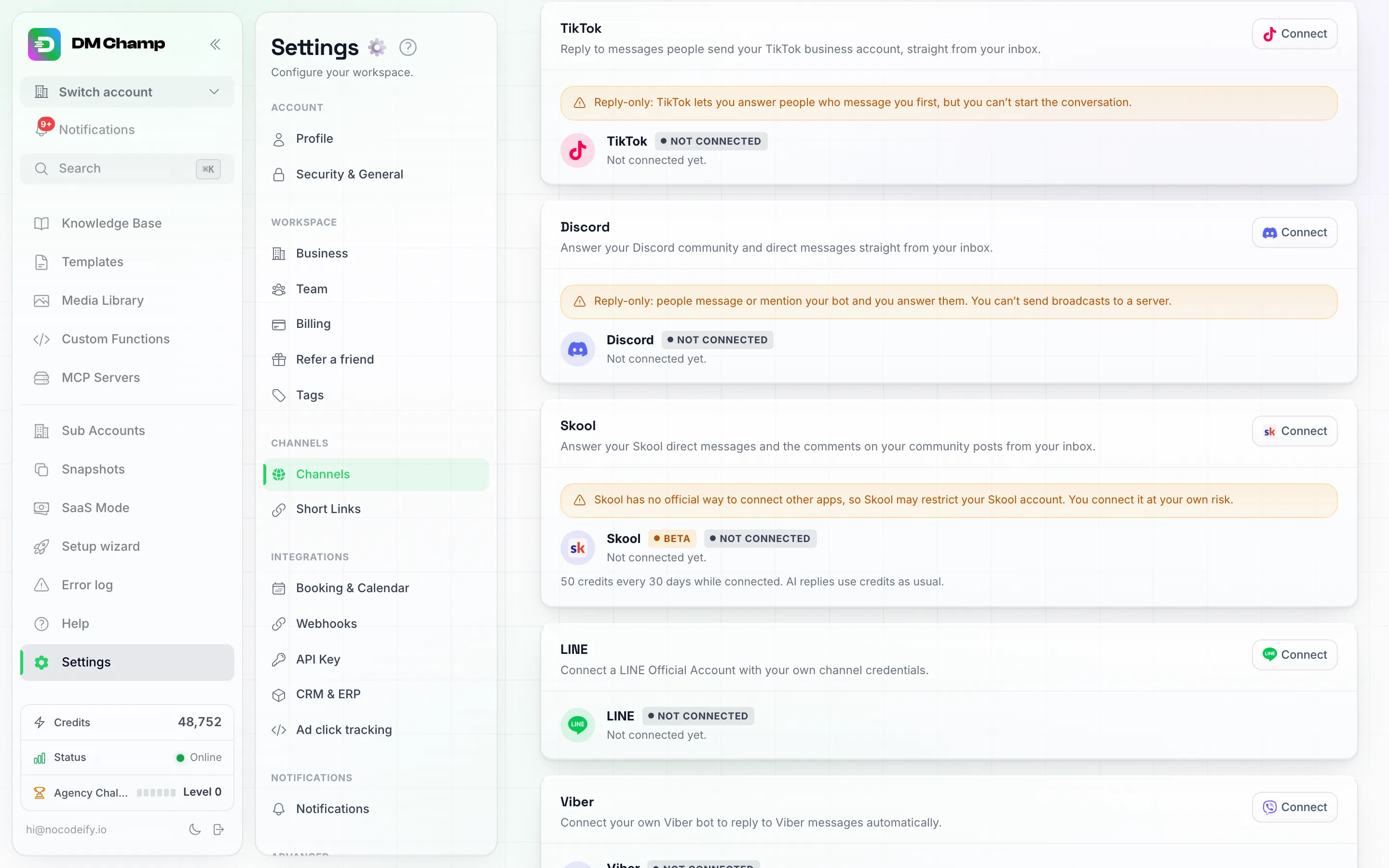
The Skool card under Settings, Channels. Look for the Beta badge, then click Connect at the top right of the card.
Step 2: Confirm the Risk
The Connect Skool window opens with a short explanation and two checkboxes:
- “I understand Skool has no official way to connect other apps, and Skool may restrict or suspend my Skool account. I connect it at my own risk.”
- “I understand my account will be charged 50 credits now and every 30 days” for the connection.
You cannot continue until both are ticked.
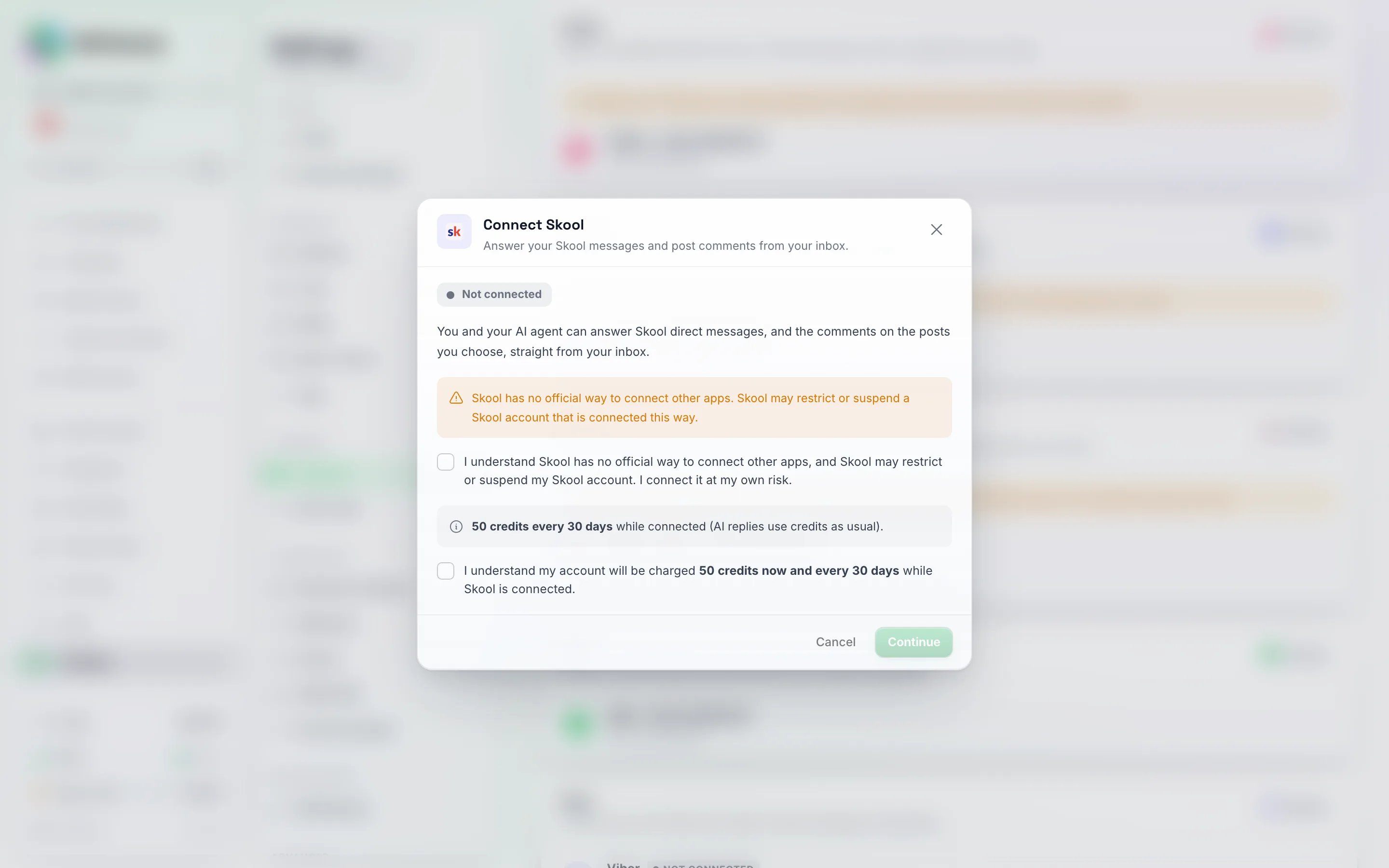
The first step of Connect Skool. Continue stays greyed out until you tick both the risk checkbox and the charge checkbox.
Step 3: Sign In
Enter your Skool email and Skool password and click Connect.
If Skool emails you a sign-in code, the window asks for it: type the Code from Skool and click Verify code.
Step 4: Wait a Moment
The window shows Signing in to Skool. This usually takes under a minute. You can close the window; the card updates by itself.
Step 5: Choose Your Communities
Pick where comments become chats:
- Direct messages are always on. Every Skool DM becomes a chat.
- Watch my posts: turn this on for a community and the comments on posts you write there show up as chats.
- Also watch these categories (only in communities you own or run, marked You run this community): every new post in the categories you pick becomes a chat too, not only your own posts.
- Message new members (only in communities you own or run): sends a welcome to people who join. See Welcoming New Members.
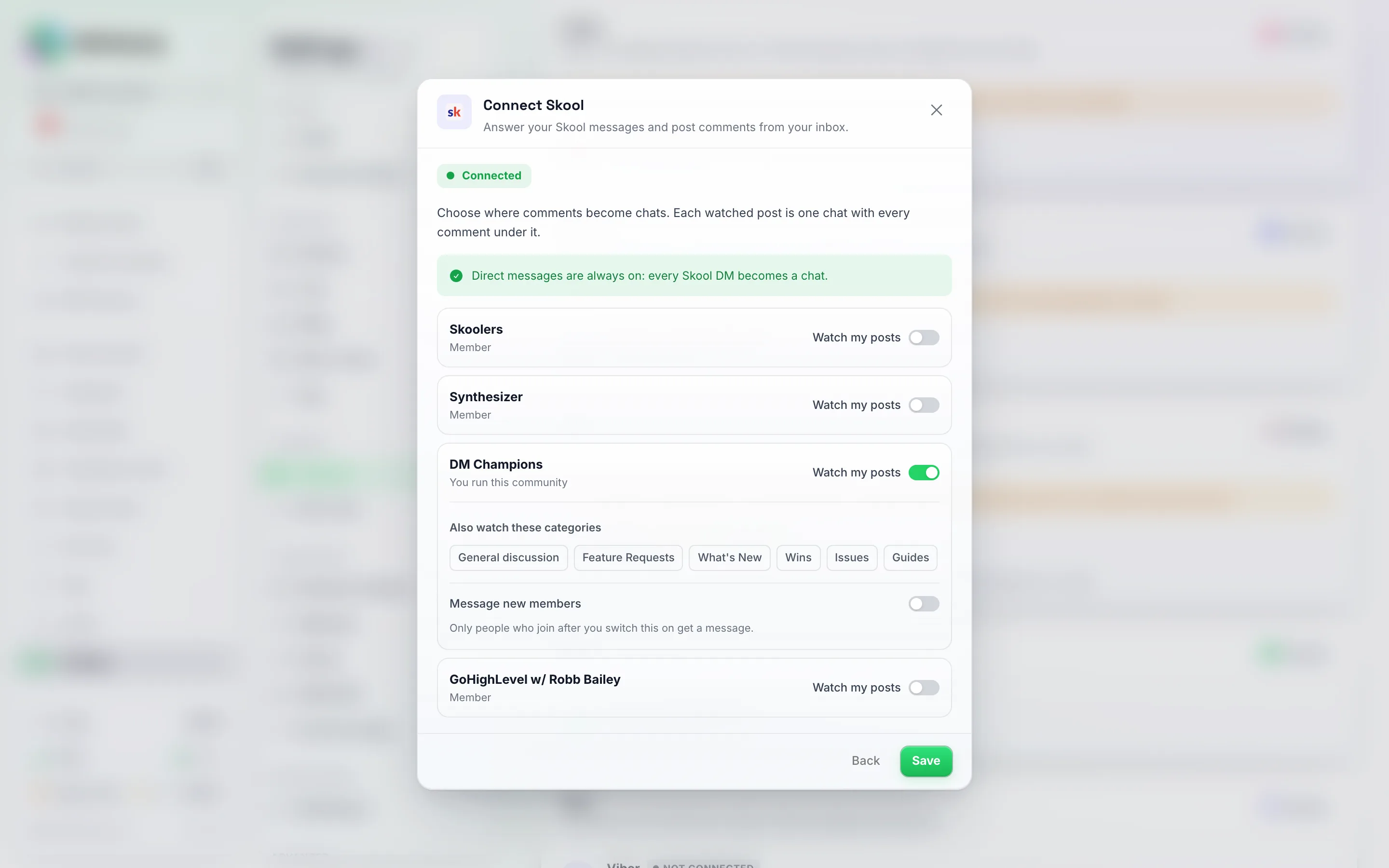
Choosing communities. Every community has Watch my posts; only a community marked You run this community also shows categories and Message new members.
Click Save. The window shows Skool is connected with what you are watching. You can change your communities later from the Skool card.
Nothing from before is answered. Direct messages from before you connected are not brought in. When a watched post becomes a chat (its first new comment after you connected), the post and its earlier comments are loaded into that chat so you see the whole thread, but they are history only: the AI never replies to them and they are never marked as waiting on you.
Direct Messages
- Each member who messages you is their own chat, like on any other channel.
- Who answers is set the usual way: the Skool channel in your Entry Points, or Who Answers New Conversations on the AI Agents page.
- If you or your team reply on Skool itself, that reply shows up in the chat too, and the AI steps back the same way it does when a person replies on any other channel.
- Starting a DM yourself: use Move to DM on a member’s comment in a post chat, or switch on the new-member welcome. You cannot message any member you pick; a new chat starts from a comment or a join.
- New direct messages usually arrive within about a minute.
Post Chats
One Skool post is one chat. Open it and you see:
- The post itself at the top, with Open on Skool to see it there.
- Every comment, oldest first, each with the member’s name and photo. Comments from you are marked You, comments the AI posted are marked AI reply, and comments you wrote on Skool itself are marked Written on Skool.
- Waiting on you on any comment thread where a member has the last word and nobody from your side has answered yet. Next waiting (shortcut J) jumps to the next one.
- A Post details panel with the community, the number of people commenting and the number of comments.
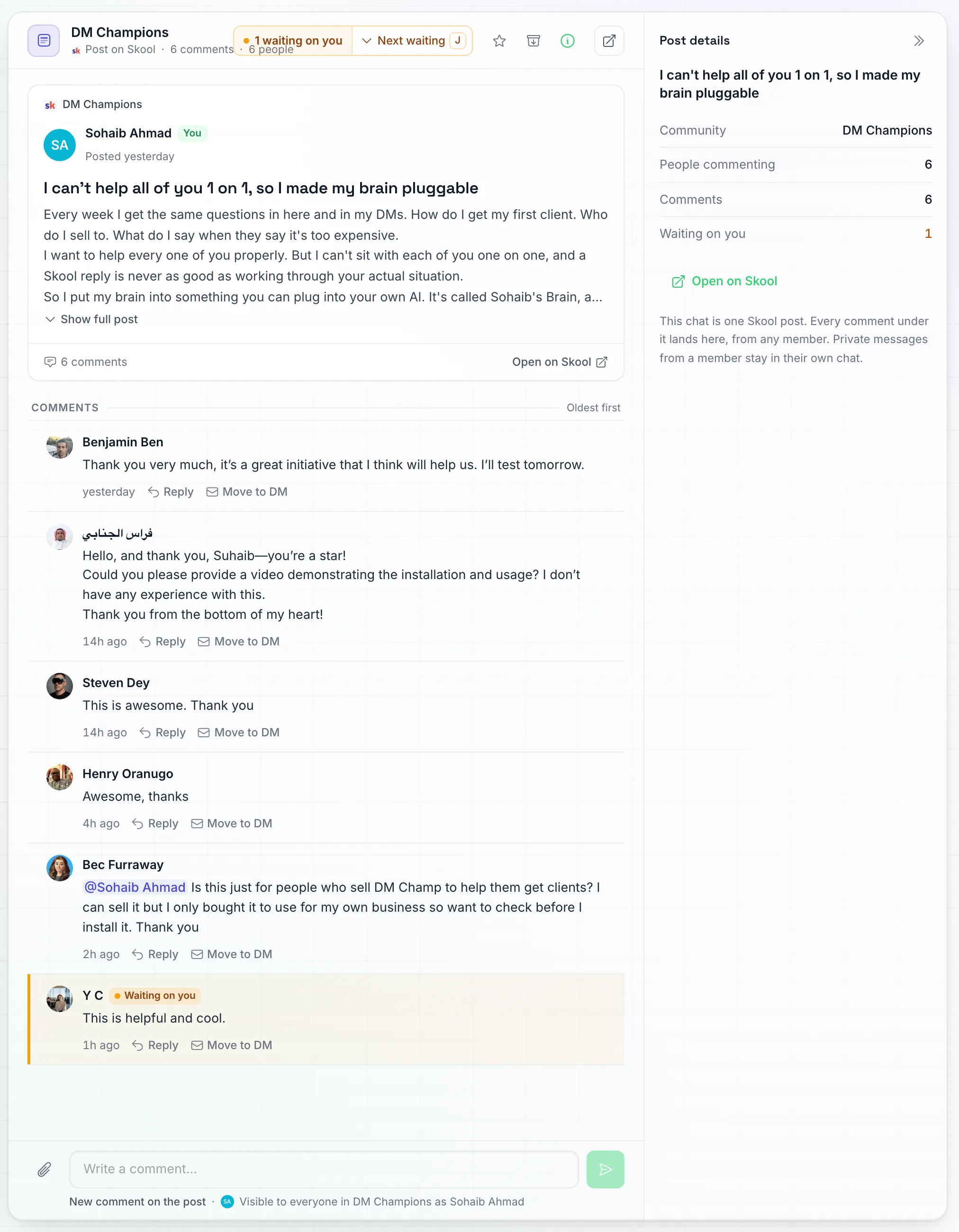
One post, one chat. Every comment has Reply and Move to DM under it, and the comment still waiting on you is highlighted, with 1 waiting on you and Next waiting at the top.
Replying to a Comment
- Click Reply on the comment you want to answer. The composer shows Replying to and the member’s name.
- Write your answer and click Post. It is public: everyone in the community can see it.
Skool shows only two levels of replies, so an answer to a reply goes under the first comment of that thread and starts with an @mention of the person, so they get notified. Click Stop replying to post a new comment on the post instead (the composer then reads New comment on the post).
Move to DM
Click Move to DM on a member’s comment to continue with them in private.
- If you already have a private chat with them, it opens.
- If not, a new chat with them opens. It shows “This starts a new Skool chat with [name]. New chats are limited per hour and per day.” Write your message and send it; that first message starts the chat on Skool.
- Their replies land in the same chat, like any other Skool DM.
Which Posts Become Chats
- Your own posts in communities where Watch my posts is on.
- New posts in the categories you chose, in communities you own or run.
- A post with no new comments for 14 days is no longer watched.
- New comments usually arrive within a few minutes.
Finding Posts That Need You
On the chats page, the Skool: needs reply filter shows the Skool posts where the newest comment is from a member and nobody from your side has answered it yet.
Post Chats Are Not Contacts
A post chat is a public thread, not a person. It does not appear on the Contacts page, in lists or broadcasts, it does not count toward your contact limit, and automations that start when a new contact is created skip it.
Welcoming New Members
In a community you own or moderate, you can send a welcome message to everyone who joins.
- Open the Skool card and choose your communities.
- On a community marked You run this community, switch on Message new members.
- Write your welcome.
{first_name}is replaced with the new member’s first name. The default is “Hi {first_name}, welcome to {community name}!”. - Tick Let the AI agent handle replies if your AI Agent should answer when they write back. Leave it off and their chat starts with the AI off, so you answer yourself.
- Click Save.
Good to know:
- Only people who join after you switch this on get a message. Members who joined before, and requests still waiting for your approval, get nothing.
- Each new member gets the welcome once. Someone you already have a chat with gets no welcome.
- The welcome is the text you wrote, never written by the AI. It is sent like a normal message and shows in the member’s chat, tagged skool-new-member.
- New members are picked up every few minutes, so the welcome can take a little while to go out.
- New chats count toward the hourly and daily limits below. When a limit is reached, the welcome shows as not sent in that chat.
Let the AI Answer Comments
The AI does not reply under your posts until you set it up. To turn it on:
- Open the AI Agent that should answer, then its Entry Points tab.
- Click New entry point and pick the type Skool comments.
- Choose where it answers:
- Communities: pick none to answer in every community you watch.
- Categories: pick some to answer only under posts filed in them, or none for every category.
- Which posts: All watched posts, or Specific posts (one Skool post id per line).
- Keywords (optional): only answer comments that contain one of these words. Leave it empty to answer every real question.
- Choose the Reply: AI writes a short answer in the comments (with optional extra guidance), or Exact text posts your Comment reply word for word under the question.
- Leave Start answering right away off to save the rule switched off, and switch it on from the list when you are ready.
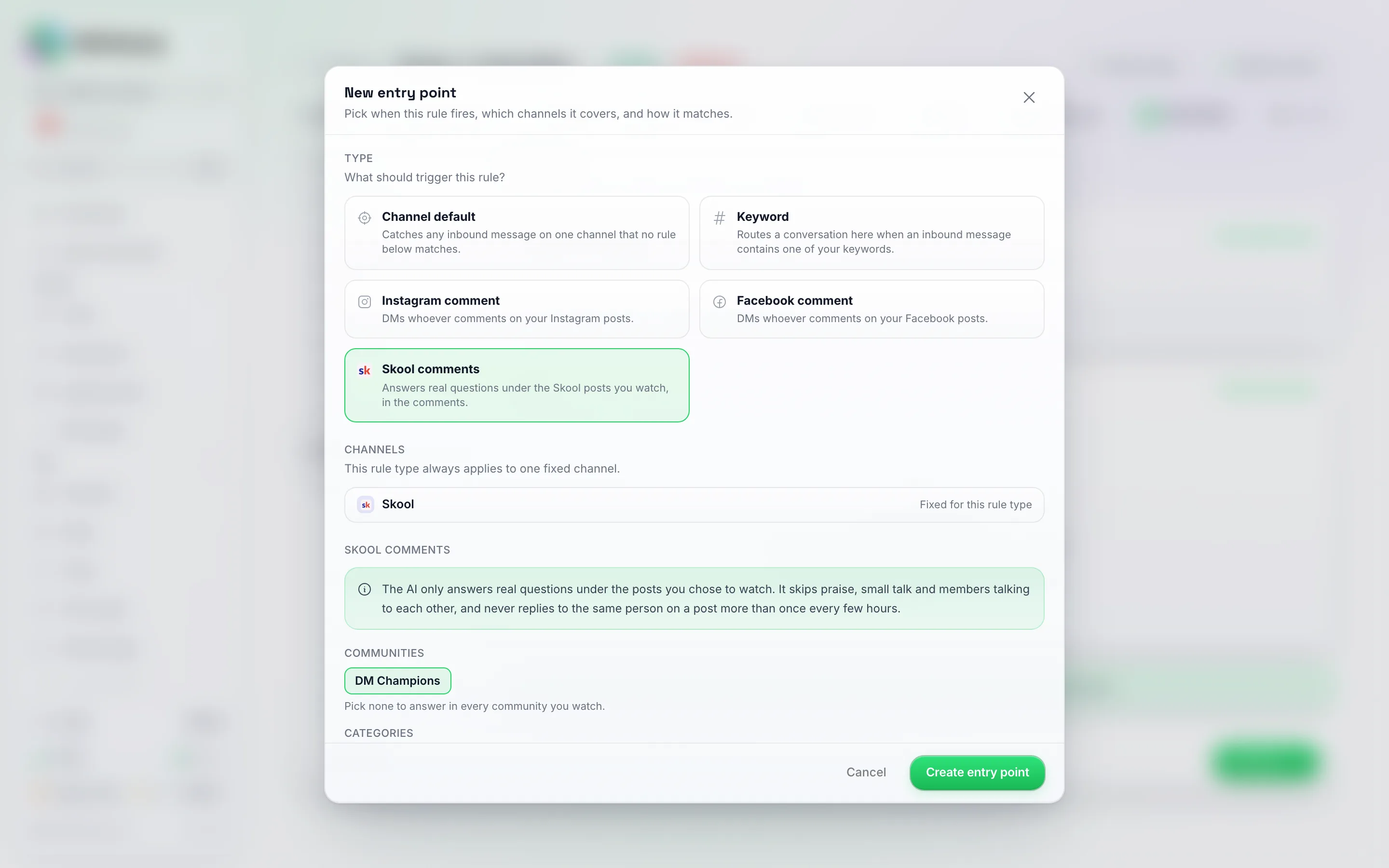
Pick Skool comments as the type. The channel is fixed to Skool, and you choose the communities the AI may answer in.
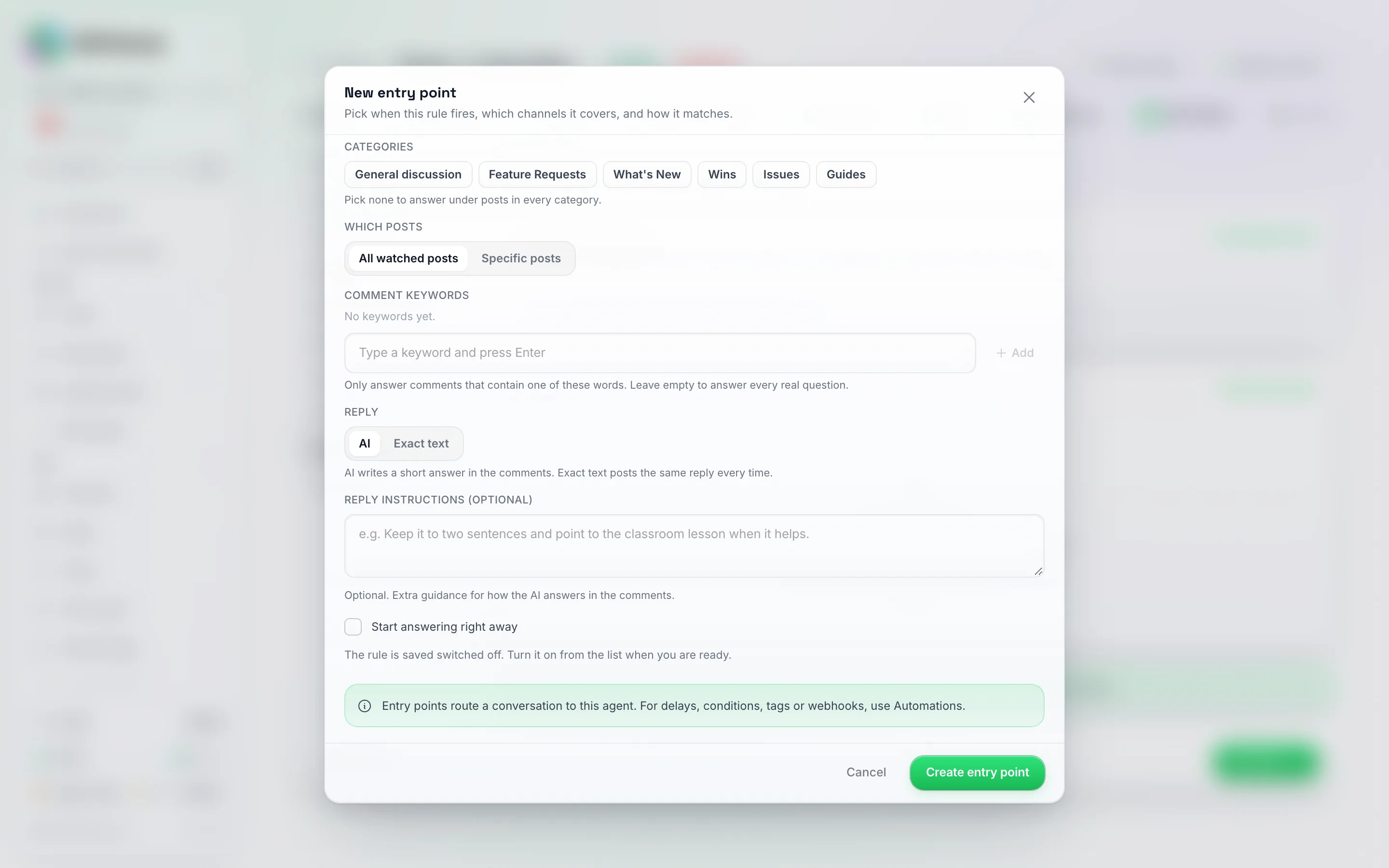
Lower in the same window. Leave Start answering right away unticked to save the rule switched off, then turn it on from the list.
What the AI does on comments:
- It only answers real questions under the posts you chose to watch.
- It skips praise, small talk and members talking to each other, and it does not answer comments from you or from the community’s admins.
- It answers the same person on the same post at most once every few hours.
- A reply to someone else’s comment is only answered when that thread started with your own comment or mentions you.
- On posts it answers from its knowledge only. It does not book appointments, tag or take other actions in a public thread.
- It never writes new posts.
Limits
- New chats only from a comment or a join. You can start a DM with Move to DM or the new-member welcome. There are no broadcasts on Skool and the app never writes posts.
- New chats are limited per hour and per day, and Skool has its own weekly limit on new chats. A message that would start a chat over a limit is not sent: the chat shows “New Skool chat limit reached, try again later” and you can send it again later. Replies in chats that already exist are not affected.
- Text only. Replies from the app are text. Images members send still show up in the chat.
- Pace limits per Skool account: up to 6 comments per post per hour, 30 comments per hour in total and 60 direct messages per hour. Anything over a limit waits and goes out later.
- One Skool account per account.
- Watched posts: your own posts, plus categories in communities you own or run. Posts with no activity for 14 days are not watched.
Reconnecting
If Skool signs your account out, the Skool card shows “Skool signed this account out, so new messages aren’t coming in. Click Reconnect and sign in again.” You also get a Skool needs reconnecting notification. Click Reconnect and sign in again; nothing comes in or goes out until you do.
If the card shows Paused by Skool, Skool has paused this account’s access. Check your Skool account on Skool first, then click Reconnect.
Disconnecting
Open the Skool card and click Disconnect, then confirm. New Skool messages and comments stop coming in. You can connect again any time.
Troubleshooting
“Skool didn’t accept that email and password”
Check them by signing in on skool.com. If you signed up with Google, set a Skool password in your Skool account settings first.
“That code didn’t work”
Use the code from the latest email Skool sent you and try again.
Comments on a post are not coming in
- Make sure Watch my posts is on for that community, or that the post is in a category you watch.
- Posts with no activity for 14 days are no longer watched.
- Check the Skool card shows Connected.
A new DM did not go out
The message in the chat says why:
- New Skool chat limit reached, try again later: you started the maximum number of new chats for now. Send it again later.
- [Name] has chat turned off on Skool: the member does not accept private messages on Skool. Answer them in the comments instead.
- Skool did not open this chat: Skool refused to start the chat. Try again later, or answer in the comments.
The AI does not answer comments
- Check that the agent has a Skool comments entry point and that it is switched on.
- Check the communities, categories, posts and keywords on that entry point.
- Praise and small talk are skipped on purpose, and the AI answers the same person on a post at most once every few hours.
Best Practices
- Start with DMs and your own posts. Add AI on comments once you are comfortable with how it answers.
- Keep it human. Answer what members ask; do not use the account for promotion in other people’s threads.
- Watch the Beta warning. If Skool asks you to sign in again or pauses access, reconnect and keep usage low for a while.