通知
平台可以通过多种渠道通知您重要事件,确保您不会错过任何关键更新,例如新联系人、余额不足或需要人工处理的消息。
Prefer to see it? Click through the whole flow:
在哪里查找通知
访问路径: 设置 → 通知组 → 通知。
打开设置(左侧边栏底部的齿轮图标),然后点击设置菜单中的通知。在手机上,请先点击菜单图标 (☰)。
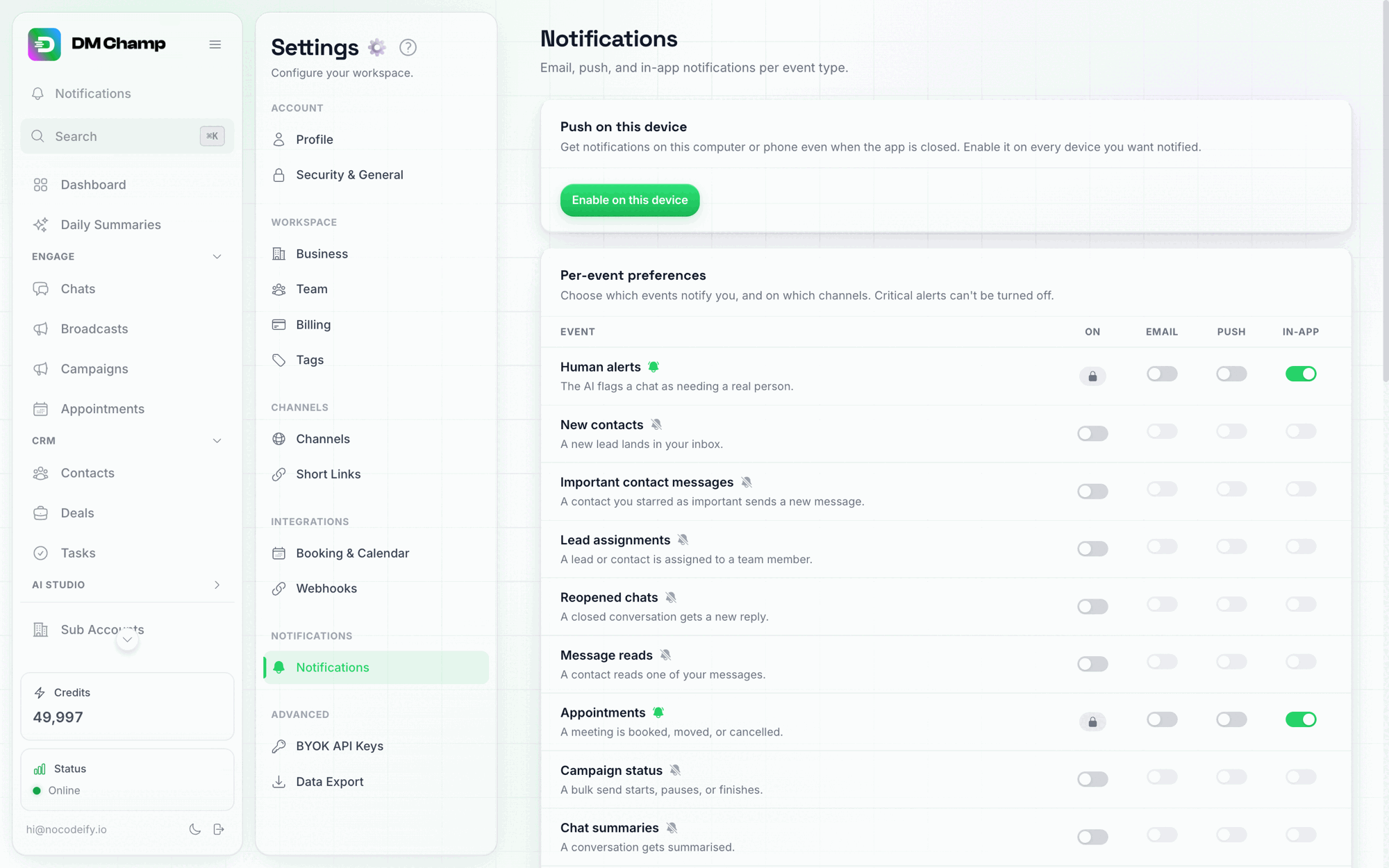
在顶部启用当前设备的推送功能;在其下方,每个事件类别都有单独的一行,配有总开关和各渠道的切换开关。
页面顶部是“在此设备上推送”卡片,用于为您当前使用的设备开启浏览器推送通知。下方是一个表格:每一行代表一个事件类别,包含一个开启开关和三个渠道列——电子邮件、推送和应用内。再下方是用于管理额外电子邮件接收者的卡片。
通知渠道
| 渠道 | 描述 |
|---|---|
| 电子邮件 | 发送到您的账户邮箱(以及您在下方添加的任何已验证的额外接收者)。 |
| 应用内 | 收集在左侧边栏通知铃铛图标下的提醒。 |
| 推送 | 原生浏览器推送通知,包括在将应用安装到主屏幕后的手机上。只要浏览器在运行,即使标签页未打开也能正常工作。 |
您还可以通过 Webhook 将事件路由到外部系统,例如您的 CRM、Slack 频道、WhatsApp 或 Discord。请在 Webhooks 页面单独配置;它不属于本页面的三个切换列之一。
每条提醒的含义: 每封通知邮件都有一个打开按钮,可直接跳转至您应用地址中对应的聊天、任务或设置。对于由代理机构管理的账户,邮件主题和推送标题会以方括号括起的账户名称开头,例如 [Acme Dental] WhatsApp 需要快速重新连接,以便您一眼就能看出这是关于哪个客户的。当消息发送失败时,提醒会说明原因(例如 24 小时回复窗口已关闭)并提供指向该对话的链接。
启用推送: 推送功能需通过页面顶部的“在此设备上推送”卡片按设备启用。点击在此设备上启用并批准浏览器的权限提示——此后,任何开启了“推送”开关的类别都会通知该设备。启用后,卡片会显示发送测试通知按钮以便您确认其是否正常工作,以及在此设备上关闭按钮以仅停止该设备的通知。在您希望接收通知的每台电脑或手机上重复此启用步骤。如果卡片显示通知被阻止,请先在浏览器的设置中允许该站点的通知。
在多个账户中工作的团队成员: 通知属于其发生的账户,而不属于个人。铃铛图标仅显示切换器中当前打开的账户的提醒,但推送通知会发送到设备,无论当前打开的是哪个账户。因此,跨多个账户工作的团队成员应在进入每个账户后,从该卡片启用推送通知(并被添加为每个账户的电子邮件接收者),以便接收所有账户的提醒。每个账户中的 发送测试通知 按钮可确认其是否正常工作。
手机上的推送: 在手机浏览器中打开应用,将其安装到主屏幕(Chrome → 菜单 → 添加到手机,Safari → 共享 → 添加到主屏幕),从主屏幕打开它,然后从同一卡片启用推送。您将在锁屏界面收到原生推送通知,无需通过应用商店。
通知铃铛
应用内提醒位于左侧边栏(移动端为顶部栏)的铃铛图标下。计数器会显示未读通知的数量。
- 点击通知可直接跳转至可进行操作的页面——关于 AI 设置的提醒会打开对应的 AI 智能体,频道断开连接的提醒会打开“频道”页面。打开通知即视为已读。
- 一条消息,一个提醒。 单条传入的消息可能同时符合多个类别(例如,一个已加星标的联系人且其 AI 已暂停,同时符合重要联系人消息和来自已暂停联系人的消息)。您在铃铛图标中只会看到一条条目,并收到一次推送,而不是每个类别各一条:系统会优先显示第一个提醒并携带上下文,因此当 AI 为已加星标的联系人暂停时,提醒会显示“来自 Jane 的新消息(机器人已暂停)”。电子邮件提醒是独立的,并保持其各自的频率设置。
- 关于同一联系人的提醒会一并清除。 一次对话可能会引发多个提醒(机器人暂停时的消息、人工提醒、已读回执),因此它们被视为同一待读事项:点击其中任何一个都会将它们全部标记为已读,并且打开该联系人的聊天窗口也会清除所有这些提醒——包括屏幕上仍显示的该联系人的浏览器推送通知。您无需重复处理同一对话。
- 未读提醒置顶。 您尚未打开的所有内容都会显示在已读提醒上方,每个组内按最新时间排序,因此未读提醒永远不会被已处理的较新提醒挤出视野。打开它(或将其标记为已读)后,它会回到时间轴中。
- 无需打开即可标记为已读。 将鼠标悬停在通知上并点击右侧的勾选图标:它会在当前位置被标记为已读,计数器会减少,而您无需离开当前页面。关于同一联系人的提醒也会在此处一并清除。
- 全部标记为已读可一键清除计数器。
- 使用您的语言。 铃铛和推送提醒使用账户语言(在“账户设置”中设置),与您的通知邮件一致。已存在于铃铛中的提醒将保持其生成时的语言。
- 查看所有通知(位于铃铛底部)可打开完整的通知页面,其中包含一个提醒选项卡——您要求的任务提醒会集中在此处,与订阅源中的其他内容分开。
- 忽略通知:点击勾选图标旁边的 X 可将其永久移除。
有关故障的警报(如频道断开连接、API 密钥失效、关键警报)也会保存在 错误日志 中,并附带代码和修复建议,以便您在通知消失很久之后仍能进行查询。
哪些事件会出现在铃铛图标下,取决于您下方按类别进行的设置:应用内(In-App)列可独立于电子邮件和推送通知来控制每个类别的显示。
通知类别
总共有 23 个通知类别:下表中列出的 22 个,以及仅存在于代理账户中的 新子账户 (New Sub Account)。每个类别都有自己的 开/关 (On/Off) 开关;开启后,还可以针对电子邮件、推送和应用内通知进行分渠道切换。
在代理子账户中,这些开关也控制代理收到的副本:当某个类别的“电子邮件”列关闭时,代理也不会收到该类别的电子邮件(请参阅通知路由)。:::
一些关键提醒会始终保持锁定状态(显示为锁定图标而非开关):订阅更新、信用提醒、自动充值、预约、人工提醒、API 密钥错误和关键警报。这些提醒无法关闭,以确保您不会错过任何可能中断服务或导致经济损失的重要事项。
完整类别列表如下:
| Category | What it covers |
|---|---|
| Human Alerts | The AI flags a conversation for human attention — a contact asks for a person, or the bot hits something it can’t handle. Always emails you (your account email plus any verified recipients), and also lands under the bell and — if Push is on for this category — as a browser push, each linking straight to the chat that needs you. |
| New Contacts | A new lead lands through any inbound channel — a WhatsApp or SMS message, an Instagram or Messenger DM, a comment on one of your posts that starts a DM conversation, or a website chat widget visitor. It does not fire for contacts you add by hand, import from a file, or create through the API, or for a message the Spam Filter marks as spam. |
| Important Contact Messages | A contact you’ve starred as important sends a new message. Star chats from the inbox (the star on the chat row or in the conversation header) so key customers and hot leads never get buried — see Marking Chats and Messages as Important. Delivered to the bell and Push only, never by email, and repeated messages from the same contact within a few minutes group into one alert. |
| Lead Assignments | A lead is assigned to a team member (by hand or by round-robin auto-assign). Sent to the assignee only, not the whole recipient list — emailed to their own login address, and also shown under their bell and as a browser push if they’ve enabled Push for this category, each linking straight to the assigned chat. It doesn’t fire when you assign a lead to yourself. |
| Reopened Chats | A previously resolved or paused chat gets a new message. |
| Message Reads | Contacts read your messages, on channels that support read receipts (WhatsApp, Instagram, Messenger). Delivered to the bell and Push only, never by email — an inbox full of read receipts would drown out everything else — and repeated reads in the same chat within a short window group into one alert. |
| Appointments | New bookings, cancellations, or modifications through the booking system. |
| Bulk send status | A bulk send starts, pauses, or finishes. |
| Automation Failed | An automation run fails, for example because a step’s app rejected the request or a required value was empty. The alert names the automation, shows the error, and links straight to that run in the automation’s run history. If the same automation keeps failing, you get at most one alert for it every 6 hours (and at most 10 automation alerts a day in total), so a looping automation can’t flood your inbox. You also get one when an automation is switched off automatically because it was triggering itself in a loop. Test runs you start from the editor never send it. |
| Broadcast Status | A broadcast finishes sending a batch, completes, or is paused — so you know a scheduled send is progressing without watching the page. |
| Chat Summaries | The AI has written an automatic recap of one conversation (not the daily roundup — that is Daily Summaries). A conversation is summarised once it has been quiet for 48 hours; with this category switched on, the summary is written at that moment. Turn on Email to receive the full summary by email (to your account email and any verified recipients); the bell and Push carry a short excerpt and link to the chat. Very short conversations (fewer than about 30 messages) are not summarised. |
| AI Paused Messages | The AI pauses on a conversation and needs human review. The alert shows what the contact actually said and links straight to that chat. |
| Messages from Paused Contacts | A contact whose bot is already paused sends a new message — since the AI stays silent while paused, this catches messages that would otherwise slip through unanswered. The alert shows what the contact actually said, so you can tell from your lock screen whether it needs you right now. |
| Do Not Disturb | A contact asks not to be messaged — for example by replying STOP, or by asking the AI to remove them from your list. Messaging to that contact pauses automatically, and the alert tells you who opted out and why. Delivered to the bell and Push only. |
| Contact Unarchived | A previously archived contact sends a new message. |
| Tasks | CRM task activity — assigned to you, due soon, or moved stage. This is also the category your task due reminders arrive on (set a due time and a Remind me option on the task); the reminder arrives in your account language with the due time in your own time zone, and its wording can be rewritten under Settings → Email Templates like the other task emails. A task you create yourself by hand does not send you a new-task alert (you were there when it was made) unless you assign it to another team member; tasks created by the AI, an automation, the API or a human alert still do. A new-task alert clears itself the moment you open the task or complete it, so you never have to tick it off in the bell, and completing a task does not send a separate notification. Requires the Tasks feature (on by default). |
| Credit Alerts | Your credit balance is running low. Always on. |
| Auto Recharge | An auto-recharge fires to top up your balance. Always on. |
| Subscription Updates | Renewals, plan changes, payment failures, expirations. Always on. |
| Template Approvals | A WhatsApp template is approved, rejected, or needs changes from Meta. |
| WhatsApp Status Changes | Your WhatsApp connection status changes — a WhatsApp Web session disconnects, or your Business API status updates. This category also carries two sending-safety alerts: a number reached its daily message limit (at most one per number per day; further messages from it, AI replies included, wait until the limit resets at midnight UTC), and identical opening messages to new contacts were blocked on a WhatsApp Web number, or were sent from the phone itself (at most one per number per 24 hours). |
| Tool errors | An MCP server tool or custom function failed 3 times within 24 hours while your AI agent was chatting. One alert per tool per day, naming the tool, the last error and the affected chats. |
| Autopilot morning digest | Shown only when the cold email autopilot is on for your account. One email around 08:00 in your time zone, on mornings after the autopilot was busy: how many emails went out yesterday, who replied (up to 10 leads, each with a one-line preview and a link straight to the conversation), which replies look interested, and any sending mailbox that needs a look, for example one paused because too many emails bounced. Nothing is sent after a quiet day. Email only. |
| API Key Errors | Automated connections to your account fail — for example, your own AI provider key stops working (your bots keep running on the platform’s keys in the meantime). Always emails you, and also appears under the bell and via Push if enabled, so a broken key can’t hide in your inbox. Always on. |
| Critical Alerts | Important account-level notices that don’t fit any other category. Always on. |
代理账户在创建或注册子账户时也会收到新子账户提醒。始终开启。
当您通过 Stripe 进行的客户计费停止工作时,代理账户还会收到 Stripe 连接问题 提醒:您的 Stripe 密钥被拒绝(过期、撤销或删除)、您的 Webhook 端点缺失或被禁用,或者 Stripe 发送的事件从未到达我们这里。在此期间,您客户的续订和充值仍会在 Stripe 中扣费,但他们的额度和套餐变更不会被记录,因此提醒会告诉您具体需要修复什么,并链接到您的 SaaS 模式设置。系统会每天检查一次,并在每次 Stripe 调用失败时检查,问题持续期间每天最多重复一次。始终开启。
设置提醒
与上述类别不同,本页面上的 设置提醒 卡片会在某些情况导致您的 AI 智能体无法响应时(例如未连接渠道或智能体无法回复任何人),向您发送简短的 WhatsApp 消息或电子邮件,并提供修复步骤。它拥有独立的开关。请参阅 设置提醒。
发送给聊天插件访客的电子邮件
当您或您的 AI 回复网站聊天插件上的某人而对方已离开页面时,访客可能会收到一封邮件,告知他们有未读回复,并附带返回对话的链接。该邮件会在您回复 15 分钟后发送,且仅在访客届时未查看且留下了电子邮件地址的情况下发送。
此邮件发送给您的 访客,而非您本人,因此它在本页的 聊天插件访客 卡片中有独立的开关:当聊天插件访客有未读回复时发送电子邮件。将其关闭后,访客将永远不会收到此邮件;您自己的提醒不受影响。
在您操作该开关之前,它遵循您的 消息已读 行设置(这是此邮件过去受控的方式),因此在您进行设置之前,对您而言没有任何变化。
电子邮件通知接收者
默认情况下,通知会发送到您的账户电子邮箱地址。您可以添加更多接收者,以便其他人也能收到相同的广播提醒。
团队成员不会自动添加到此处。 邀请某人加入您的团队并不会让他们自动订阅“新联系人”等广播提醒。他们会自动收到分配给他们个人的“潜在客户分配”邮件。如果您希望他们也能收到更广泛的提醒,请在下方添加他们的地址。
产品更新邮件(功能公告)也仅发送给账户持有人。如果团队成员也需要接收这些邮件,请在他们的收件人行中开启 产品更新(请参阅 收件人的产品更新)。
添加接收者
- 在“通知”页面,找到接收者卡片并点击 添加邮箱。
- 输入电子邮箱地址。
- 我们会向该地址发送一个 6 位数的验证码(有效期 30 分钟)。
- 在应用中输入该邮箱旁边的验证码——验证通过后,他们即可开始接收通知。如果验证码过期,请再次点击 添加邮箱 以重新发送。
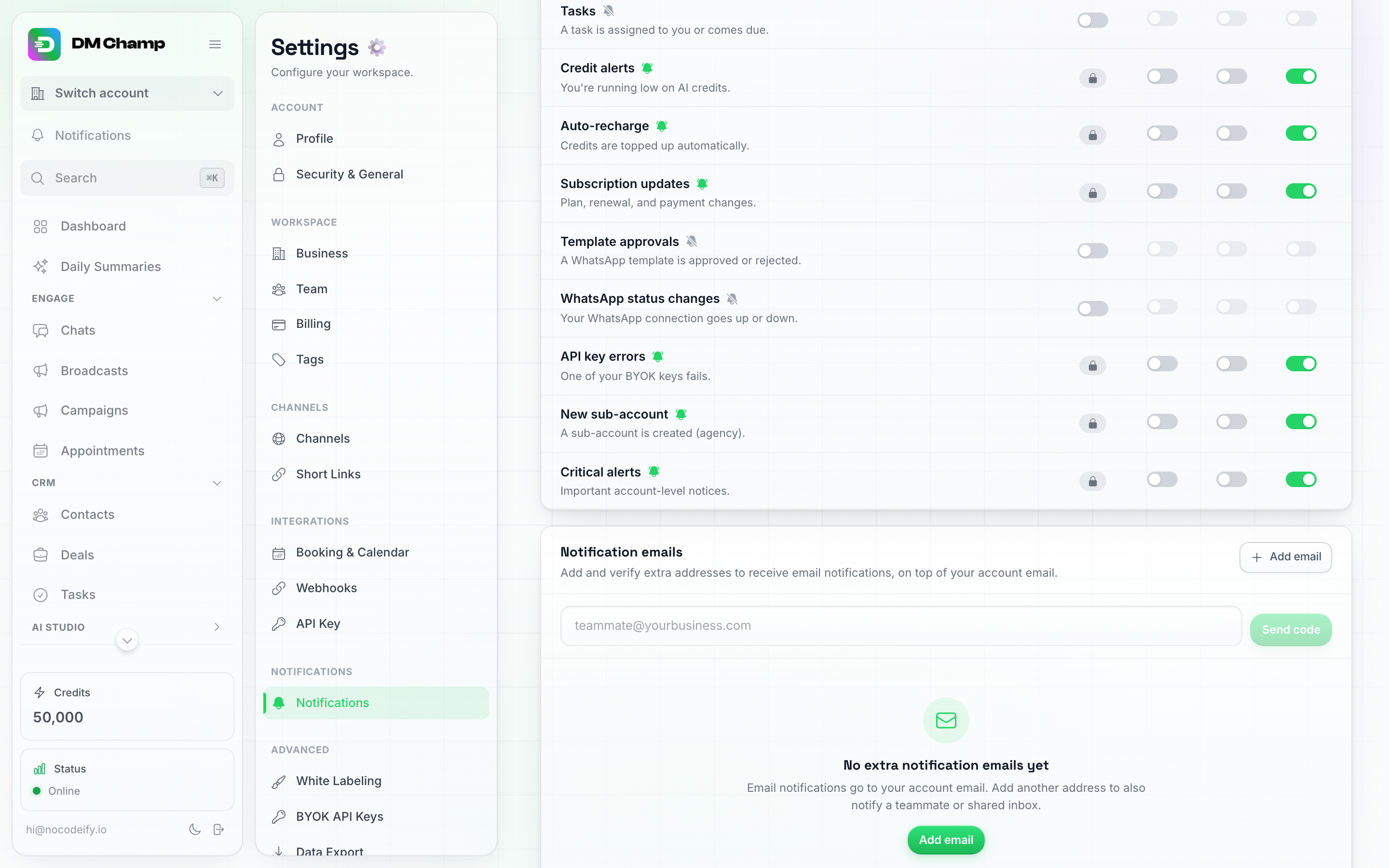
点击“添加电子邮件”打开此内联字段,输入地址并点击“发送验证码”——验证步骤直接在此页面完成。
您可以添加多个接收者。每位接收者都有自己的一套类别订阅设置,验证后可通过其所在行旁边的 类别 按钮进行调整。
收件人的产品更新
通知邮件是关于您个人账户的提醒。产品新闻(关于 DM Champ 的新功能和变更)是单独的邮件,通常仅发送给账户持有人。若要将其同时发送给其他地址,请在该收件人行经过验证后,开启 产品更新。
- 它跟随您的账户:只要您的账户处于活跃状态,收件人就会以您的账户语言收到与您相同的公告。
- 关闭该选项或移除收件人,该地址将停止接收公告。提醒功能不受任何影响。
- 收件人可以通过任何公告底部的链接取消订阅产品更新。再次开启该选项不会重新订阅已取消订阅的用户。
- 您的登录邮箱不会显示此开关(您已会收到更新),而作为其他独立账户登录名的地址将通过该账户接收更新。
移除接收者
点击任何电子邮箱地址旁边的垃圾桶图标,即可停止向其发送通知。
全部开启或关闭
每个类别都有自己的“开启”开关。没有单一的“全部禁用”按钮——您可以单独切换类别,或者在度假等安静期间,保留关键类别(无论如何都会始终开启)作为您的安全网。
提示
- 首先实时关注“人工提醒”和“额度提醒”,以便您能快速响应。
- 将您的支持团队添加为“人工提醒”的电子邮件收件人,确保始终有人跟进。
- 如果您的团队主要使用 Slack、Discord 或 WhatsApp 而非电子邮件,请将“人工提醒”路由到 Webhook——聊天提醒比已满的收件箱更容易被注意到。请参阅 Webhooks。
- 如果您不想让每条消息都进入收件箱,请将“新联系人”设置为仅“应用内”通知。(“消息已读”本身就不会发送电子邮件。)
后续步骤
- 账户设置 — 管理您的个人资料和安全性。
- 设置提醒:当某些情况导致您的智能体无法响应时发送消息。